

- Auto assignation to a workflow, account manager or payment method depending on the custom field value using Smart Rules (for customer/invoice fields)
- Deeper filtering from list views
- Deeper segmentation on the analytics tab
Creating custom fields in NetSuite
Upflow supports the import of custom fields from NetSuite for customers, invoices, contacts, payments, and credit notes/memos. Learn how to create a custom field in NetSuite in the instructions outlined here.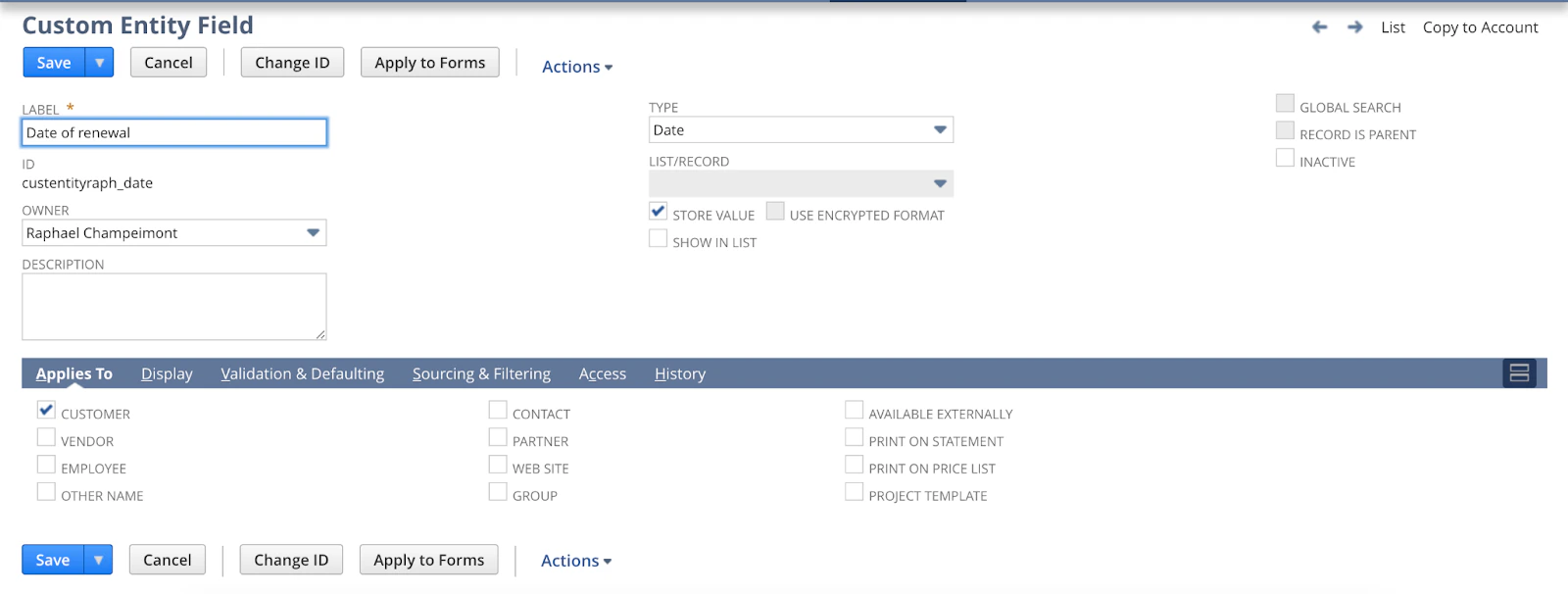
Custom fields requirements
Customer level custom field : For the custom field to apply to customers, the “customer” checkbox needs to be checked. Otherwise, it will be ignored by Upflow. Invoice level custom field : For the custom field to apply to invoices and be available in Upflow, it must be within the “classification” section. The field must be created as a Transaction Body field and have no “subtab” under the Display section.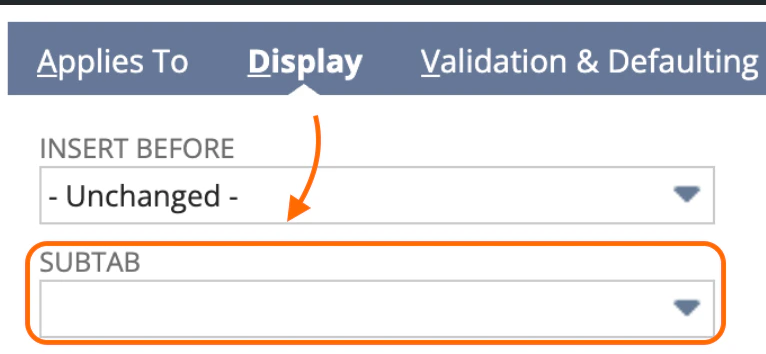
Supported custom field types
Native NetSuite fields or custom fields you have created in NetSuite can be imported into Upflow provided they are one of the supported field types. Supported NetSuite custom field types include the following:- Checkbox
- Date
- Date/time
- Decimal number
- E-mail address
- Free-form text
- Integer number
- List record
- Long text
- Multiple select
- Percent
- Phone number
- Text area
Native custom fields
You can also import native fields from NetSuite in addition to the custom fields that have been defined. These fields are native in NetSuite, but they are still specific to NetSuite, so they are considered “custom” to Upflow.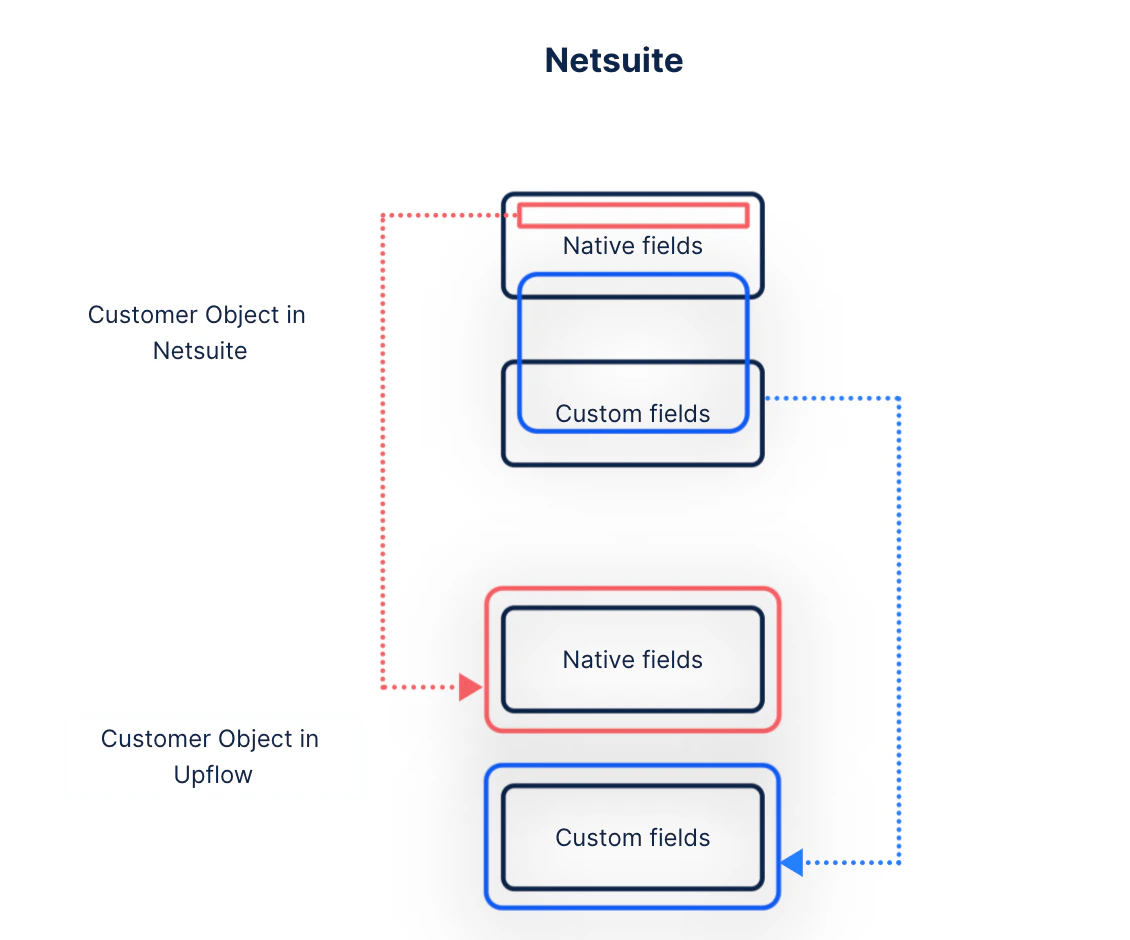
List of supported native customer fields:
- External ID*
- Category
- Status
- Entity number
- Entity ID
- Sales Rep
- Terms
- Primary Currency
- Receivables Account
- Taxable
- Partner
- Comments
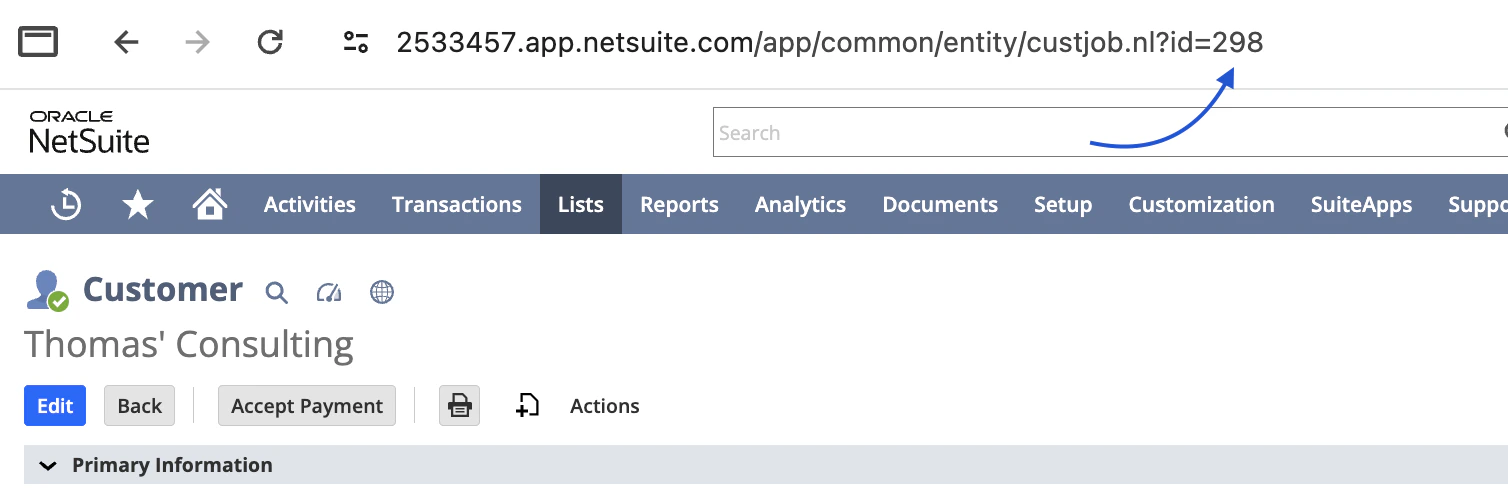

List of supported native invoice fields
- Amount Remaining
- Approval Status
- Exchange Rate
- Project
- Memo
- Customer Message
- Start Date (Advance Billing)
- Status
- Custom Form
- Created From
- PO/Check Number
- Opportunity
- Posting Period
List of supported native contact fields
- Contact role
- Contact category
- Creation date
- Supervisor
- Assistant
Importing custom fields in Upflow
Custom fields defined in NetSuite need to be enabled in Upflow settings to become visible in Upflow. You can do this in Settings → Custom fields. Note that NetSuite provides the schema, so you can choose from a drop down selection.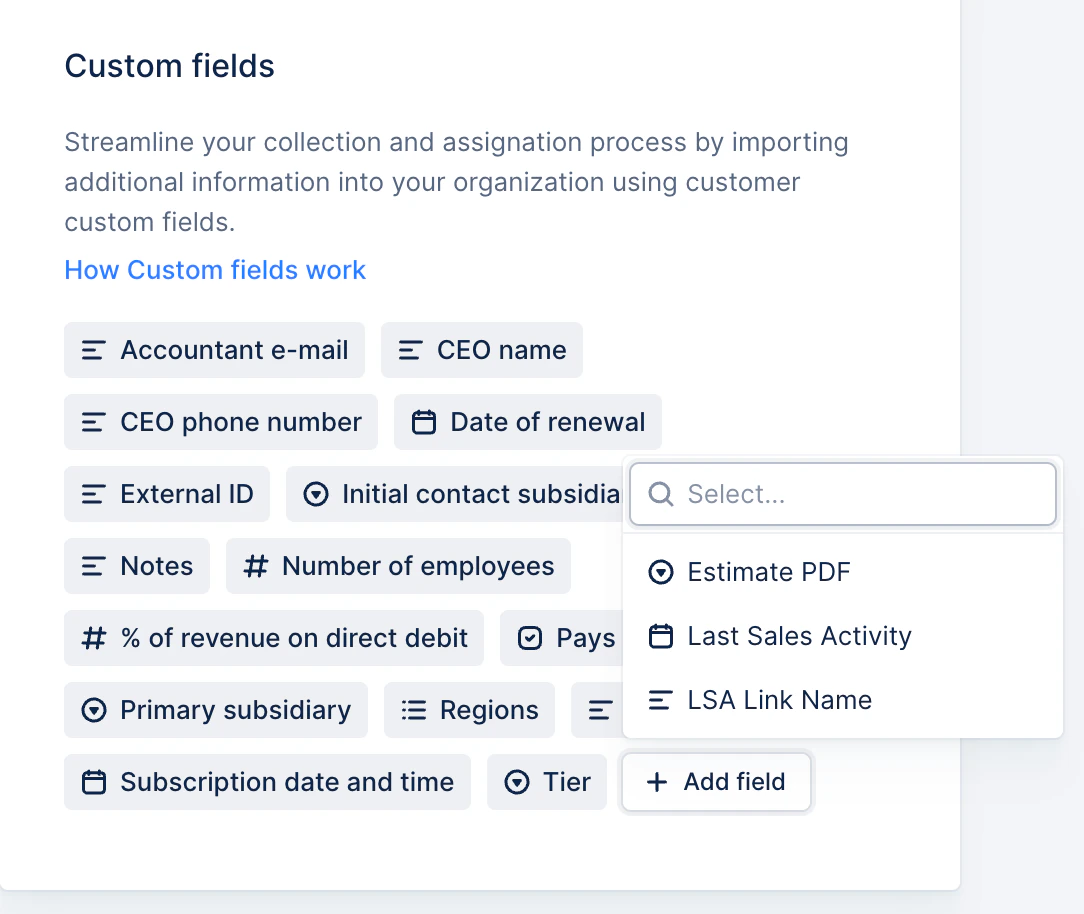
Notes:
- Upflow does not allow the import of customer custom fields as contacts. If you have, for example, “Client billing email address” as a customer custom field in NetSuite, you will need to create a contact with that email address in NetSuite.