To intentionally disconnect NetSuite from Upflow, revoke the Upflow access tokens in your NetSuite account. Once revoked, Upflow can no longer read from or write to NetSuite, and a red disconnection banner appears in each affected Upflow organization. Use this page when you want to stop the sync on purpose (for example, migrating to a different NetSuite instance or offboarding the integration). If your integration was disconnected unexpectedly and you want to restore it, see Reconnect NetSuite to Upflow instead.

Before you disconnect

  • You need NetSuite admin rights to revoke access tokens.
  • Disconnecting stops all NetSuite ↔ Upflow syncing. Data already synced to Upflow stays in Upflow.
  • If you sync the same NetSuite account into multiple Upflow organizations, revoking the tokens affects every organization that uses them.

Revoke the Upflow access tokens in NetSuite

  1. In NetSuite, open your Access Tokens list.
  2. Search for the Upflow integration. If several Upflow entries appear, only the most recent one is in use; the older entries are no longer relevant. NetSuite Access Tokens list filtered on Upflow
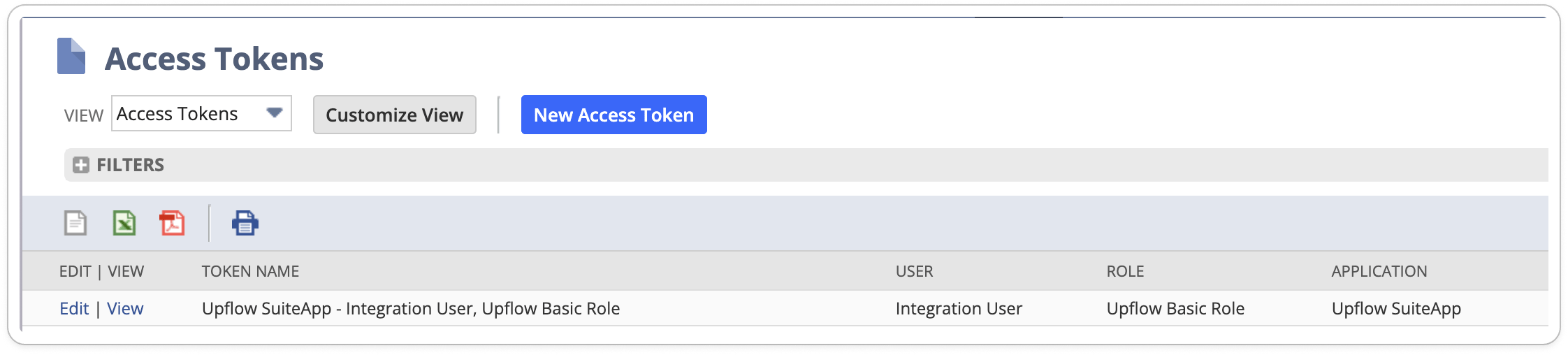
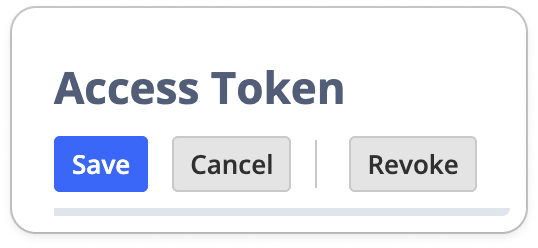
  3. Click Edit on the active Upflow token, then click Revoke. Revoke button on the Upflow access token edit screen
Confirm the disconnection in Upflow

After the token is revoked, each Upflow organization that used it shows a red disconnection banner: Red NetSuite disconnection banner in Upflow The banner confirms Upflow is no longer syncing with NetSuite.

Reconnect later

To resume syncing (same NetSuite account or a different one), generate new tokens and add them in Upflow by following Reconnect NetSuite to Upflow.