Documentation Index

Fetch the complete documentation index at: https://docs.upflow.io/llms.txt

Use this file to discover all available pages before exploring further.


💡 This short video will guide you through the configuration!

Let’s take 10 minutes to connect your NetSuite instance to Upflow. As soon as your financial objects (invoices, customers, contacts…) are synced with your organization, you will be able to initiate your cash collection!\
Before kicking off the configuration of the integration, please confirm you have:
  • admin rights on NetSuite
  • your user profile is English US
  • created an Organization on Upflow
Note: Upflow only supports NetSuite OneWorld instances.

Ensure my NetSuite setup is compliant

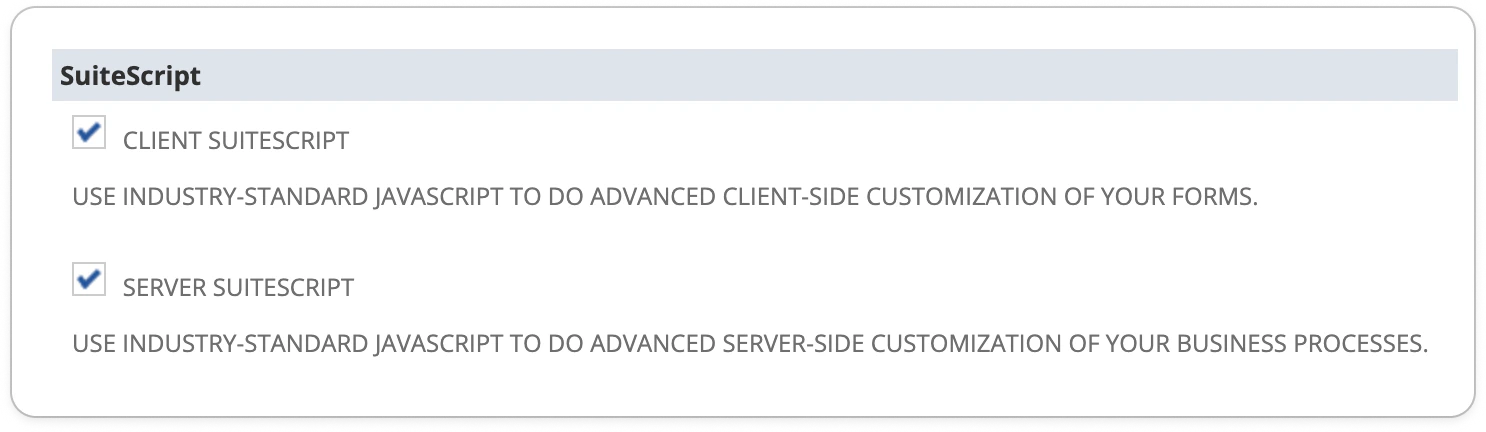
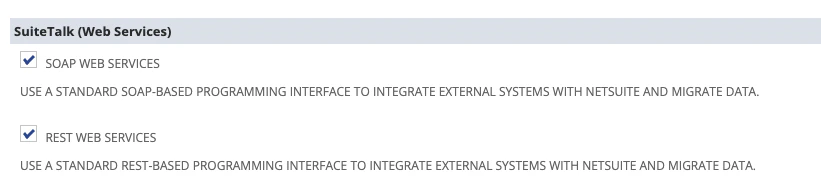
For the integration to Upflow to work smoothly, make sure you enable the following features. Start by accessing the Setup page of your NetSuite configuration panel: …and click on SuiteCloud (in the features menu): Find and enable the following options by ticking their boxes.
SectionFeature
SuiteScriptClient SuiteScript
Server SuiteScript Server SuiteScript checkbox
SuiteTalk (WebServices)SOAP Webservices
REST Webservices REST Webservices checkbox
Manage authenticationToken-Based Authentication Token-Based Authentication checkbox
Click on Save at the bottom of the page. Still in the Setup, access the Analytics page from the top bar and enable:
SectionFeature
SuiteAnalytics WorkbookSuiteAnalytics Workbook SuiteAnalytics Workbook checkbox
Once again, don’t forget to click on Save!
💡 You can use shortcuts to speed up the search for a feature: Windows (ctrl+f) or macOS (cmd+f).

Install Upflow SuiteApp

You are about to grant Upflow access to the information to be displayed across your organization and used for your cash collection (trigger your workflows, reach out to the right parties, etc). Search Upflow in your NetSuite Suiteapp marketplace (or access this link). Click Install to launch the process, and follow the guidelines until its completion (confirmed by a green checkbox displayed on the right hand of your screen). Upflow SuiteApp listing in the NetSuite marketplace If you get an error when clicking Install, check the above features were enabled first in the Setup tab.
Configure your integration

  1. Start with assigning the Upflow Basic role role to the teammate of your choice:
  • This user must be Admin in NetSuite
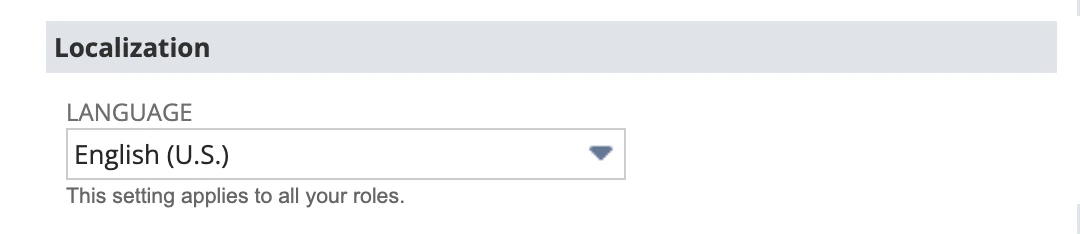
  • Their language settings must be set to English US on NetSuite. Otherwise, sync issues may occur as a result.
We recommend using an Admin generic account dedicated to integrations or your Finance process, to avoid disruption with the sync if the related user leaves the company, for example.
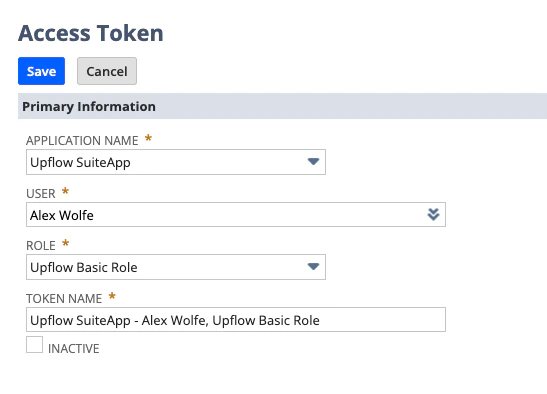
  1. Access this page and click on New Access Token before picking Upflow SuiteApp. Fill in the following parameter
NetSuite Access Token form
  • Application name: Pick Upflow SuiteApp Upflow SuiteApp option in the Application name dropdown

  • User: Select the user you just assigned Upflow Basic Role.
  • Role: Upflow Basic Role (this option will not be available before you pick the user).
  • Token name: Write one that suits you.
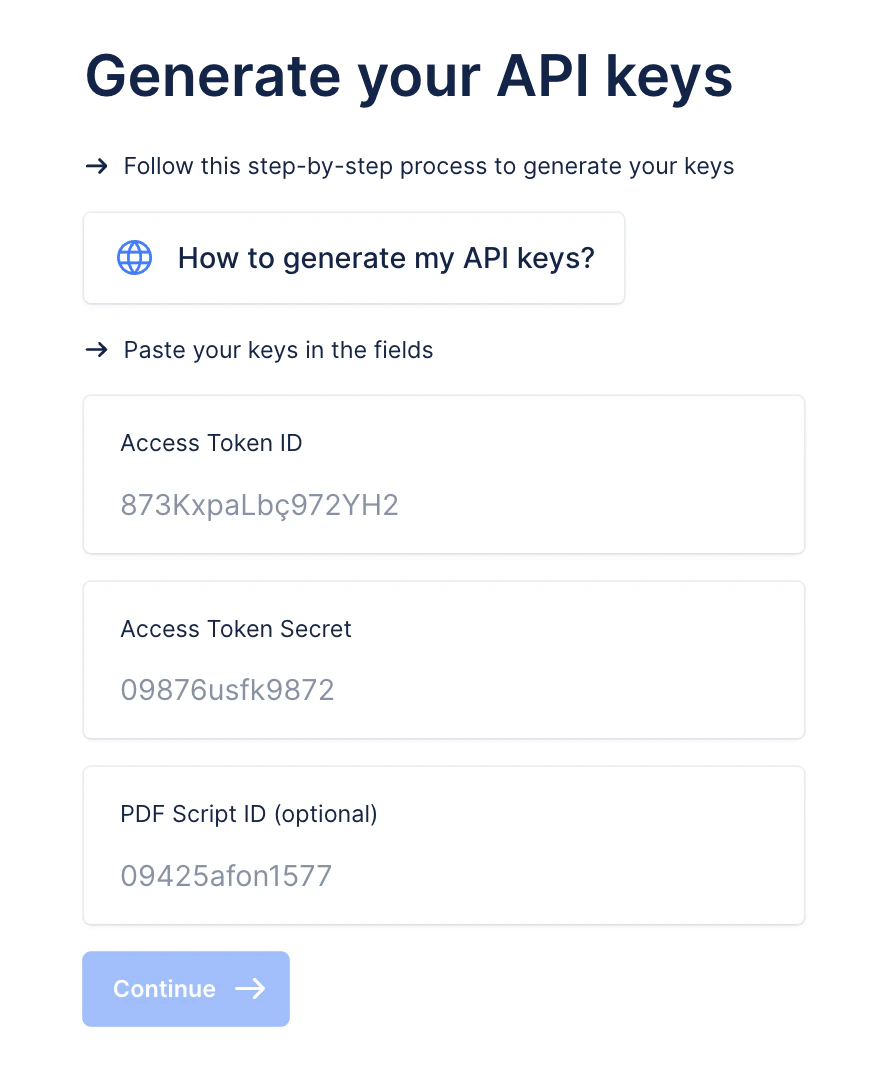
  1. Click on Save to finalize the process and display your API key-related information (Access token ID and Access token secret). Write them down: you will be asked to provide them during your Upflow onboarding and once the page is closed or refreshed, they’ll be lost.

Almost there

Generate your API keys form in Upflow Go back to your Upflow organization and select NetSuite as the tool you want to integrate it with. When requested, share your NetSuite account ID, before filling in the Access Token ID and Access Token Secret you generated earlier. The PDF Script ID is a legacy from a former version of our integration and is now automatically taken care of by our app. You thus do not need to populate it anymore. Time to move to setting the objects you want your team to access on Upflow!

Include your subsidiaries

To make the most of the features available to you in Upflow, you should configure Upflow following the 1:1 rule, i.e. 1 Subsidiary = 1 Organization. This means that if you have 3 subsidiaries in NetSuite, you should create 3 Organizations in Upflow. We also recommend creating a consolidated parent organization in Upflow for reporting purposes. Perform the same NetSuite setup for each organization in Upflow, selecting the corresponding subsidiary when presented with the page above. You will manage your workflows and actions across your separated Upflow organizations. Follow the steps outlined above to create multiple organizations. To add a new organization follow the steps outlined here. If you want to add or remove subsidiaries, submit a Support request at the top. You can learn more about NetSuite subsidiaries in this help article: NetSuite Subsidiaries in Upflow. Click on Continue, and let us guide you through the end of the process. Et voilà ! The sync is now launched and can take up to several hours. In the meantime, you can invite your teammates to join your organization or configure your first workflow!
Upgrading your app

Follow the same steps as during your initial installation. The only difference lies in the Marketplace button, now named Upgrade.