

Actions To do list
The To do list (or tab) will only display manual actions that are assigned to you, only or partially. They will be displayed in the list from the moment they’re due. Pending manual actions are all available under the “All” subtab, and you can then check each type per source: Reminders, Replies, Billing, Campaigns.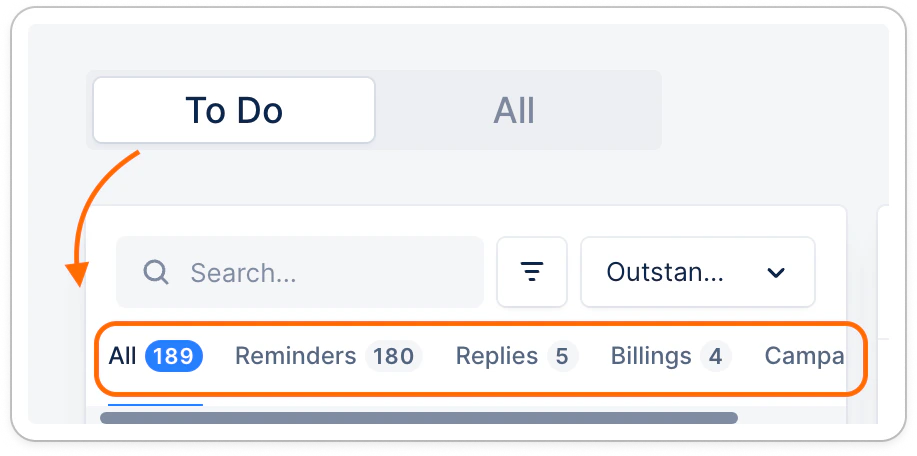
Filter manual actions
You can filter pending manual actions per Type (email, letter, task, call, sms), workflow name, workflow type (invoice vs customer level), or campaign name (if turned manual - learn more).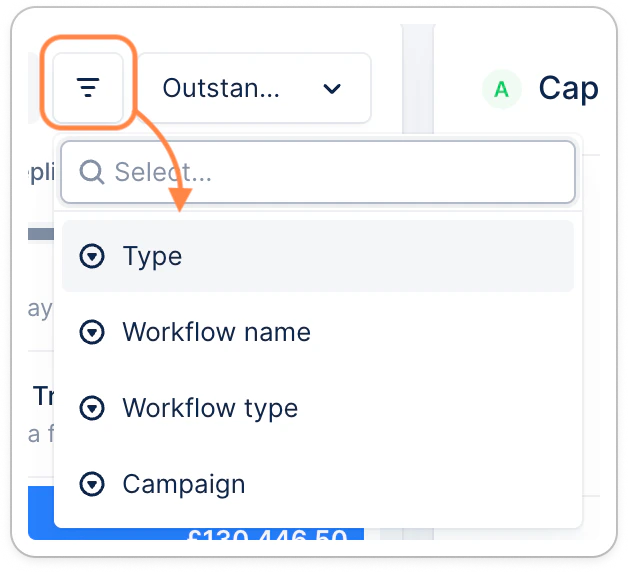
Sort manual actions
You can also sort them based on the customer (or invoice, if invoice-level reminders) outstanding amount, overdue amount or Action due date (Descending):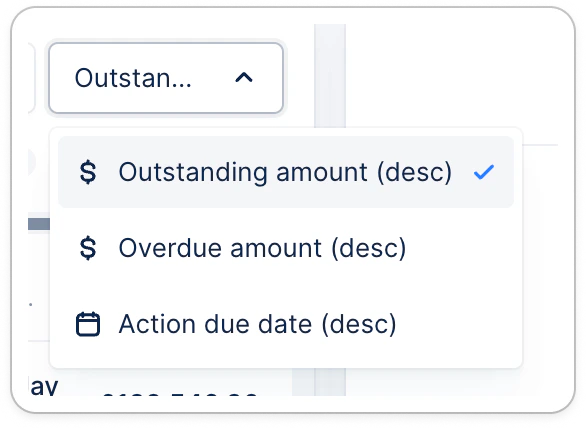
Manage my manual actions
You can click any actions in your To do list, edit them as needed (1), then either Ignore it (2) or perform it (3). (1) You can edit the action content, contacts, email sender, etc. As well as the full template proposed. Click the pending email’s type, and select one of the templates from your Workflows: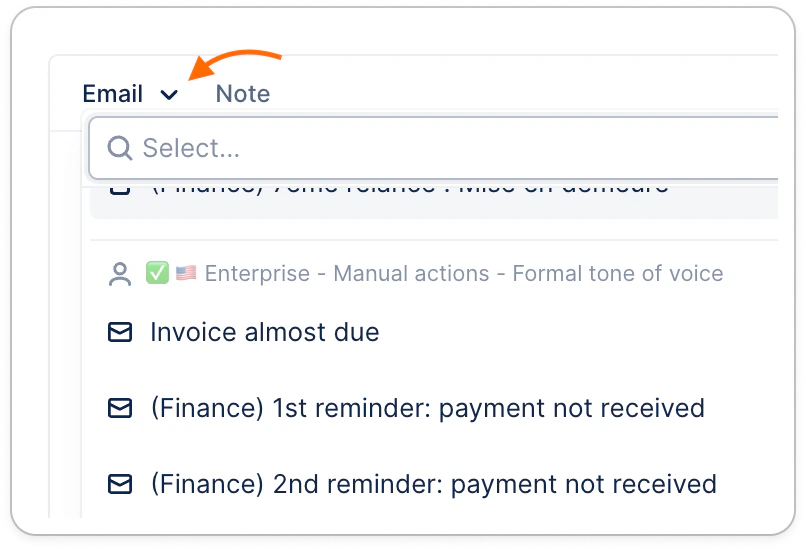
Actions > All
This view is more complete than the To do list. Here, you’ll be able to review all actions for each customer, regardless of their status or due date. The default view is filtered on “Action state contains Done”, but you can change it at any time: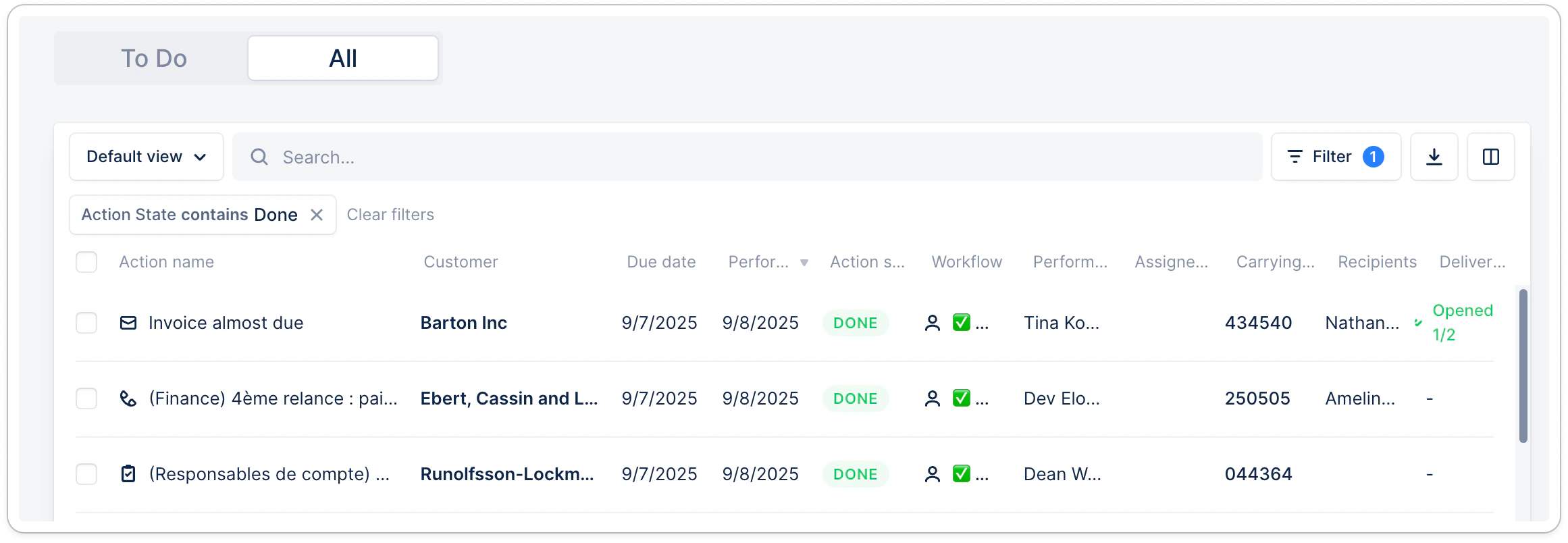
Filter and sort my actions
You can filter your actions as needed, add or remove columns, reorder them, and sort some of them.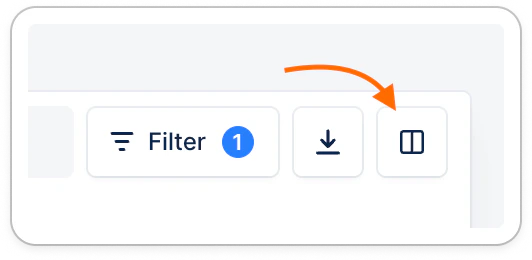
- For more details on how to use your list views, refer to Your Upflow list views.
Read/understand my actions list
Action name: matches the related workflow template, ad hoc action type, or campaign name the action is triggered from. Customer: displays the customer name the action is for. If you have a customer hierarchy in Upflow, it’ll show the exact entity name (parent/child) the action is for. Due date: this one is a bit more specific, based on the action source. For ad hoc or campaign actions, it’ll match the creation date. For workflow billing actions, it’ll match the related invoice’s issue date (cf. Send invoices from Upflow ✨) For workflow actions, an action’s due date is the latest of:- Template schedule — the action’s configured offset from the invoice due/issue date. In other words, it’s based on the invoice’s issue or due date + the template trigger time.
- Contact cooldown — or “Minimum contact delay” of the related workflow. The next action won’t be scheduled until the minimum number of days since the last time the customer was contacted (this can override the invoice-based date entirely)
- Pause end date — if collection is paused, no action is scheduled before it lifts
Action State specificities
- Done: the action was successfully performed. For email and letter actions, you can also check the Deliverability status for more insights. An email successfully performed in Upflow might still experience delivery issues (cf. learn more).
- Failed: the action failed to be performed. Please check the customer timeline for more information, and reach out to our Support team if you need further information.
- Ignored: one of your collaborator manually ignored (skipped) the action. You can see who from the “Performed by” column.
- In progress: the email action was sent, but shows In progress. This means the email is being processed and sent in the background by our provider. While the message is being queued and handed off to our email provider, the status stays In progress. It updates to Done (or failed) typically within a few seconds up to ~1–2 minutes to update. This usually
- To do: the action was created by our system and remains to be performed. You can rely on the additional information from the view, to better understand which action this is, for which customer, when it is due, etc.
Check/filter specific actions
Using our filters (see full list here), you can check actions as needed:- See only actions that are late and should have been performed > filter on “Actions state contains To do” + “Due date is on or before today’s date ”.
- See only actions that are due today > filter on “Actions state contains To do” + “Due date is today’s date ”.
- See only actions to come in the next few days or weeks > filter on “Actions state contains To do” + “Due date is on or after today’s date ” / or / “Due date is between this and this date ”.
- etc.