

Smart Rules automate your manual tasks by leveraging an event-based engine. With Smart Rules, you can trigger actions based on specific events and conditions, simplifying your processes and saving time. You can access all your rules from here.Documentation Index
Fetch the complete documentation index at: https://docs.upflow.io/llms.txt
Use this file to discover all available pages before exploring further.
What is a rule?
A rule is a combination of:- An entity: what is impacted by the rule (e.g. customer, invoice)
- A trigger: when is the rule triggered (e.g. Customer is created)
- A filter: what conditions should the entity meet (e.g. Country = US)
- An action: what should be done (e.g. Send a notification)
Creating a rule
To create a rule, head to your Smart rules section and hit the New rule button.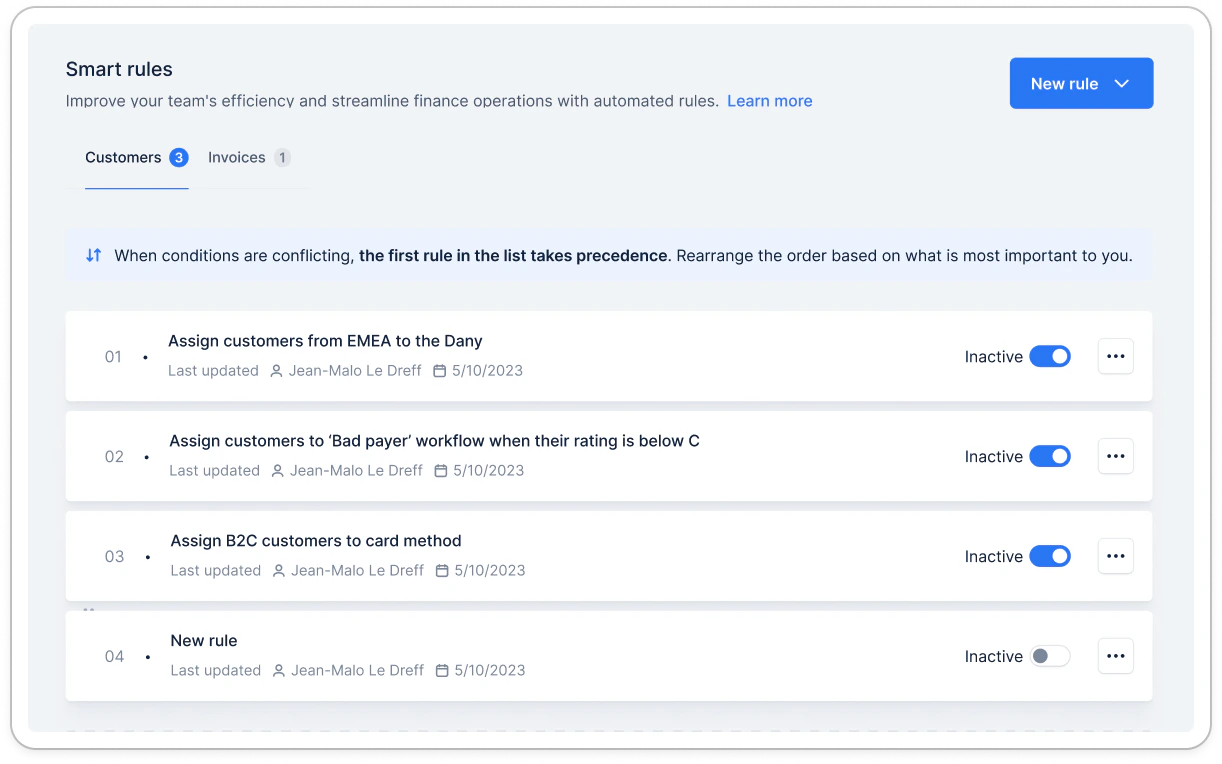
Activating a rule
Each rule can be activated or deactivated according to your needs. To do this, use the toggle in the smart rule list: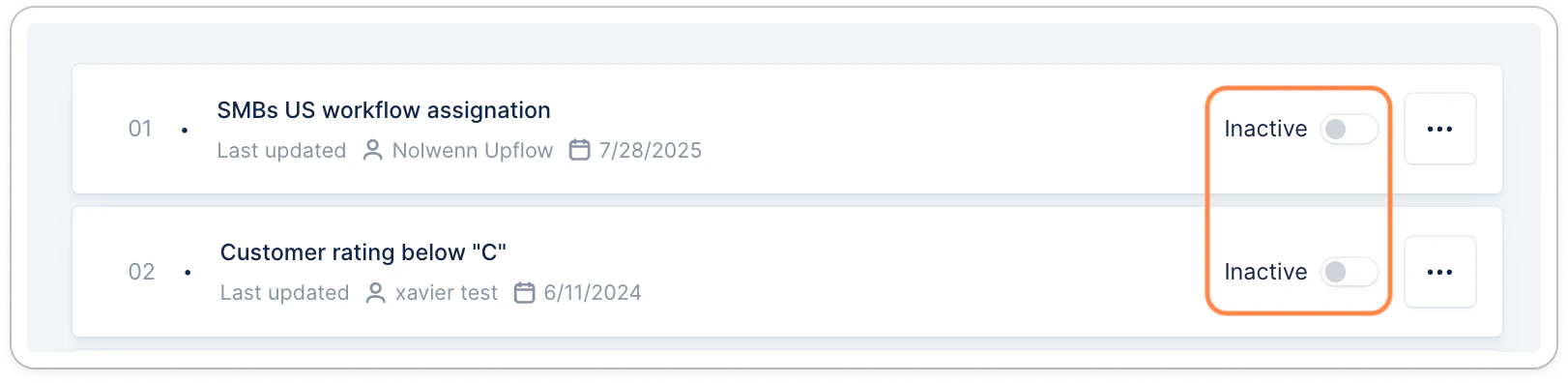
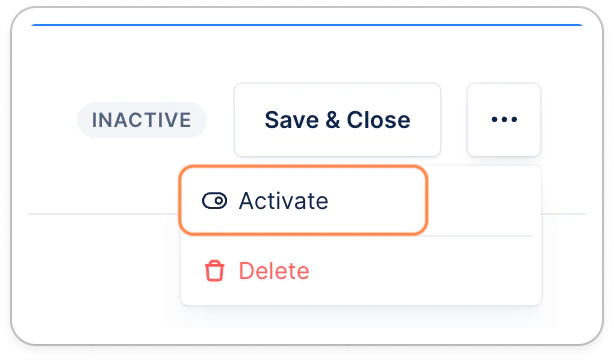
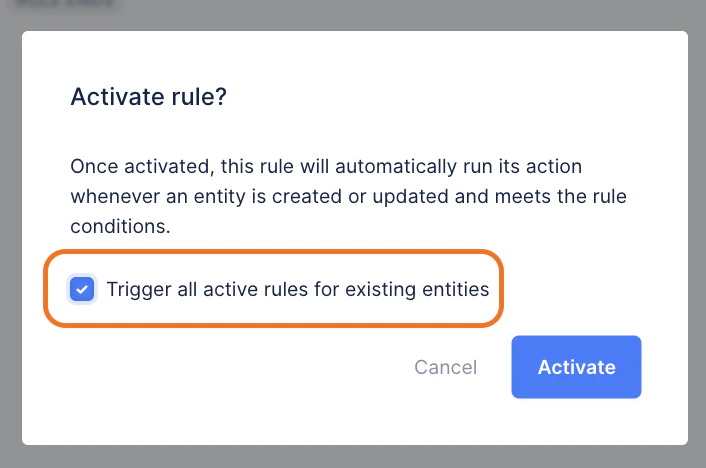
Editing and deleting a rule
You can edit any rule after it’s been created. However, proceed with caution, if you make changes and save them while the rule is active, the rule will stay active and immediately start functioning based on the updated parameters. You can delete a rule from the details view.
Rule hierarchy - managing multiple rules
You can create as many rules as you need. When conditions are conflicting, the first rule in the list takes precedence. You should therefore place your most important rule at the top of the list. You can easily reorder the rules by dragging and dropping them to fit your needs.Isolate customers from being impacted by rules
It’s not possible to ensure a customer is never impacted by a rule, especially if they met some rules’ conditions. The solution is actually… a smart rule! The rule’s conditions depend on what you need for them. Let’s say you need these customers to have no workflow assigned, or a specific one.- Create an Upflow custom field (or from your source of truth), such as Boolean type (True/False), named “Smart Rules”, for example.
- Create a smart rule in Upflow and ensure it’s at the top of the list.
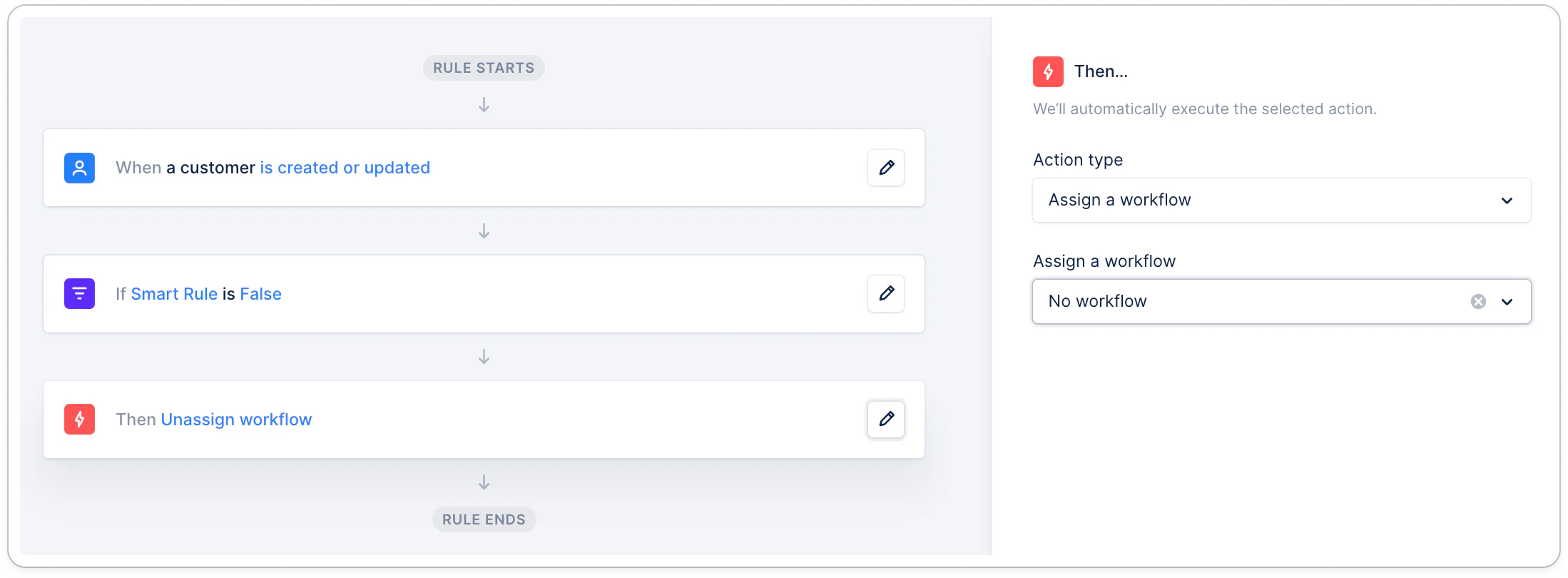
- Save and activate it!
- Head to your Customers list view, select all customers concerned by this rule, and mass update the Smart Rules field with the value “False”.