

Initial Sync
Once you’ve created your Upflow account, named it, and selected your timezone, click Connect under Pennylane, and authorize access to your Pennylane account. Your data will then begin syncing. After the initial synchronization, Upflow performs incremental syncs every 10 minutes. These syncs only process supported data creations or updates to ensure data accuracy and eliminate discrepancies.What data is synced to Upflow
Clients
If the customer is a Company, the name displayed in Upflow will be based on the Company field under Customer Contact Details. If the customer is an Individual, the name displayed in Upflow will be based on the First Name and Last Name fields in that order.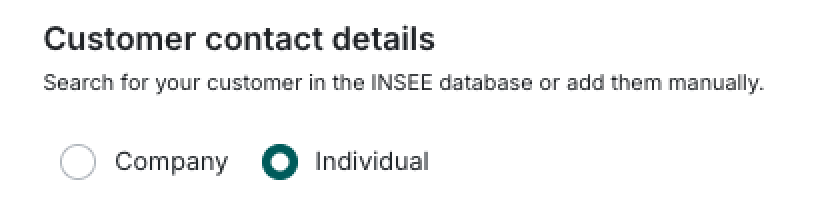
Good to know
- We import the billing postal address to Upflow, which can be used for sending postal mail.
Native fields synced
Certain native fields are synced to Upflow as custom fields.Contacts
We sync contacts found in the “Email address (optional)” field.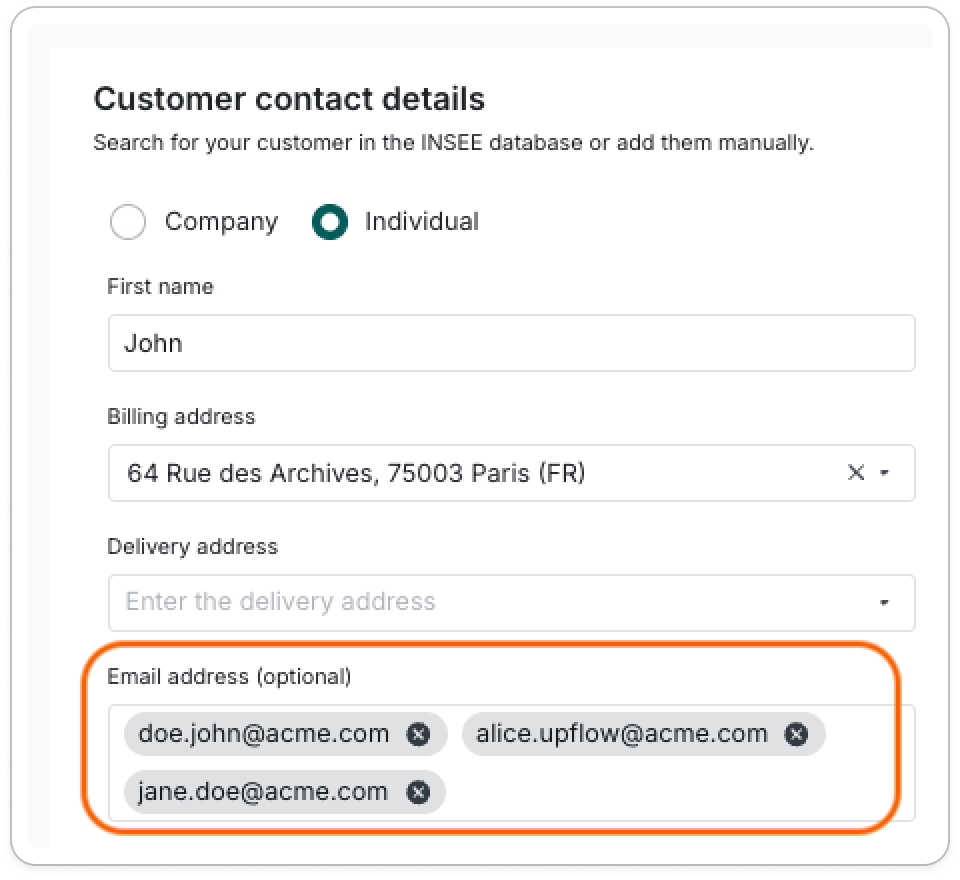
- The first one will be considered the primary contact in Upflow
- Here, john.doe@acme.com
- The following ones as additional contacts

Invoices
The following statues are reflected in Upflow:
The reference, issue and due dates, total and outstanding amounts in Upflow correspond to Pennylane.
👉 If the invoice is cancelled by a credit note in Pennylane, the credit note will be imported to Upflow and linked to the invoice. The invoice will be marked as Paid.
👉 If the invoice is not finalized and cancelled, it is synced to Upflow as “Paid”.
⚠️ Reconciliation must be done in the Management section of Pennylane, as our integration is not connected to the Accounting section API. Any data imported, created, or updated in the Accounting section that is not reflected in the Management section cannot be synced to Upflow.
Credit notes
Credit notes imported to Upflow
Note: Credit notes must be visible in the “Management” section of Pennylane to be imported. Credit notes from Pennylane are imported under the following conditions:- Credit notes with status: credit_note, Overdue, Upcoming, Cancelled, Partially Cancelled, or Partially Cancelled Draft
- Credit notes marked as paid with “Paid” status AND having linked invoices
- Credit notes marked as paid with “Cancelled” status AND having no linked invoices
Credit notes not imported to Upflow
- Archived, Draft, or Incomplete status → These don’t impact customer balance
- Marked as paid with “Cancelled” status AND having linked invoices → These are manually created accounting entries, not real credit notes. Importing them would cause incorrect balances and duplicates
- Marked as paid and unreconciled (without linked invoices) → These are not properly reconciled and would create incorrect unapplied amounts in Upflow.