

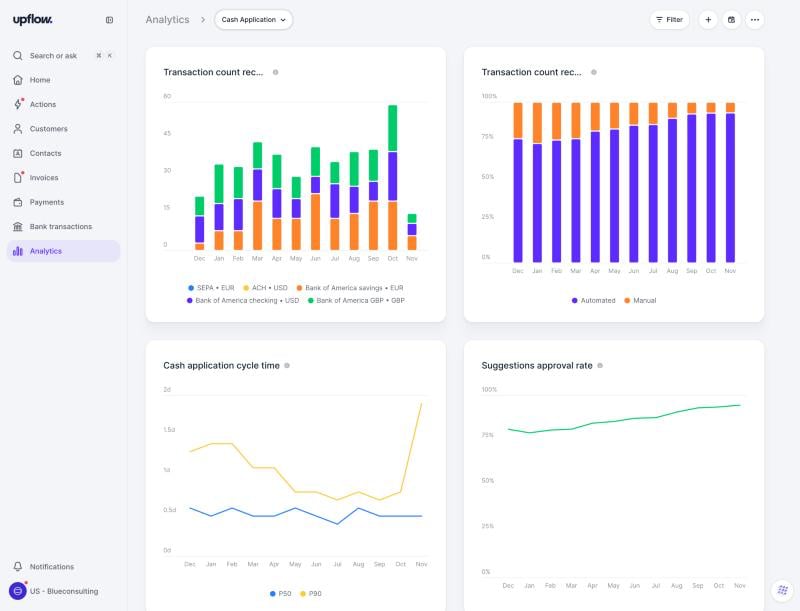
Open the Cash Application dashboard
- Go to Analytics.
- Click the dashboard name next to Analytics, then select Cash Application under Upflow Dashboards.
What counts as a reconciled transaction
All the cash application widgets only look at reconciled bank transactions: transactions with the Applied or Auto-applied status.- A transaction is dated on the day it was applied, not on the day it reached your bank account.
- Unapplied and excluded transactions are not counted.
- If you unapply a transaction, it no longer counts. If you apply it again, it counts on its new application date.
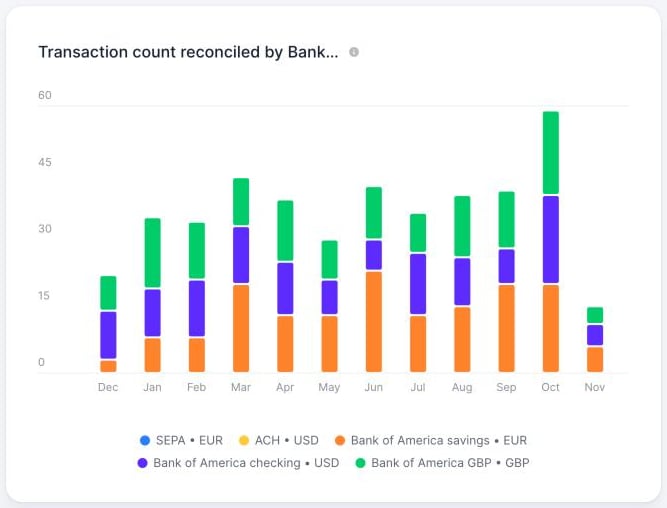
Transaction amount and count reconciled
Two bar chart widgets show the evolution of your reconciled bank transactions over time:- Transaction amount reconciled sums the amount of the transactions, in your organization’s default currency.
- Transaction count reconciled counts the transactions.
- Breakdown by bank transactions
- Applied by: the teammate who applied the transaction, or the Cash App agent.
- Manual vs automated: transactions applied by your team (Manual) versus by the Cash App agent (Automated).
- Bank account: the bank account that received the transaction.
- Breakdown by customers: break down by the customer the transaction was applied to, using fields such as Auto-collection, Company risk status, or your own customer custom fields.
- Number or %: display the values, or each series as a share of the period’s total.
- Granularity: weekly, monthly, or quarterly.
Auto-match rate
The auto-match rate is the share of reconciled transactions that the Cash App agent applied without anyone on your team stepping in. On the dashboard, it’s the Transaction count reconciled widget with the Manual vs automated breakdown, displayed in %. A rising auto-match rate means your team spends less time on routine reconciliation. To see what the agent does and doesn’t apply, read Cash App agent.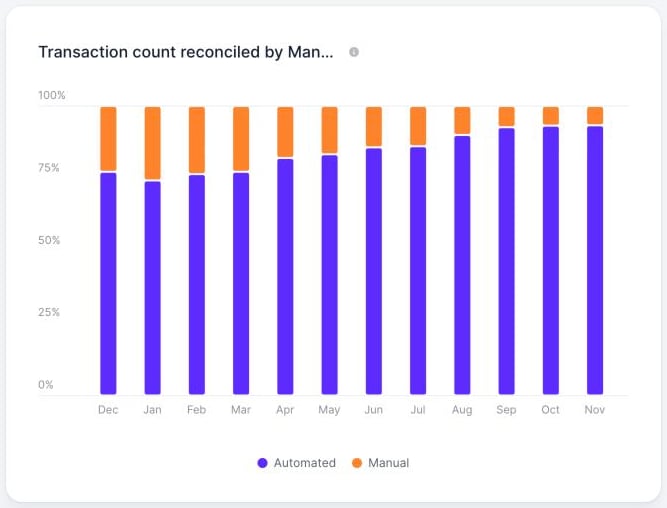
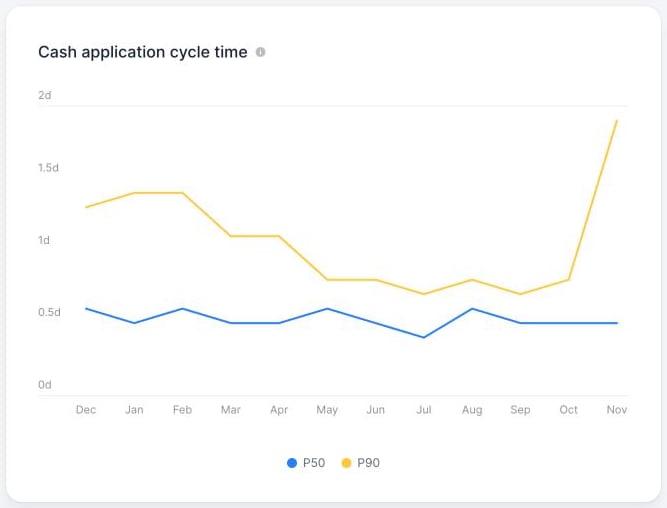
Cash application cycle time
This line chart shows how long it takes for a payment to be applied in Upflow once the money reaches your bank account, in days.- Start: the transaction’s posted date at your bank.
- End: the moment the transaction is applied in Upflow, manually or by the agent.
- P50 (median): half of your transactions are applied faster than this.
- P90: 90% of your transactions are applied faster than this. Use it to spot the slow tail of transactions that wait for a manual review.
The cycle time ends when the transaction is applied in Upflow, whether or not the payment is written back to your accounting system. It works the same with or without write-back.
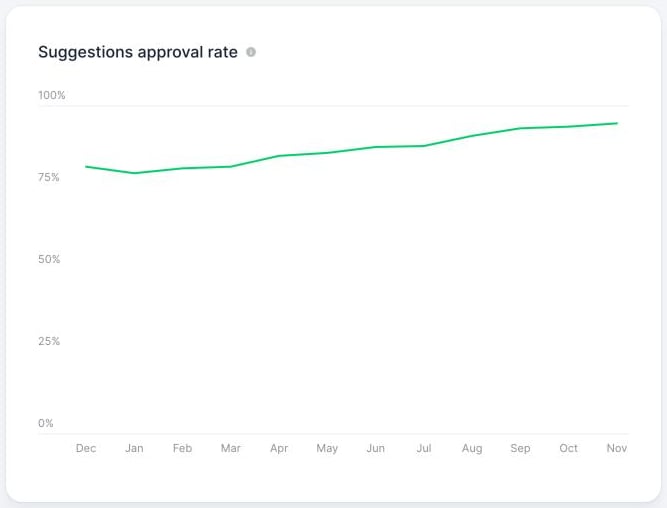
Suggestions approval rate
This line chart shows how precise Upflow’s match suggestions are. It’s calculated at the invoice level: Suggestions approval rate = suggested invoices used in the application ÷ all suggested invoices For example, if Upflow suggests 4 invoices for a transaction and you apply it to 3 of them, the rate for that transaction is 75%.- If you apply the transaction to another customer, all the suggested invoices count as not approved.
- Invoices you add to the application without them being suggested aren’t counted. The rate measures the precision of the suggestions, not how many of the applied invoices Upflow found.
- Transactions auto-applied by the agent count too: their suggested invoices are always approved.
- Excluded transactions aren’t counted.
Filter, export, and customize
The cash application widgets work like every other Analytics widget:- Filter the dashboard by owner, country, custom fields, and more. Customer filters apply to the customer the transaction was applied to.
- Export a widget’s filtered data to CSV or Excel from its actions menu.
- Add any of the widgets to your own reports from the widget library, and save your changes as a new report.
- Schedule the dashboard to be sent by email.