


Check your SuiteApp version
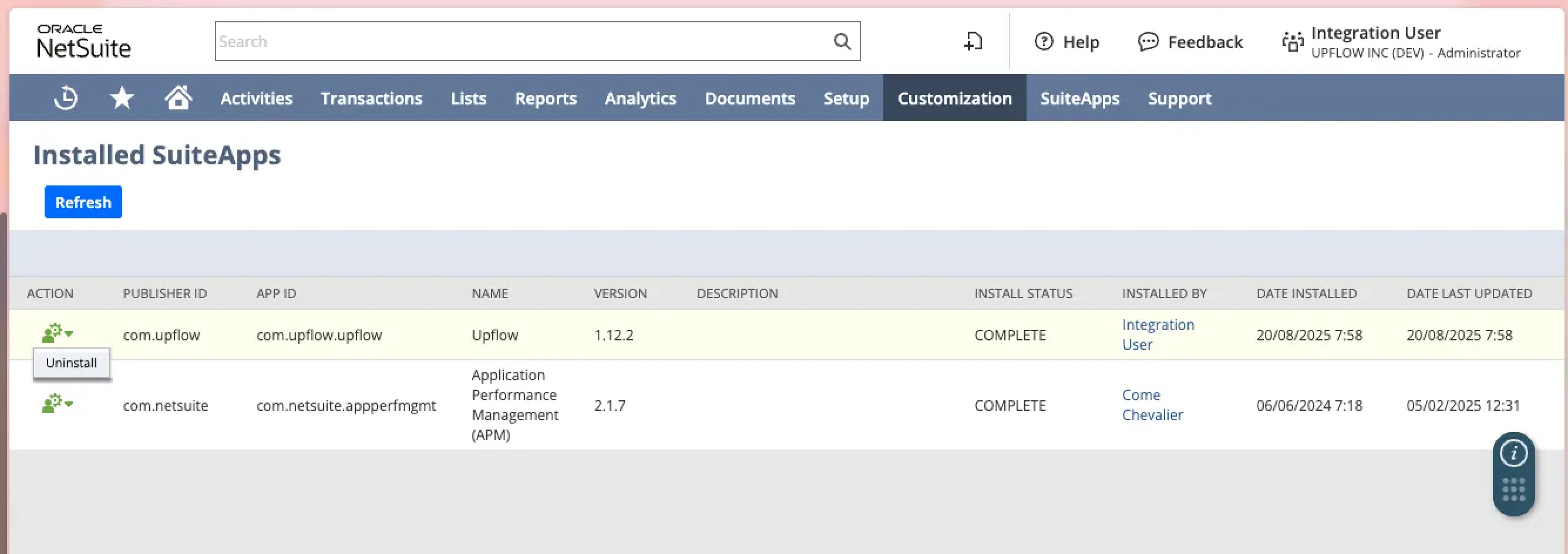
Head to your NetSuite Marketplace. Look for and click Upflow, to look if you need to upgrade. If you see the Upgrade button, please click it.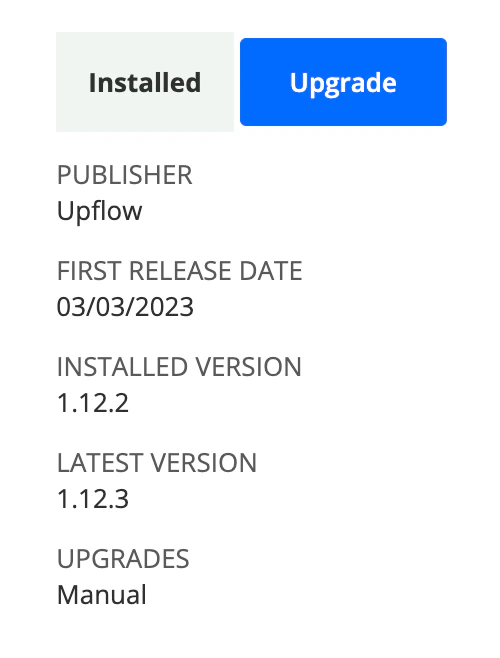
Generate new tokens and edit them in Upflow
1 - Check your Users list to see who has the “Upflow Basic Role” associated. 2 - Add this role to an Admin user with English US language. It can be yourself or, ideally, generic account dedicated to integrations or your Finance process. 3 - Head to Access Tokens, and click on “Add new”: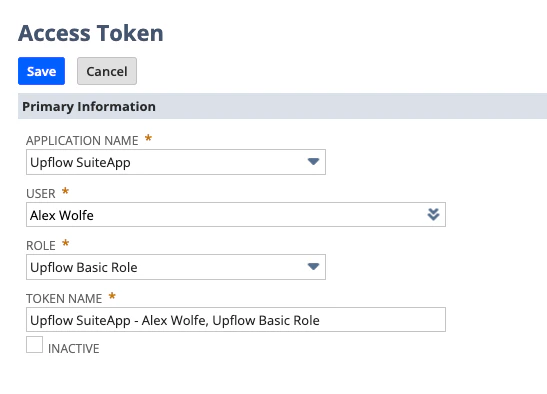
- Application name: Pick Upflow SuiteApp.
- User: Select the user you just assigned the Upflow Basic Role.
- Role: Upflow Basic Role (this option will not be available before you pick the user).
- Token name: Write one that suits you.
- Go to your Settings > Integrations section
- Click on Edit next to Access tokens
- Add the token ID and secret and save
- Scroll down and Save at the bottom of the page
- The red banner should now be gone, which means the reconnection is done for this org.
- If you have other organizations in Upflow from the same NetSuite account, you must update the tokens you’ve generated in each organization’s settings.
The tokens don’t work
When editing the tokens in your Upflow Settings, if you face an error message, such as “Error: the access tokens are invalid” - it might be due to the tokens configuration.- Never use tokens generated previously. ONLY tokens generated specifically for this update. Old tokens will be considered expired.
- You might have selected a value that doesn’t match the process. Ensure you’ve selected the exact values we recommend in Step 3 above.

I can’t find the Upflow “SuiteApp” in Application Name
When creating your new tokens, if you can’t find the “Upflow SuiteApp ” options: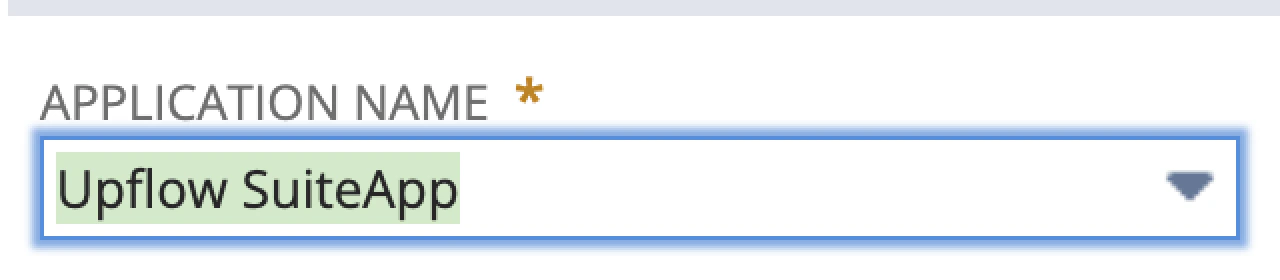
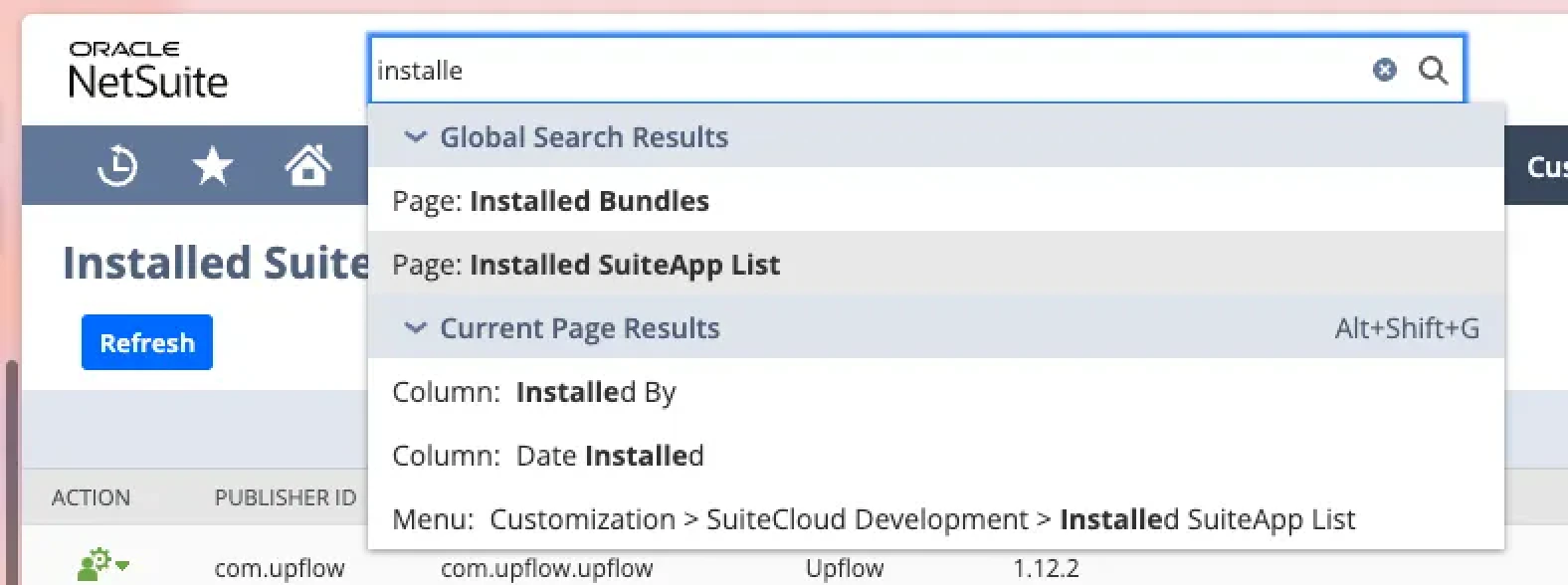
- Head to your SuiteApp marketplace. Search for and click Upflow.
- Ensure you benefit from the latest version. If not, click Upgrade. Refresh.
- Head back to Access Tokens > New
Concurrency limits
If you’re facing concurrency limits with Upflow, we might need you to:- Confirm how many are allocated to Upflow
- To increase them
Solution
| Step | Screenshot |
|---|---|
| In NetSuite, go to the Manage Integrations page | 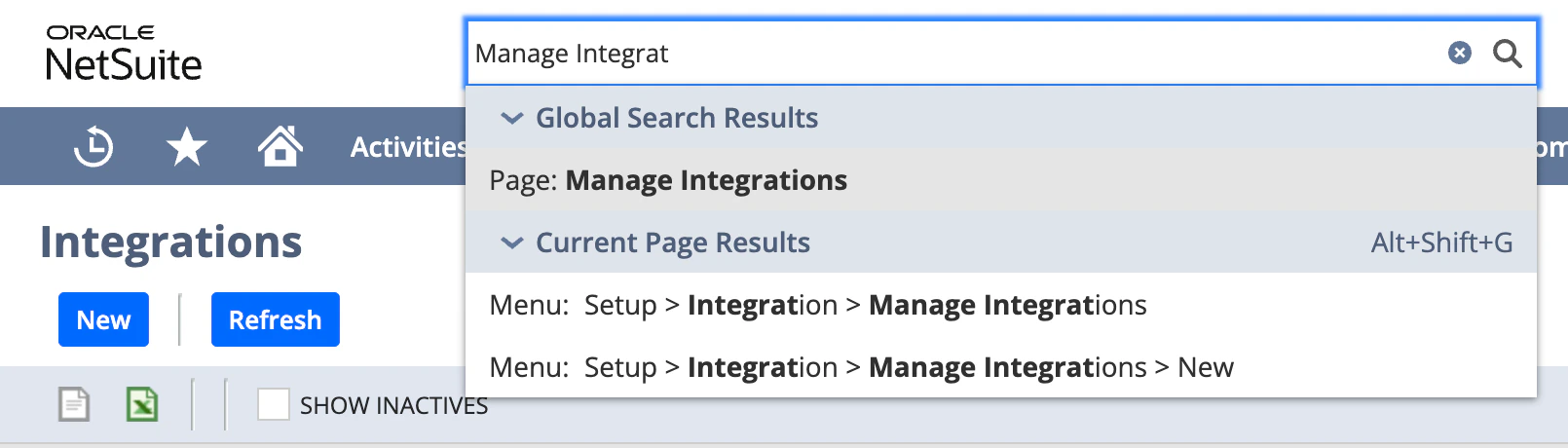 |
| Click on Upflow SuiteApp | 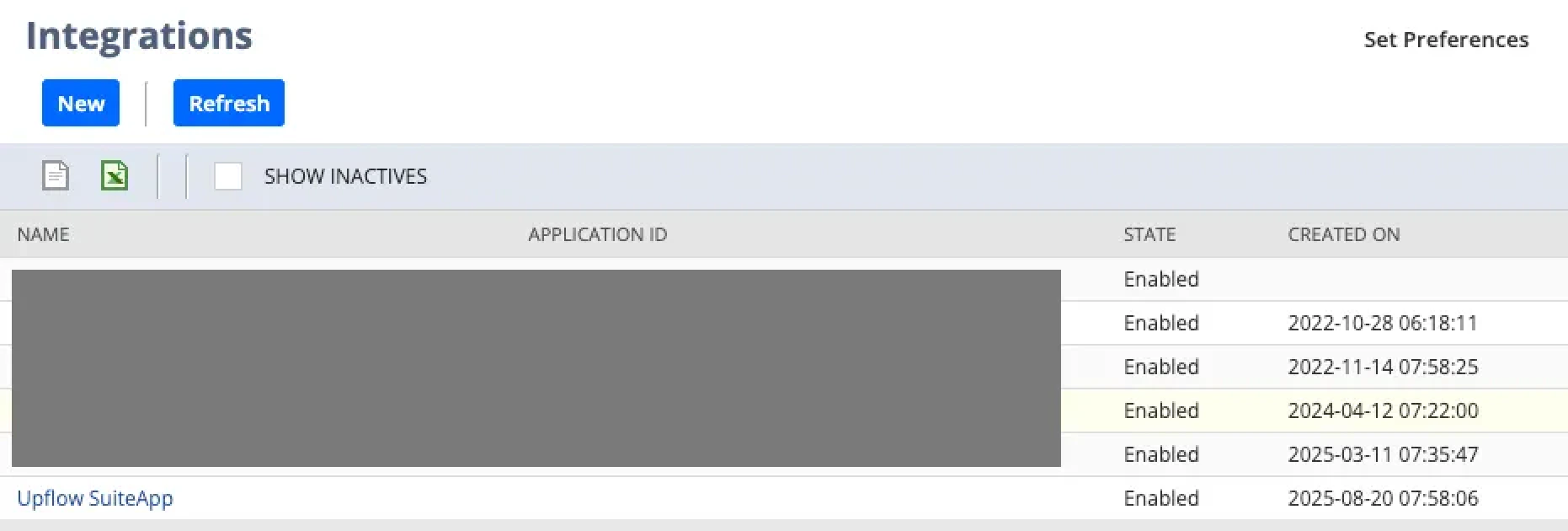 |
| Send us the same screenshot from your instance | 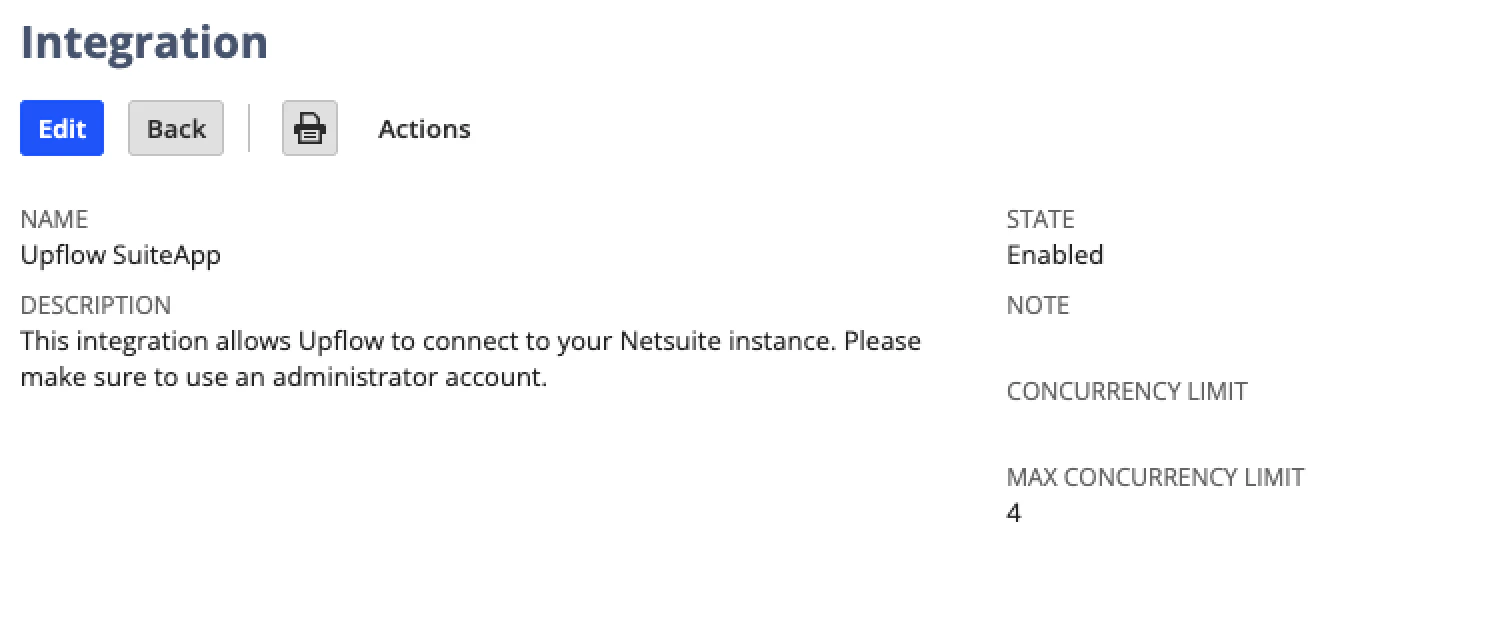 |
| Then, click on Edit | |
| Add the concurrency limit value to the Concurrency limit field and click Save | 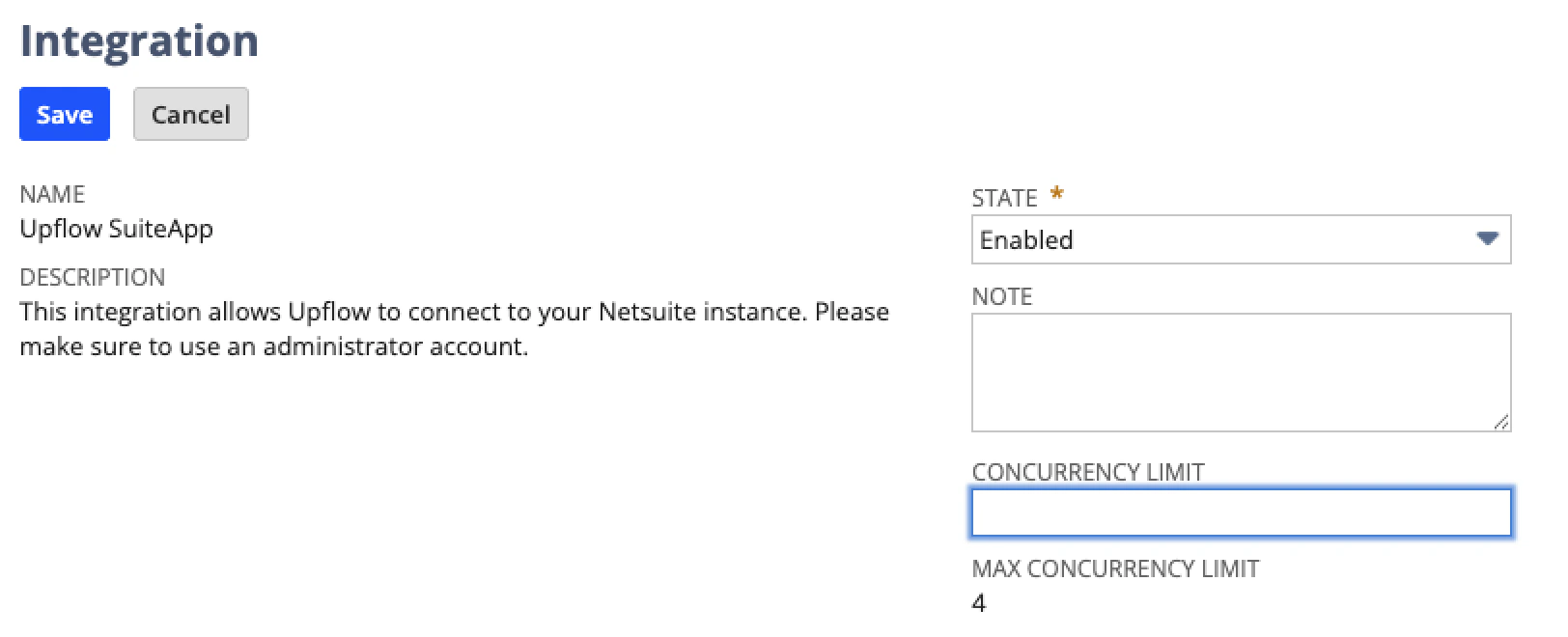 |