Documentation Index

Fetch the complete documentation index at: https://docs.upflow.io/llms.txt

Use this file to discover all available pages before exploring further.

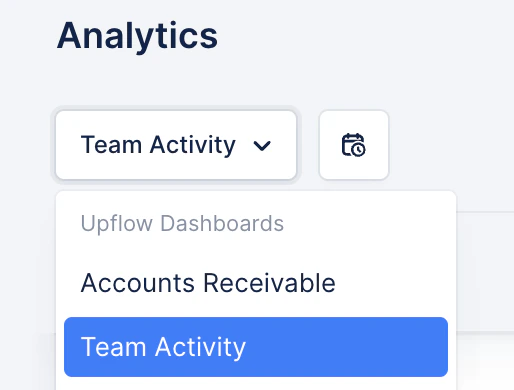
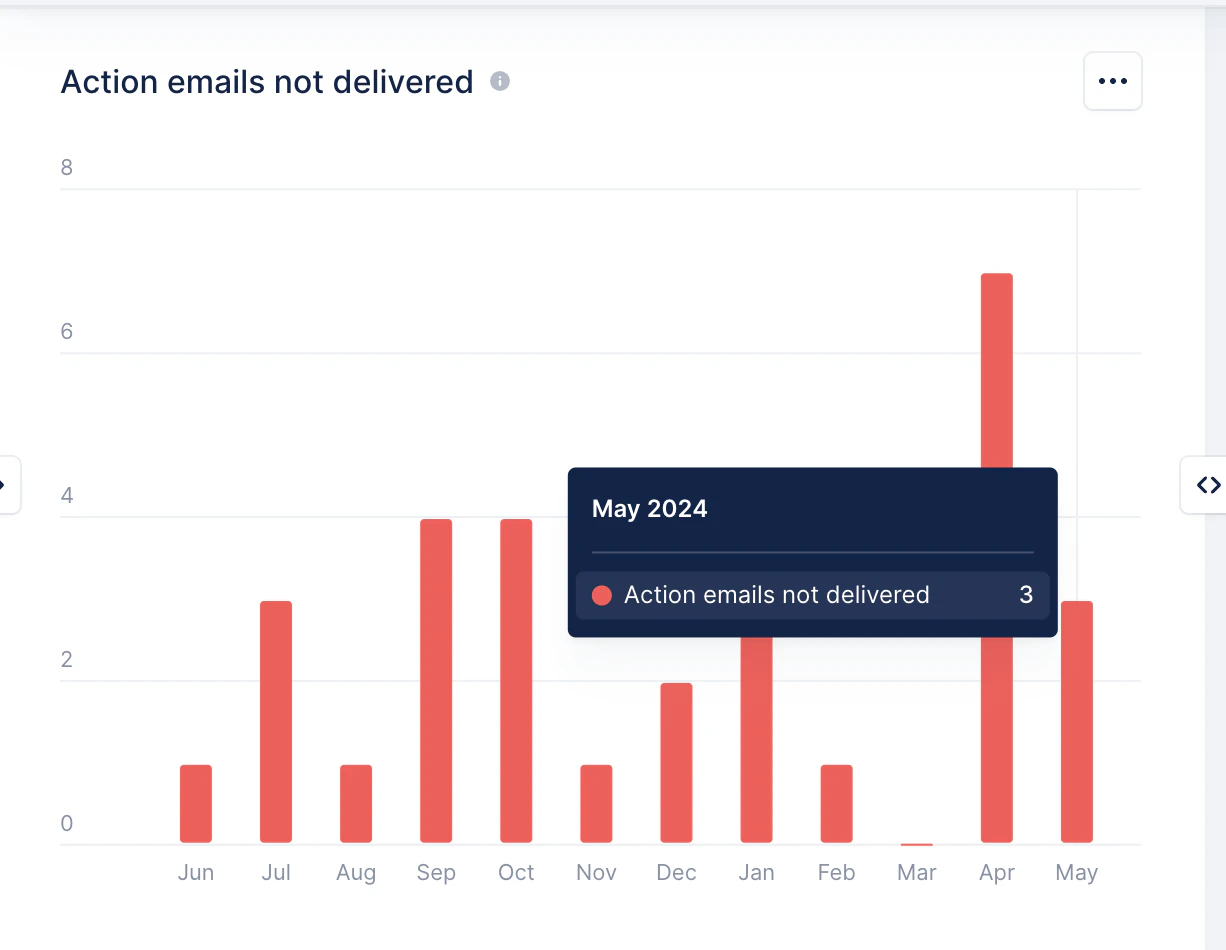
In your Analytics list view, access your Team Activity saved view: Scroll down to the “Action email not delivered” widget to see how many emails failed for each month.

Understand the data

Clicking on each bar will redirect you to the Contacts list view, which has the filter “Email status = Invalid email.” Please note that the number of contacts displayed under this filter might not match the number of emails not delivered in the Analytics widget. This can be due to:
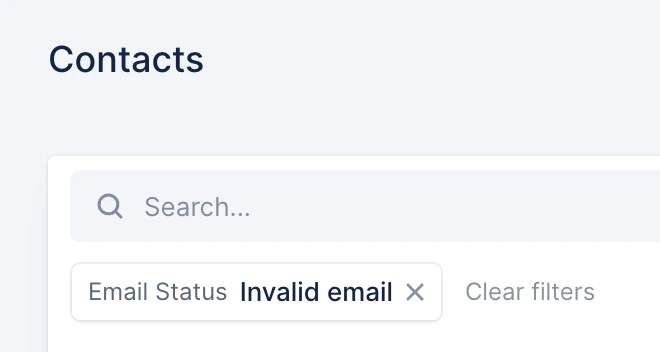
  • multiple emails failed to be delivered for the same contact;
  • a contact marked as invalid at the time the email was sent is now valid.
Check our article Your Upflow contacts to handle invalid email addresses.

Export the data

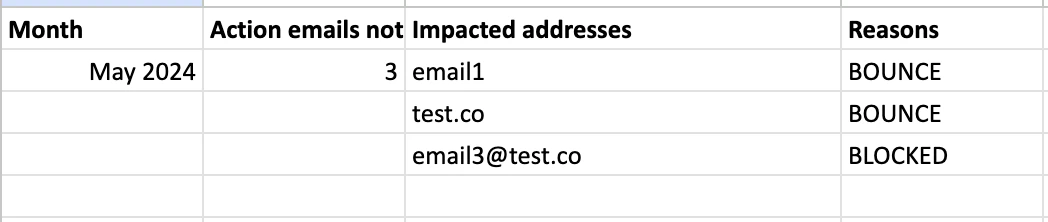
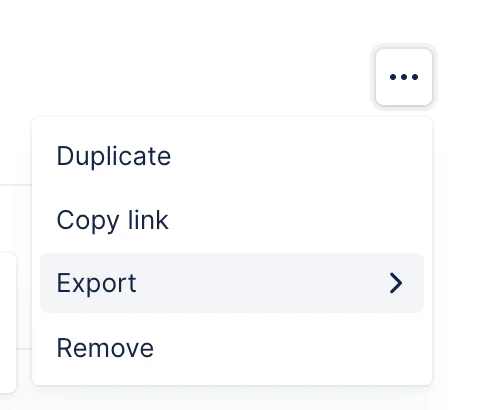
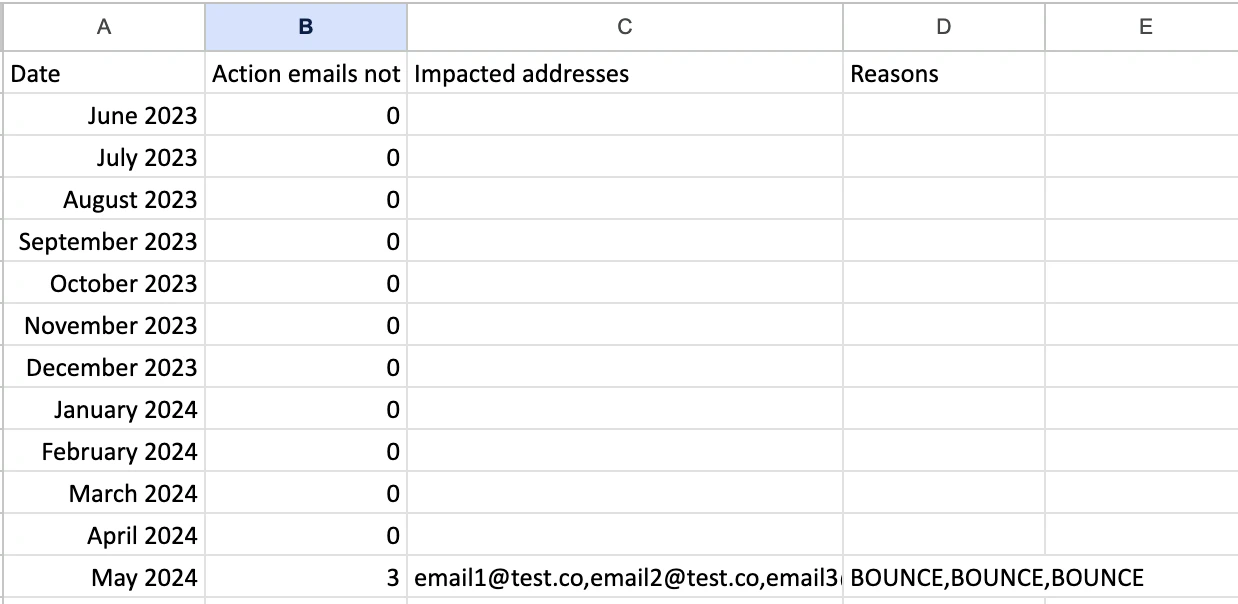
To have a detailed view of this widget, you can export it (CSV/Excel): The default view will be as follows: Here are a few tips to see all emails and reasons on individual lines.
  1. Select a spreadsheet and click relevant cells.
  2. Go to Data and open Split text to columns.
  3. Click Separator and open Custom.
  4. Type @, and Google Sheets splits the username and domain name.

Now, all address emails are in different cells but horizontally. To get a vertical display, copy the cells with the addresses, then choose the cell where you want the transposed data to start. Right-click on the chosen cell, navigate to “Paste special,” and select “Transposed.” Do you have any questions? Contact our Support team!