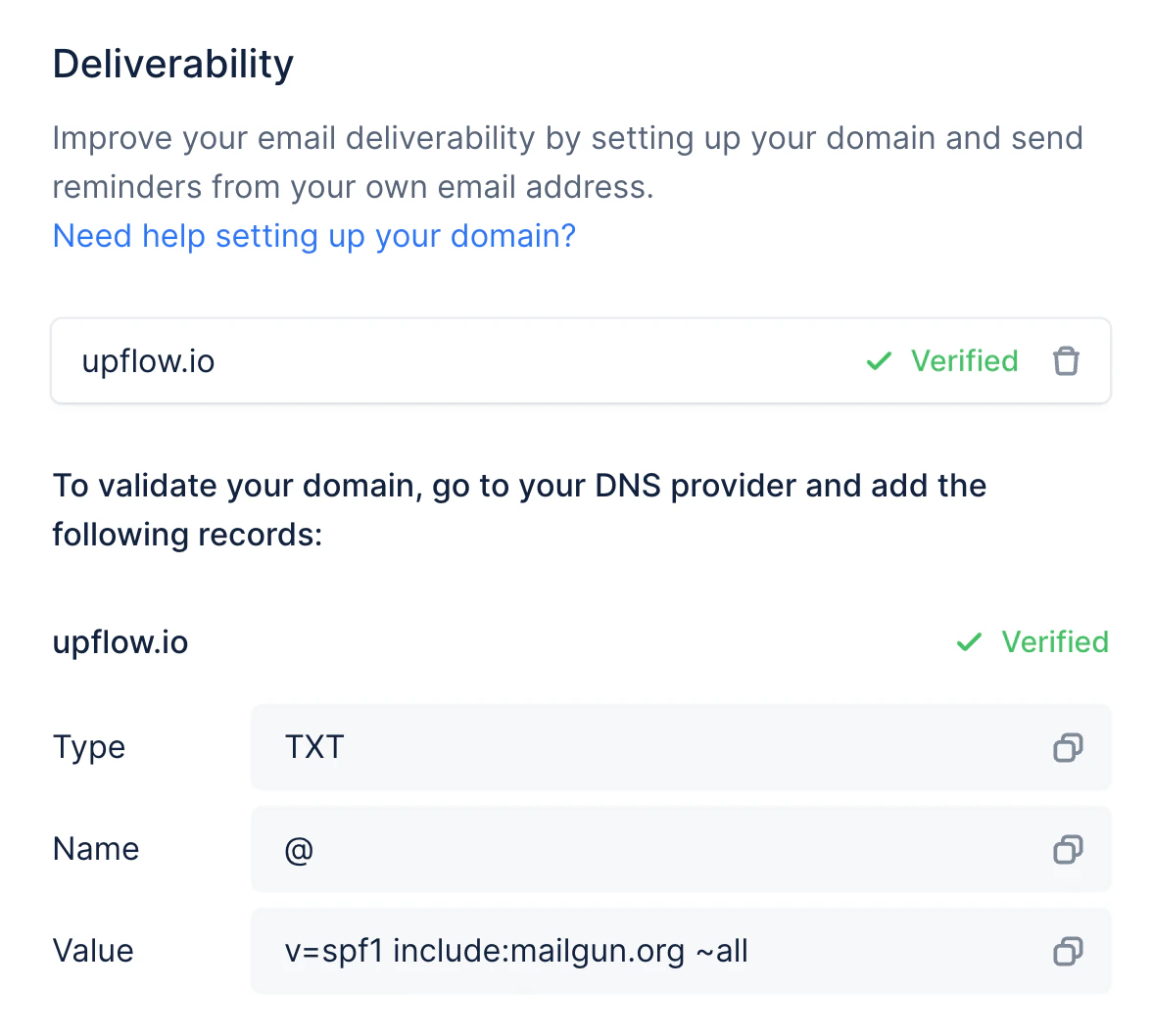
Configuring your domain DNS
Go to the Deliverability menu in your Settings and select Configure your DNS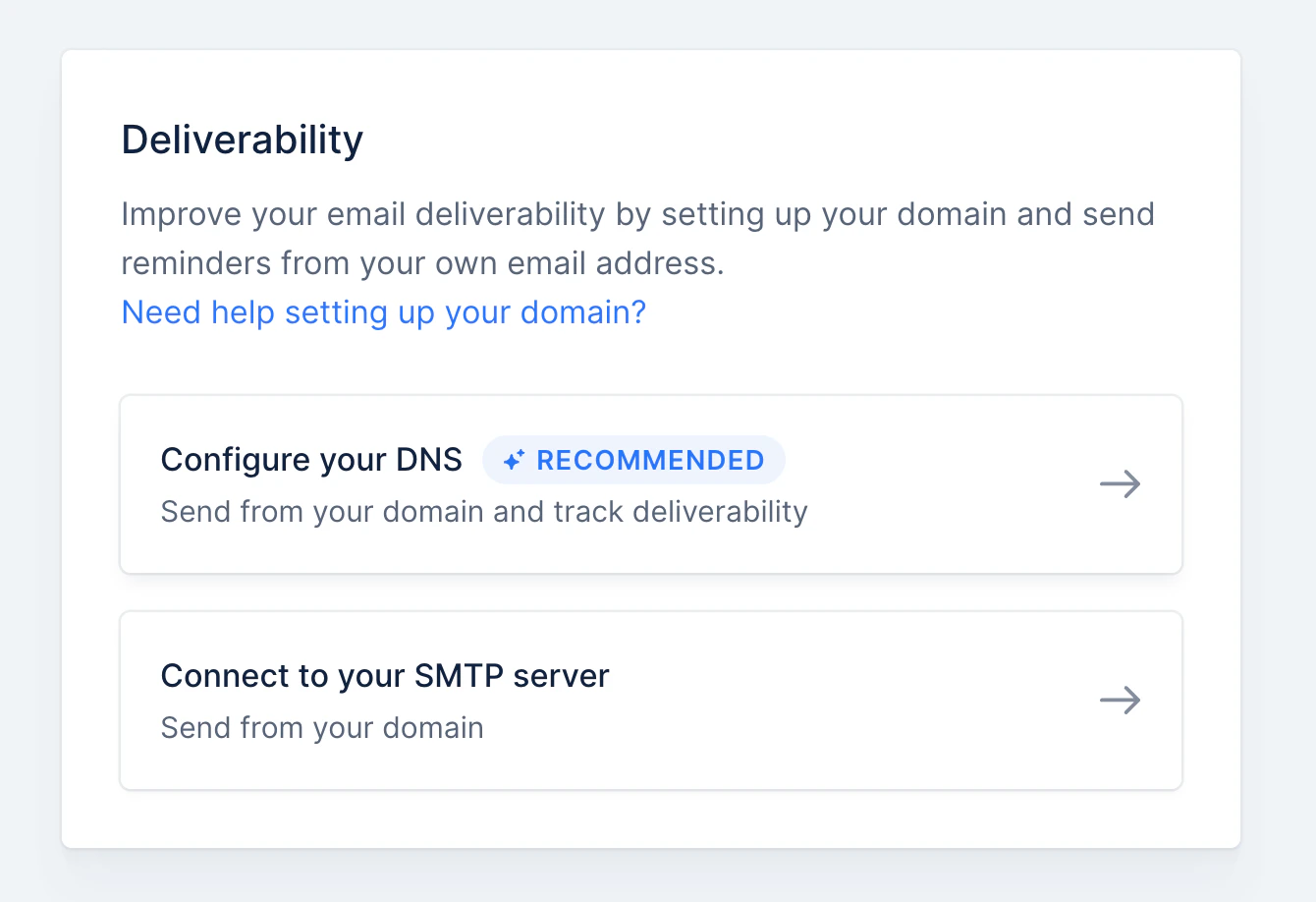
Adding a domain
Enter your domain name. If your address is john@apple.com, then the domain name is “apple.com”.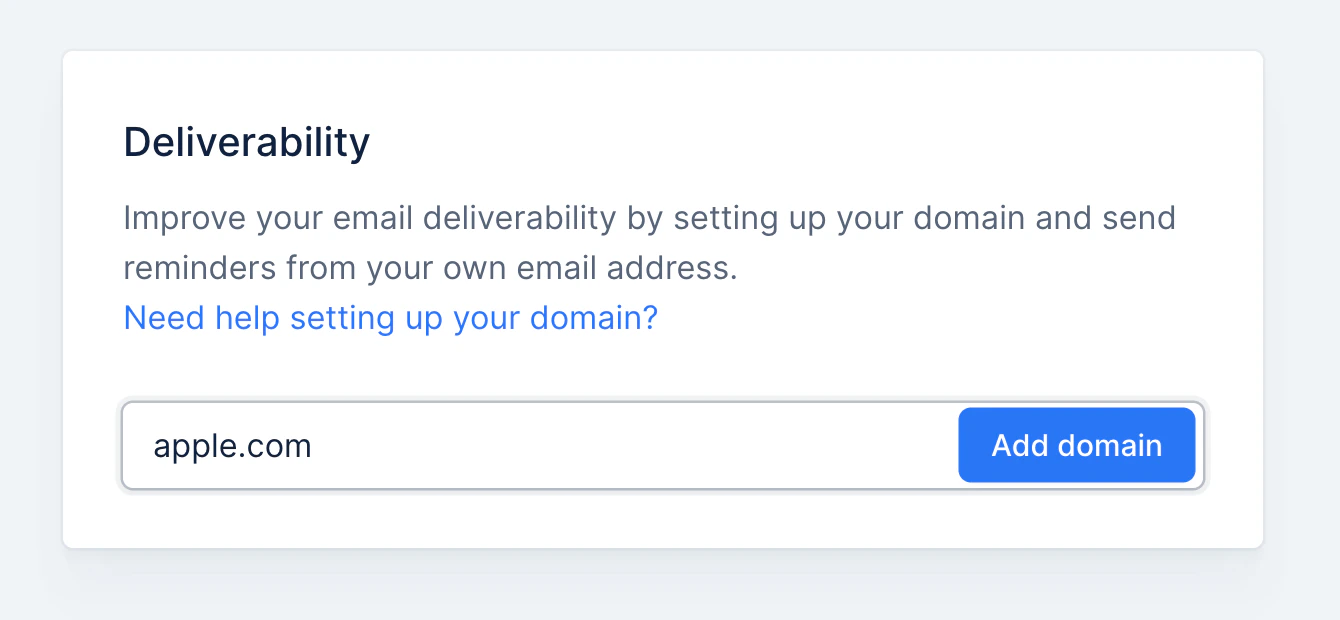
Adding records to your DNS provider.
A list of records to add to your DNS provider is now displayed. The first two allow us to send emails on your behalf, and the last one enables email tracking.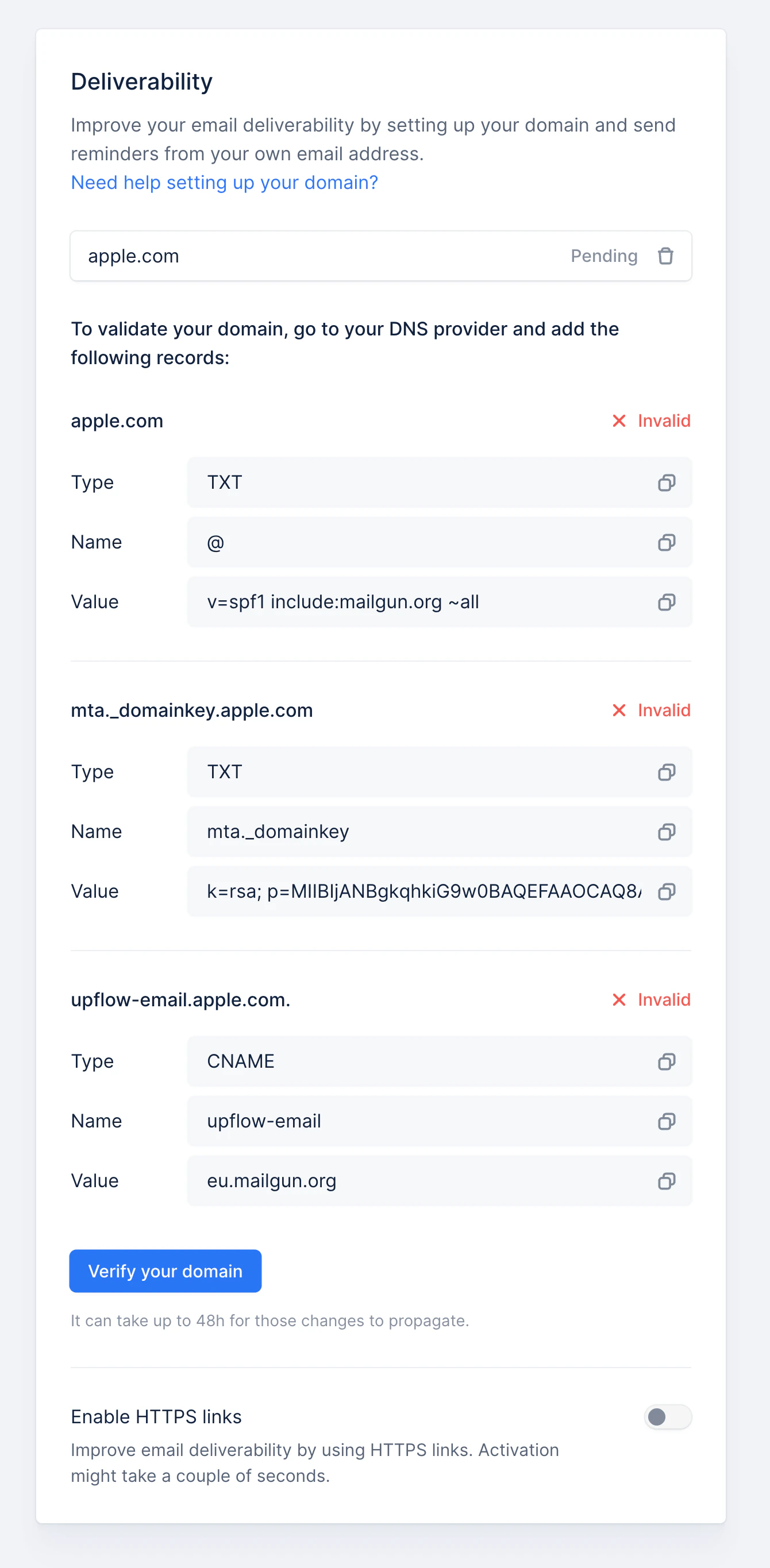
Validating the domain verification
Once those records are added to your DNS, click on the “Verify your domain button”. If the records are properly created, each record should display a green tick, and your domain is now verified.