

What is the Outlook integration?
The Outlook integration lets Upflow import emails from your Microsoft 365 mailbox automatically, giving you a complete view of customer conversations. Benefits of connecting your Outlook account:- Automatic import - Emails sync in near real-time (within 10 minutes)
- Historical context - Import up to 90 days of past emails
- Complete visibility - See both sent and received emails in customer timelines
- Attachments included - Documents and images are imported automatically
How it works
Upflow connects to your Outlook mailbox and synchronizes the emails, sent and received, related to the active aliases in your organization.- You activate email import - From your organization settings
- You grant access - Connect your Outlook account from your profile settings
- We sync your emails - Upflow imports emails related to your verified aliases from your Inbox and Sent Items
- We match them automatically - Emails are linked to the right customers, contacts, and actions
- You see them in context - View all conversations in customer timelines
- Emails you sent FROM collections@acme.com
- Emails customers sent TO collections@acme.com
- Emails where collections@acme.com is in CC or BCC
Setting up the integration
Step 1: Activate email import for your organization
- Go to Settings > Import emails and aliases
- Toggle on Import emails from Gmail / Outlook
- Review the list of users and their connection status
- User - Team members in your organization
- Connected account - The Gmail or Outlook account they connected
- Status - Connection state
Step 2: Select aliases to use for email sync
Upflow only imports emails related to your verified aliases (for example, finance@yourcompany.com or collections@yourcompany.com).- At the bottom of the page, find the Aliases section
- Check that you have at least one verified alias. If not, click Add alias and follow the verification steps
- Activate the email sync for the appropriate aliases
Step 3: Connect your Outlook account
- Go to your Profile Settings > Email access section
- Under Outlook, click Connect
- When Microsoft asks you to sign in, choose the mailbox that receives your collection emails (see below)
- Review and accept the permissions Upflow requests
- Once connected, the status changes to SYNCING, then ACTIVE
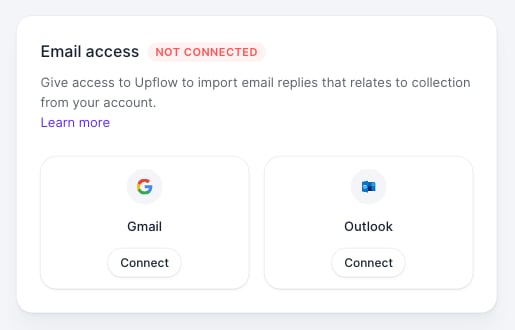
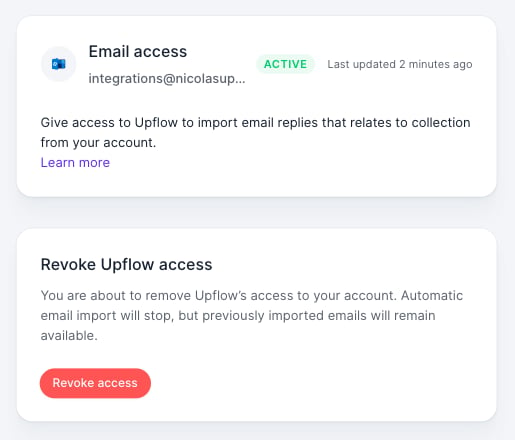
You can connect an Outlook address different from the one you use to log into Upflow. For example, you might log in with jdoe@company.com but sync emails from collections@company.com.
If Microsoft asks for admin approval
Many Microsoft 365 organizations only let administrators approve third-party apps. In that case, Microsoft shows a Need admin approval screen when you try to connect.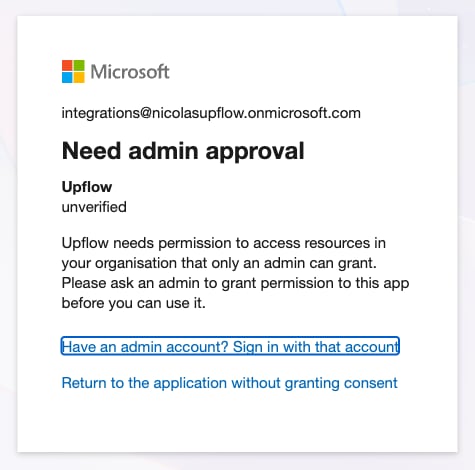
- From the Need admin approval screen, click Have an admin account? Sign in with that account and sign in as an administrator
- Open the admin consent link below, replacing
<your-domain>with your company’s Microsoft 365 domain (for example,acme.com)
Upflow never sends, deletes or modifies emails in your mailbox.
Revoking access
You can revoke Upflow’s access to your Outlook account at any time:- Go to your Profile Settings > Email access
- Click Revoke access, then confirm
- Your previously imported emails remain in Upflow unless deleted by an administrator