When a reminder email bounces, Upflow flags the contact’s email address as invalid and stops sending emails to it. Once you have confirmed the address is correct or updated it, you can mark it as valid so reminders resume.

Identify invalid emails

Upflow marks a contact’s email as invalid as soon as one of their email actions fails to deliver. You can spot invalid emails in two places:
  • On the Customer detail page, in the Contacts section: the invalid email shows a red warning icon next to the address.
  • In the Contacts list view, filtered on Email Status is Invalid email:
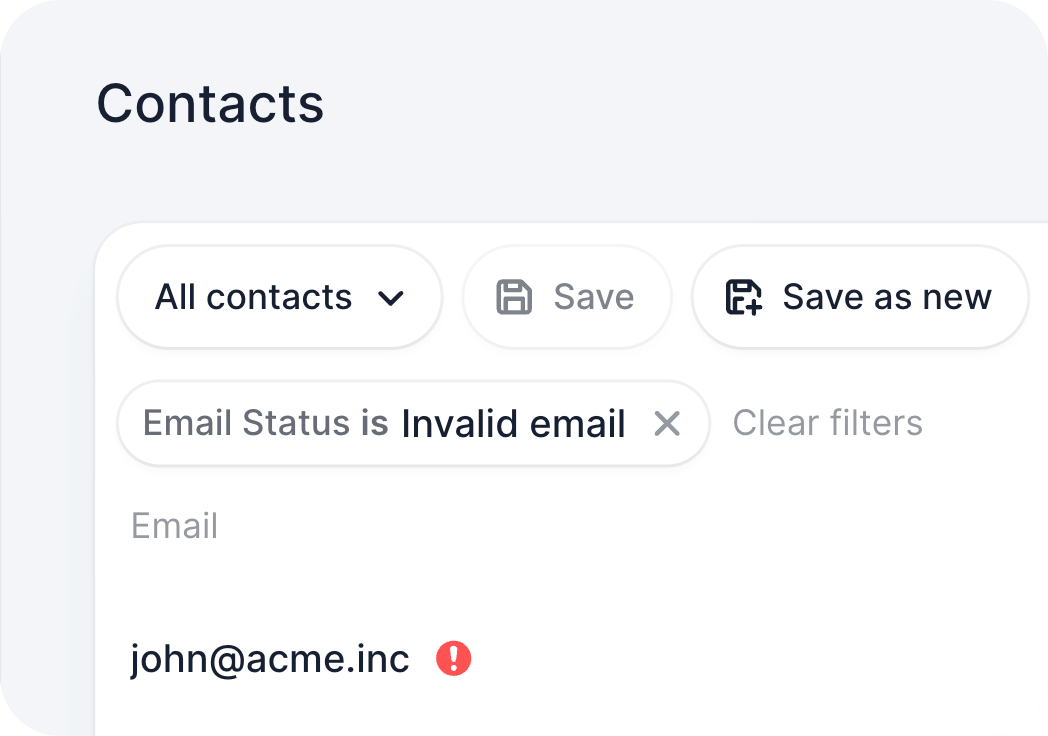
Contacts list filtered by Email Status is Invalid email, showing a contact with a red warning icon next to their email address You can also enable delivery-failure notifications on your profile to be alerted the moment an action fails. See Customize my Profile Notifications.

Mark an email as valid

Before marking an email as valid, confirm with your customer that the address is correct, or update it if it is not.
  • If the contact is synced from your accounting tool or CRM, update the email address in the source system. The correction syncs back into Upflow.
  • If the contact was created in Upflow, edit the email address directly on the contact.
Once the address is confirmed:
  1. Open the contact from the Contacts section of the customer detail page or from the Contacts list view.
  2. Click the pen icon next to the contact to open the Edit contact panel.
  3. Click Mark as valid next to the Email field, then click Submit.
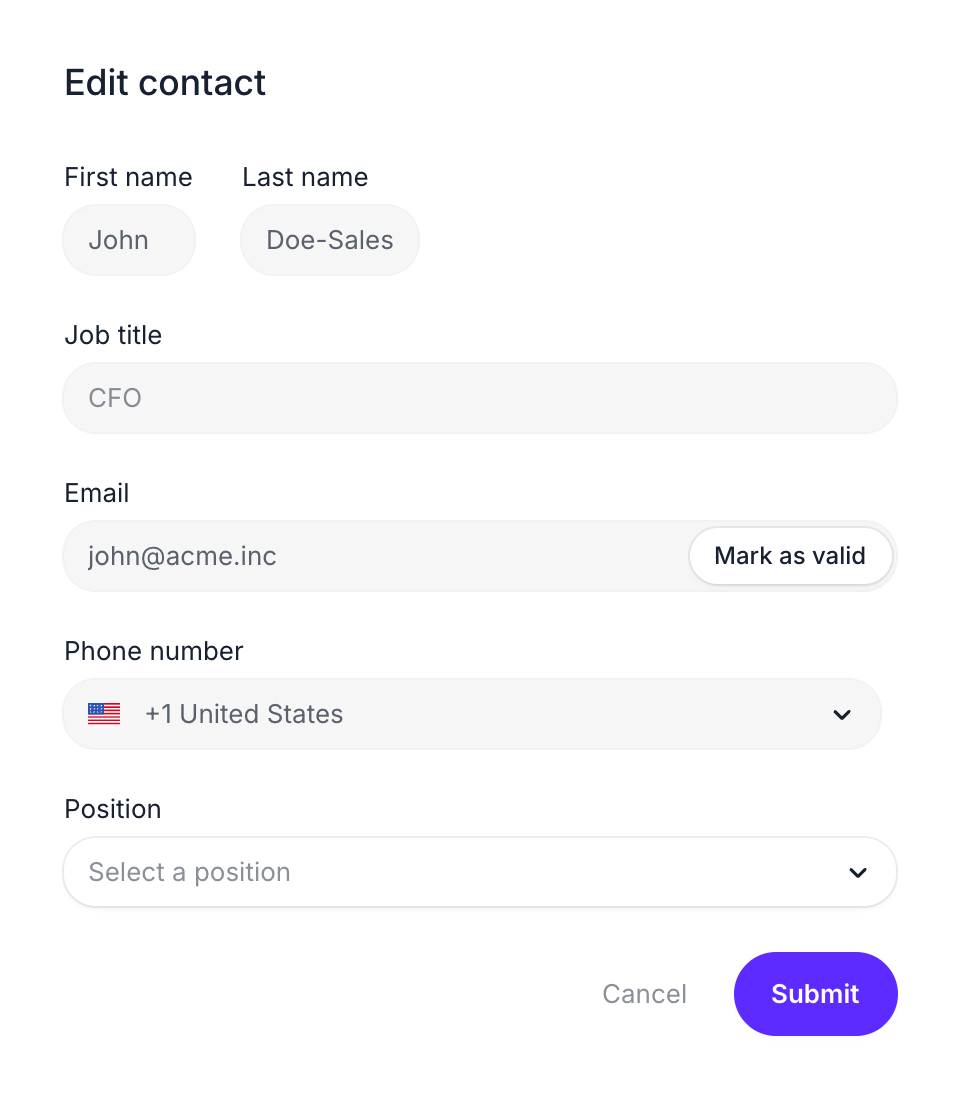
Edit contact panel with the Mark as valid button next to the Email field Reminders resume from the contact’s next scheduled action. Marking as valid does not resend failed reminders. If you need to reach out before the next scheduled reminder, create an ad-hoc action. If the address bounces again, Upflow marks it as invalid a second time. In that case, double-check the address with your customer rather than marking it as valid again.