

What is the Gmail integration?
The Gmail integration allows Upflow to automatically import emails from your inbox, giving you a complete view of customer conversations. Benefits of connecting your Gmail account:- Automatic import - Emails sync in near real-time (within 10 minutes)
- Historical context - Import up to 90 days of past emails
- Complete visibility - See both sent and received emails in customer timelines
- Attachments included - Documents and images are imported automatically
How it works
Upflow connects to your Gmail account and synchronizes all the emails, sent and received, related to the active aliases in your organization.- You activate the Gmail integration feature - From your organization settings
- You grant access - Connect your Gmail account from your profile settings
- We sync your emails - Upflow imports emails related to your verified aliases
- We match them automatically - Emails are linked to the right customers, contacts, and actions
- You see them in context - View all conversations in customer timelines
- Emails you sent FROM collections@acme.com
- Emails customers sent TO collections@acme.com
- Emails where collections@acme.com is in CC or BCC
Setting up the integration
Step 1: Activate email import for your organization
- Go to Settings > Import emails and aliases
- Toggle on Import emails from Gmail
- Review the list of users and their connection status
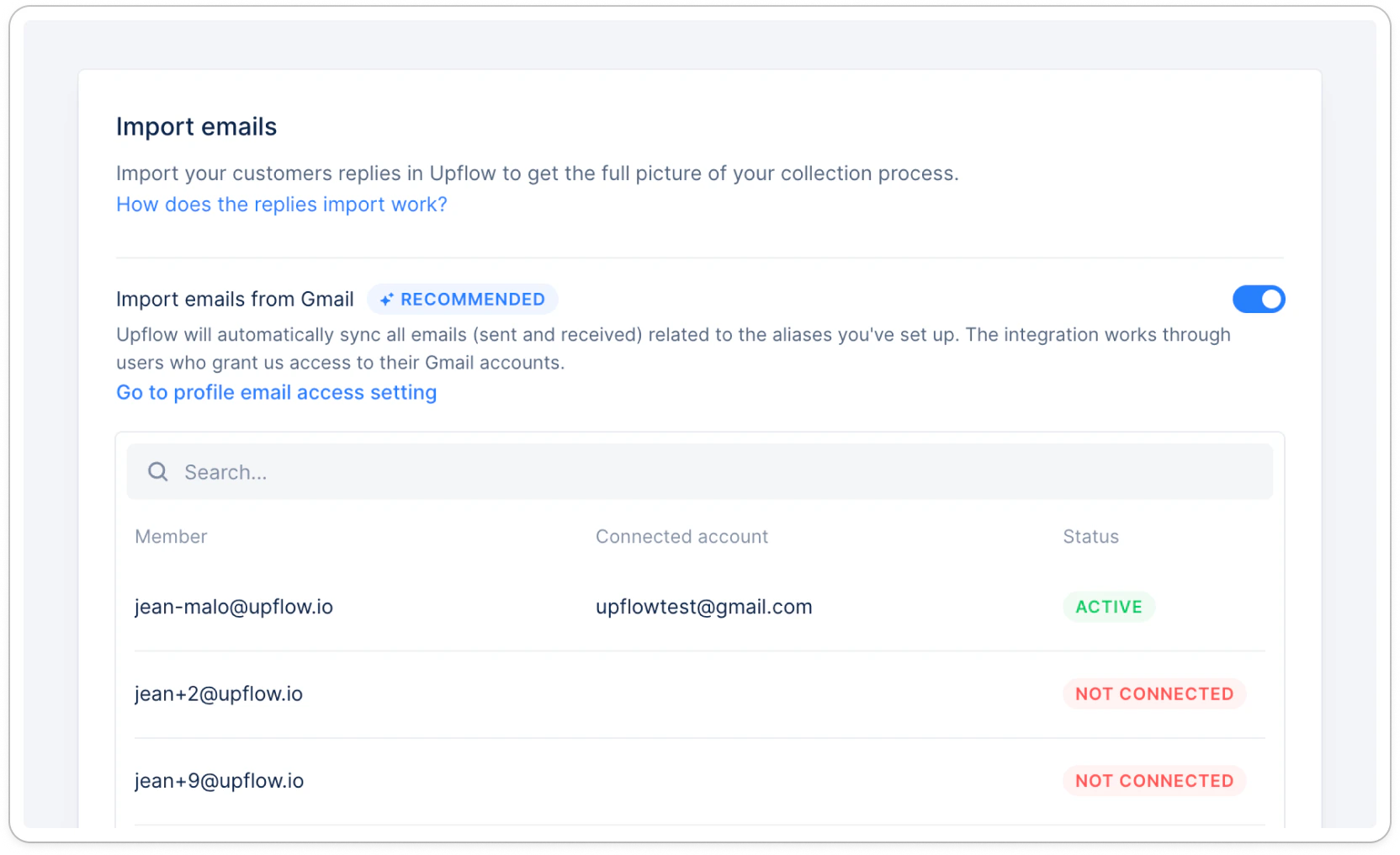
- User - Team members in your organization
- Connected account - The Gmail account they connected
- Status - Connection state
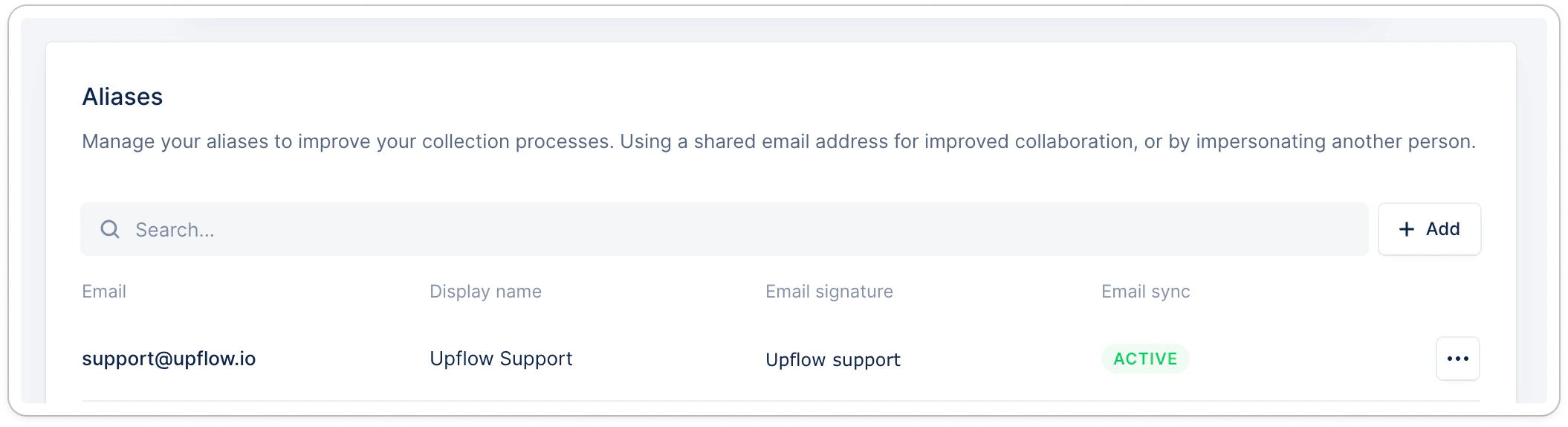
Step 2: Select aliases to use for email sync
Upflow only imports emails related to your verified aliases (e.g., finance@yourcompany.com, collections@yourcompany.com).- At the bottom of the page, look at the Alias section
- Verify you have at least one verified alias
- Activate the email sync for the appropriate aliases.
Step 3: Connect your Gmail account
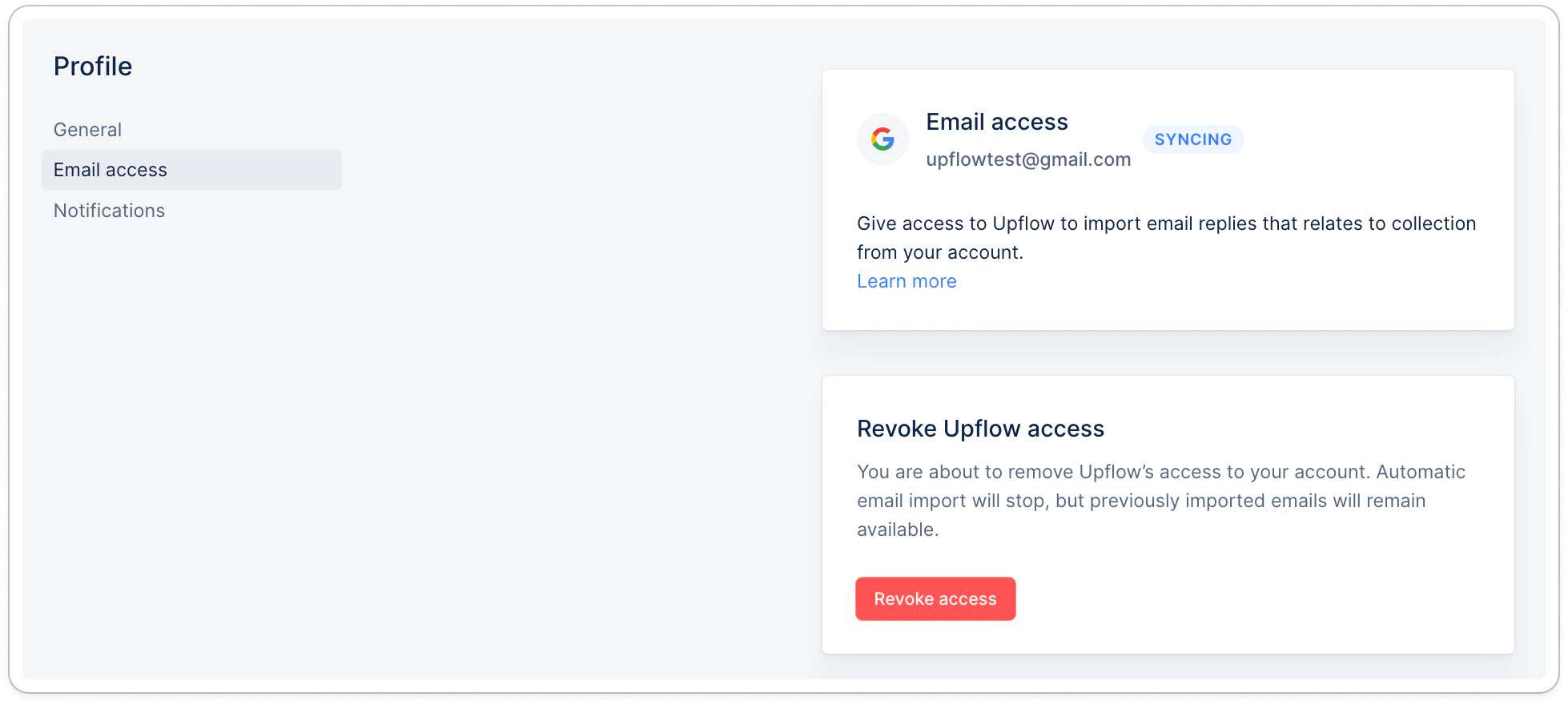
- Go to your Profile Settings > Email access section
- Click Connect Gmail
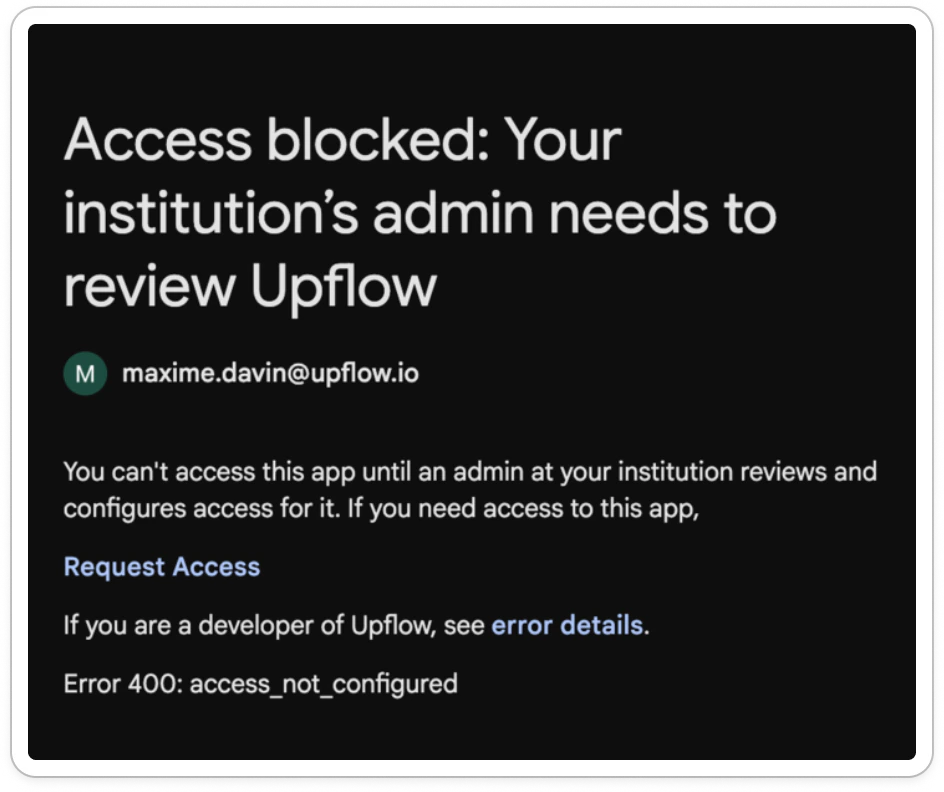
- Sign in with your Google account when prompted
- Review and accept the permissions Upflow requests
- Once connected, Upflow will begin syncing your emails
Revoking access
You can revoke Upflow’s access to your Gmail account at any time:- Go to your Profile Settings > Emails
- Click Disconnect Gmail
- Your previously imported emails will remain in Upflow unless deleted by an administrator