

The Emails inbox is currently in Beta. Talk to your Customer Success Manager or reach out to support@upflow.io to get access.
- See every imported email, matched or not, in one list.
- Match an unmatched email to the right customer, alone or in bulk.
- Archive the emails that aren’t about collection, and bring them back at any time.
Before you start
The Emails inbox shows the emails Upflow imports, so you need to import emails first, through your forwarding address, the Gmail integration or the Outlook integration. See Import your customers replies automatically, Import customer emails automatically with Gmail Integration and Import customer emails automatically with Outlook integration.What happens to an email Upflow can’t match
Upflow tries to link each imported email to a customer. See How does Upflow match new emails. When no customer is found, or when several customers are possible, the email is unmatched:- It appears in the Unmatched view of the Emails inbox.
- It doesn’t create a customer, a reply action or a notification.
- It’s kept until you match, archive or delete it.
Find your emails
Go to Actions > Emails and select the Unmatched view. You can also click the unmatched emails link at the top of the Actions page.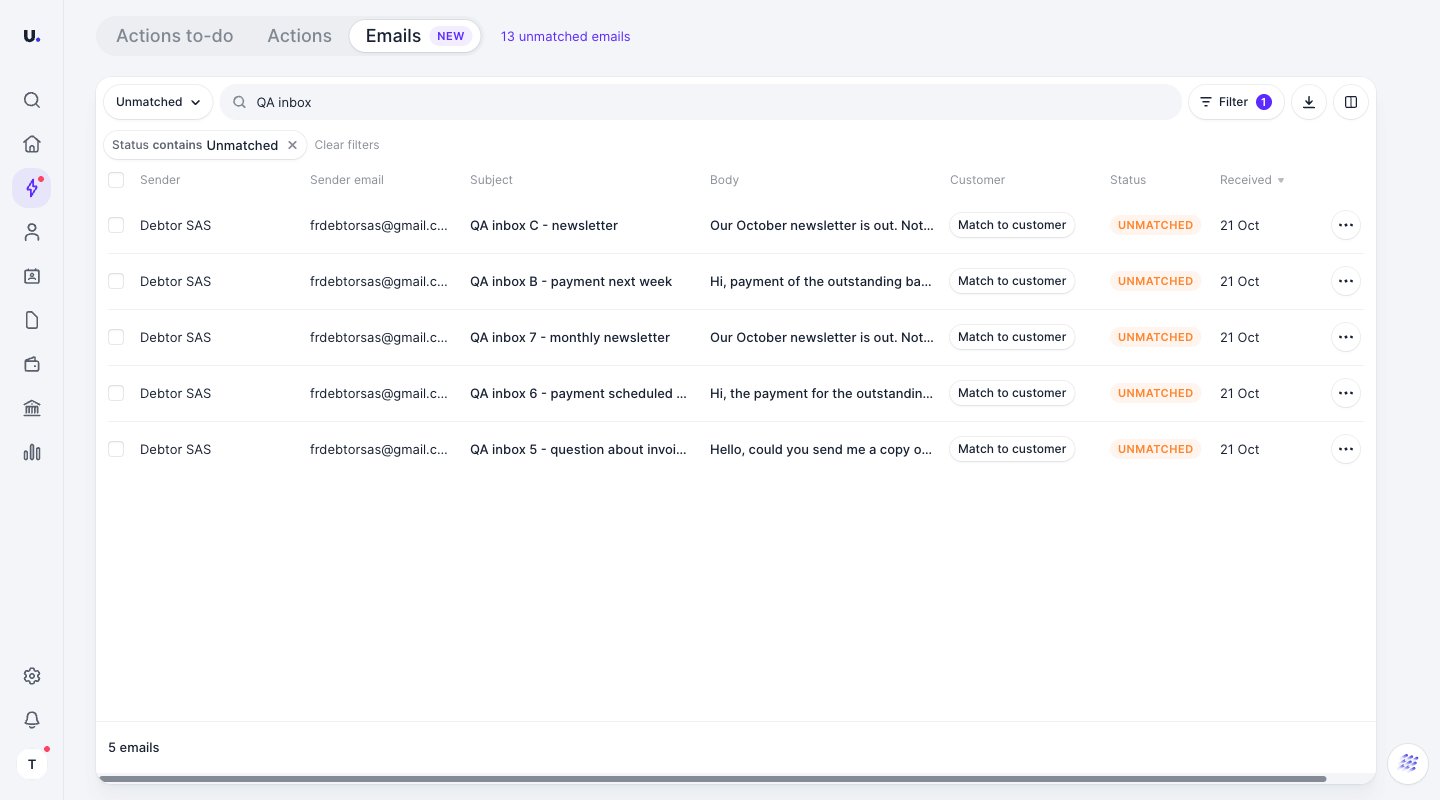
| View | What it shows |
|---|---|
| Default view | Matched and unmatched emails |
| Unmatched | Emails Upflow couldn’t link to a customer |
| Matched | Emails linked to a customer |
| Archived | Emails you archived |
- Search by the sender’s name or address, the subject or the body.
- Filter by date received, sender email, customer or, for admins, status. The Sender email filter works with part of an address too, such as a domain like
@acme.com. - Sort by date received, sender, sender email or subject. Emails are sorted from newest to oldest by default.
Match an email to a customer
- Click an email to open it, or click Match to customer on its row.
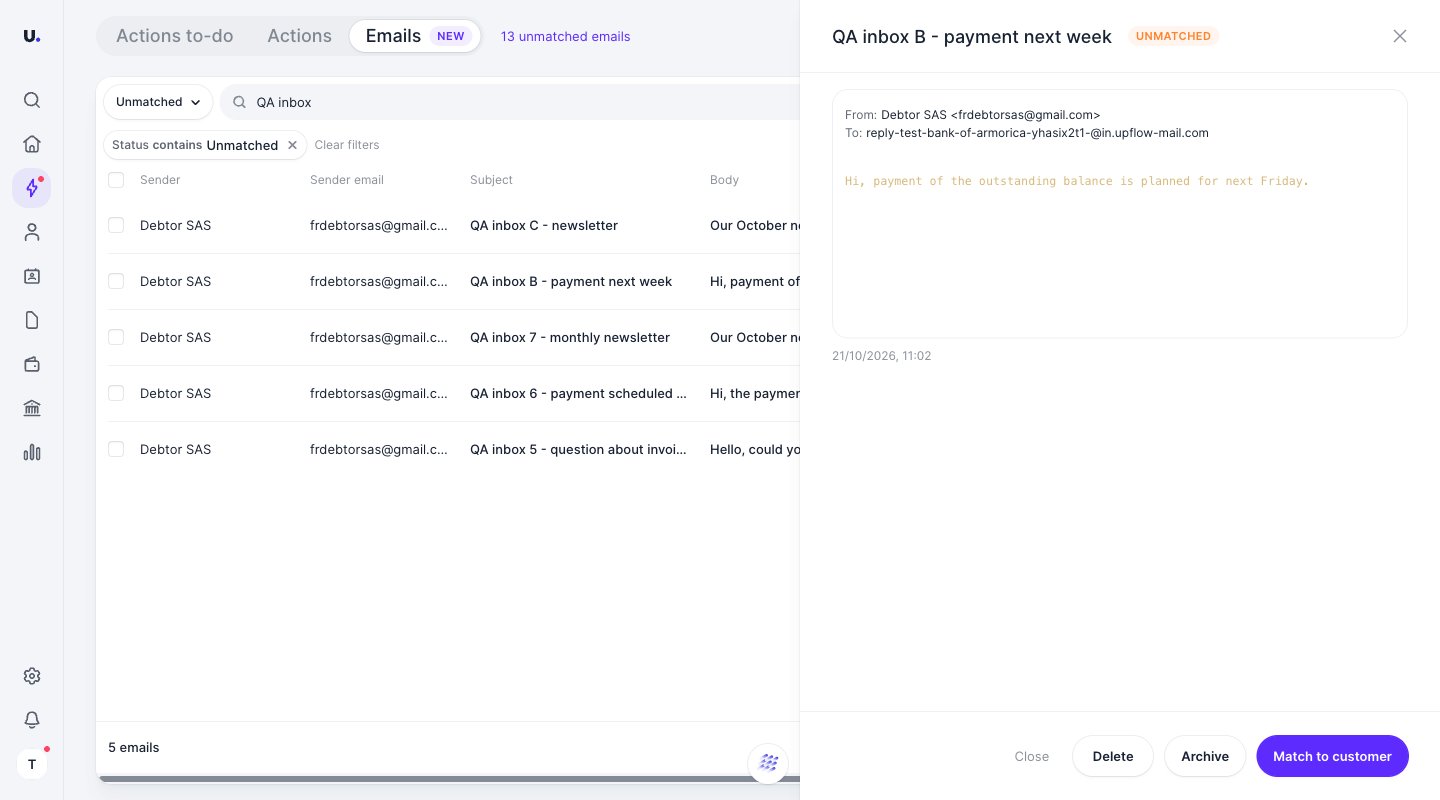
- Click Match to customer.
- Select the customer, and optionally one of its invoices.
- Keep Add sender as contact ticked to add the sender to that customer’s contacts, or untick it if the sender doesn’t belong to that customer.
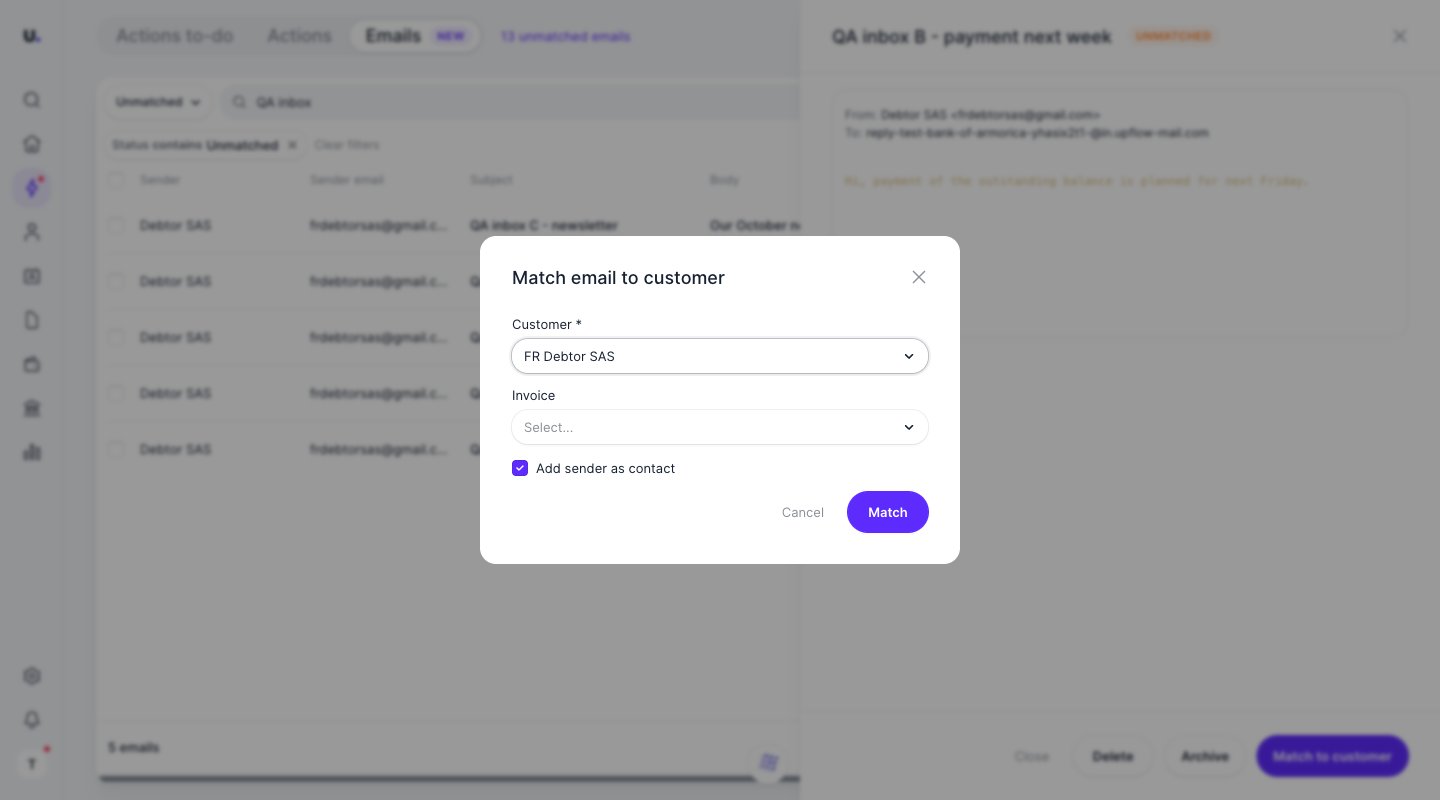
- Click Match.
The sender is never added as a contact when they are one of your users or aliases.
Match several emails at once
- Select the emails with the checkboxes, or click Select all to include every page.
- Click Actions > Match to customer.
- Select the customer, and optionally one of its invoices.
- Choose whether to add the senders as contacts, and click Match.
Archive an email
Archive the emails that aren’t about collection, such as newsletters, internal messages or copies of the emails you send, to keep your inbox clean.- To archive one email, open it and click Archive, or use the … menu on its row.
- To archive several, select them and click Actions > Archive.
Delete an email
Open the email and click Delete, or select several emails and click Actions > Delete.If several organizations share the same email address
When several of your organizations import emails from the same address, each one receives its own copy of every email. Once an email is handled in one organization, Upflow takes its copies out of the inbox of the others, so your team doesn’t review the same email twice:- When you match an email in one organization, Upflow archives its copies in the other organizations. Copies already matched to a customer there stay matched.
- When an email arrives after it was matched in another organization, Upflow imports it directly in the Archived view.
- When you delete an email in one organization, Upflow also deletes its unmatched and archived copies in the others.
- When you archive an email, it’s only archived in the organization you’re in.