

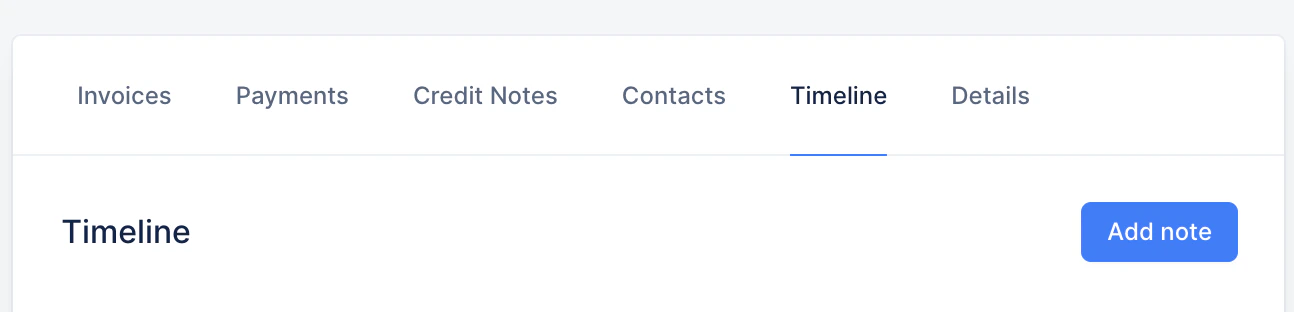
Timeline content
Actions History
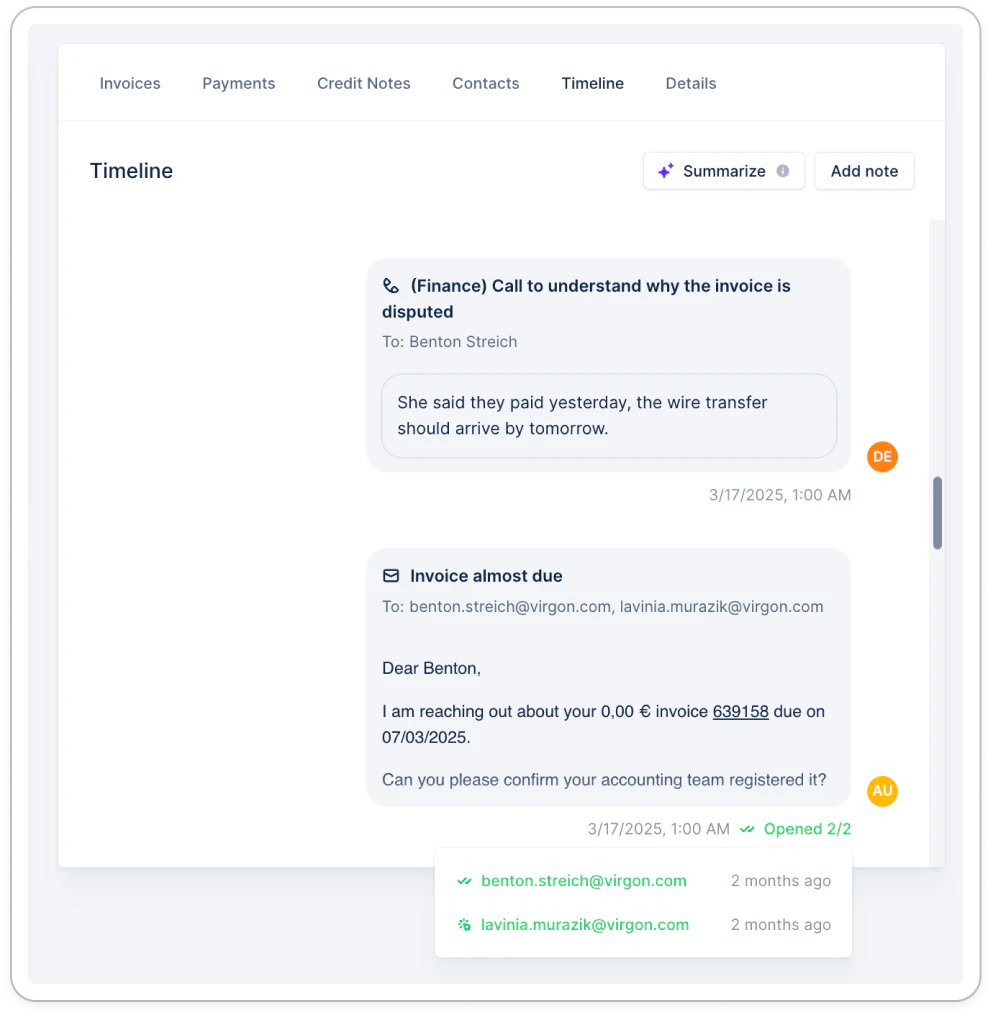
- Content: Every minuted phone call or reminder (email, letter, task) performed in Upflow is available here to read, from the most recent to the earliest.
- Details: Find out who performed each action and when. Do two of your colleagues have the same initials? Hover your mouse over an action assignee to display their full name.
- Action status: Check whether your mail (electronic and postal) has been received, opened, or failed to be delivered.
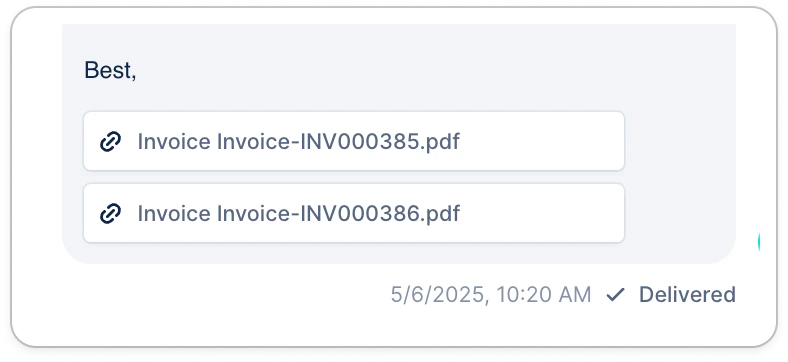
- Attachment(s): Download the attached files.
Your customer’s replies
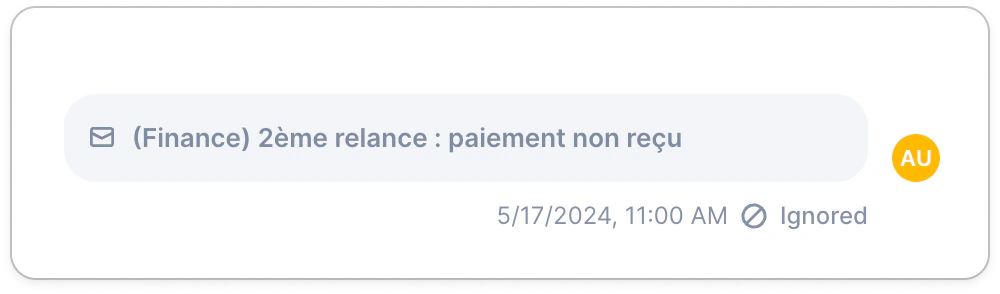
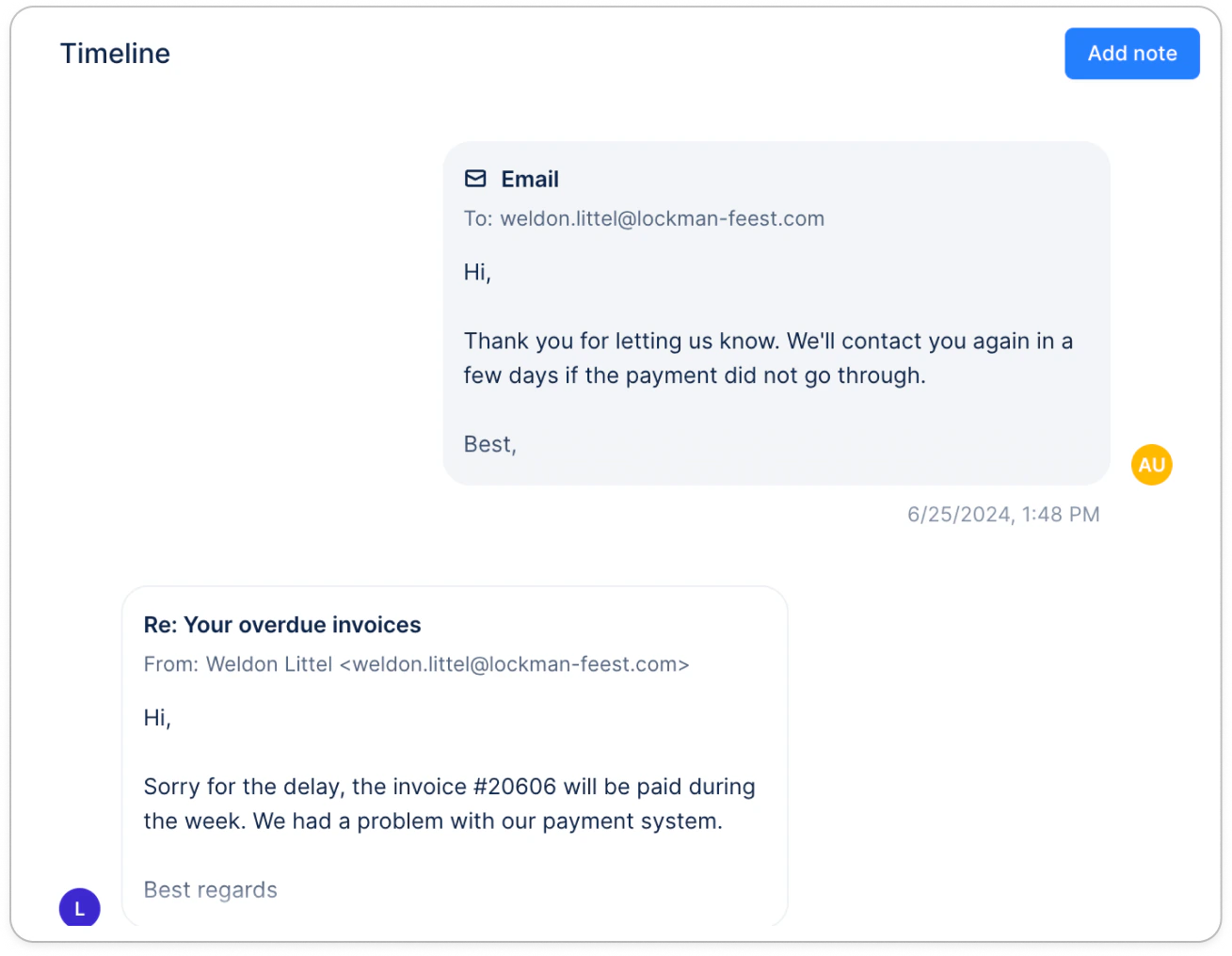
If you have set up the replies import, your customer’s answers to your reminders will automatically be added.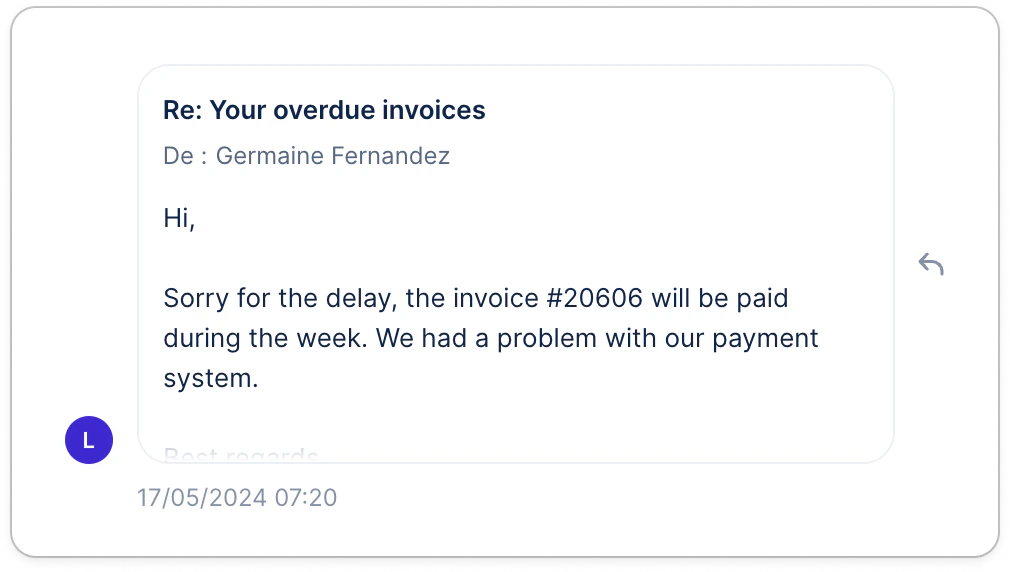
Payment details
Every completed (failed or successful) transaction is displayed on the related timelines, linked to the associated invoice and its due amount, along with the transaction timestamp. Click on the invoice line to access its details.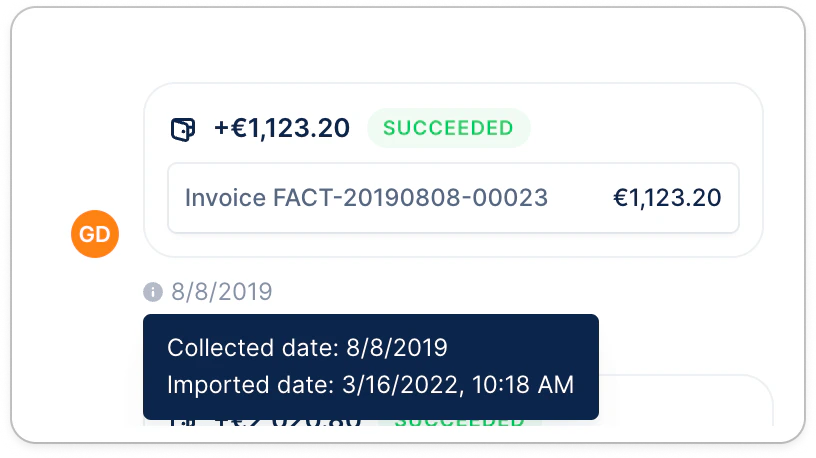
Collection status
If a collection was paused for a customer, the information will be displayed at the very beginning of their Timeline. This mention will disappear as soon as the process is restarted.
Timeline actions
Comment and mention
Ease your account management with notes, or draw your teammates’ attention by mentioning them* to trigger a notification (email, slack, or only in-app). *If the user you mention is a Member/Account manager, they must be assigned to the customer to access their timeline and your note. Otherwise, they won’t be available to be tagged.
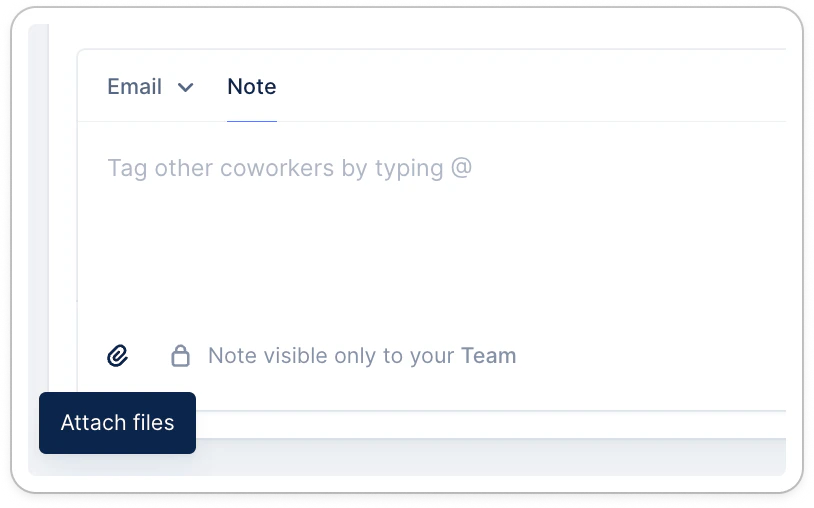
Attach a file to your note
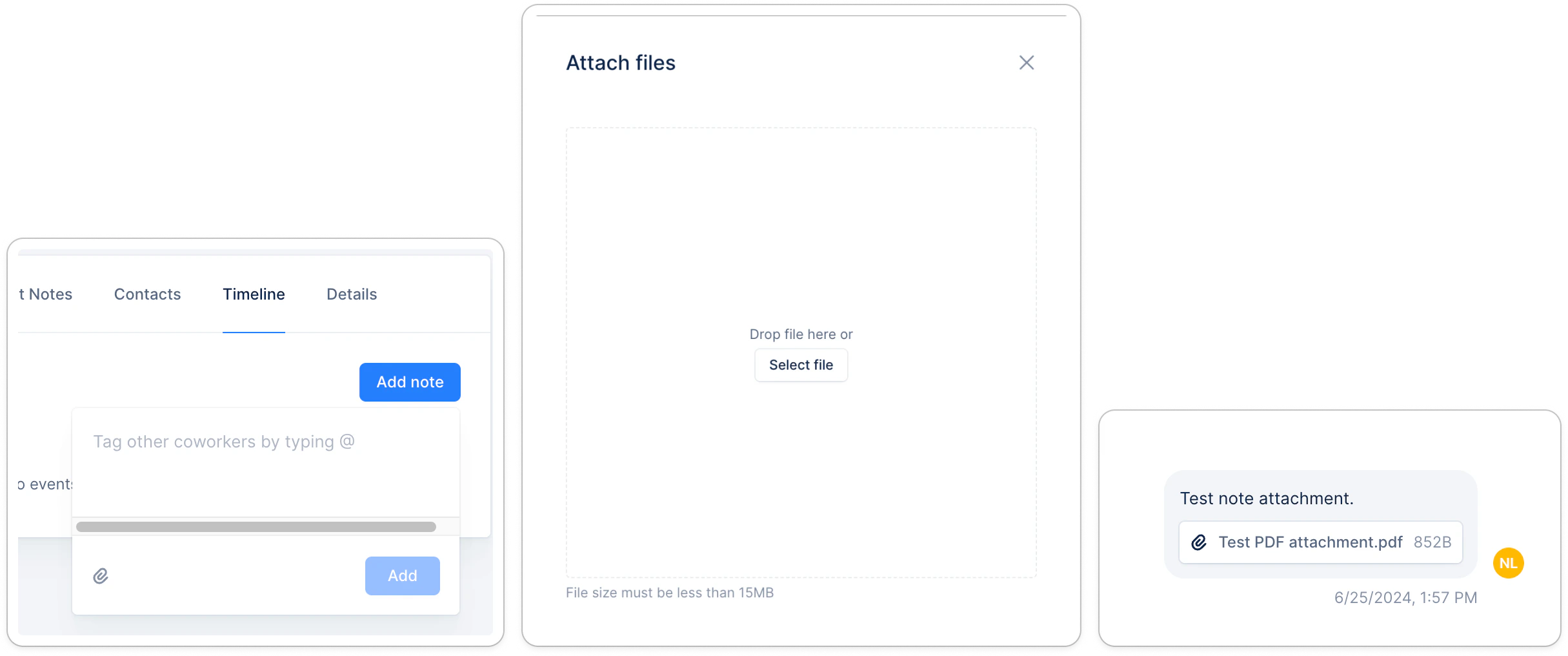
You can attach any files to the notes you leave on any timelines (Actions, Invoice details page, Customer details page).- Attachments can be added after the note is created.
- There is no file format limit.
- There is a limitation of 25 attachments to a note, and 15Mb global size limit.
- There is no preview of the attachment, but it’s downloadable from the note
Pin / unpin
Highlight essential information and make it easily accessible anytime by clicking on the pin next to any note (this doesn’t apply to other timeline events). It will add a pin logo next to your customer’s name and display the selected comments when hovered over. Undo it in the same way from the timeline or the pinned notes. You can also add your pinned notes as a column from your Customers list view.Customers’ pinned notes are included in Customer exports.
- If there are several pinned notes for the same customer, they are added sequentially in the same field.
- All formatting is flattened, and attachments are not included in the export.
Reply to your customer
Save time sending email replies directly from Upflow. No need to jump from one inbox to another searching for the right thread—find any email you want to follow up on in your timeline, and hit Reply.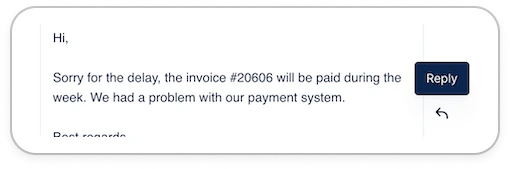
❗ Please note your email will be considered an action if you have an ongoing workflow with this customer and could postpone the next action to respect the defined minimum contact delay.