

1 - Manually and in bulk
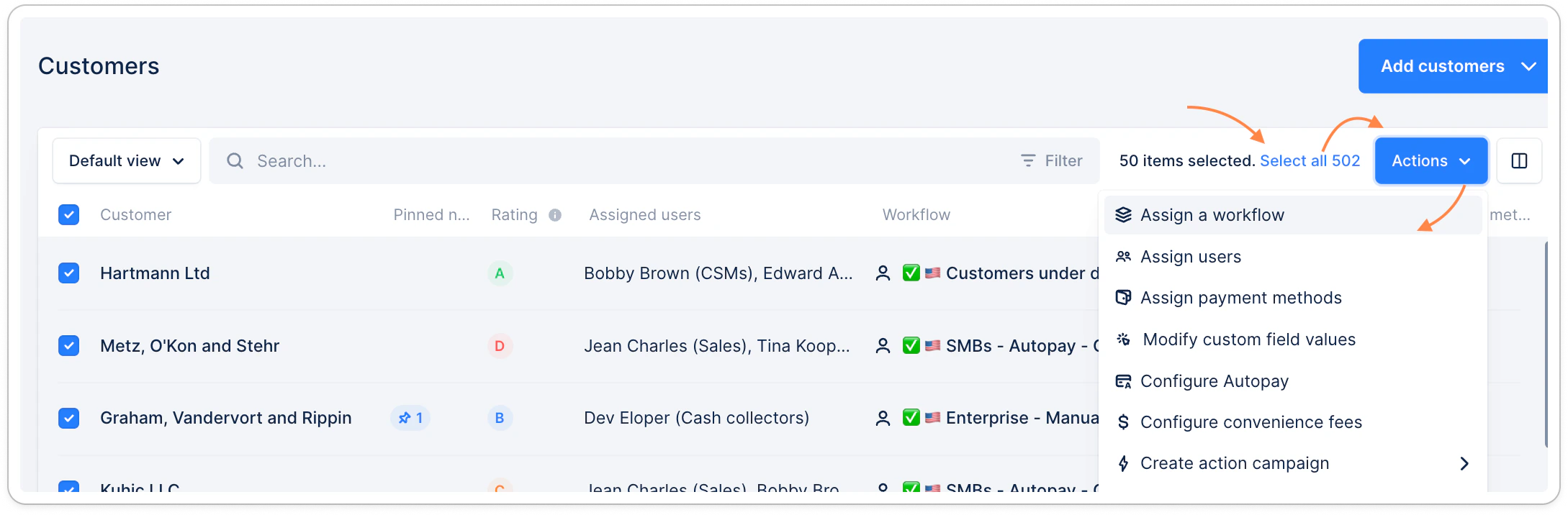
From your Customers list view, you can filter your customers based on different criterias, such as custom fields. Tick the Customer column. If you have more than 50 customers, a blue link will offer you to select all at the top right of the list. Click it.- Then click Actions > Assign a workflow > select the workflow
- Then click Actions > Assign users > select the user(s)
2 - Manually from the Customer detail page
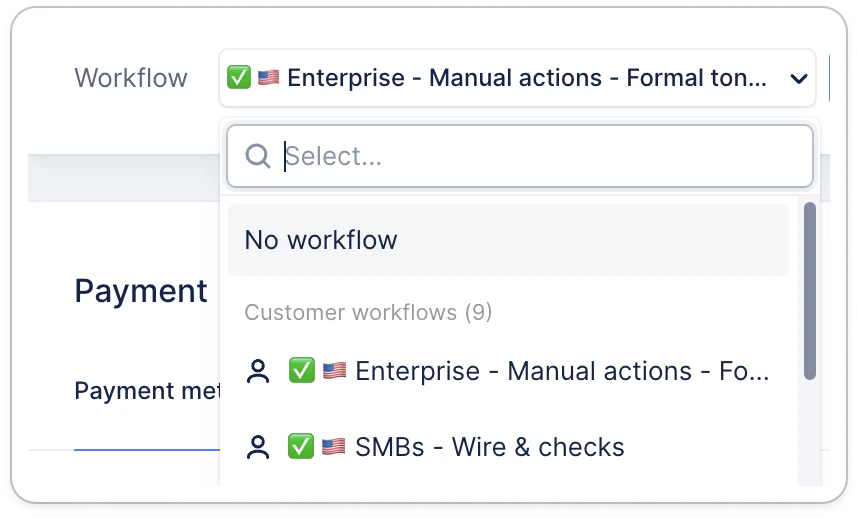
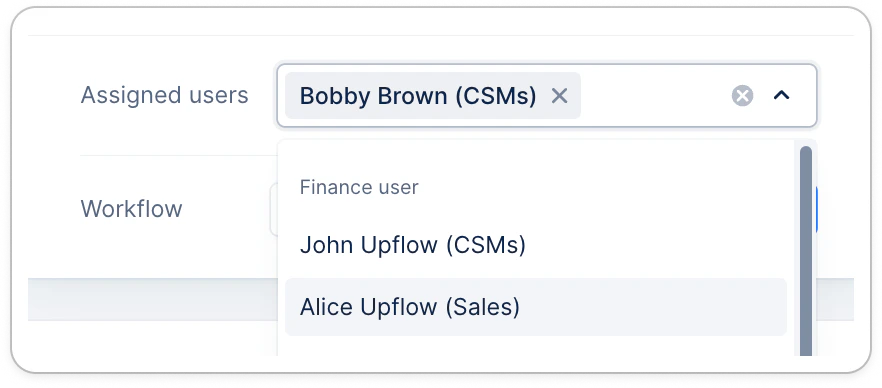
Access your customer’s detail page.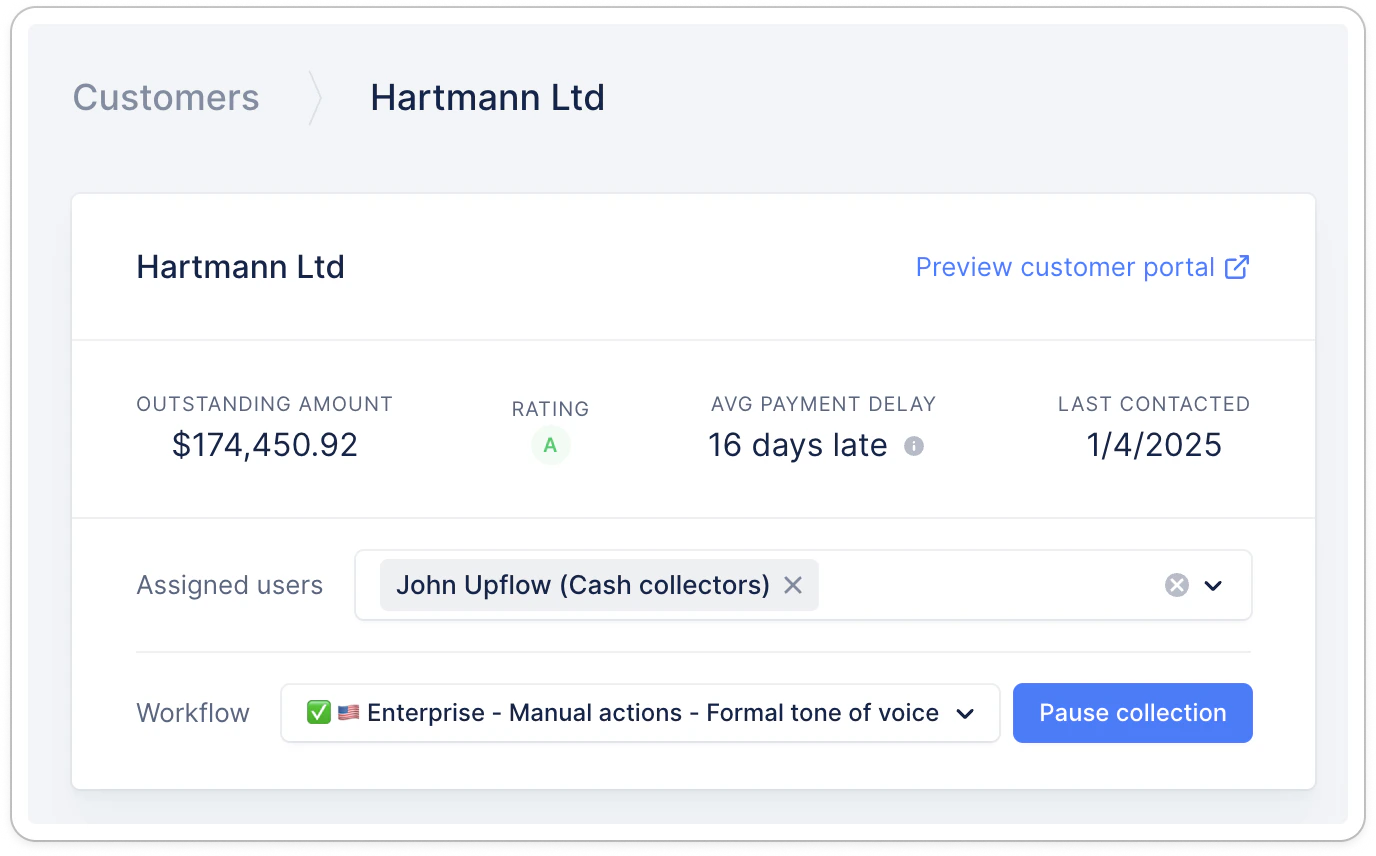
3- Manually using a CSV import
You can perform CSV imports based on the customer name and their external id. Start by exporting your customer list view from Upflow (filtered if needed) - or use an internal file.
- And here’s a full article on how to proceed.
Manual update not saved
Your manual updates can sometimes not be saved and still display the previous assigned workflow. This might be due to an automation, such as Smart rules. Automations will always overrule manual updates. Check your smart rules to ensure none is blocking a manual update. If they are, edit your rules to adapt to your needs.- And refer to the last section of this article for more insights.
4 - Automatically using our Smart rules
You can find all information on our dedicated article: Smart rules. You can also refer to our dedicated “how to” article: Smart Rules - Assignment Best Practice. The important thing to take into account, is that a smart rule overrules any manual assignment option.5 - Automatically using our API
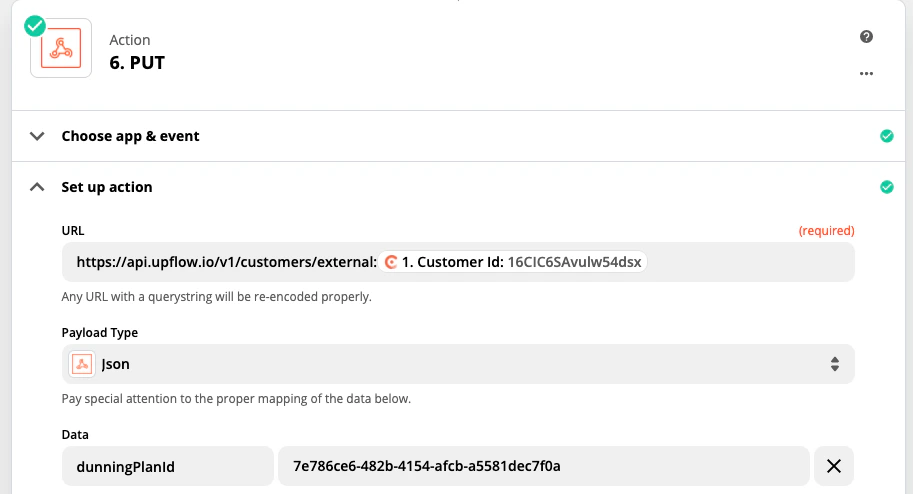
[We recommend this solution, however, it requires help from an IT resource and Zapier plan pro]. When you integrate your billing data through our API, it is possible to directly assign a collection workflow or an account manager to a customer through our Customer endpoint (both when creating or updating a customer) according to your own logic. If you are using one of our native integrations like QuickBooks Online, Chargebee or Stripe Billing, you can use the same API functionality to do this via Zapier or any other automation platform. Depending on a trigger from your billing software, you can then configure rules to dynamically update the corresponding customers in Upflow. For example, you can assign different collection workflows depending on the customer’s registered payment method in Chargebee by having a branching logic :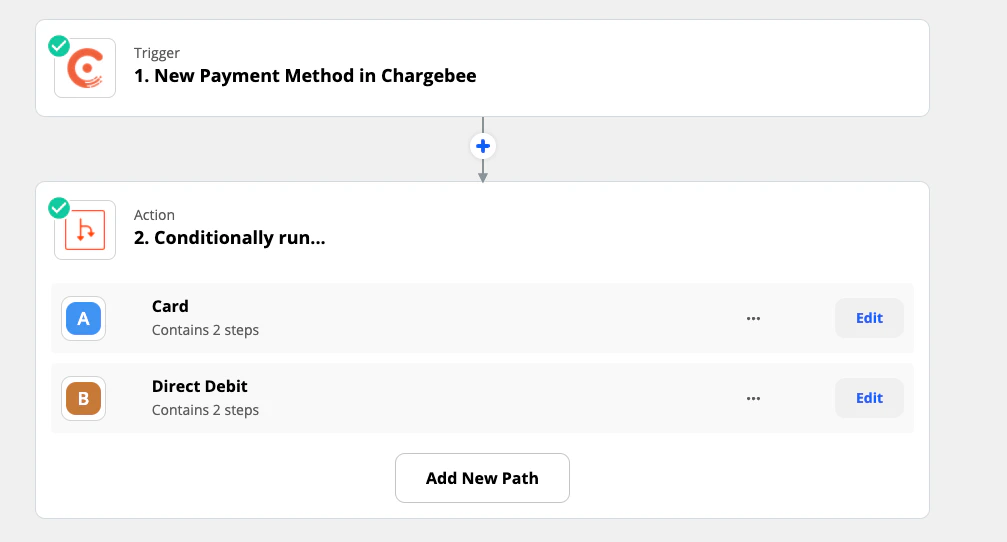
Useful to know
When using one of the automated options, here’s what the priority order would look like, depending on the configuration you have on your end:- Salesforce - as a native (secondary) integration, Salesforce data takes over API’s requests, smart rules or manual updates - user assignment only.
- API - If Salesforce isn’t used for account owners, and you wish to automate the Upflow owners from an external tool or a specific information not available in Upflow.
- Smart Rules - will overrule manual updates or CSV imports.
- CSV imports or Manually from the app