

- Users to customers
- Workflows to customers
Format your file
Your file needs to have the following columns:- External Id: the customer’s id from your source tool (QuickBooks, NetSuite, Stripe, Chargebee, etc..). If necessary, you can find it by exporting your customers from Upflow and checking the External Id column.
- Account manager email: the email of the account manager. Note: the account manager needs to be invited to Upflow (Invite and manage your organization’s users).
- Workflow name: the exact name of the workflow.
Step by step process
- Go to your customer list view
- Click on Add customers > Assign customers
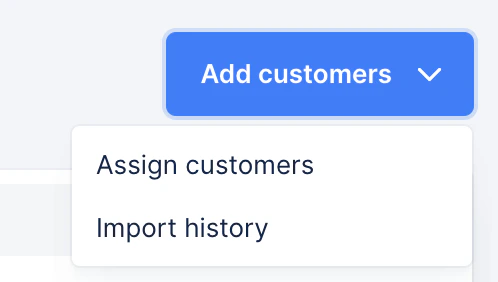
- Import your file
- Map the corresponding columns (additional columns will be discarded)
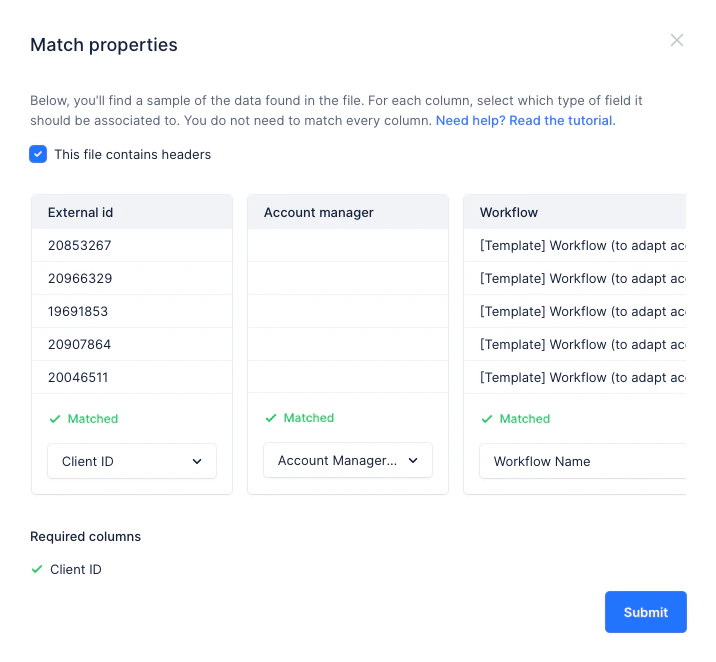
- Submit and wait for the assignation to happen!
- Once the assignation is done you will get a notification. Quickly check if the import was successful, if it’s not the case, you can see the error lines and update your file accordingly!
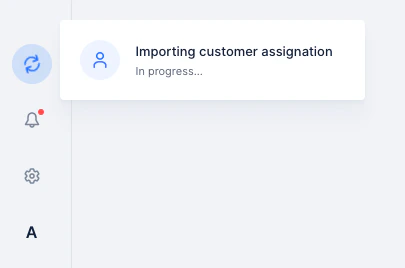
Import errors
From the notification link or the Import history, check your latest import by clicking it. You’ll then see the following information, indicating the number of errors and showing the identified errors: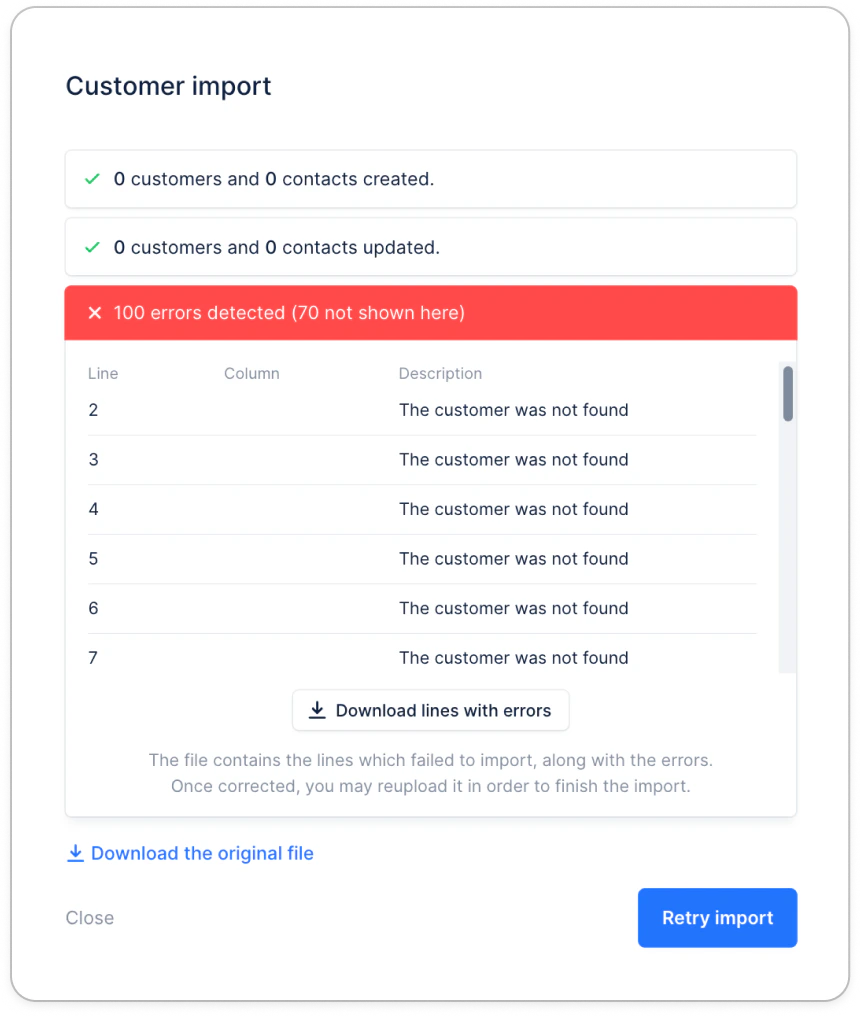
Error: “Dunning plan not found, check spelling”
If you’re getting this error even though the workflow name appears identical to what’s shown in Upflow, this is likely caused by invisible formatting characters (non-breaking spaces) that get added when copying and pasting workflow names. Solution: Reset the workflow name- Go to the Workflows list view, and open the affected workflow
- Click on the workflow name to edit it
- Erase the entire name
- Manually type the workflow name (do not copy/paste)
- Save the workflow
- Copy the name from either the workflow page or the workflows list
- Paste it without formatting (Cmd/Ctrl + Shift + V) into your CSV file
- Retry your import