

From the Customers list view
👉 This method will allow you to update several customers at once.
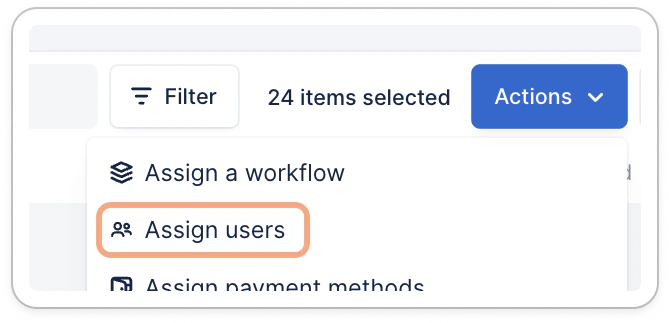
Once you have filtered and picked the Customers you want to update on your list view , click on the Actions button on the top right corner and select the option you are interested with (i.e., Assign users).
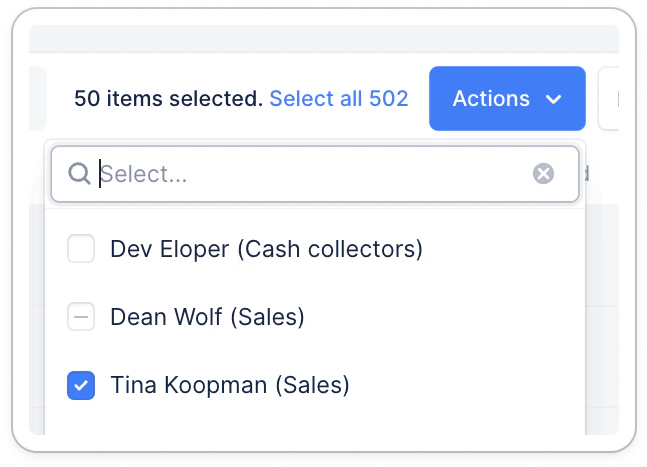
- A white box (Dev Eloper) means this user is assigned to none of the selected customers.
- A white box with a dash (Dean), means this user is assigned to some of the selected customers.
- A blue box (Tina), means this user is assigned to all selected customers.
From a customer’s detail page
Access to the customer you want to update, and click the Owners field. It will display a drop-down list you can pick your option(s) from.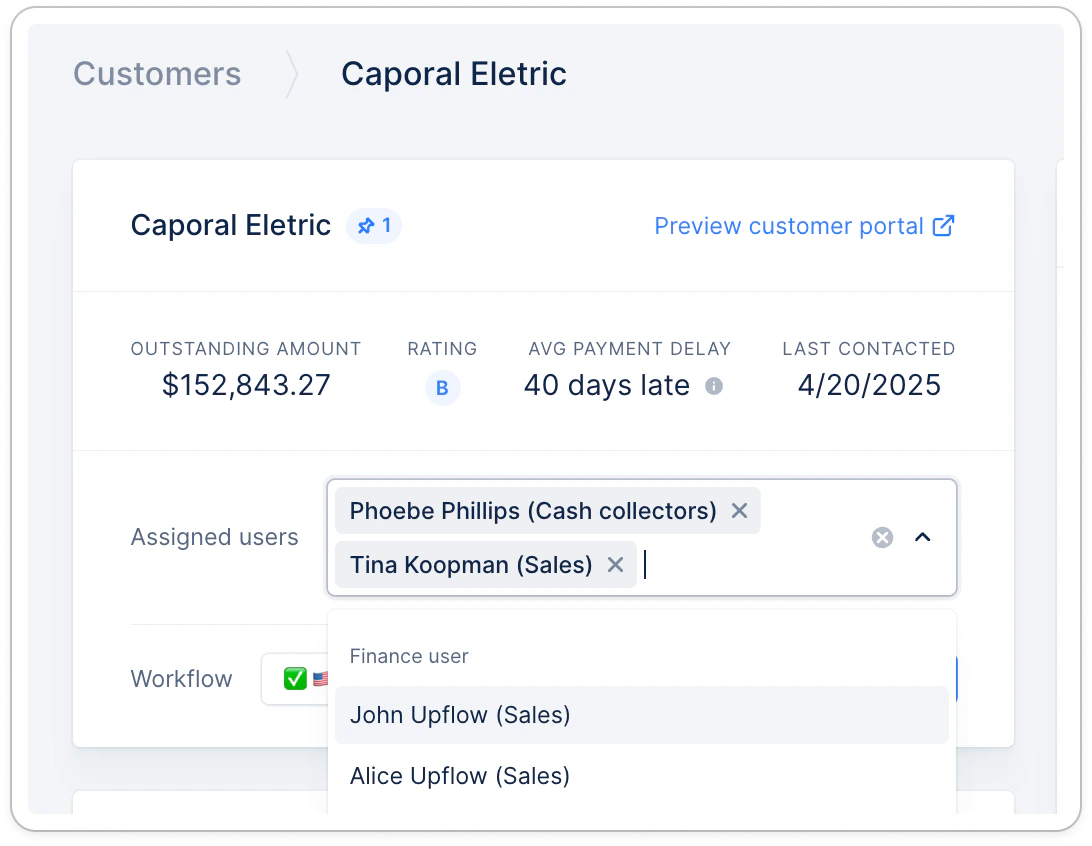
💡 When you unassign an account from an Owner, their responsibility will be transferred to the organization’s Finance users. If your organization has none, the organization owner will take over!