What are ad hoc actions?
Ad hoc actions are manual actions you can create on demand. Unlike workflow actions that are automatically generated based on your collection workflow configuration, ad hoc actions give you the flexibility to:- Create an ad hoc action for a specific customer or invoice
- Start from an existing template or write your own message
- Works with any invoice status
Ad hoc actions vs. workflow actions
When to use ad hoc actions
Ad hoc actions are ideal for:- Team coordination: “Review credit limit for Customer X before their renewal”
- Follow-up reminders: “Call customer next week about payment plan discussion”
- One-off tasks: “Send thank you note after large payment received”
- Investigation tasks: “Research why invoice was disputed”
- Internal reminders: “Update payment terms in billing system”
- Pre-emptive outreach: “Contact customer before invoice becomes overdue”
Creating an ad hoc action
Step 1: Access ad hoc action creation
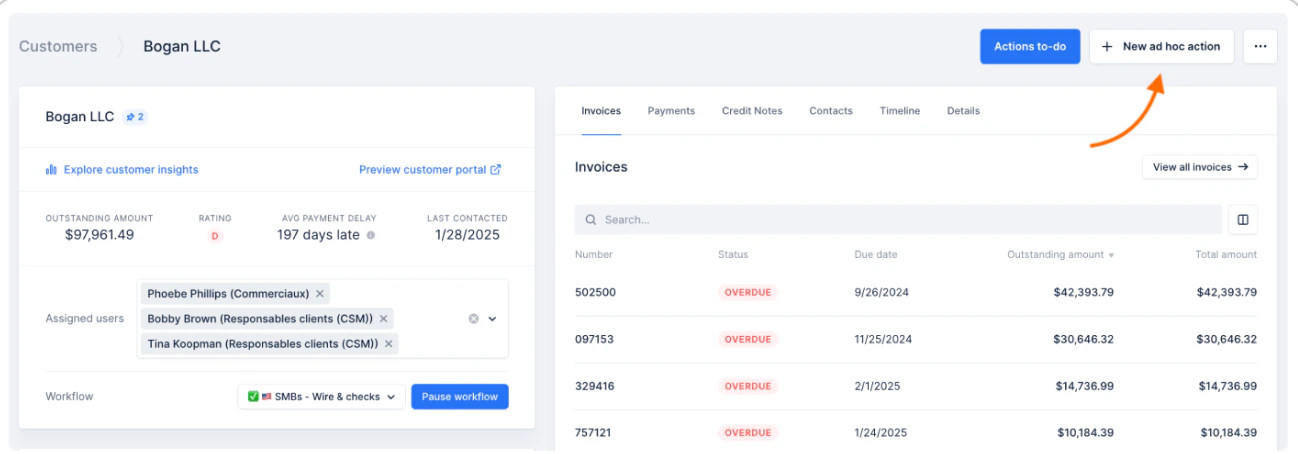
You can create ad hoc actions from several places in Upflow:- From a customer detail page: Click “New ad hoc action” at the top right of the page
- From an invoice detail page: Click “New ad hoc action” at the top right of the page
- Customer-level (created from the Customer detail page): visible in the Customer timeline only
- Invoice-level (created from the Invoice detail page): visible in the Invoice timeline and the related Customer timeline
Step 2: Fill in action details
Create ad hoc action Use an existing template to save time, or start from scratch:- Email: Draft and send an email
- Call: Log a phone call
- Task: Create a general to-do item
- SMS: Send a text message
- Letter: Prepare postal mail
Add images to your email/letter
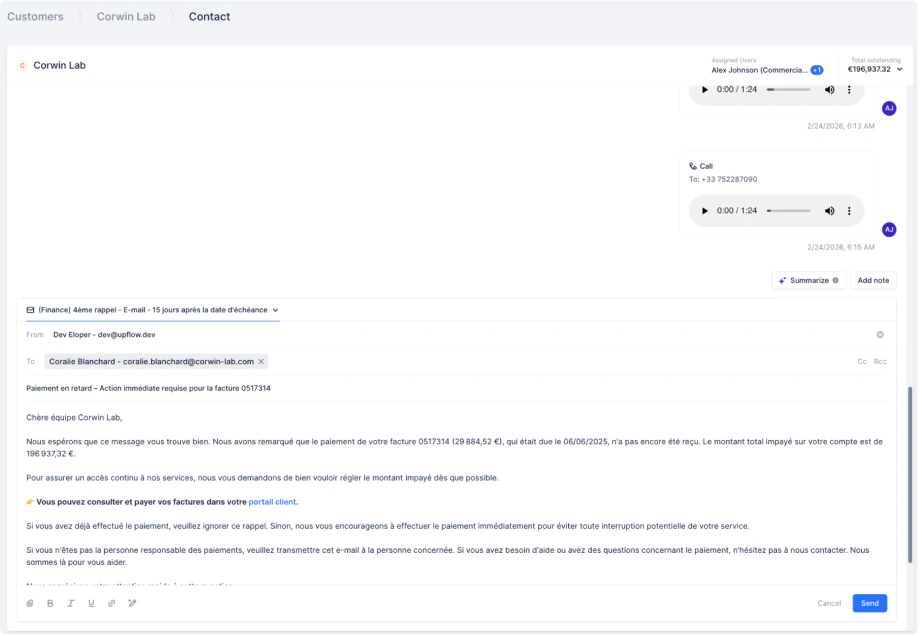
When creating an ad hoc email or letter, you have the ability to add images in-line. To do so, you can either:- Copy/paste an image in your email/letter body
- Drag the image from a file to your email/letter body
- Upload an image by clicking the dedicated icon
Step 3: Execute immediately
- Click “Send”, “Done, or “Mark as completed” (based on the action type) to perform the action right away
Managing your ad hoc actions
Viewing ad hoc actions
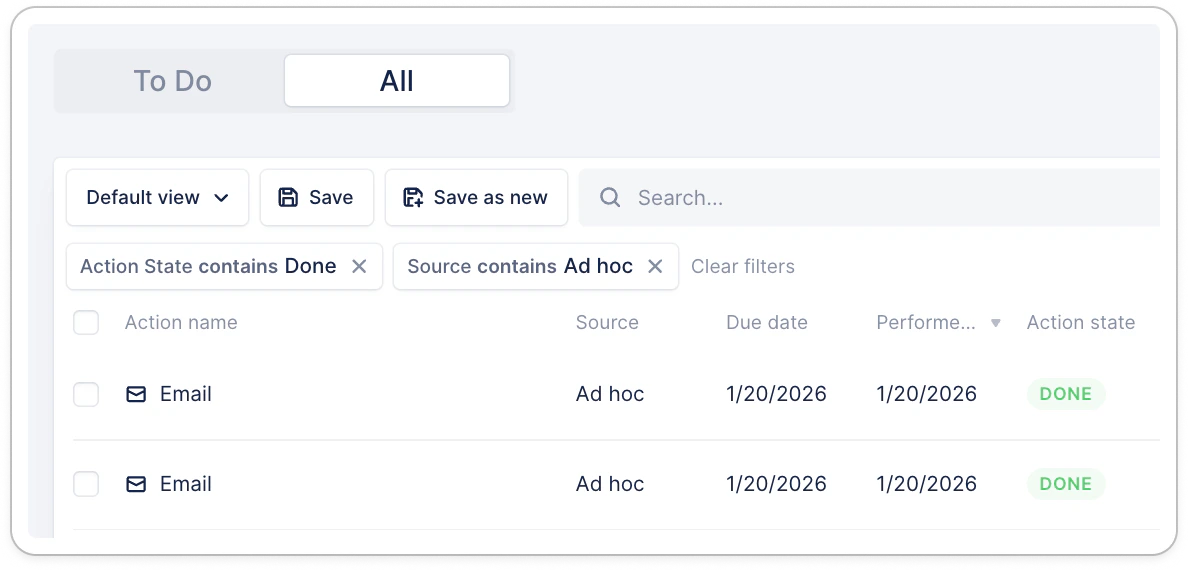
All ad hoc actions appear in your Actions list view > All.- Filter on “Source contains Ad hoc” for specific results. Add more filters based on your needs to narrow the displayed results.