Documentation Index
Fetch the complete documentation index at: https://docs.upflow.io/llms.txt
Use this file to discover all available pages before exploring further.
Welcoming new joiners, restructuring your team, or handling a colleague’s departure all require updating your users’ access in Upflow.
Keeping your organization’s permissions accurate ensures everyone has the right visibility and actions in the platform.
As an Admin, you can easily manage access levels directly from your Upflow Settings > Users.
Invite and manage your team
Create users
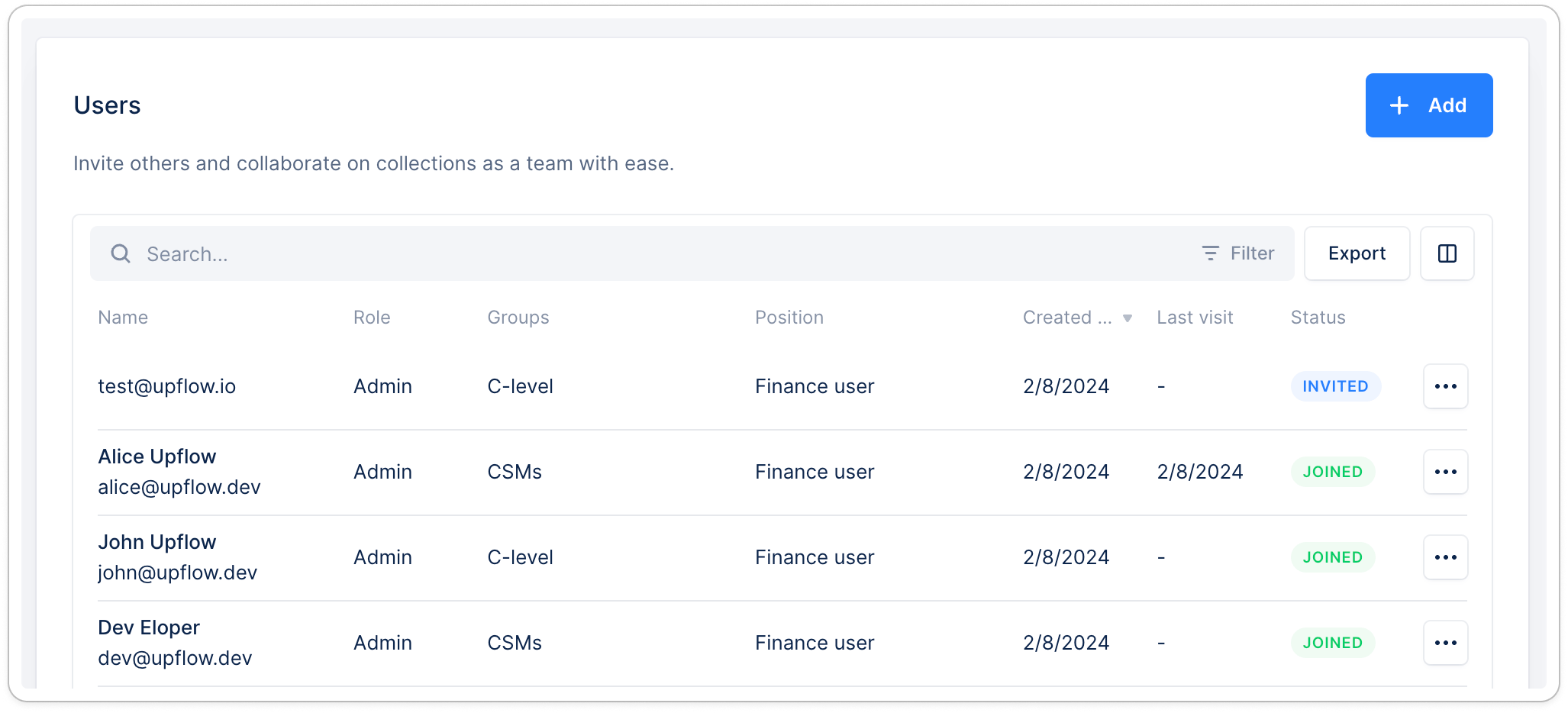
From your Users settings, click Add to create new user profiles.
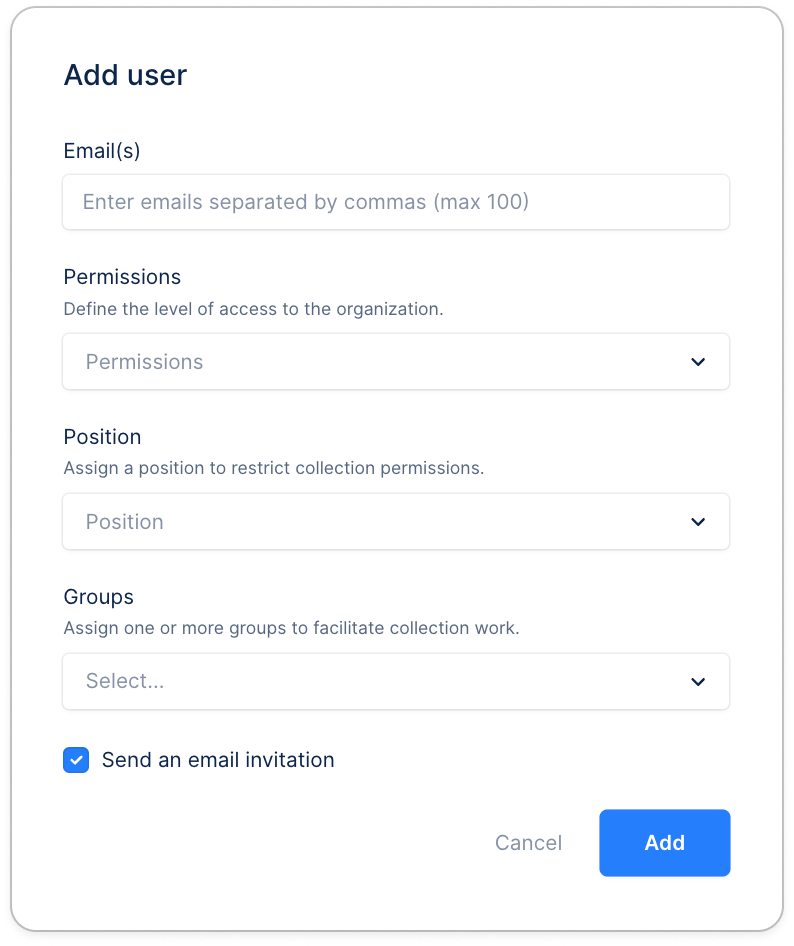
Enter the email address, permission and role (detailed below in the article), add a group if needed (can be edited later). If you wish to create the user without inviting your teammate right away, untick the dedicated option at the bottom. And save.
Bulk create/invite your collaborators
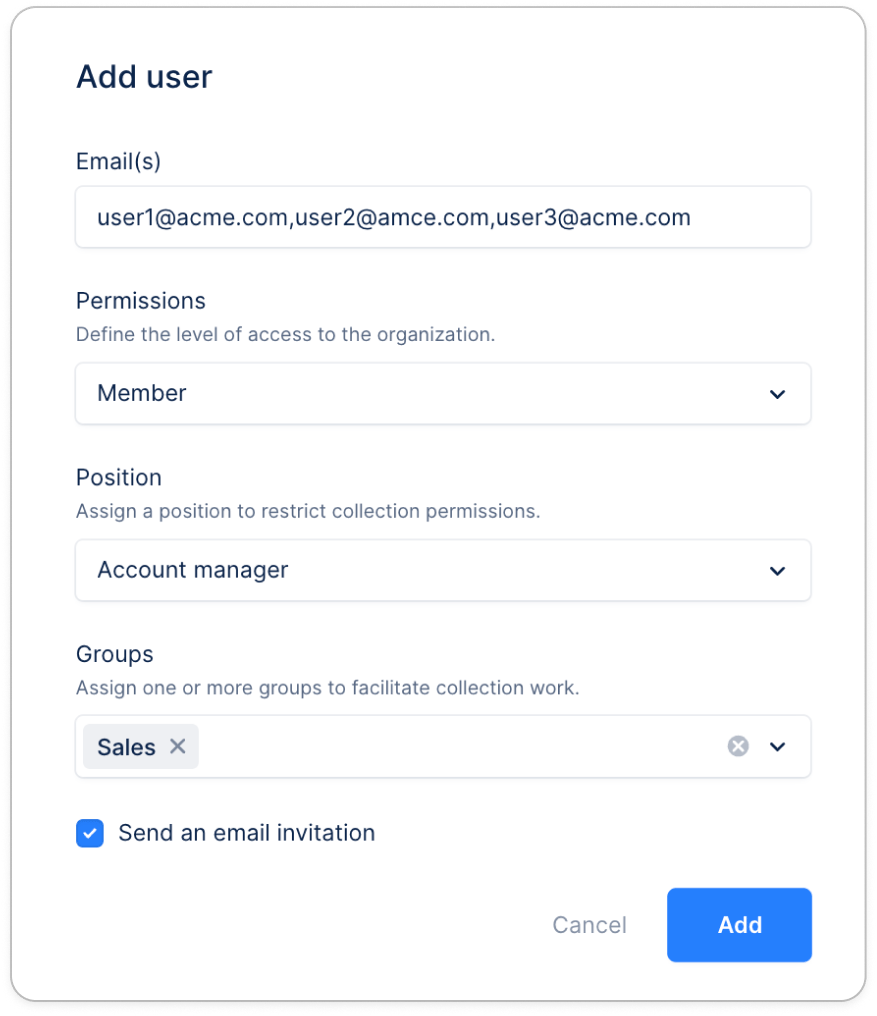
If multiple users share the same role, position, and group, you can bulk invite them by adding their email addresses, separated by commas, up to 100:
Understanding user fields
| Field | Definition |
|---|
| Name & Email address | Displayed throughout the application (@mentions, assignments) and in reminder emails. The display name can be edited by the user only from their Profile section. To edit this email, submit a request at the top. The address associated with the user’s profile — is used for login, receiving notifications, and sending reminders. |
| Role and position | Define a user’s access to the different parts of your Upflow organization. |
| Groups | Groups the user is part of. See our dedicated article. |
| Created at | The user’s creation date |
| Last visit | The last time the user logged into Upflow. Blank if never logged yet. |
| Status | • Created: hasn’t received an invite and cannot log in yet. • Invited: received an invite but never logged into their account. • Joined: logged into their account at least once. |
Search, filter & edit profiles
You can search, filter, and sort your users the way you do other Upflow lists.
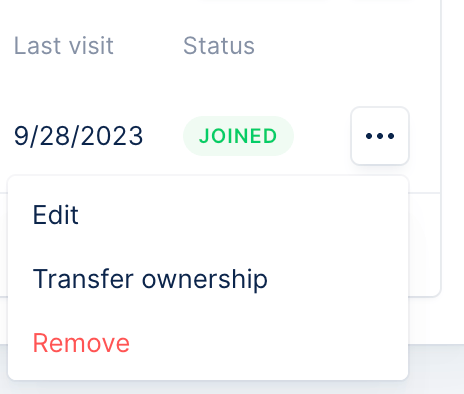
You can take action on any user by clicking on the three dots next to their name. Update their Position and/or Group as needed. Click Save. Ask the updated user to refresh their Upflow tab if they’re already logged in, to ensure the new permissions take effect.
Rearrange the columns to see the information you need.
Can I edit a user’s email address?
If a user’s email address changes, you can ask our Support to update their email address here, with:
- Current user email address + New email address
Or you can create a new profile with the new email address, reassign the clients to the new profile, and remove the old one.
You might also need to change action owners if specific users are used in workflows (see here).
Roles & Positions
Roles determine what users can access and configure.
Positions define what data they can see and how they interact with workflows.
Let’s break this down.
Roles Overview
| Role | Description |
|---|
| Owner | Has full control, including transferring organization ownership. Only one per organization. |
| Admin | Manages configurations (workflows, users, integrations, etc.). Can perform collection reminders. |
| Member | Can act on their assigned customers and execute tasks assigned to them. Cannot configure workflows or settings. |
Role access matrix
Roles
| Area | Member | Administrator | Owner |
|---|
| Dashboard | 🟢 | 🟢 | 🟢 |
| Customers | 🟢 | 🟢 | 🟢 |
| Customer details | 🟢 | 🟢 | 🟢 |
| Invoices | 🟢 | 🟢 | 🟢 |
| Transactions | 🟢 | 🟢 | 🟢 |
| Workflows | 🔴 | 🟢 | 🟢 |
| Actions | 🟢 | 🟢 | 🟢 |
| Analytics | 🟡 | 🟢 | 🟢 |
| Profile | 🟢 | 🟢 | 🟢 |
| Users | 🔴 | 🟢 | 🟢 |
| Remove users | 🔴 | 🟢 | 🟢 |
| Payouts | 🔴 | 🟢 | 🟢 |
| Transfer ownership | 🔴 | 🔴 | 🟢 |
🟡 ☝️ Under certain conditions based on the position associated. More information below in the Positions section.
Actions per role
| Action | Member | Administrator | Owner |
|---|
| Edit user’s name | 🟡 | 🟡 | 🟡 |
| Add profile signature | 🟡 | 🟡 | 🟡 |
| Edit user’s email address | 🔴 | 🔴 | 🔴 |
| Edit user’s role/position | 🔴 | 🟢 | 🟢 |
| Send invitation to users | 🔴 | 🟢 | 🟢 |
| Remove users | 🔴 | 🟢 | 🟢 |
| Transfer ownership | 🔴 | 🔴 | 🟢 |
| Assign a workflow | 🔴 | 🟢 | 🟢 |
| Assign a user | 🔴 | 🟢 | 🟢 |
| Enable/disable payment methods | 🟢 | 🟢 | 🟢 |
| Enable/disable payment options | 🟢 | 🟢 | 🟢 |
| Remove saved payment method | 🟢 | 🟢 | 🟢 |
| Update custom field values | 🟢 | 🟢 | 🟢 |
| Pause collection | 🟢 | 🟢 | 🟢 |
| Chase outside of planned reminders | 🟢 | 🟢 | 🟢 |
| Send planned reminders | 🟡 | 🟡 | 🟡 |
| Send Action campaigns | 🟡 | 🟢 | 🟢 |
| Dispute an invoice | 🟢 | 🟢 | 🟢 |
| Add custom field invoice level | 🟢 | 🟢 | 🟢 |
| Add a custom field transaction level | 🟢 | 🟢 | 🟢 |
| Add a promise to pay invoice level | 🟢 | 🟢 | 🟢 |
| Mass action client list view | 🔴 | 🟢 | 🟢 |
| Mass action invoice list view | 🟢 | 🟢 | 🟢 |
🟡 👆 Personal information (name/signature) can only be updated at a personal level from the Profile section.🟡 👆 Send planned reminders: only if you’re the action’s owner.🟡 👆 Send action campaigns: available to all, but limited for users that are “Member + Account managers” to the customers they’re assigned to.
Positions
Positions define data visibility and scope of action within Upflow.
| Position | Visibility | Access Highlights |
|---|
| Finance User | Global visibility on all customers. | Accesses all the organization’s settings and data. Often serves as a fallback user in product logic (notifications, action ownership). This can generate more notification noise than other positions. |
| Accountant | Global visibility on all customers. | Same as the Finance user, without the fallback logic. |
| Account Manager | Limited to customers assigned to them (if Role = Member). If Admin role, gains access to all data. | Can take actions on assigned accounts (chasing, updating fields, pausing collections). |
Role/Position combinations Overview
| Role | Position | Access |
|---|
| Owner/Admin | Finance user or Accountant | All tabs (including Analytics), all settings, all customers and related data. |
| Owner/Admin | Account manager | All tabs (including Analytics), all settings, all customers and related data. |
| Member | Finance user | All customers and related data. Can’t access Settings, Workflows, or Smart rules. |
| Member | Accountant | All customers and related data. Can’t access Settings, Workflows, Analytics, or Smart rules. |
| Member | Account manager | Only customers they’re assigned to and related data. Can’t access Settings, Workflows, Analytics, or Smart rules. |
Overall, if the Role is Admin, all three positions give the same access and permissions across the app.
The only differences you can notice will be:
- within workflow action ownership
- nofitifications
- fall back logics in the product - most are linked to the Finance user position
💡 If the owner left the company and their account is no longer accessible, submit a Support request. We will gladly help you assign account ownership to a different user.
Error messages
A limited access can lead to error messages when trying to access a page.
For example, a user with the combination Member/Account manager, can’t be tagged in a customer/invoice timeline they’re not assigned to.
If you share a customer/invoice page URL with them, if they aren’t assigned to the related customer, they will see the following error messages:
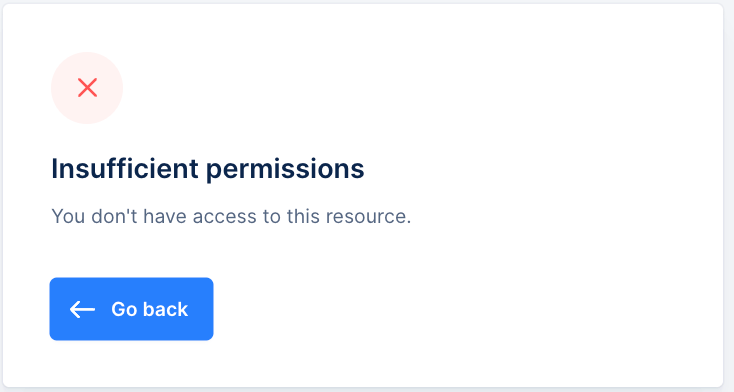
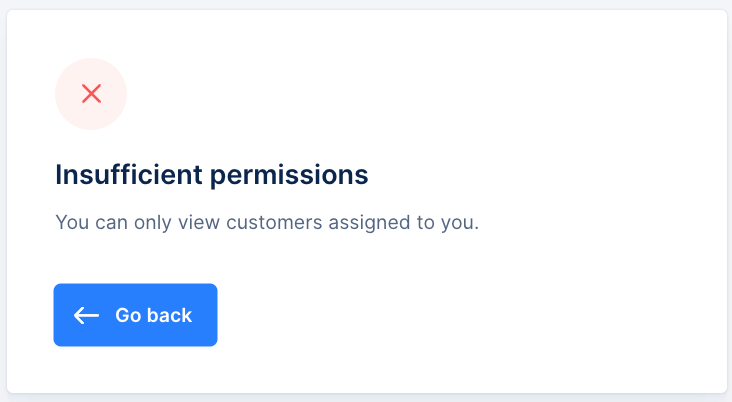
| Insufficient permissions |
|---|
| You can only view customers assigned to you. | You don’t have access to this resource. |