

What are surcharges?
Surcharges are charges applied to card payments to cover the cost of processing transactions. With Upflow, these fees are automatically added to the payment when your customer selects the card payment method. Set a surcharge percentage to pass part of your card processing costs on to your customers.Upflow permits surcharging under the following conditions:
- Credit cards only — surcharges are automatically disabled for debit and prepaid cards, and for any card whose type can’t be determined.
- Capped at 3% — the maximum allowed under Visa and Mastercard rules.
- Not available for organizations based in Connecticut, Maine, Massachusetts, or Puerto Rico — surcharging is prohibited outright under state law in these regions.
How surcharges are calculated
The surcharge is a percentage of the invoice’s total amount (including VAT). For example, if you set your surcharge to 3%, a $1,000 invoice will result in a $1,030.00 charge to your customer.What is the impact of activating surcharges?
When activated, surcharges will appear as a separate “card fees” line item on the card checkout page.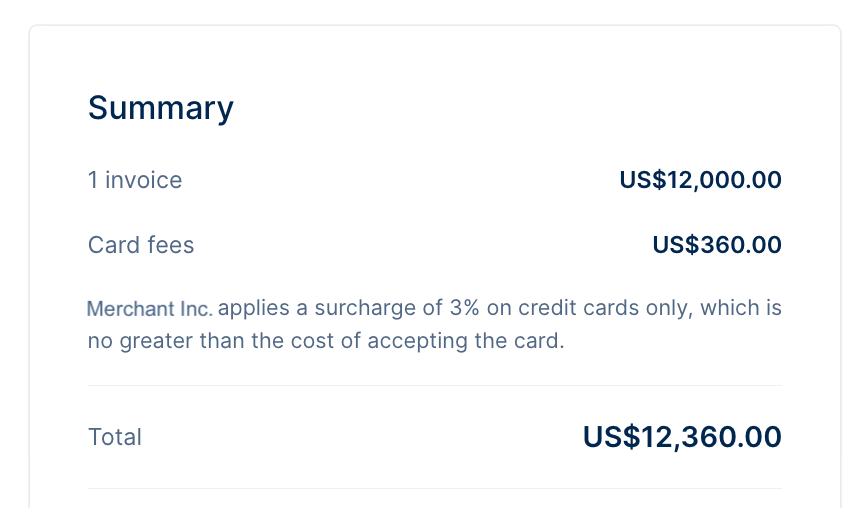
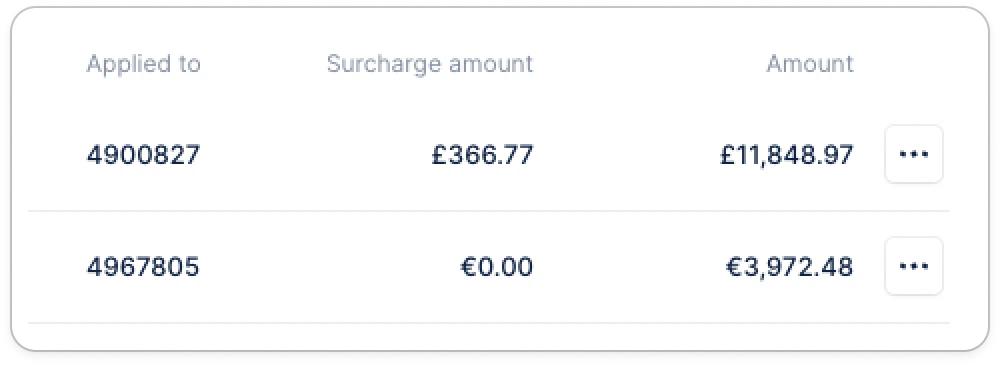
- For debit or prepaid cards: “Card fees don’t apply to debit or prepaid cards, so no fee was charged to the customer.”
- For unknown card type: “We couldn’t confirm the card type, so no card fee was applied.”
Setting up surcharges
Activating surcharges
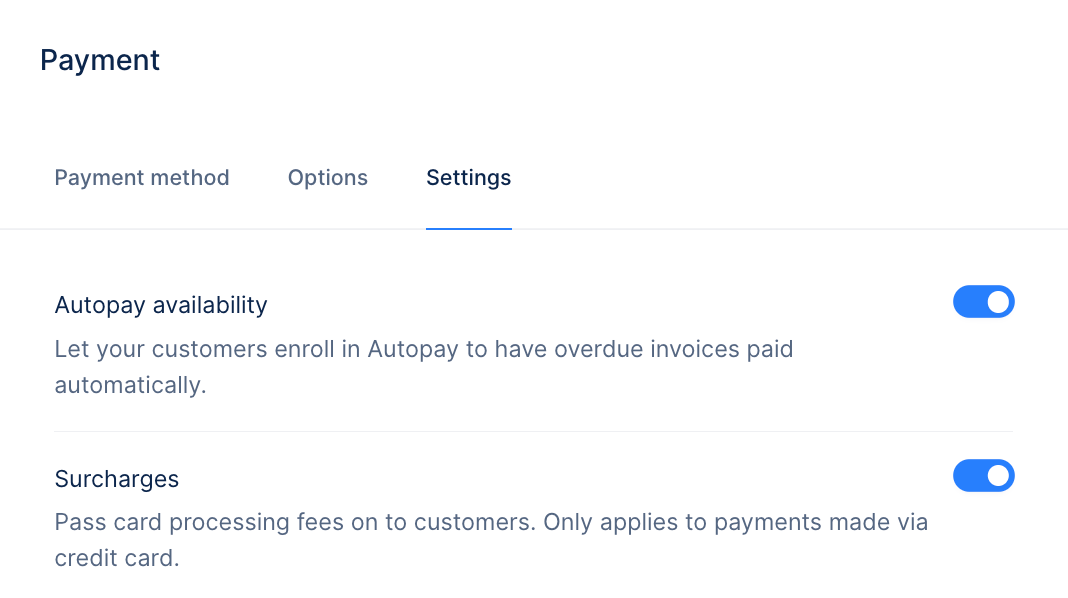
- Head to your settings: Go to your Payment Methods section, and click Edit at the Card level.
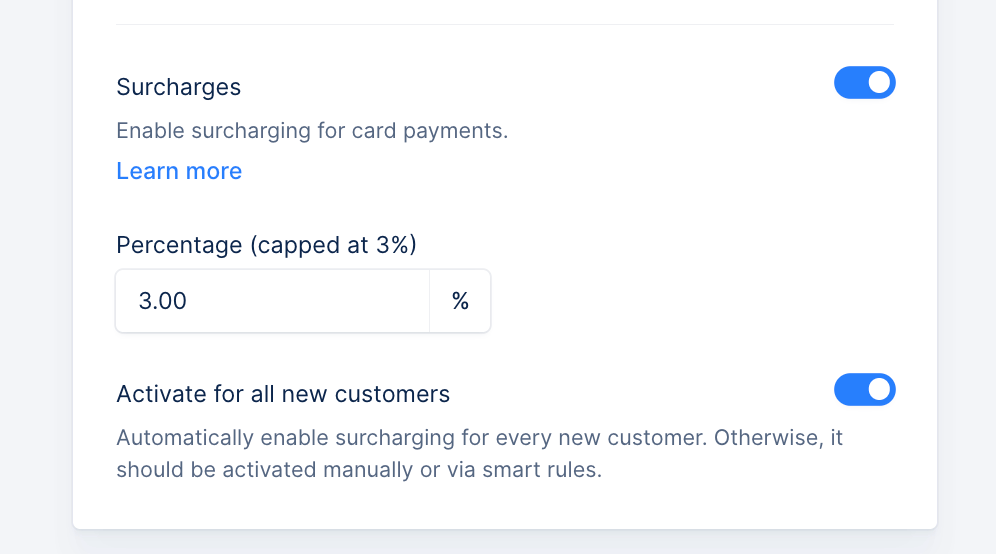
- Enable the toggle: Activate the Surcharges toggle.
- Define the fee: Specify a surcharge percentage, up to a maximum of 3%, to apply to card payments.
- Set default activation: Decide whether to enable surcharges by default for new customers. Existing customers will require manual or bulk activation.
Activating surcharges for your customers
Individually
- Go to the Customer Details page.
- Use the toggle Surcharges to activate or deactivate surcharges for a specific customer.
In bulk
- Navigate to the Customer List view.
- Select multiple customers and use the bulk action feature to enable or disable surcharges.
Using smart rules
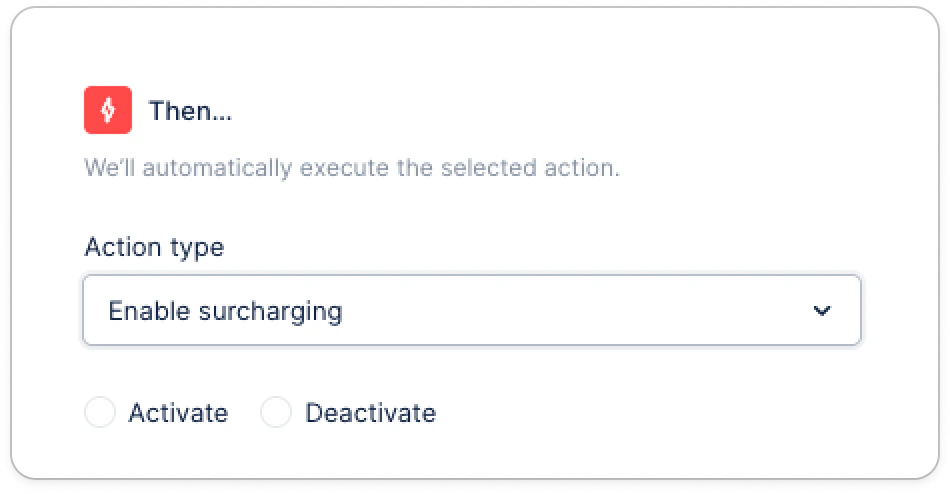
- Configure Smart Rules to automatically activate surcharges based on specific criteria, such as customer type or any custom fields.
- Be transparent: Clearly inform customers about surcharges during the checkout process to avoid confusion. You can mention it in your email reminders or even create a dedicated campaign.
- Stay compliant: Upflow’s surcharging model brings compliance by default, but please work with your legal counsel to ensure your fee structure complies with local regulations. You remain responsible for confirming compliance with any other state, card network, or industry rules that apply to your business.
- Monitor performance: Regularly review your Payments List view to track how surcharges impact payment collection.