

Configuring Autopay
By default, Autopay is activated for all your customers and works with both cards & direct debits (SEPA and ACH via Stripe Payments). We strongly recommend leaving it on as this enables you to automate future collections.Enable Autopay
If Autopay isn’t enabled for some customers, you can enable it at the customer level: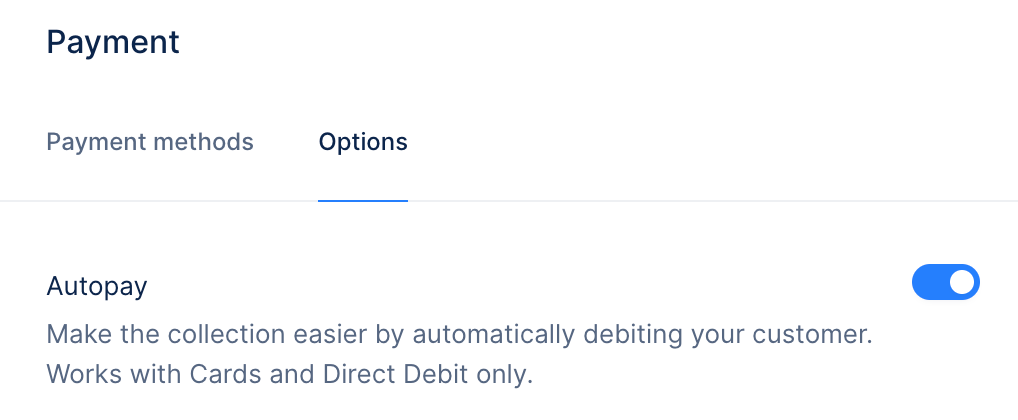
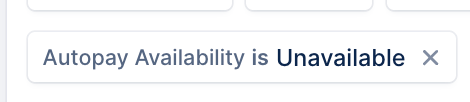
- Select one, multiple or all customers
- Click Actions > Configure Autopay > Activate Autopay Availability > Activate Autopay availability
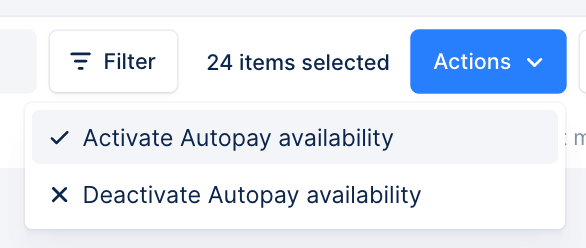
Disable Autopay
You can selectively disable it for specific customers if needed from their customer details page or via our mass-action functionalities from your “Customers” list view for a specific group of customers. To do so, repeat the steps detailed about, but toggle off Autopay from the customer page, or select Deactivate Autopay availability from the Customers list view for bulk actions.How does Autopay work?
Capturing a payment method
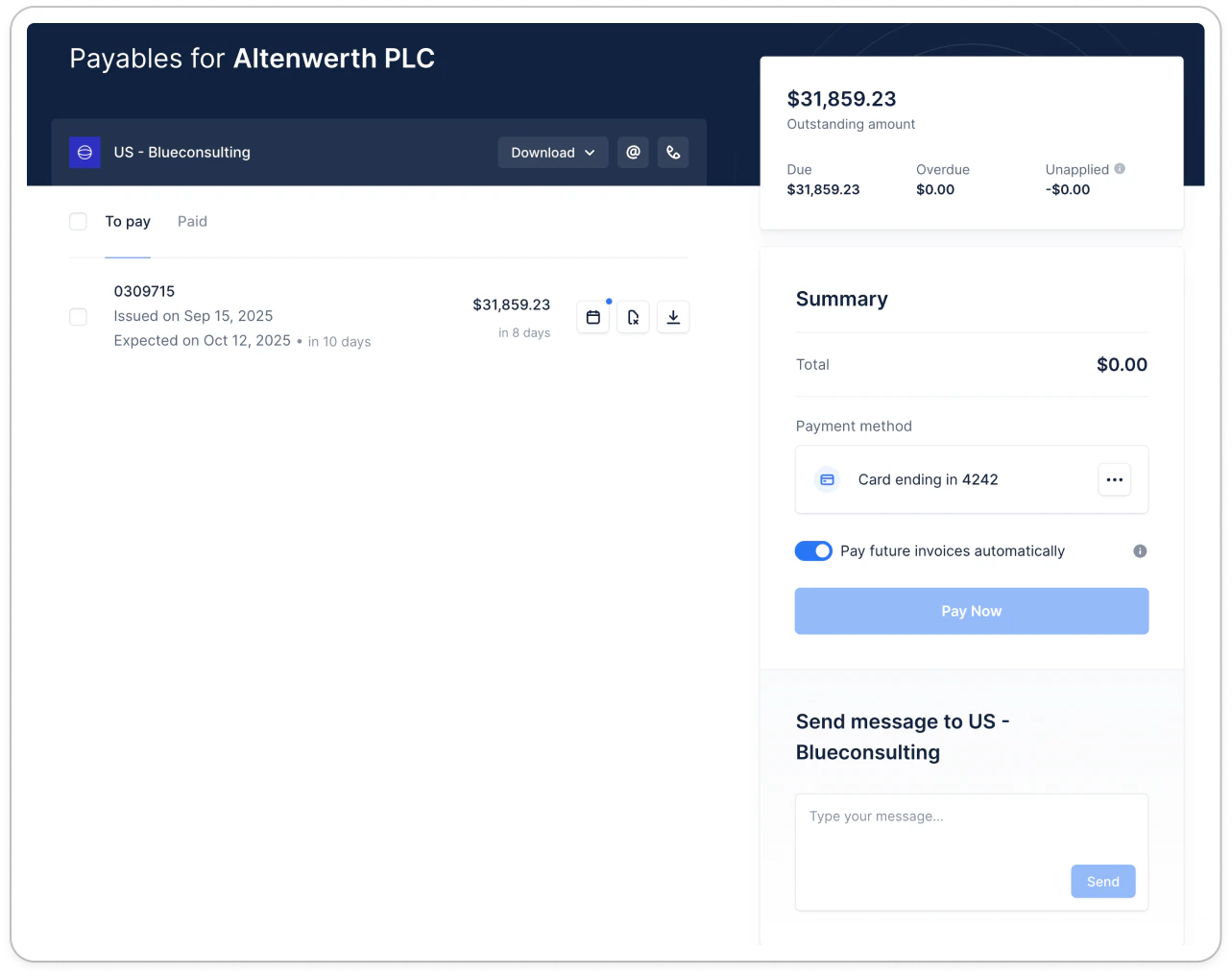
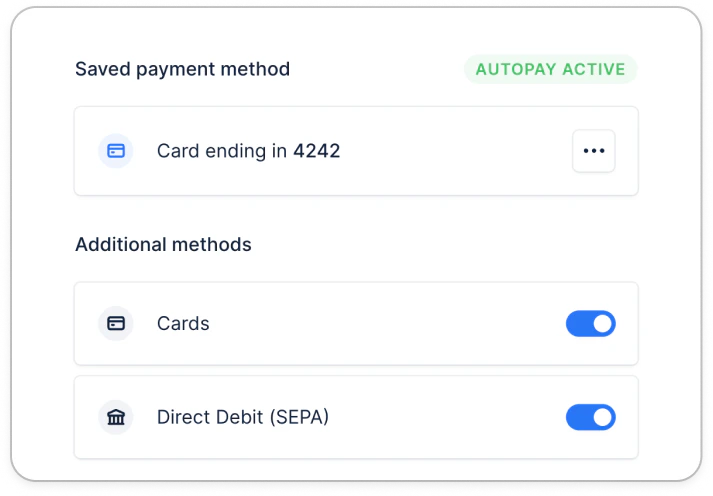
When your customer pays you online via card or direct debit through their portal, they will be prompted to save their payment method and enroll in autopay: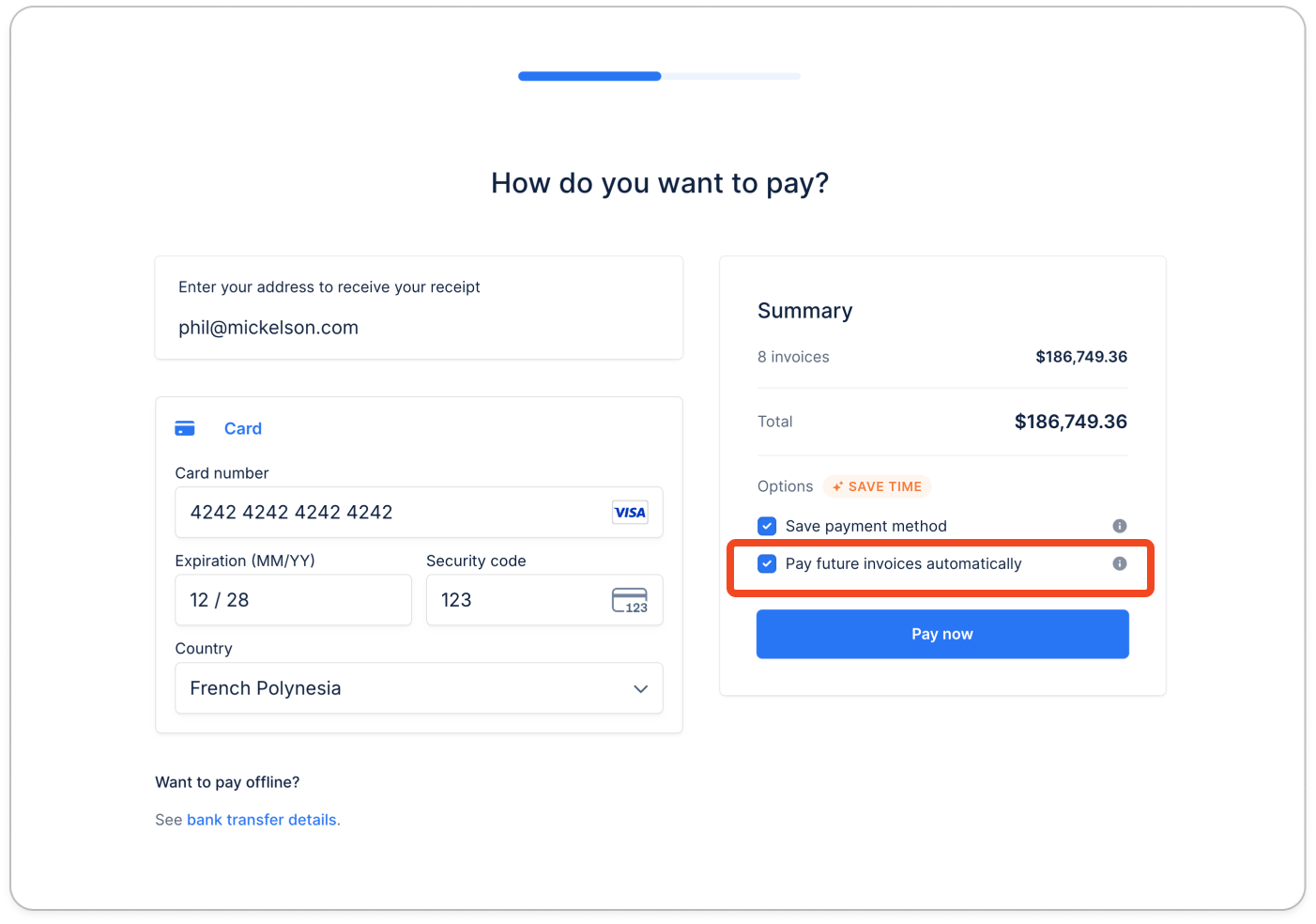
| View from the customer portal | View from your customer’s details page |
|---|---|
 |  |
Choosing the Autopay method
Customers decide whether to use a payment method for Autopay when they save it. If they’ve saved more than one method, they can change which one is used for Autopay at any time from the saved payment methods section of their portal. Deleting the method currently used for Autopay stops Autopay until they set another saved method for Autopay.ACH micro deposits specificity
When the customer pays by ACH Direct debit and chooses micro deposit verification, their saved payment information will be displayed in Upflow only after the payment is verified and successfully received.Identify customers on Autopay
Identify your customers having access to Autopay: filter on “Autopay is True” in your Customers list view. To identify customers with a saved payment method, filter on “Saved payment method contains ” and select the ones you wish to see. You can also filter customers based on the status of their saved payment method.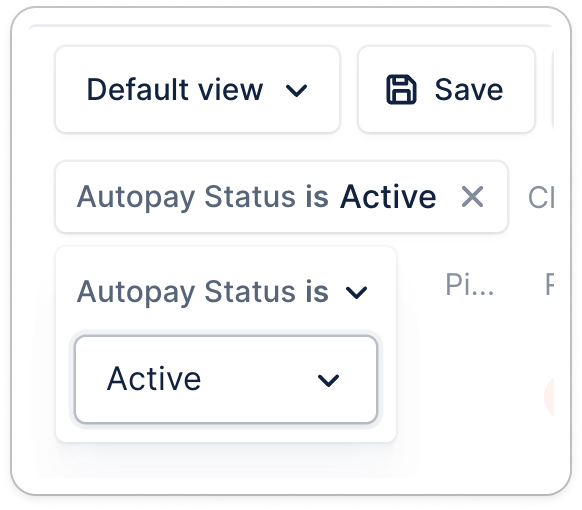 | 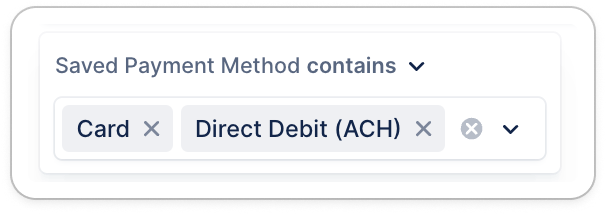 | 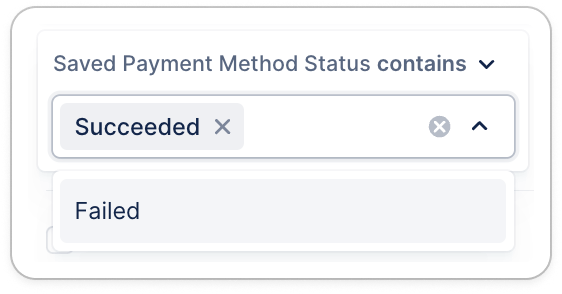 |
|---|---|---|
Collecting payments with Autopay
Autopay notification
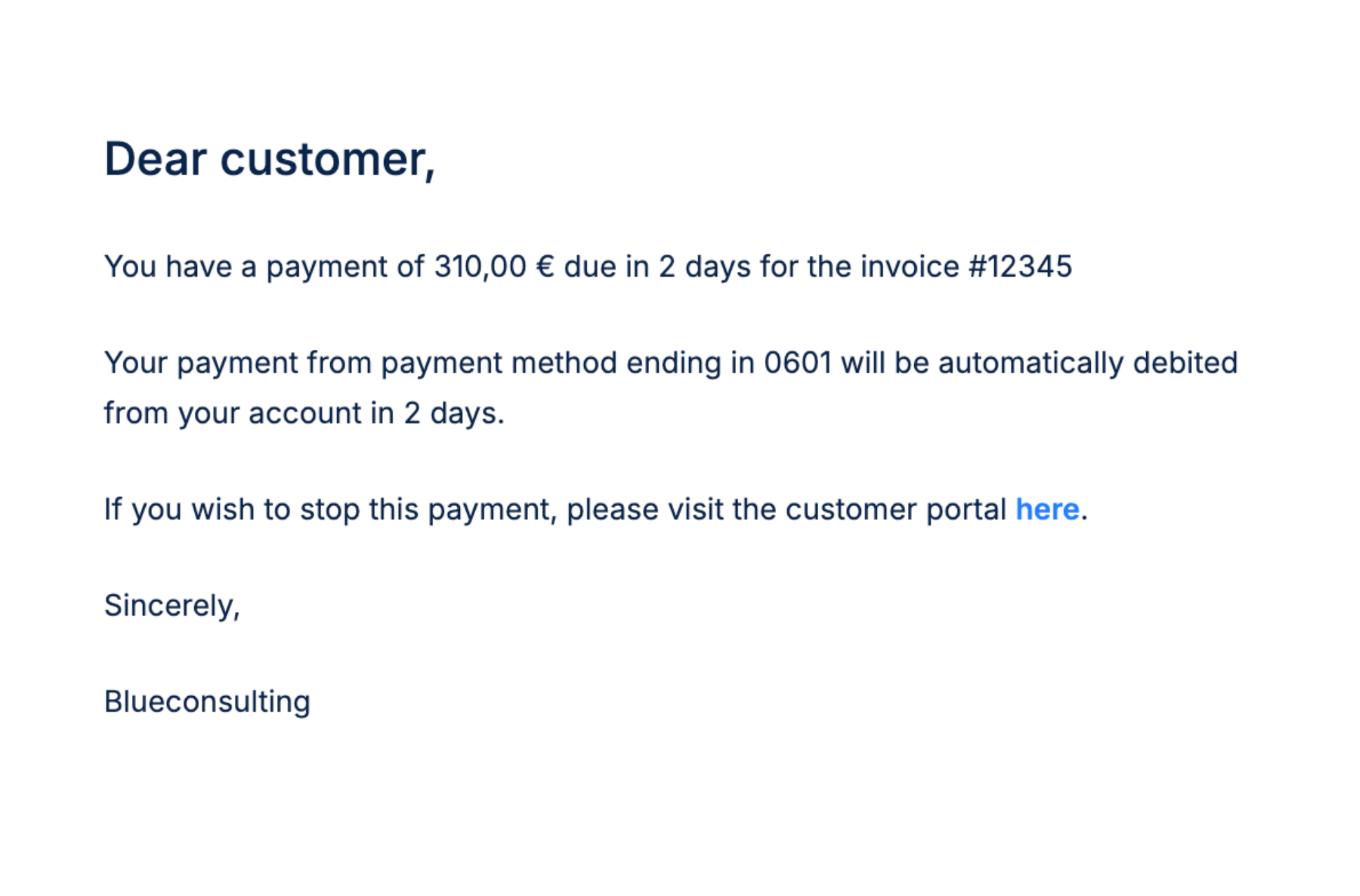
Two calendar days before an invoice is due (at HR:45 before the invoice’s debit, i.e. 09:45 based on your organization’s timezone), your Upflow platform will automatically send a debit notification to your customer on your behalf to ensure compliance. This notification recaps what will be debited and when. All Autopay notifications sent to your customers, are sent to the email address which was used to save the payment method: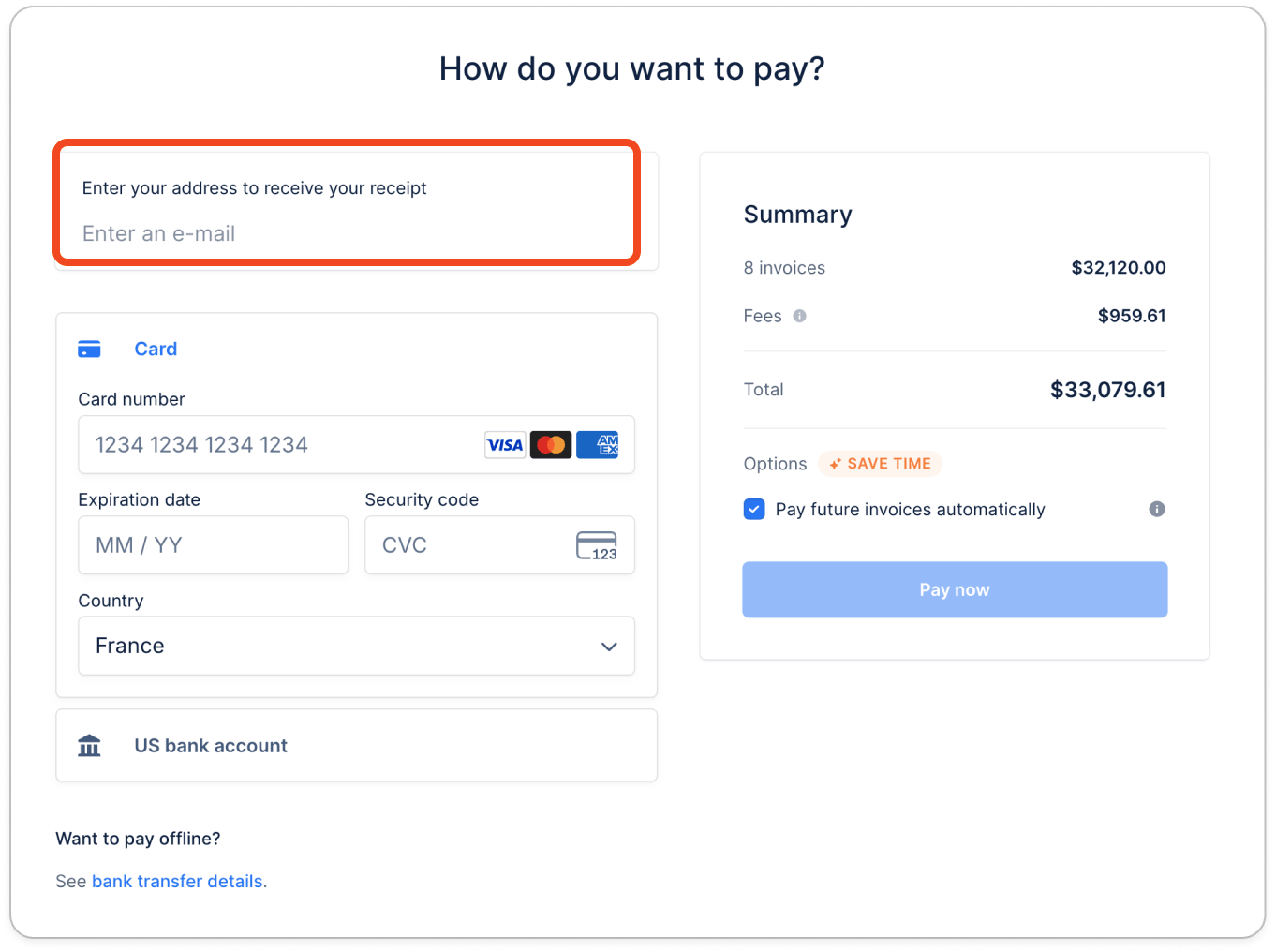
Email address linked to the payment method
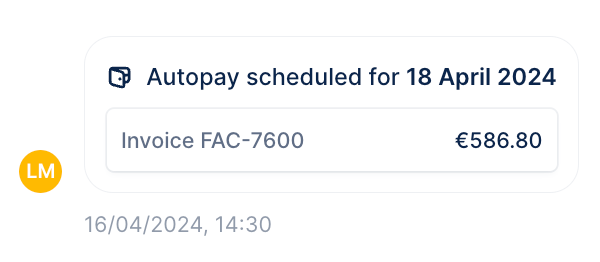
This address can’t be edited in Upflow. For any Autopay notification or payment receipt to be sent to another address, your customer will have to remove their saved payment information and save them again using the dedicated address (either by processing a manual payment or directly saving new information if they do not have an outstanding balance - Capturing payment methods without outstanding invoices). For new invoices created with a due date less than 48 hours in the future, payments will be collected 2 calendar days later as this is the minimum delay between an autopay notification and a payment collection attempt. Example 1: Invoice issued on March 4th, with a due date on March 6th.- The invoice is imported on issue date, March 4th around 10:30, the Autopay notification will be sent the same day at 10:45.
- The Autopay debit will happen on March 6th around 10:45.
Payment collection time
On the scheduled Autopay date, your Upflow platform automatically attempts to collect payment on your customer’s method which can either succeed or fail, short after midnight on your organization’s timezone.Multiple overdue invoices
Autopay is per-invoice. It does not group invoices together. If by the time the saved payment method is added or reactivated, several invoices are overdue, a debit will be scheduled for each of them individually.Autopay is successful
Debit on the payment method has been triggered, and a payment is recorded for corresponding in invoices in Upflow & written back to your systems if applicable.Autopay is unsuccessful
When a payment collection via Autopay fails, your customer will receive an email notification with the related reason and you will also be notified so you can get in touch to resolve.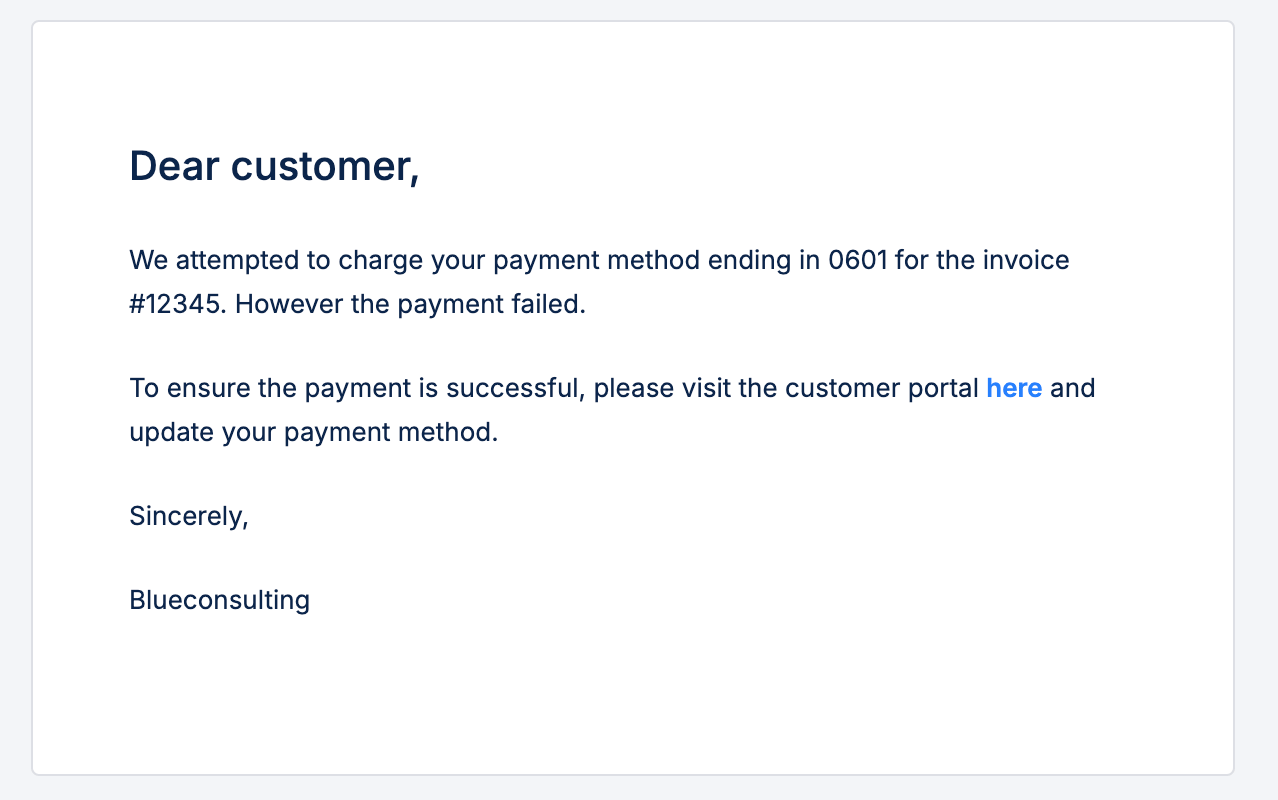
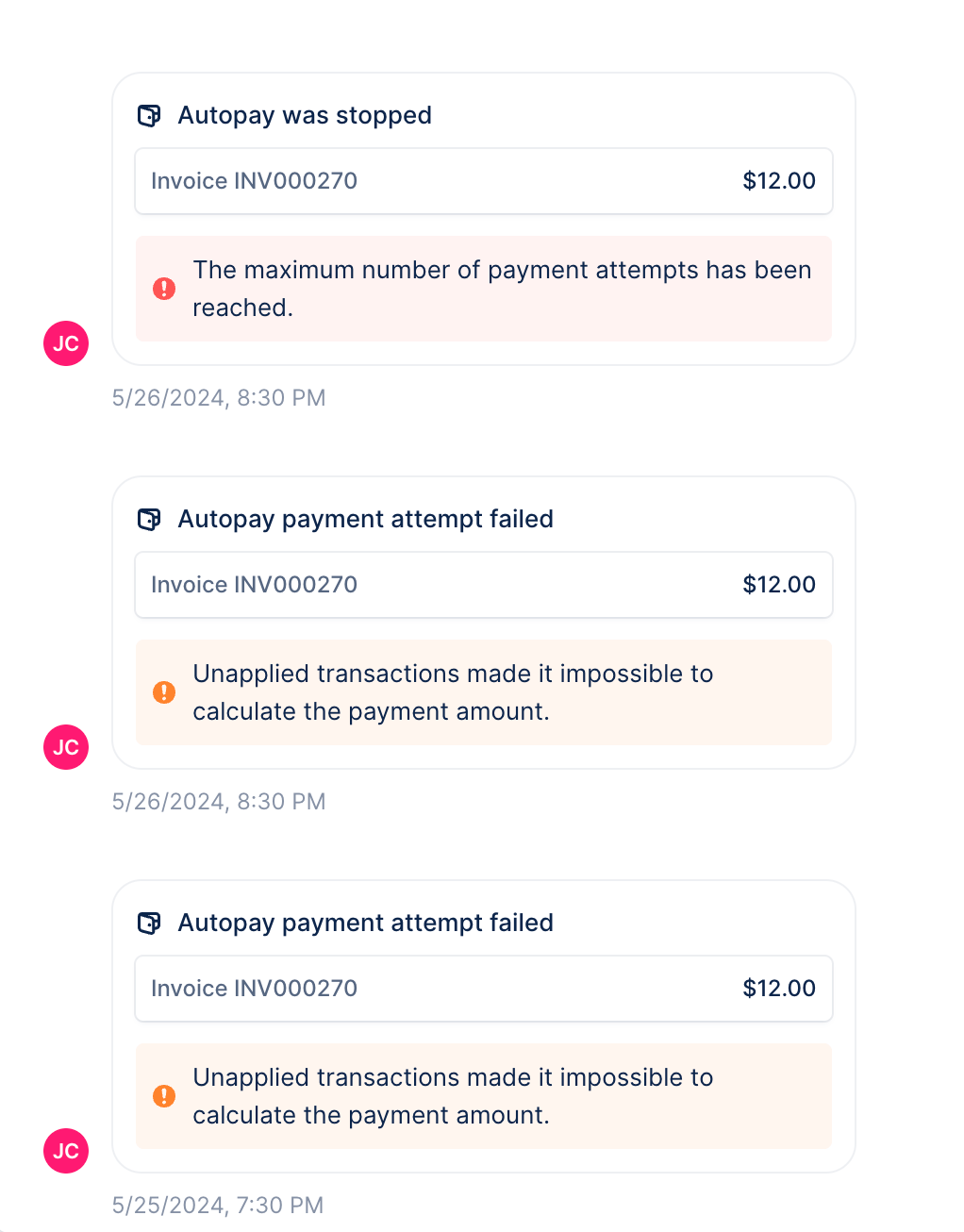
Invoice incompatible with Autopay
There are 3 reasons for this failed reason:- The invoice was deleted since Autopay was scheduled
- The invoice status is neither DUE or OVERDUE (ex. paid since or the due date changed)
- The invoice is hidden (isHidden=true - learn more)
Resolve a failed Autopay
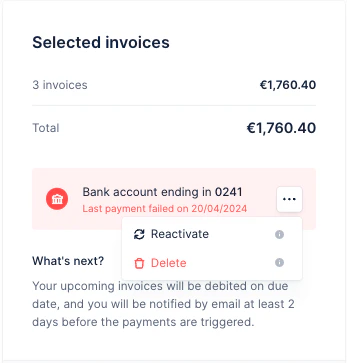
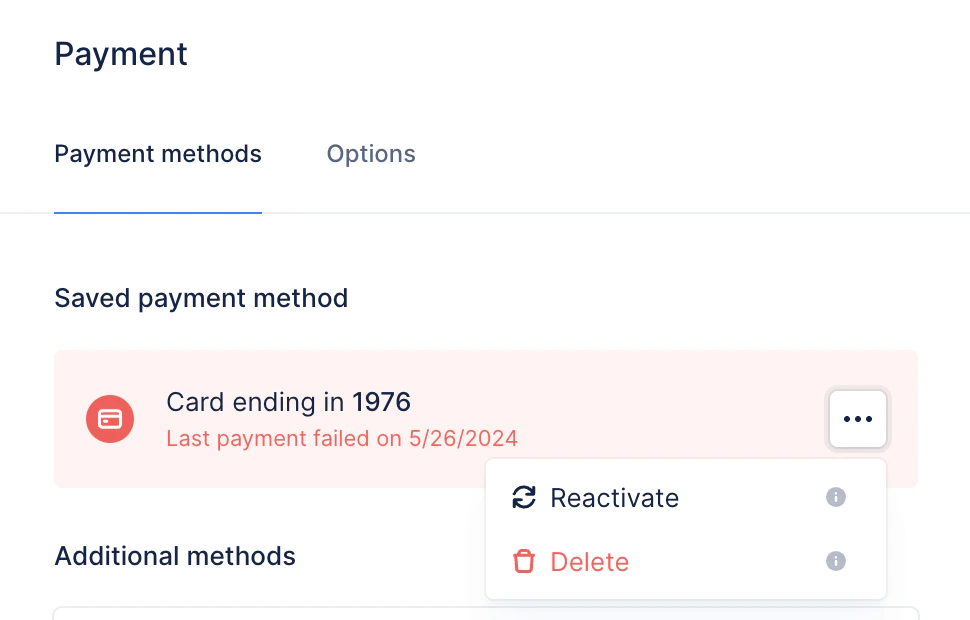
To resolve this, your customer can:- Delete & update their saved payment method directly through their customer portal
- Reactivate the inactive payment method if needed (for example, if a card was re-funded):
| View from the customer portal | View from your customer’s details page |
|---|---|
 |  |
Customer hierarchy (parent/children)
If you use this configuration in Upflow, please note that a saved payment method at the parent level will trigger Autopay only for the parent’s direct invoices, and will disregard the children’s invoices. If you wish for the children’s invoices to be automatically debited via Autopay, you must ensure the children have their own saved payment method in Upflow (in their own portal).Useful to know
- It is not possible to exclude individual invoices from the Autopay process for a customer with a saved payment method.
- Promises to pay at a later date do not postpone the Autopay payment collection schedule.
- A disputed invoice will be excluded from Autopay!
- Portal: Pay button unavailable - If your customer wishes to manually pay their invoice before the due date, they will have to remove their saved payment method to access the manual payment process.
- Autopay is not available for GoCardless.