

Templates let you define the content of an action once — subject line, message body, recipients, attachments — and reuse it across your workflows and campaigns. When you update a template, every action referencing it reflects the change automatically, so you don’t have to update the same wording in multiple places.Documentation Index
Fetch the complete documentation index at: https://docs.upflow.io/llms.txt
Use this file to discover all available pages before exploring further.
What is a Template?
A template is a reusable preset for an action. It stores the default content for a given action type (email, task, call, SMS, or letter) and can be linked to workflow steps or applied to campaigns. The key benefit: edit the template once, and everything that references it updates — instead of manually updating the same content across multiple workflow steps.When is it useful?
Templates are helpful when:- Your team regularly sends similar emails and wants to avoid rewriting them each time
- You want consistent wording across all actions of the same type
- Multiple workflows need to share the exact same email content
- You want to update a recurring message in one place and have it apply everywhere
How to create a Template
From scratch
Use this approach when you’re setting up Upflow for the first time, or if you want to create a new workflow or update one or multiple existing ones. 1. Go to Menu > Templates Click your company logo in the left sidebar, then select Templates.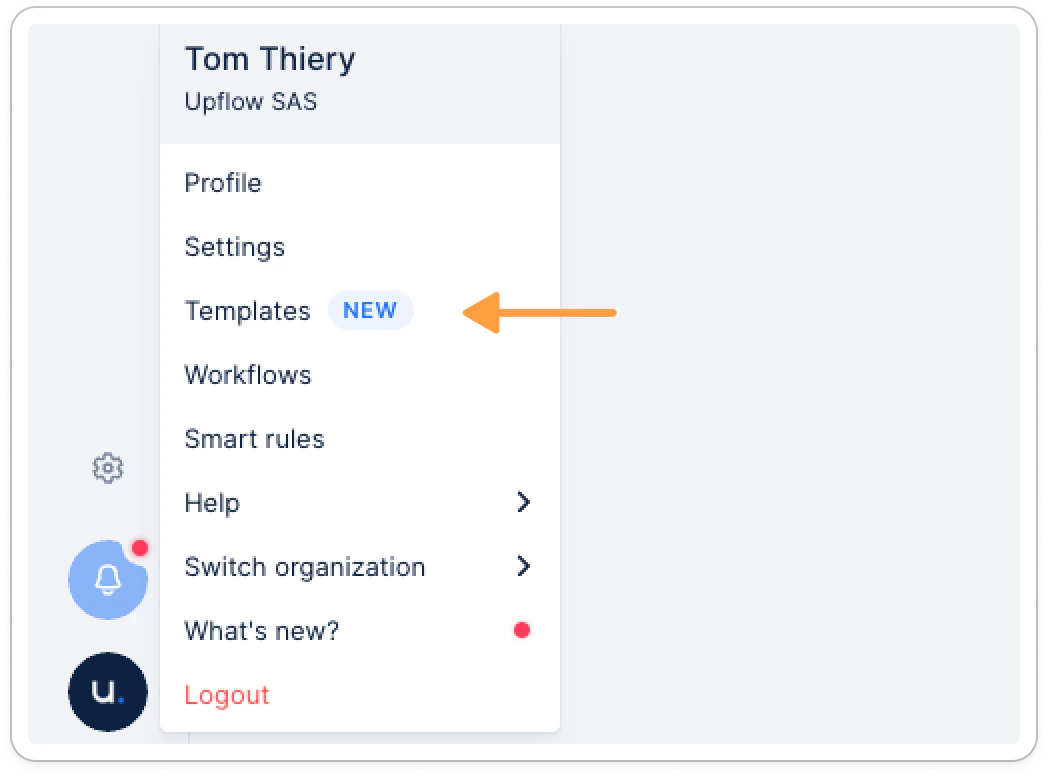
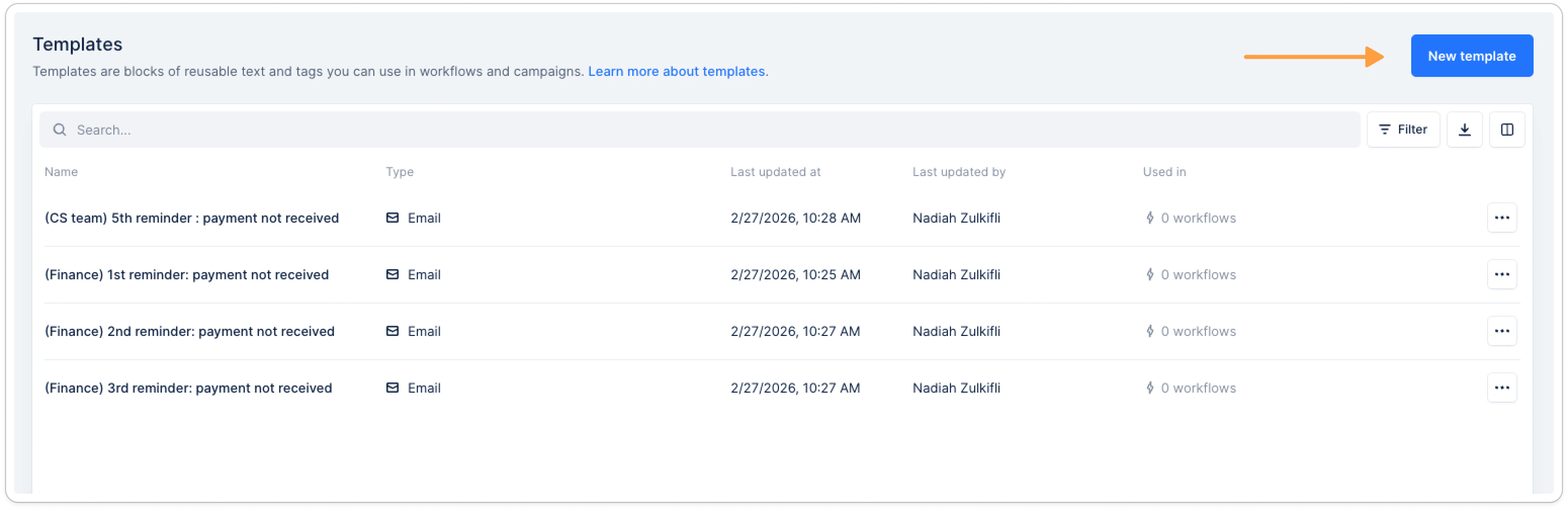
- Name — used to identify the template across workflows and actions
- Type — Email, Task, Call, SMS, or Letter
- Owners — the team members responsible for actions using this template
- Content — subject line, message body, attachments, recipients, and other type-specific fields
From an existing workflow action template
Use this approach if you’re already using Upflow and want to turn a workflow action template you’ve already written into a reusable template. 1. Go to Menu > Workflows Open the workflow that contains the action template you want to save as a template. 2. Open the action editor Click the action to open its editor. 3. Check “Save as template” Below the Name field, check the Save as template checkbox. This option only appears if the action isn’t already linked to a template.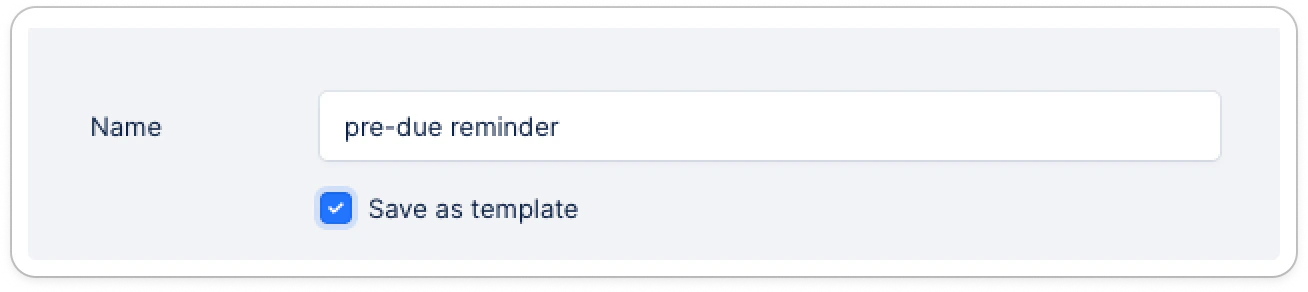
How to use a Template
In your workflows
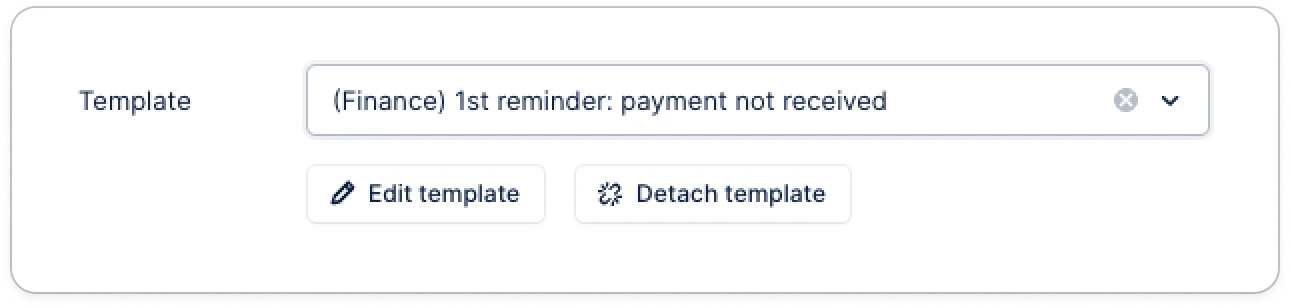
When editing a workflow action template, a Template dropdown appears at the top of the action editor. Select a template to apply it. Once a template is selected:- All content fields (subject, body, recipients, attachments) are pre-filled and locked — they reflect the template content and cannot be edited directly from the workflow
- Click Edit template to update the template itself — this affects all action templates referencing it
- Click Detach template to unlink the action template and edit it independently, without affecting the original template
In manual actions
When setting up a campaign or performing a manual action, a Template dropdown appears at the top of the action form. Selecting a template pre-fills the content, you can still customize the content if needed.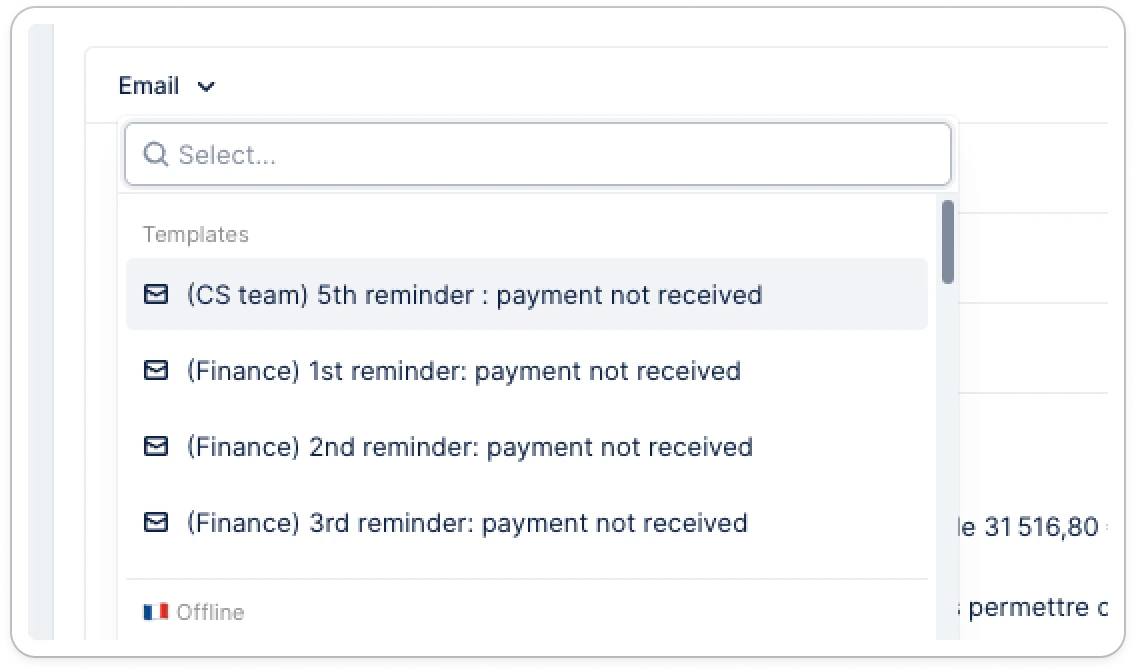
Managing Templates
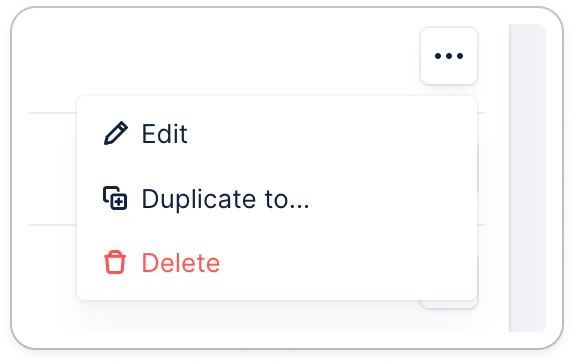
Go to Menu > Templates to see all templates in your organization. From there you can:- Search by name or filter by type (Email, Call, SMS, etc.)
- Edit a template — changes apply to all workflow steps and campaigns using it
- Duplicate a template to use as a starting point for a variation
- Delete a template — if it’s used in workflow steps, you’ll be asked to reassign those steps first