

Organizations connected to Pennylane cannot enable online payment methods for legal reasons. These methods are marked as Incompatible with Pennylane in your Settings > Payment methods section. Learn more in the Pennylane integration overview.
Setup & configuration
Card payments
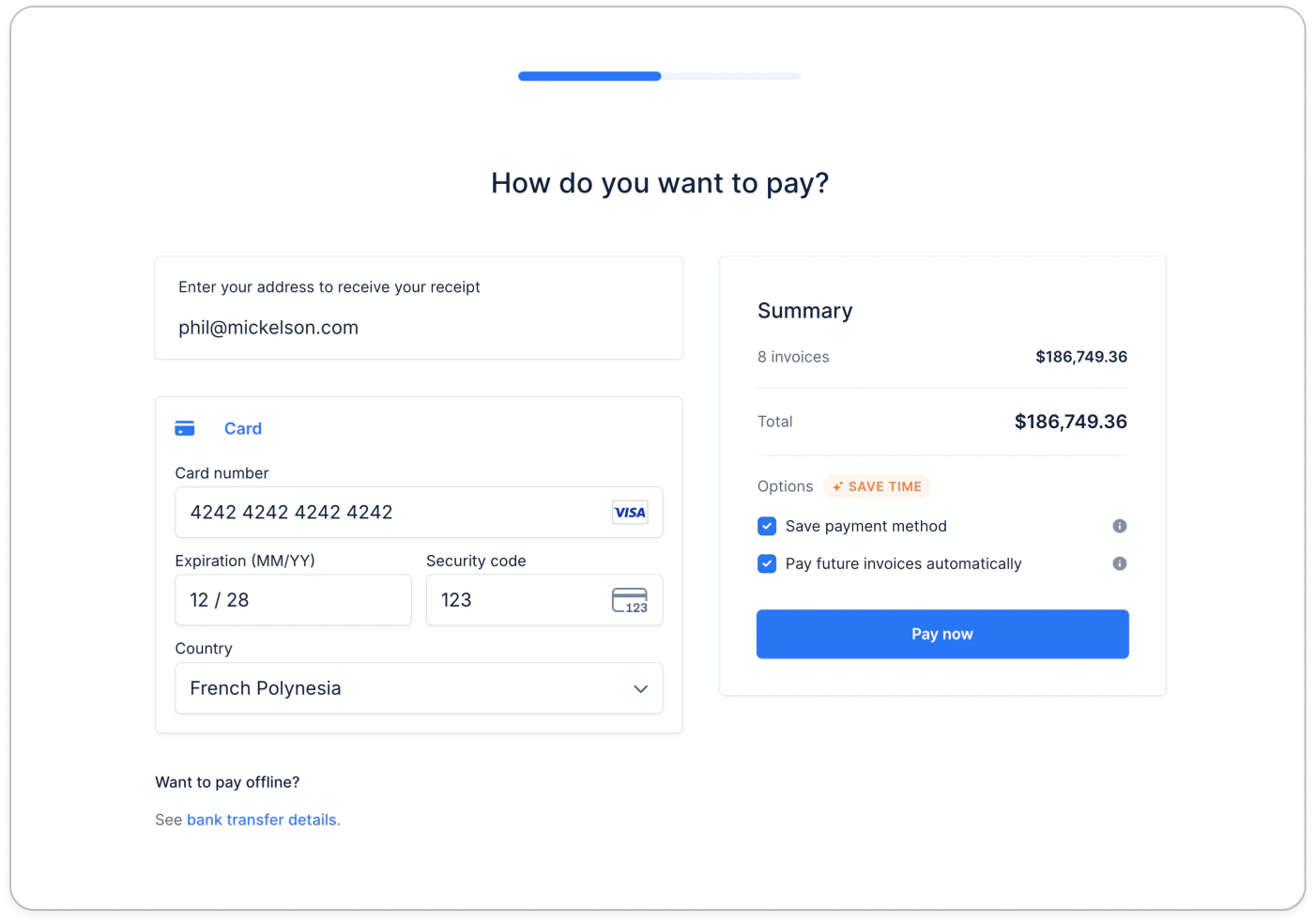
Once activated, you will immediately be able to collect payments from all major credit & debit card brands. There are 3 main parameters you can set below:- Activate for all new customers: card payments will be made available to all new customers imported in Upflow. We recommend leaving that option on by default.
- Transaction limit: if you do not intend to pass card fees on to customers when they pay (see below “surcharges”), you can optionally set a limit for cards on a per-payment basis to re-route customers to another method. Otherwise, we recommend setting this value to “no limit” by inputting e.g. $10m (10000000).
- Surcharges: allows you to specify a surcharge percentage, up to 3%, to pass on to your customers when they pay. See more details here.
Direct debit payments
Activating direct debits will enable you to collect payments from your regional scheme like ACH in the U.S., SEPA in Europe and Bacs in the U.K. Depending on your direct debit scheme, you may be presented with a parameter to set a per-transaction maximum value. If so, we recommend setting it as high as possible to maximize your chances to get paid. Otherwise, you simply need to indicate if you want to enable the option for all new customers (recommended) and you’re done!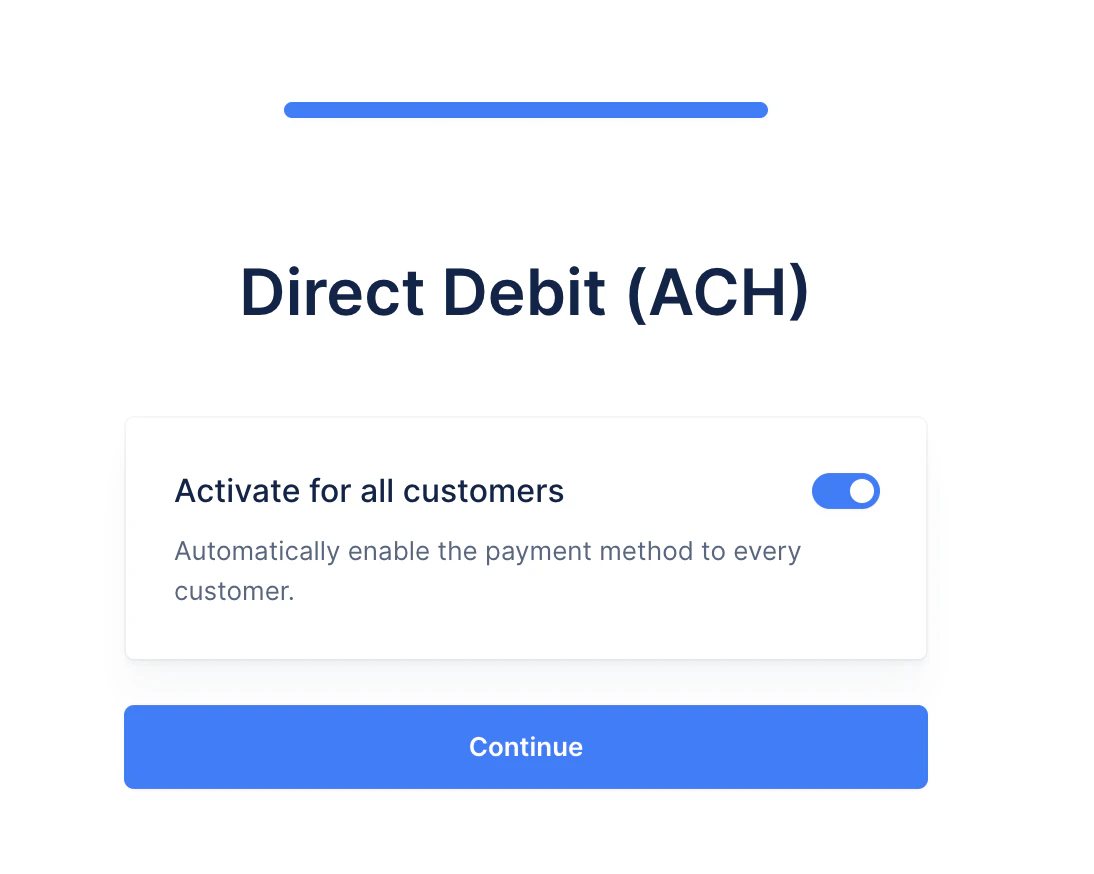
Enable payment methods for existing customers
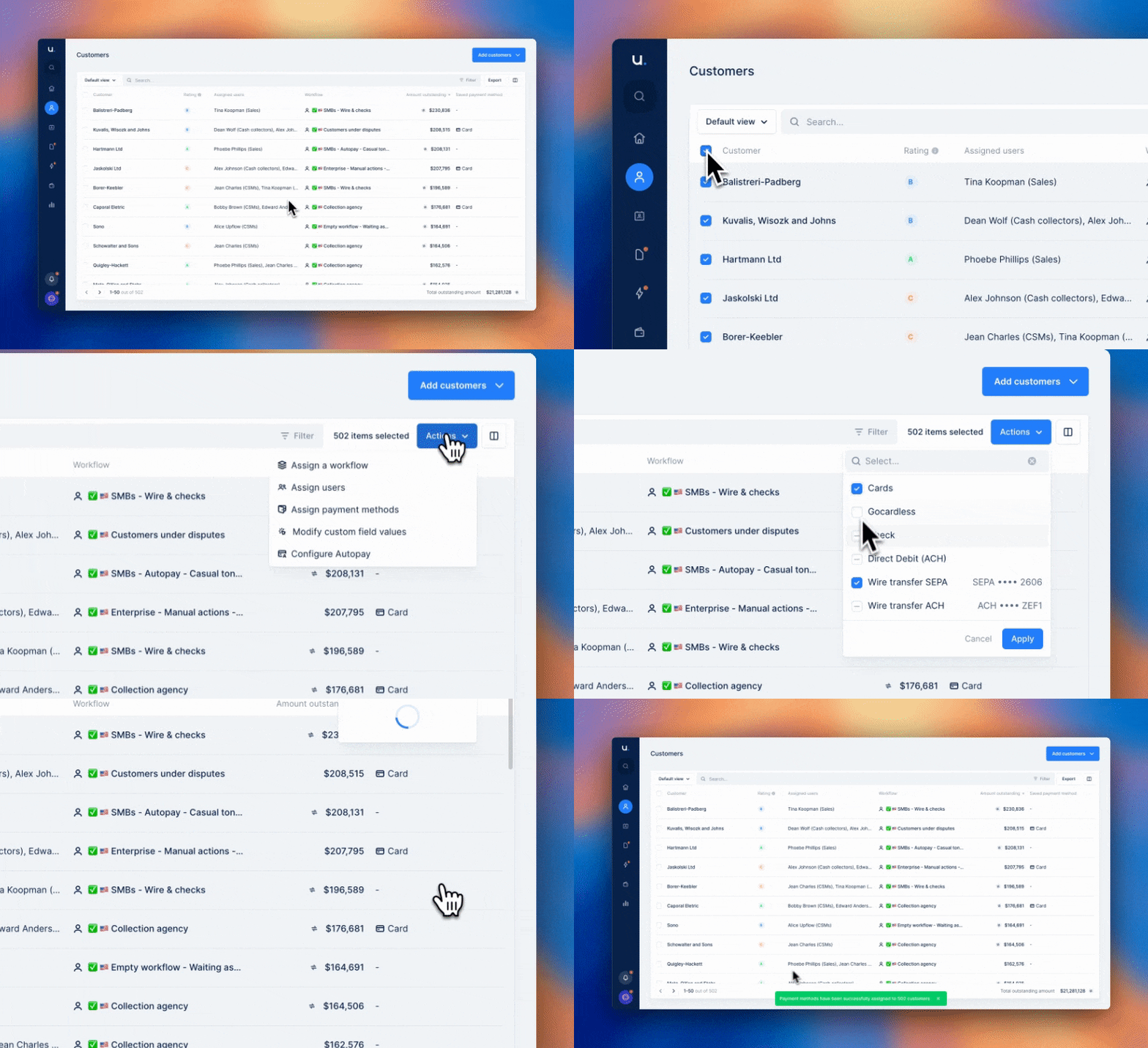
Head over to your Customers tab to mass-assign cards as a payment method for your customers. We generally recommend enabling cards & direct debits for all of your customers since you can:- maximize the chances to get paid now.
- prompt conversations around payment options with customers.
- optimize payment mix through time.
Disabling a payment method
If you wish to disable a payment method for one customer, multiple or all of them, several options are available.Disable a payment method for one customer
Head to your customer’s detail page. Scroll down on the Payments section and untick the payment method you wish to disable for them. Below, you can see that Card payments are available for this customer, when the ACH debit isn’t.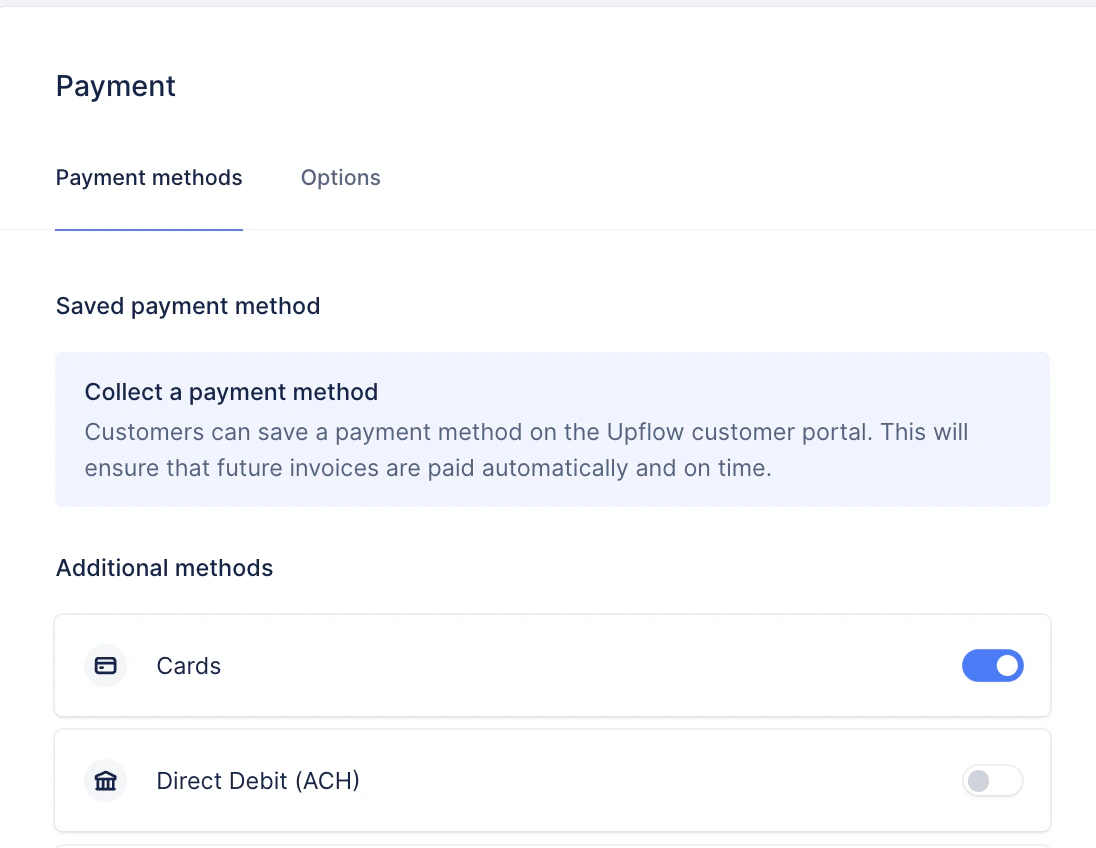
Disable a payment method for multiple customers
From the Customers list view, filter your customers on a common condition to identify them. Check the Customer column box, then click the blue link at the top right of the list to select all. Click Actions > Assign a payment method and uncheck the one to disable before clicking Apply.Disable a payment method for all customers
You can either disable it for all customers while keeping it in your Settings, or delete it.Delete it
Head to your Settings > Payment methods. Click on the Edit button next to the method you wish to delete. Then click on Delete payment method below it and confirm.
Disable it
First, head to your Settings > Payment methods. Click on the Edit button next to the method you wish to disable. Untick the Activate for all new customers and Save setting(not available for wire transfers).