*assuming your API setup allows it and doesn’t overrule it.
File content
Start with creating a compliant spreadsheet with the information you want to update. You can create it from scratch, or export your contacts from Upflow and update this file. Save it as a CSV file. You can apply ”;” (semicolons), ”,” (commas) and ”|” (vertical bars) separators. Create one line per contact, even if you have multiple contacts for one customer, with columns as fields you want to update. We strongly recommend naming them (however you want) to ease the mapping. Duplicate the lines of accounts with multiple contacts (you only need to copy and paste the customers’ ID and/or name). 💡 Mandatory fields are listed below (🚩)
*If you use one of our native integrations, please check if the following option is active or not. If active, it will overrule the CSV import. Refer to the Main contact section of Your Upflow contacts for more information.
You’ll find a template file to update your contacts attached at the bottom of this article.
Import process and information
This feature is not available by default. Submit a Support request if you haven’t used this feature before, so we can enable it for you. Click Add customers in the top-right corner of your Customers list view and select the Assign customers option (if you’re fully integrated with API or our legacy integration, you will see the option “Import customers”).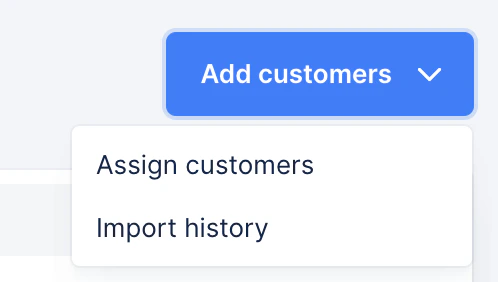
Map your file’s columns with the matching Upflow Customer fields. 💡 Mandatory fields are marked as Required.
Submit the document and wait for the completion of the import. You can be notified in-app, via mail and/or Slack, per your Profile > Notifications.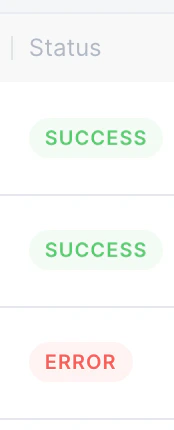
Import errors
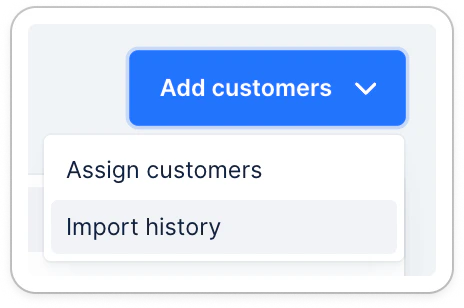
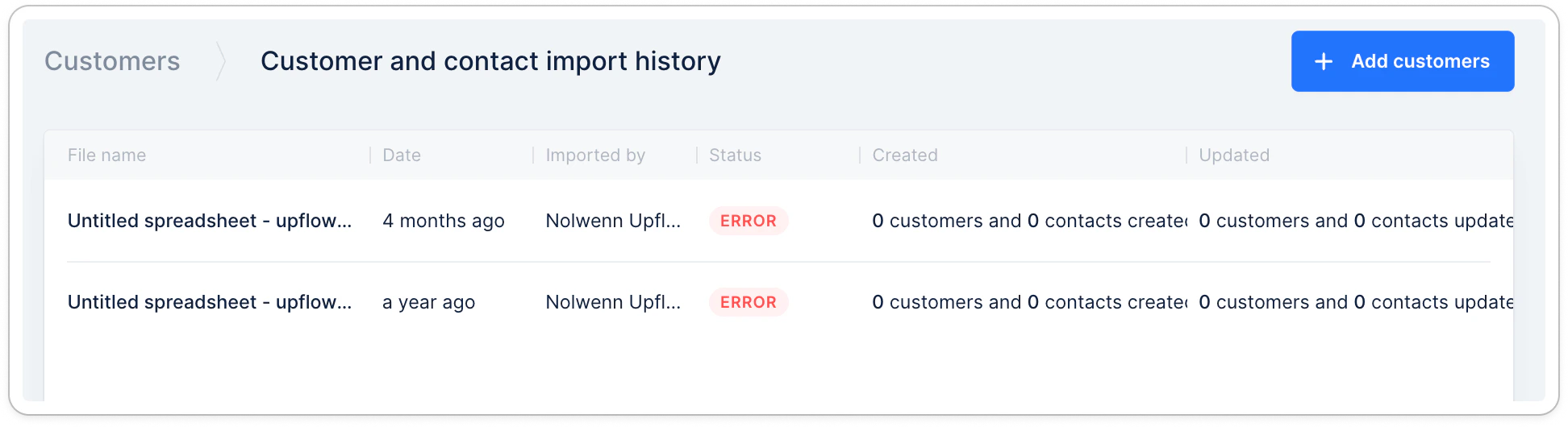
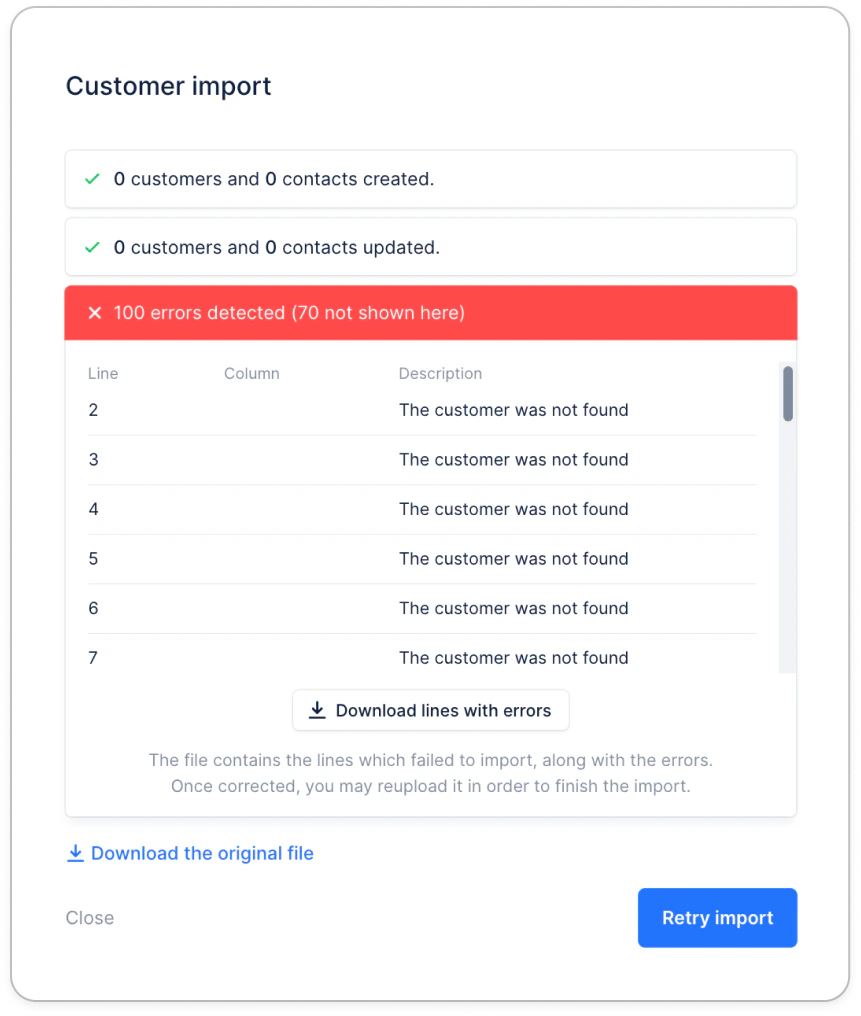
After importing your file, you will see an in-app notification at the bottom left. You can click it, or head directly to your Customers list view > Add customers > Import history.