Documentation Index
Fetch the complete documentation index at: https://docs.upflow.io/llms.txt
Use this file to discover all available pages before exploring further.
Managing collections effectively is essential for maintaining a healthy cash collection, and our Collection Tag Inserter is designed to simplify this process. This feature enables you to apply meaningful, actionable tags to your collection reminders, helping you organize and streamline your follow-ups with ease.
Tags are incredibly helpful for managing your workflow. With the Collection Tag Inserter, you can focus on what matters most, saving time and reducing the risk of missed payments.
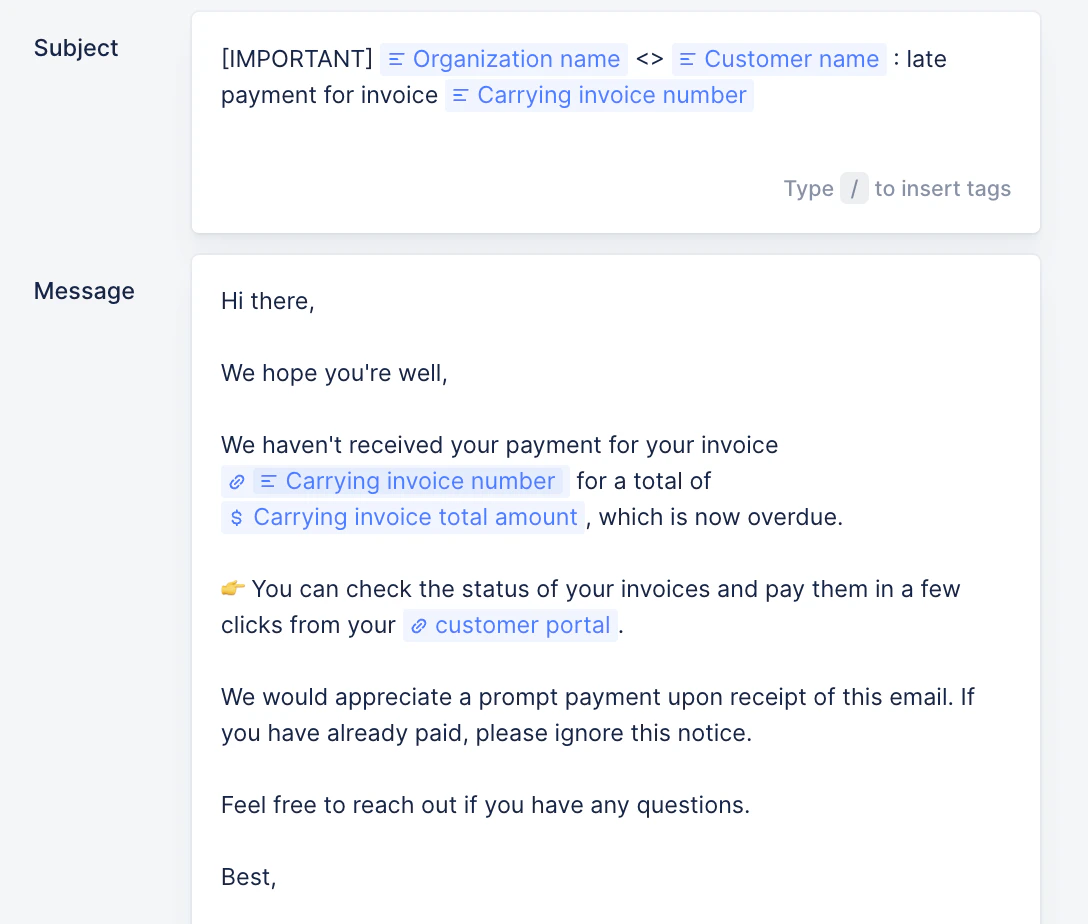
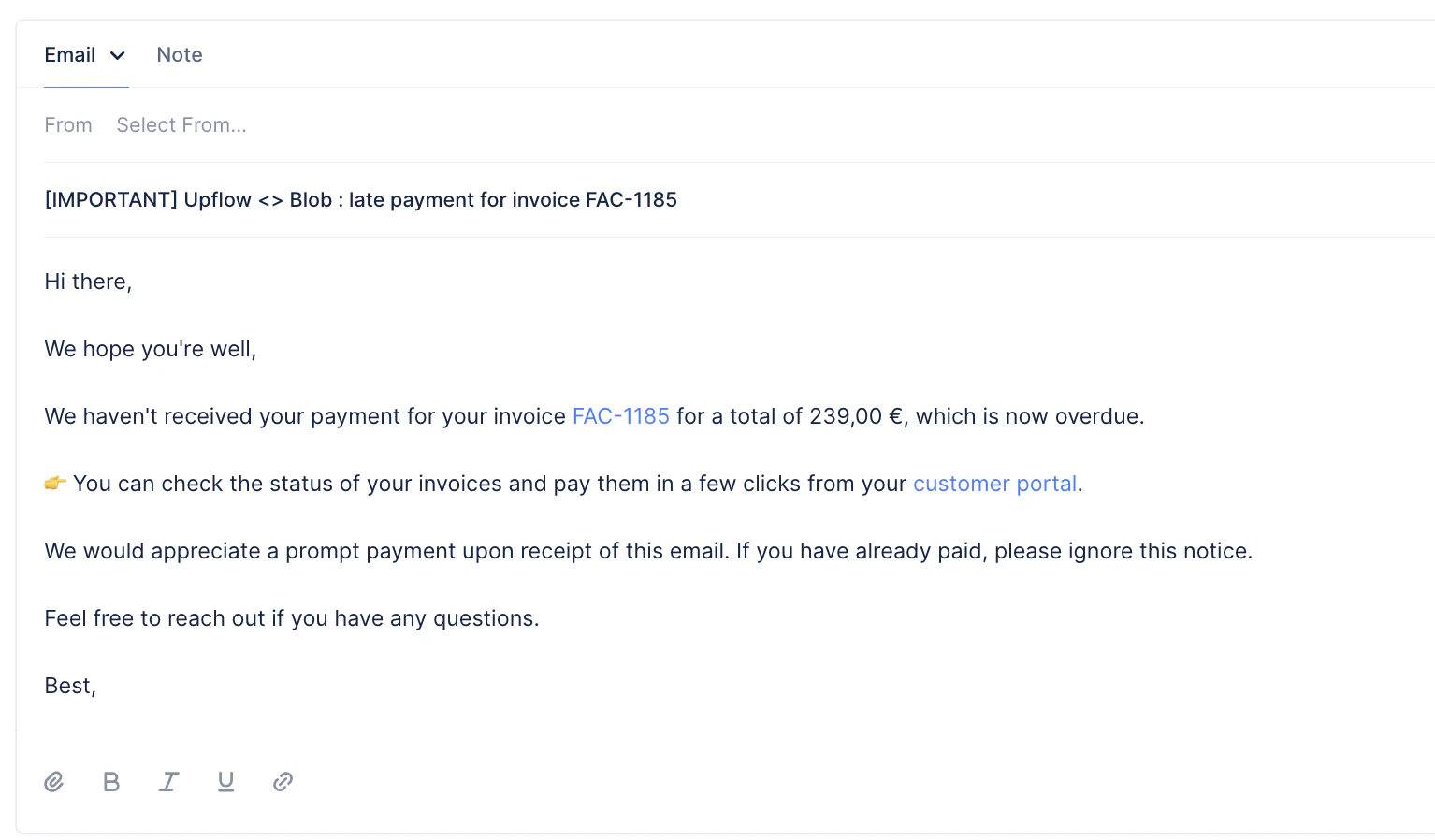
While setting your actions, include tags in your templates. Each tag will return a specific value when the action is triggered.
| For instance, this template… 👇 | …becomes this action 👇 |
|---|
 |  |
Access your Workflows list view and either select an existing workflow or create a new one.
Then click on the action you wish to update and follow these steps:
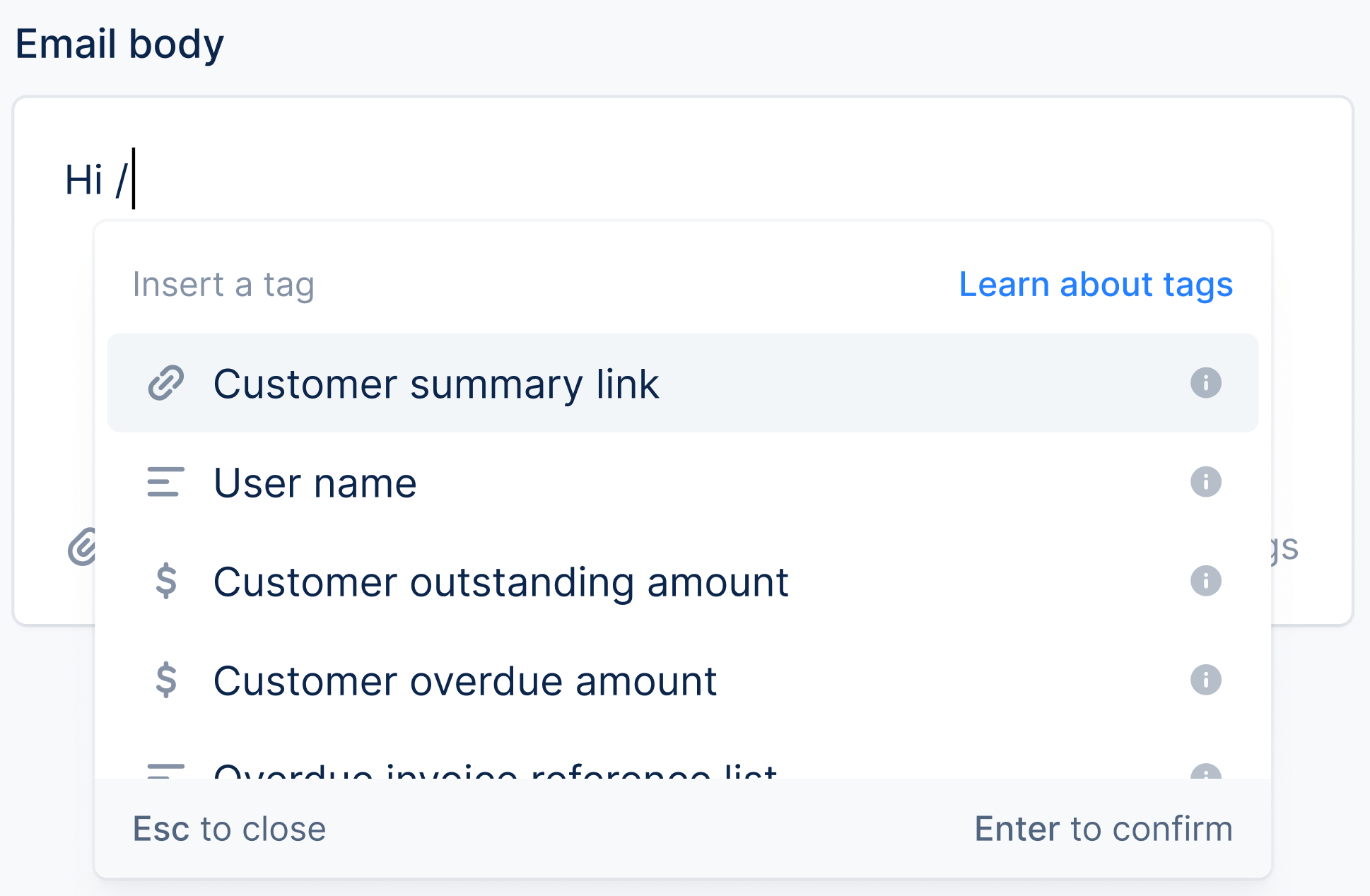
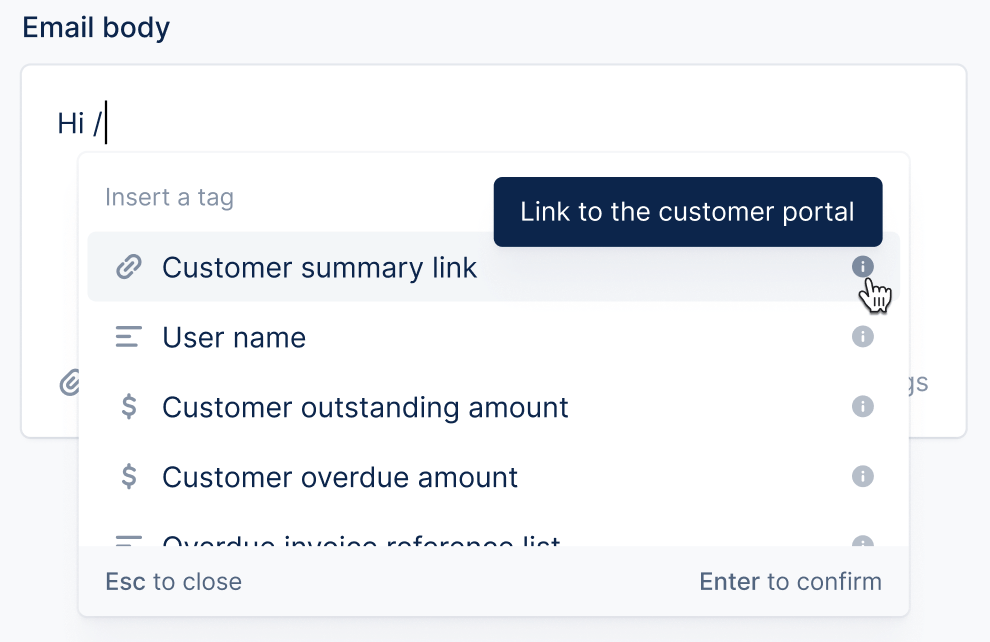
Step 1 - Add a tag by typing /
Step 2 - Search for a tag by typing it in the editor.
The tags are ranked by usage within our base. Your customer and invoice custom fields are available on the list.
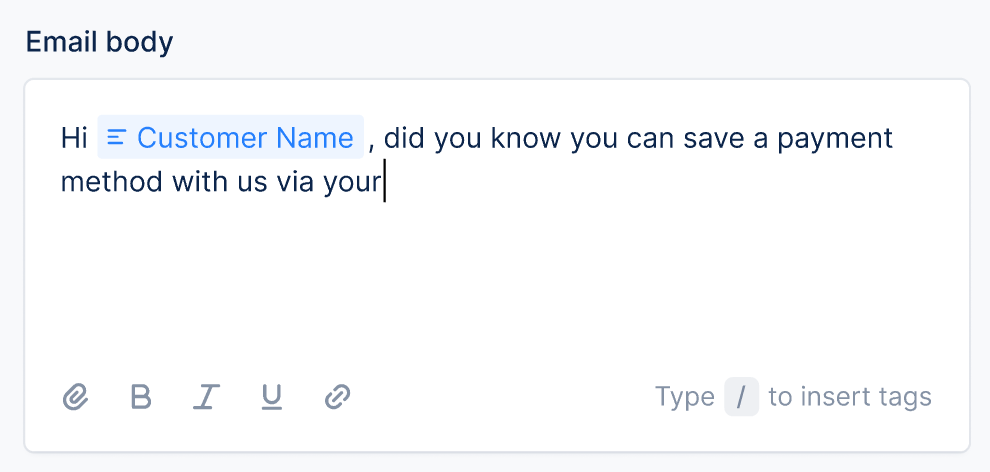
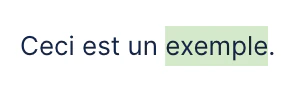
Once selected, you can easily identify what part of your content is a tag:
💡 Certain tags are provided with an information tooltip:
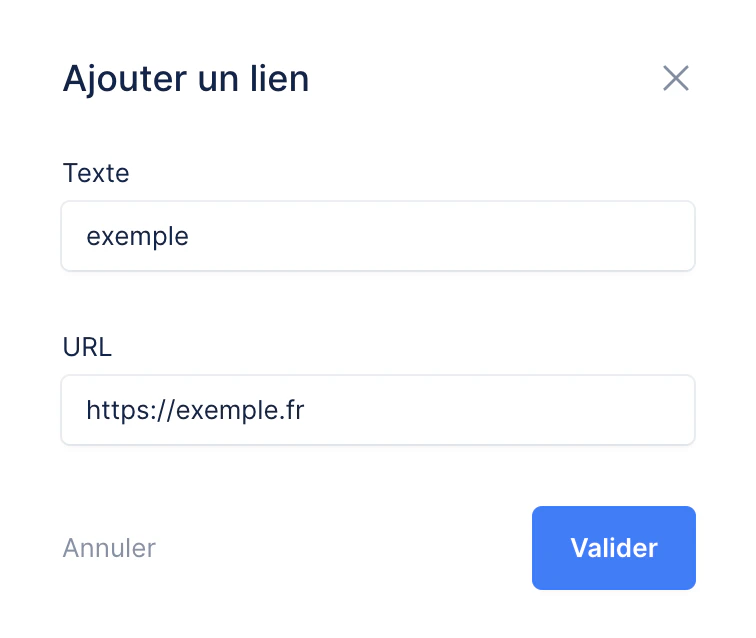
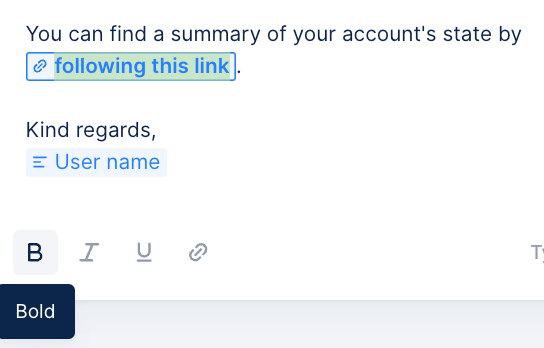
You can also add a hyperlink:
| 1 - Type your text in the email body and highlight it | 2 - Click on the hyperlink symbol on the right: | 3 - Add your URL and click Submit: |
|---|
 |  |  |
This is what it’d look like in the email template:
Add bold, italic or underline your text and tags:
💡 HTML options available in our previous version won’t be available per se. However, you can now directly apply bold, italic or underlined format by using your keyboard. Highlight your text, then:
- For bold, press Cmd b or Ctrl b ;
- For italic, press Cmd i or Ctrl i ;
- To underline, press Cmd u or Ctrl u.
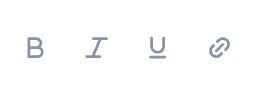
→ Or use the tools at the bottom of the email body:
3 - Don’t forget to save!
Once you’ve updated your template, remember to click Save. Then, you can proceed to the next action.
| Display Name | Description |
|---|
| Organization name | Name of the organization that is used to send the reminder (Settings > Company). |
| User name | For manual emails, it will display the full name of the user sending the email. |
| For automatic emails, it will display the full name of the user/alias selected as Sender. | |
| Assigned user first name | First name of the assigned user. If there are several we take the first one assigned. |
| Assigned user last name | - |
| Assigned user full name | Full name of the assigned user. If there are several, we take the first one assigned. |
| Assigned user email | Email of the assigned user. If there are several we take the first one assigned. |
| Today | Date of the day (MM/DD/YYYY) the reminder is sent. |
| Main contact full name | |
| Main contact first name | |
| Main contact last name | |
| Main contact email | |
| Customer name | Name of your customer, as displayed in Upflow. |
| Customer portal link | Link to the customer portal. |
| Parent customer name | If you use customer hierarchies, the name of the parent/group customer. |
| Parent customer portal link | If you use customer hierarchies, link to the parent/group customer portal. |
| Customer external Id | Id of your customer in your source system. |
| Customer outstanding amount | When the email is sent (=due+overdue-unapplied). |
| Customer due amount | - |
| Customer overdue amount | - |
| Customer unapplied amount | Payments, refunds or credit notes unapplied to other references (invoice, payment). |
| Due invoice number list | List of the due invoice references. Comma-separated. |
| Overdue invoice number list | List of overdue invoice references. Comma-separated. |
| Outstanding invoice number list | List of all due + overdue invoice references. Comma-separated |
| Carrying invoice number | The oldest unpaid invoice of the customer at the time. |
| Carrying invoice title | Title of the collection’s carrying invoice. |
| Carrying invoice link | Download link for the carrying invoice PDF. This link has a default validity of 25 days. Learn more here. |
| Carrying invoice issue date | |
| Carrying invoice due date | |
| Carrying invoice total amount | |
| Carrying invoice outstanding amount | |
| Carrying invoice expected amount | |
| Carrying invoice days since issue date | Number of days since the invoice was issued. |
| Carrying invoice days to issue date | Number of days until the issue date. |
| Carrying invoice days to due date | Number of days until the carrying invoice is due. |
| Carrying invoice days since due date | Number of days since the carrying invoice is due. |
| Last reminder date | The date when the last collection action was executed. |
{custom_field.label} | Your custom fields will be available as option as well. |
| Stripe customer portal link | Link redirecting to your customer’s Stripe Portal. |
|---|
| Chargebee manage payment sources link | Link redirecting to the customer’s Chargebee’s Manage payment sources page |
| Chargebee collect now link | Link redirecting to the customer’s Collect Now page |
Note
- The tags are available in collection reminders, billing emails and action campaigns.
- The tag inserter is not yet available in the Actions To do list.
- The date and amount related tags format will be based on the customer’s billed currencies. Learn more here.
- If the customer has an unapplied balance in a different currency than their billed one, the unapplied amount will be displayed next to their outstanding balance when using the “Customer outstanding amount” collection tag. While if it’s in the same currency, it’ll be included in the amount displayed.
Conclusion
The Collection Tag Inserter allows you to streamline your collections process by automatically adding relevant tags to your collection reminders. This feature helps you to automate your collection reminders’ personalization, based on specific criteria.
Do you have any questions, or feedback? Contact our Support team!