Documentation Index
Fetch the complete documentation index at: https://docs.upflow.io/llms.txt
Use this file to discover all available pages before exploring further.
This article refers to our Legacy version for this feature. We highly recommend switching to our new version, detailed here: Send invoices from Upflow ✨
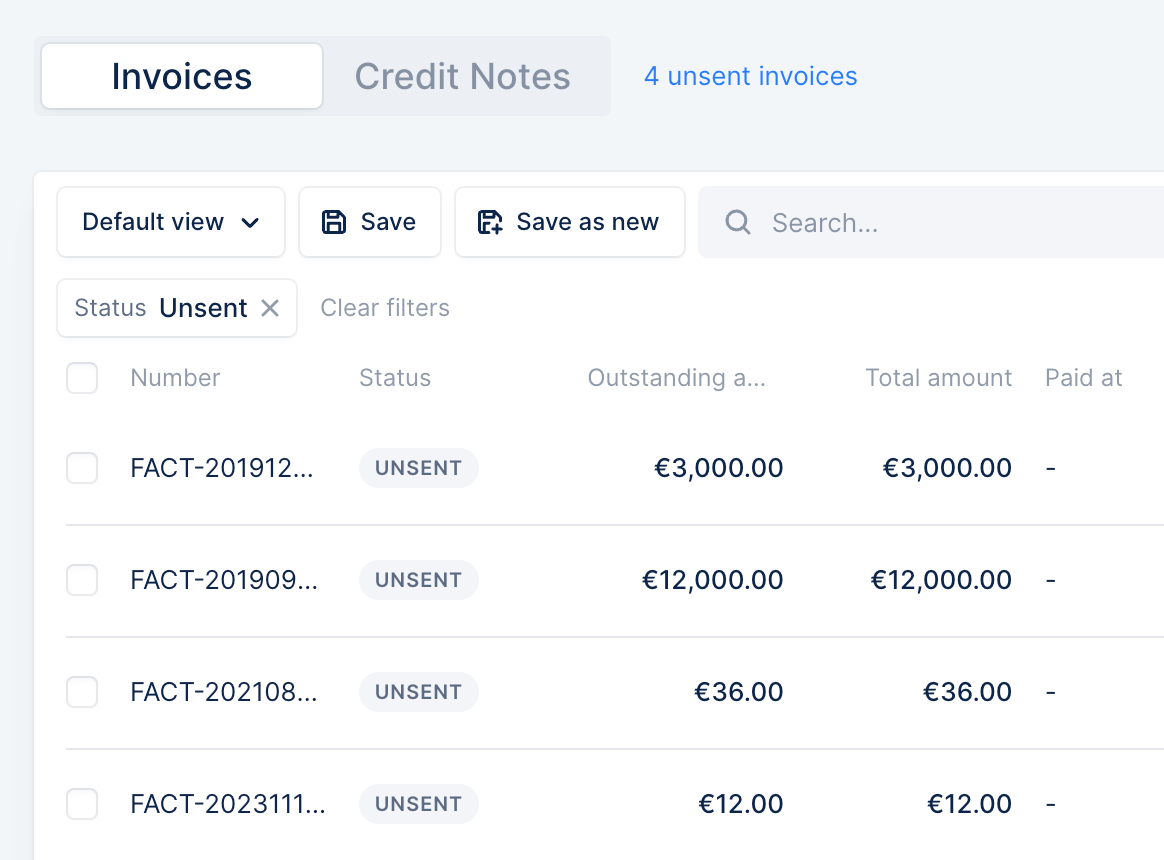
You can see all your UNSENT invoices in the invoice list view.
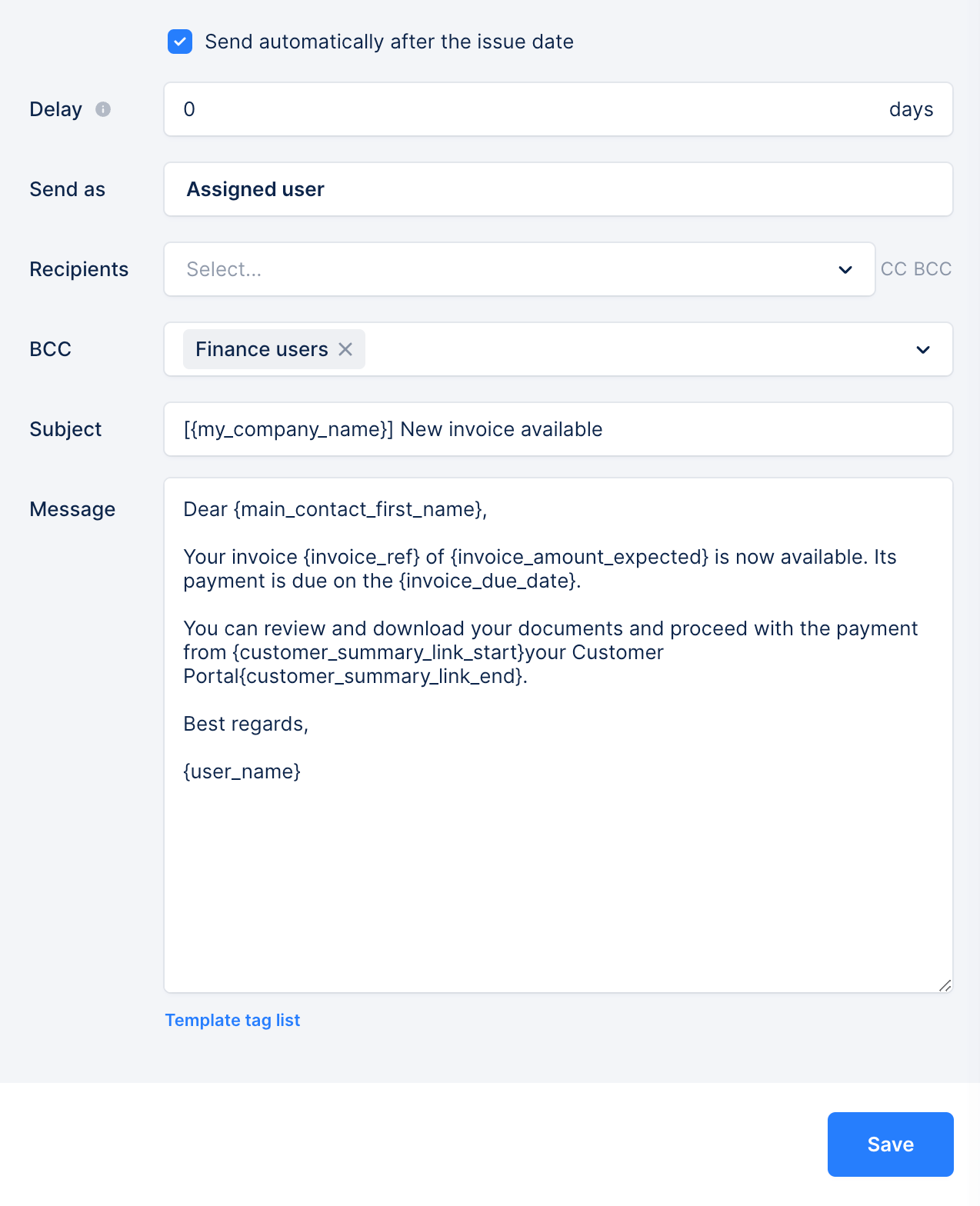
Once activated, you should configure the sending templates in the workflow section. There you can decide if the sending should be automated or not. Who will receive the invoice, and what the email should say. Each email will include the invoice pdf as an attachment.
If automated, you can define a delay after the issue date for sending the invoice; by default, it is 0 days. You will also be able to specify who the sender should be.
Sending invoices
Automatic billing
If you went with automatic billing, it will be triggered depending on the time the invoice is imported into Upflow:
- before 6.30 am UTC → sent on the same day
- after 6.30 am UTC → sent the next weekday
If several invoices are for the same contact, they will receive one email per invoice.
If there is no contact for an invoice, it will remain UNSENT and be available in your invoice list view.
If an UNSENT invoice is already paid (e.g., autopay), we will still send the invoice to your customer so they can update their accounting.
Manual billing
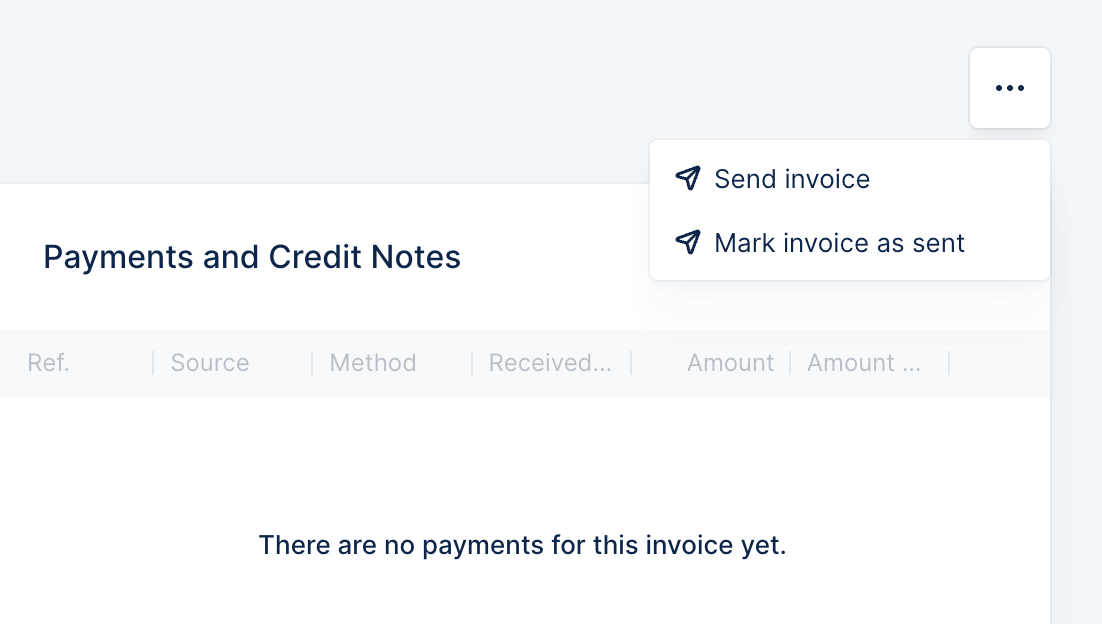
If you decide to send those invoices manually, they will be sent after you hit the send invoice on the invoice details page, or you mass send several invoices from the list view.
From the invoice details page
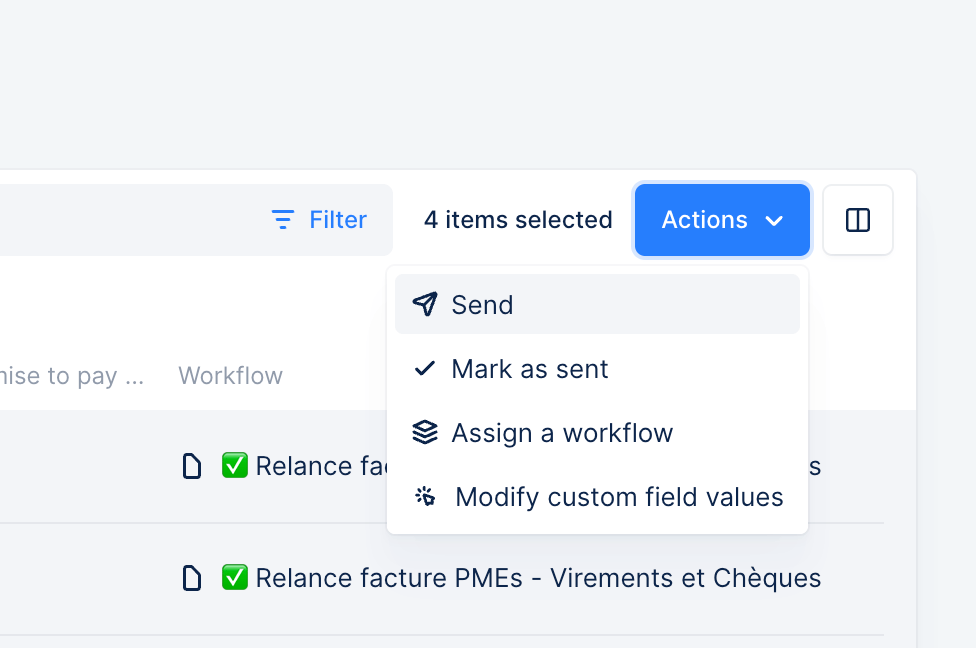
From the invoice list view
If you have already sent the invoice via another channel, mark it as sent. This way, the invoice will be considered for the analytics and the collection.
You can always resend an invoice to your customers via the invoice details page if necessary.
Parent & child customer invoices
When you have parent and child customers, we will send the invoice from the customer it’s assigned to. Thus, we use the parent or the child workflow billing template.
Sending paid invoices
If an invoice is imported but already paid (e.g. autopay), we will still send the invoice to your customers so they have the PDF available for their accounting. If you do not wish for paid invoices to be sent:
-
Please let us know why so we can share your feedback with our Product team.
-
From the invoice’s detail page or the invoices list view, you can select the invoice, and mark it as sent, as explained above.
Looking at invoice delivery
Any invoice sent via Upflow will appear in your invoice and customer timeline. Making it easy for you to spot any delivery issues.
You can also identify who was the sender for said invoices from the initials at the right of the billing email in the invoice/customer timelines. Hover over the initials to see the full user name, then cross it with your Users list.
How to stop sending invoices from Upflow?
If you want to deactivate the feature, ensure no invoice is left to send and deactivate the feature in your Settings. From now on, all imported invoices will be included in your analytics and collection.
Do you have questions? Contact our Support team!