Documentation Index

Fetch the complete documentation index at: https://docs.upflow.io/llms.txt

Use this file to discover all available pages before exploring further.

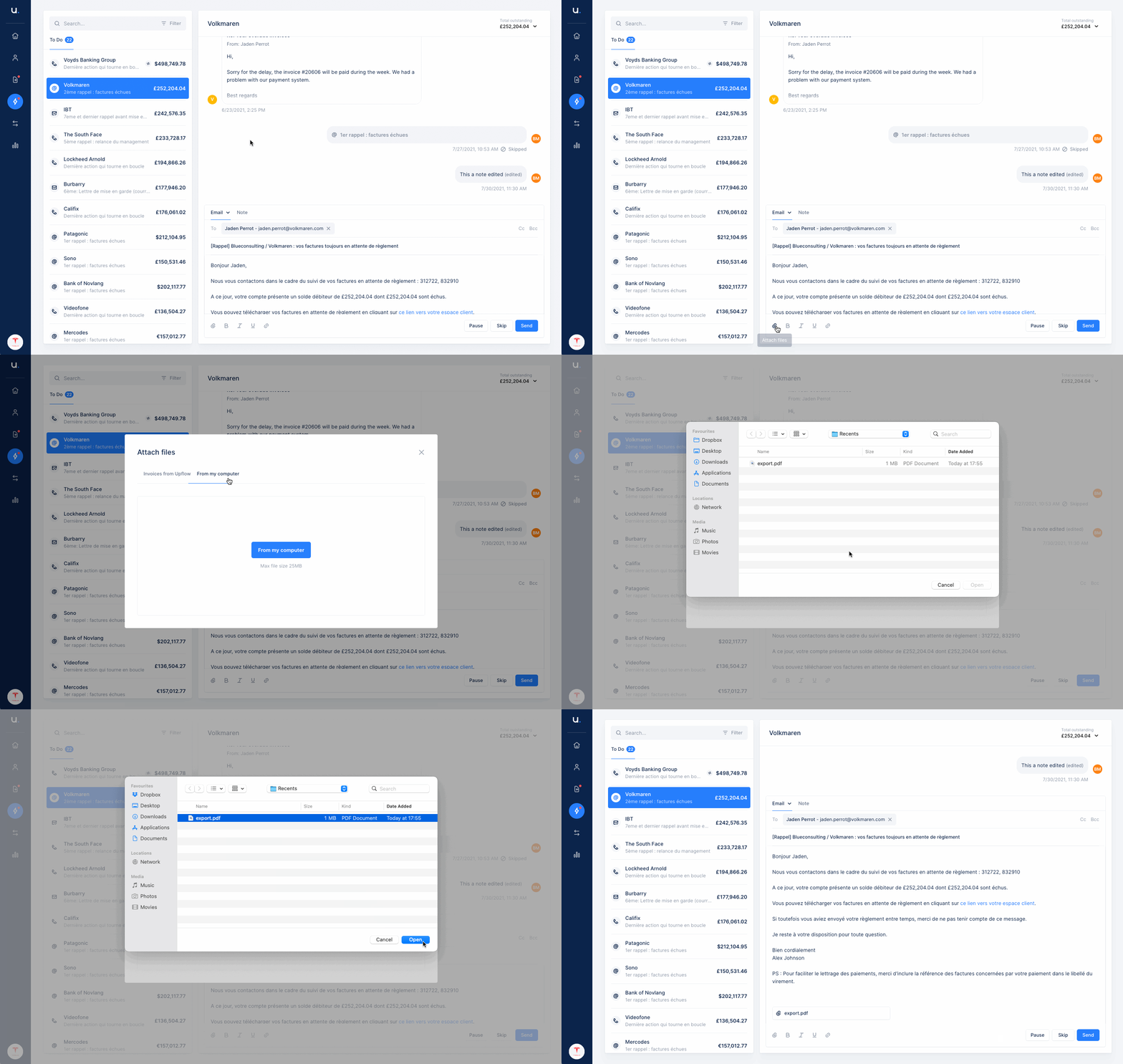
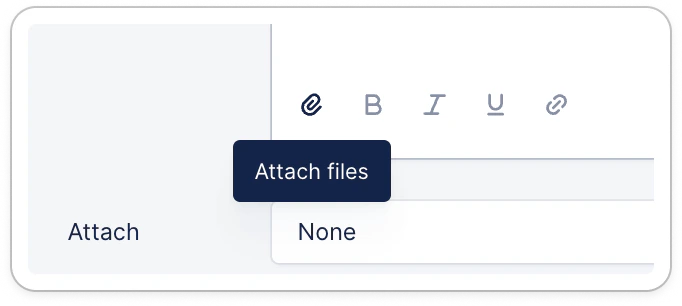
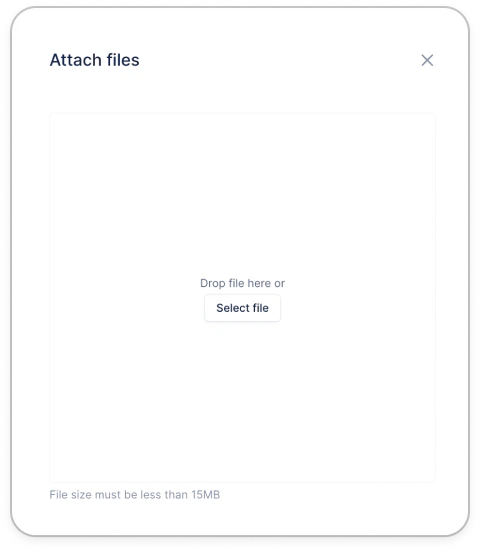
add attachments to emails Ad-hoc attachments You can drag and drop a file directly in the email or click on “Attach files” in your Actions list view. Default attachment If you need to send the same file(s) to all customers for a specific action, head to your workflow, click the action. Then click the “Attach file” icon, and select your file from your computer:

Add invoice PDF attachments automatically to the emails you send

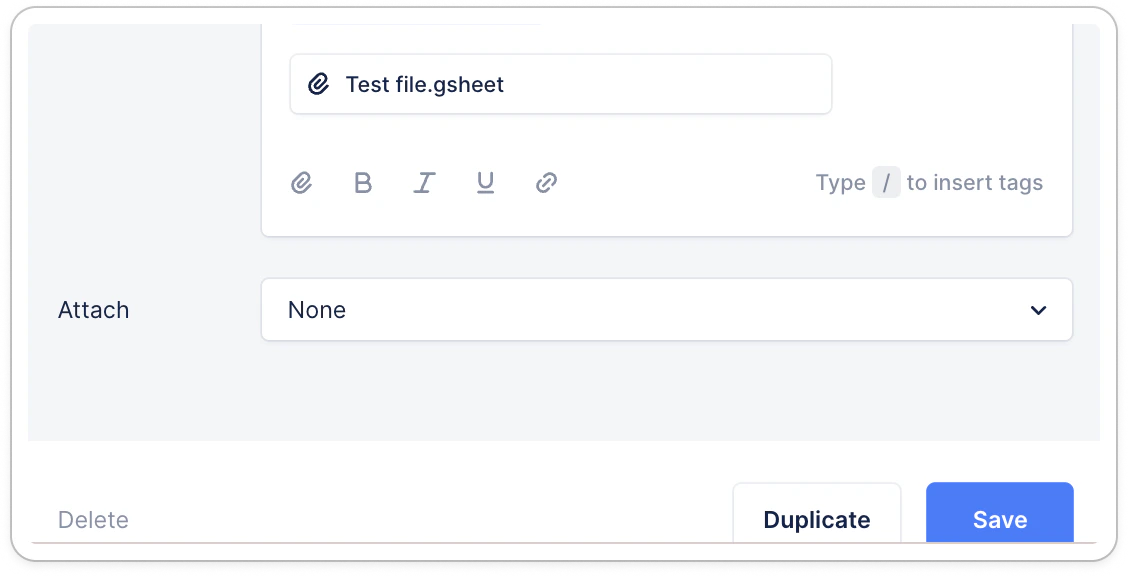
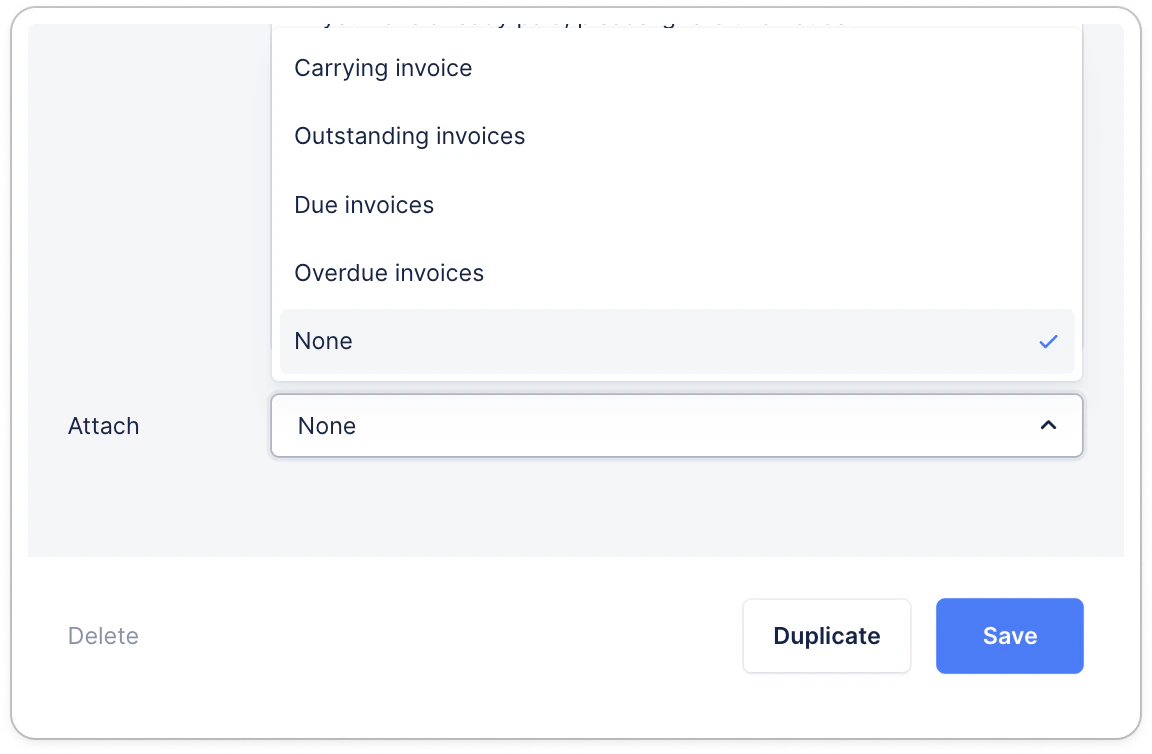
From your workflow templates, for your automatic and manual actions, you can select which invoices you wish to attach by default to your email reminders: The option is by default “None”. You can update it at any times and save. It can also be a different option per email reminder within the same workflow, or depending on the workflow.
FAQ

Is there a file size limit?

Yes, your attachments and documents shouldn’t exceed 15MB or 100 files.

Are all types of files supported?

Yes!

Can I add in-line images?

You can add images in-line only in ad hoc or manual emails and letters, and in timeline notes. To do so, you can either:
  • Copy/paste an image in your email/letter body
  • Drag the image from a file to your email/letter body
  • Upload an image by clicking the dedicated icon
Note that while it’s possible to proceed in ad hoc or manual actions, this is not yet possible in workflow steps or shared Templates [BETA]. Supported formats are: png, jpeg, gif and webp. Images have the same max file size as regular attachments: 15MB.