

How does it work?
When are automatic communications sent?
- All the automatic actions are sent daily depending on your organization’s scheduling time.
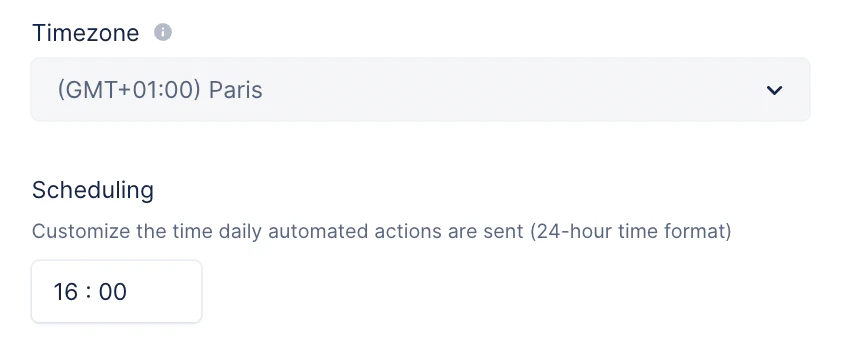
- It is by default 8:30 AM (24h format).
- At that time, the system will look at all the communications that should be sent and do it.
- The communications only happen on business days (Monday to Friday).
How do you set up automatic communications?
Hit the checkbox to Send automatically when available (email, letter, sms).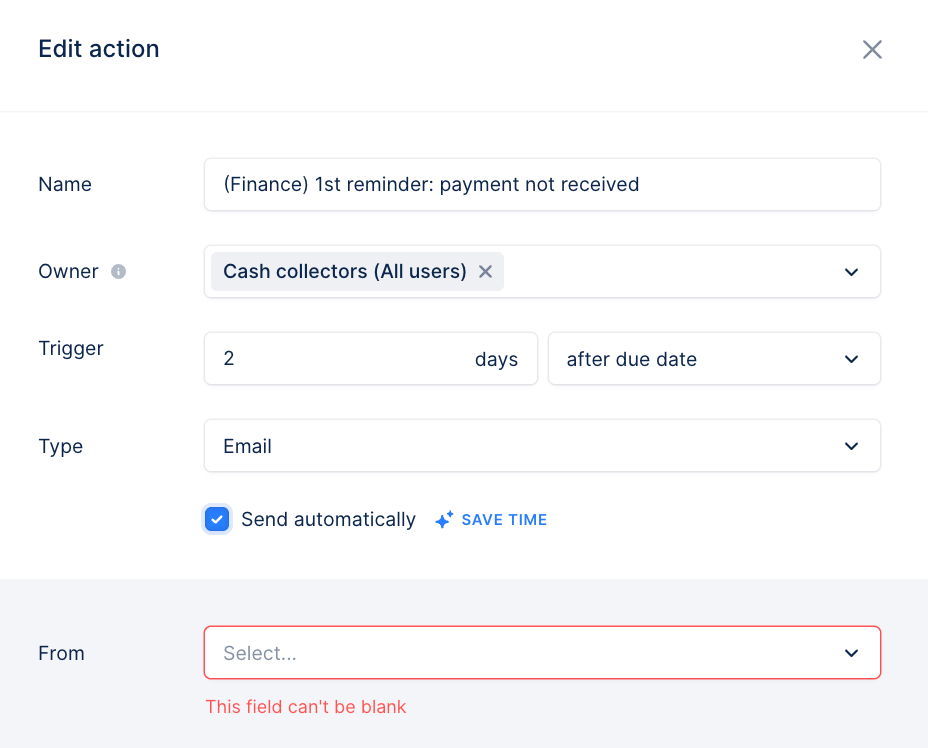

How to identify automatic communications?
You can see the differences across the app: in the customer’s timeline, the actions list views, the workflows.From your customers’ timelines
The automated communications are identified with a lightning icon. To see what sender is used, you can expand the message content in the timeline and look at the “From” field.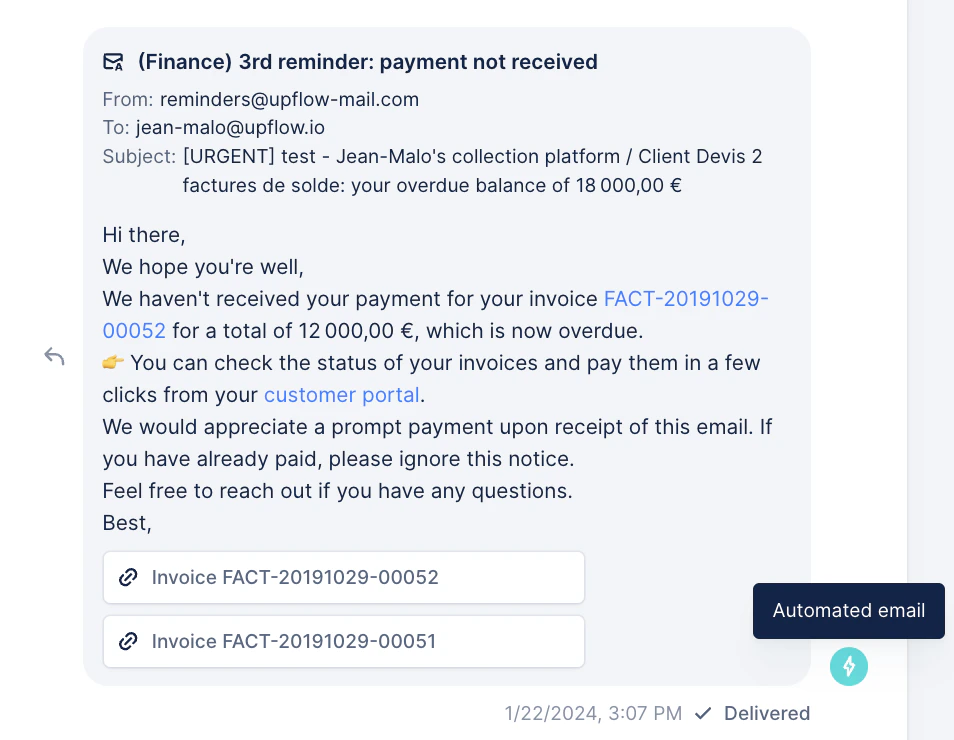
From the Actions list view > All section
From there, you can filter on the Trigger: Automated. You will see the automatic actions that will be sent and the ones that have already been sent. You can also visually identify them thanks to the little A on the envelope icon. Note that automatic actions will not be displayed in your Actions To do list, as they do not require manual attention, unless the customer’s contacts are missing or invalid.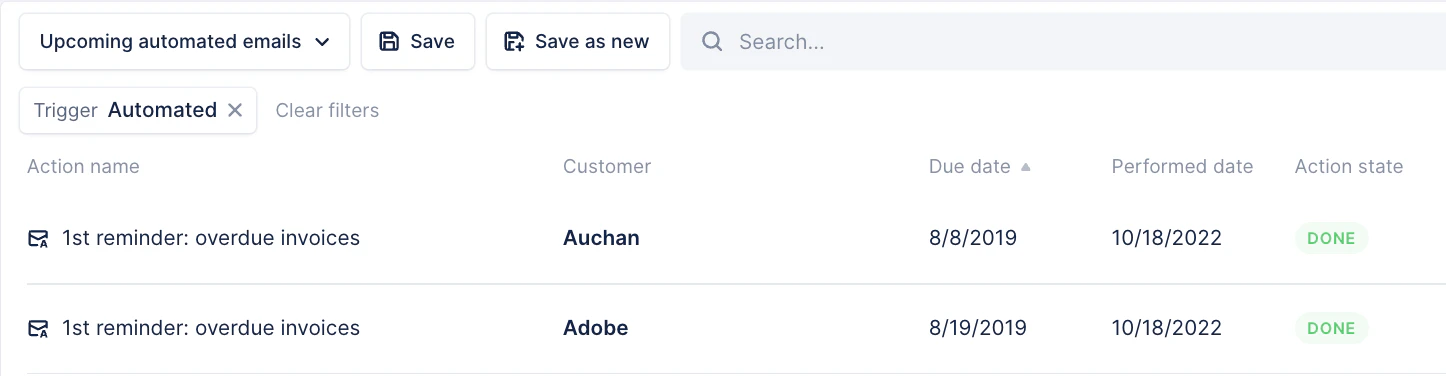
In the Analytics
You can see the automatic actions in the Team activity dashboard.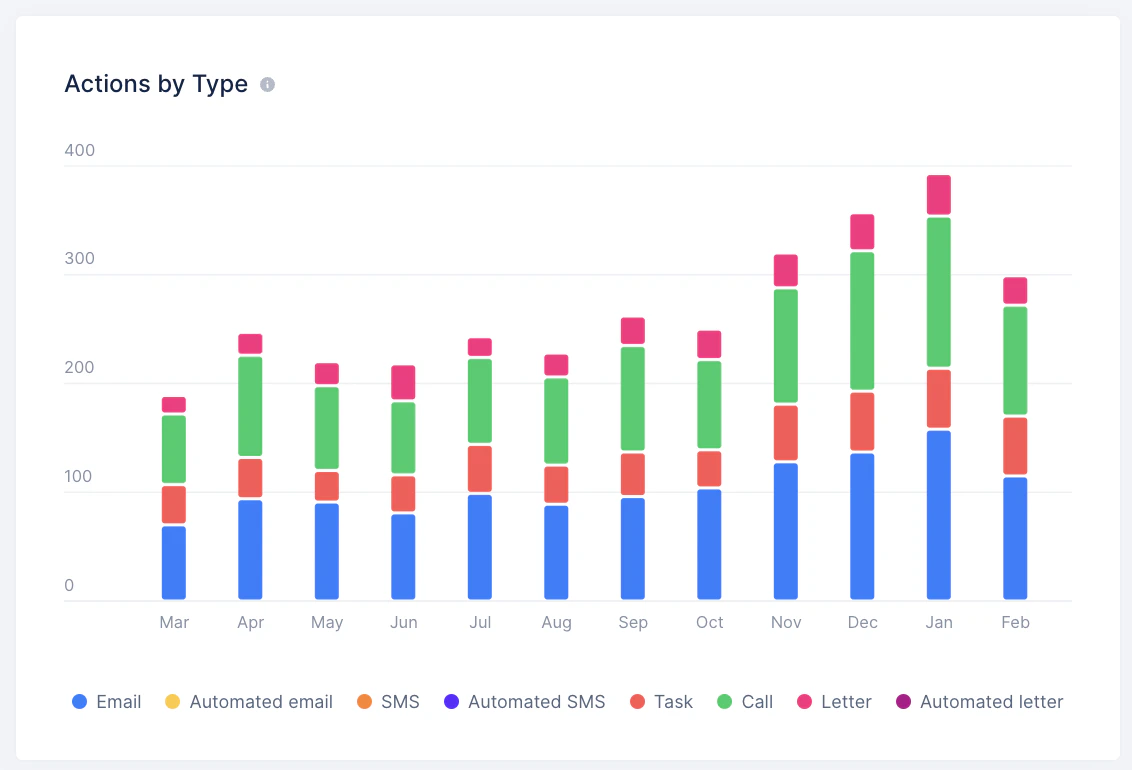
Troubleshooting:
Can I send a scheduled automated email/action in advance?
If an automated action (email/letter) is scheduled for later for a customer, but you’d like for it to be sent immediately, head to your Actions list view > All tab (see here). There, filter on “Action state contains To do” + “Customer contains customer name”. Select the action, click the Actions button at the top right > then Perform. The action status should move from To do to Done.Why was the email sent from a different sender than the one set in the workflow?
If your workflow email template is configured to send from a specific group / user (i.e. “Owners” or “Cash Collectors (owners)”), but the email is ultimately sent from another profile (often the organization owner), it usually means that the configured sender couldn’t be identified at the moment the email was generated. Fallback logic When the configured sender can’t be found, Upflow falls back to Finance users. Example: the workflow email is meant to be sent from Owners, but the customer had no owner when the email was sent → fallback applied → sender becomes a finance user / the organization owner.Why is my automatic email displayed in my Actions to do list?
It can happen for an email reminder, initially planned as automatic, to be displayed in a user’s to do list. This is related to the customer’s contacts: either missing or invalid. Here’s what to check- Check the pending action’s name and the related workflow.
- Go to the workflow and check the action’s recipients fields: is it meant for the main contact? All? A specific position?
- Then check the customer’s contacts, specific position if needed. → Does the customer have no contacts? → Is the necessary contact marked as invalid?
- Correct the customer’s contact(s) for the email’s automation to be regenerated. The email will then be sent the following business day.