

Set up a promise to pay
From your team
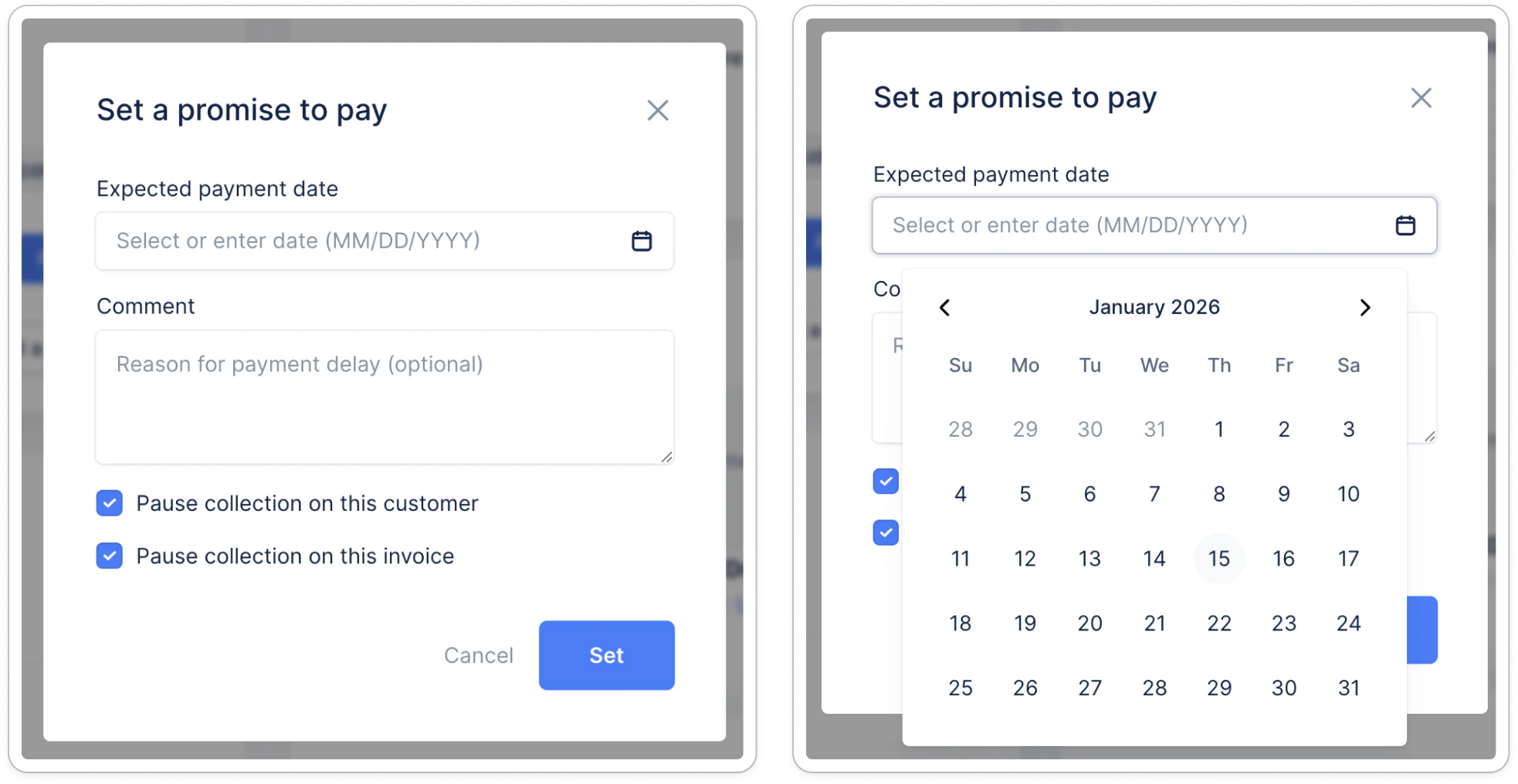
Anyone in your team can add a promise to pay following a conversation with your customers. To do this, you can go on the invoice details page and click on “Add a promise to pay”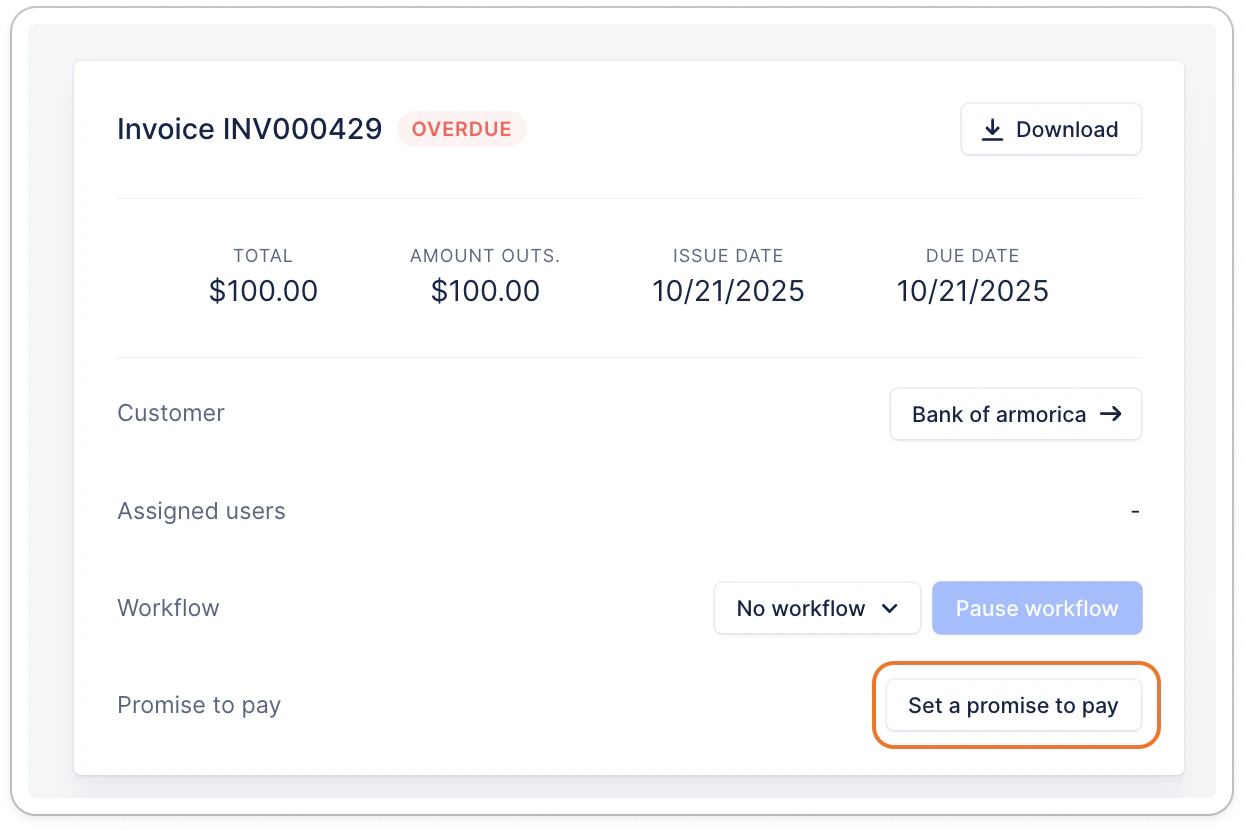
From the customer portal
Your customers can also enter a promise to pay right from their portal: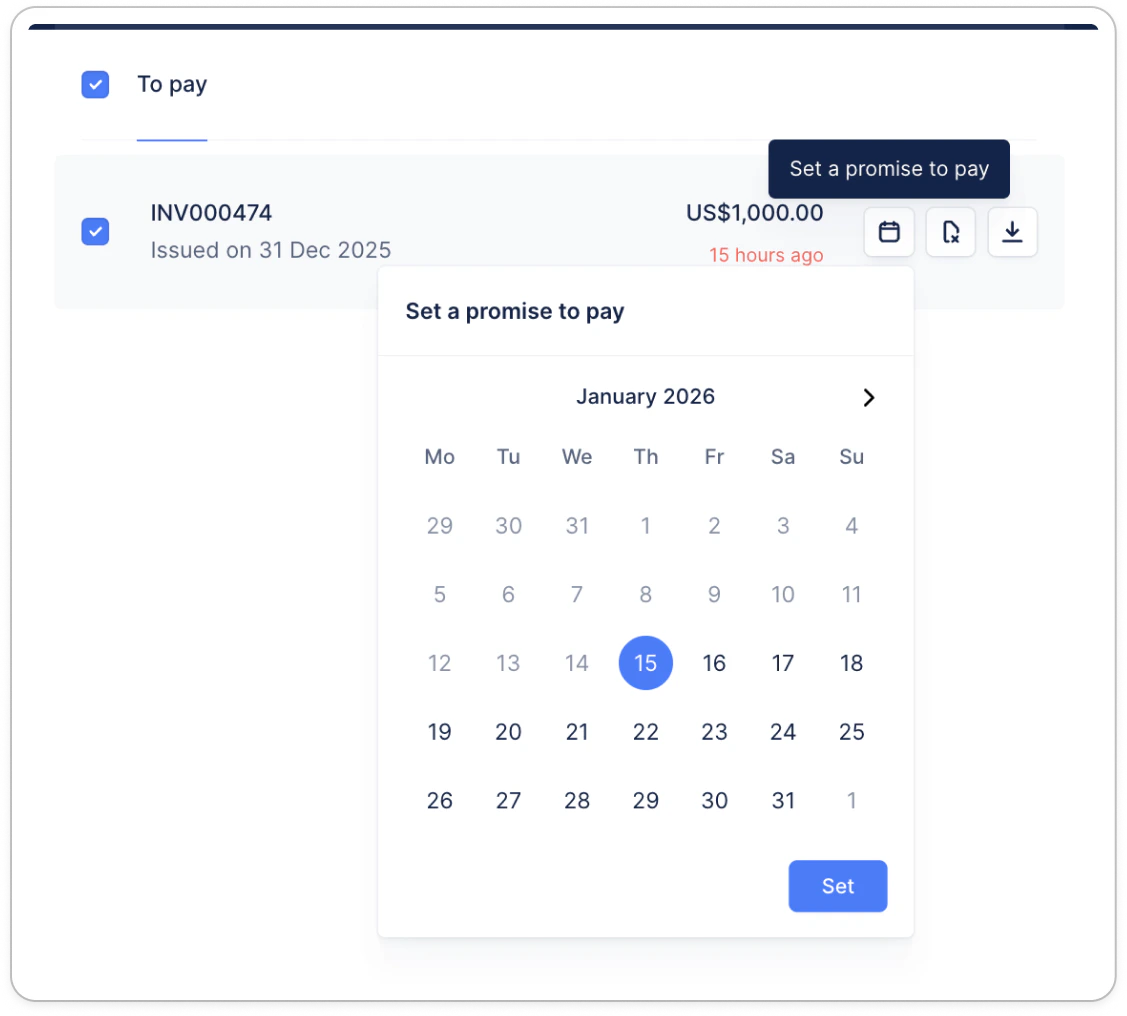
Update a promise to pay
To update a promise to pay date, access the invoice’s page in Upflow, and click the promise to pay date displayed. Then, select a new date, and save.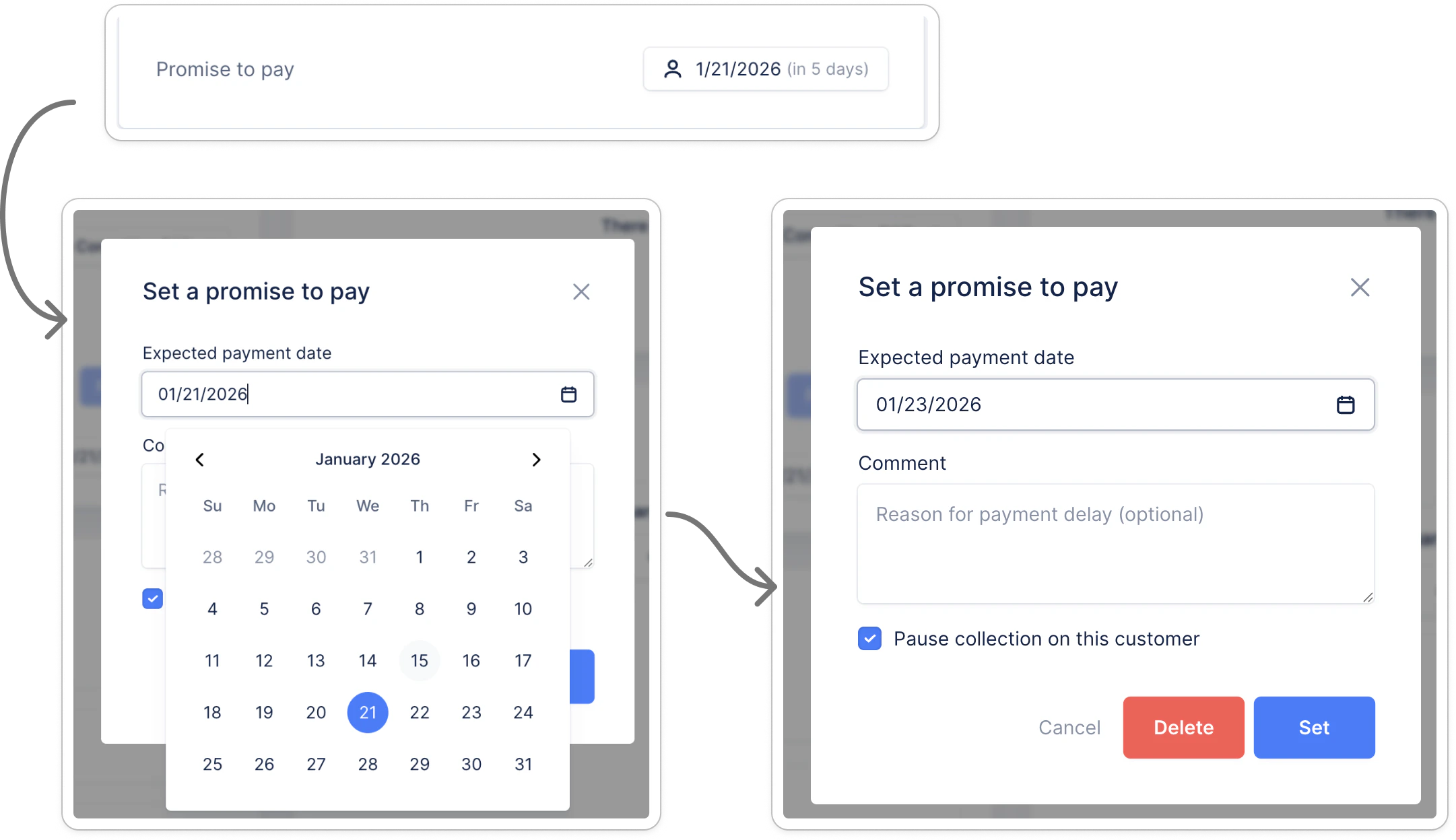
Track promises to pay
You can see all your promises to pay from the invoices list view and see the ones that are late or are at risk of being late to take preventive actions.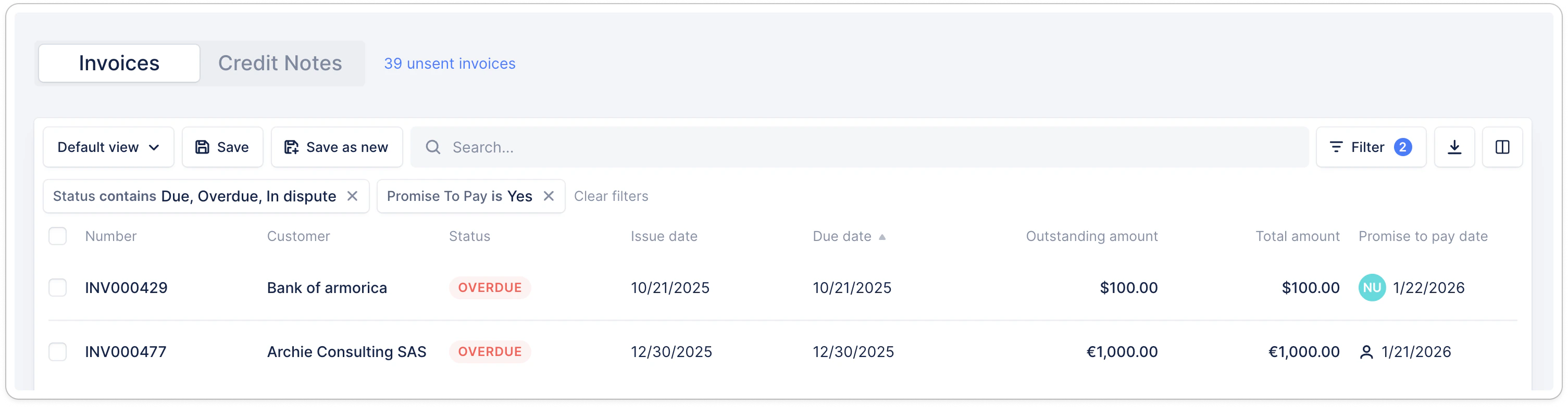
- Filter on “Promise to pay source is not empty ” to see invoices for which the promise to pay was added by your team
- Filter on “Promise to pay source is empty ” to see invoices for which the promise to pay was added by the customer from their portal
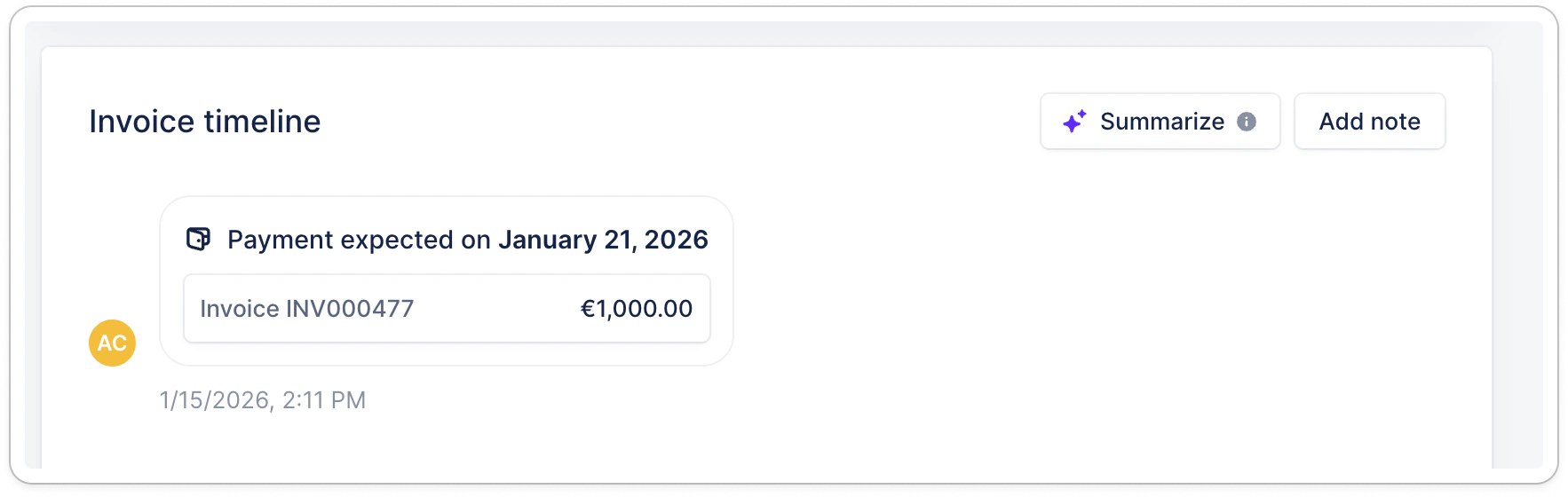
From the timelines,
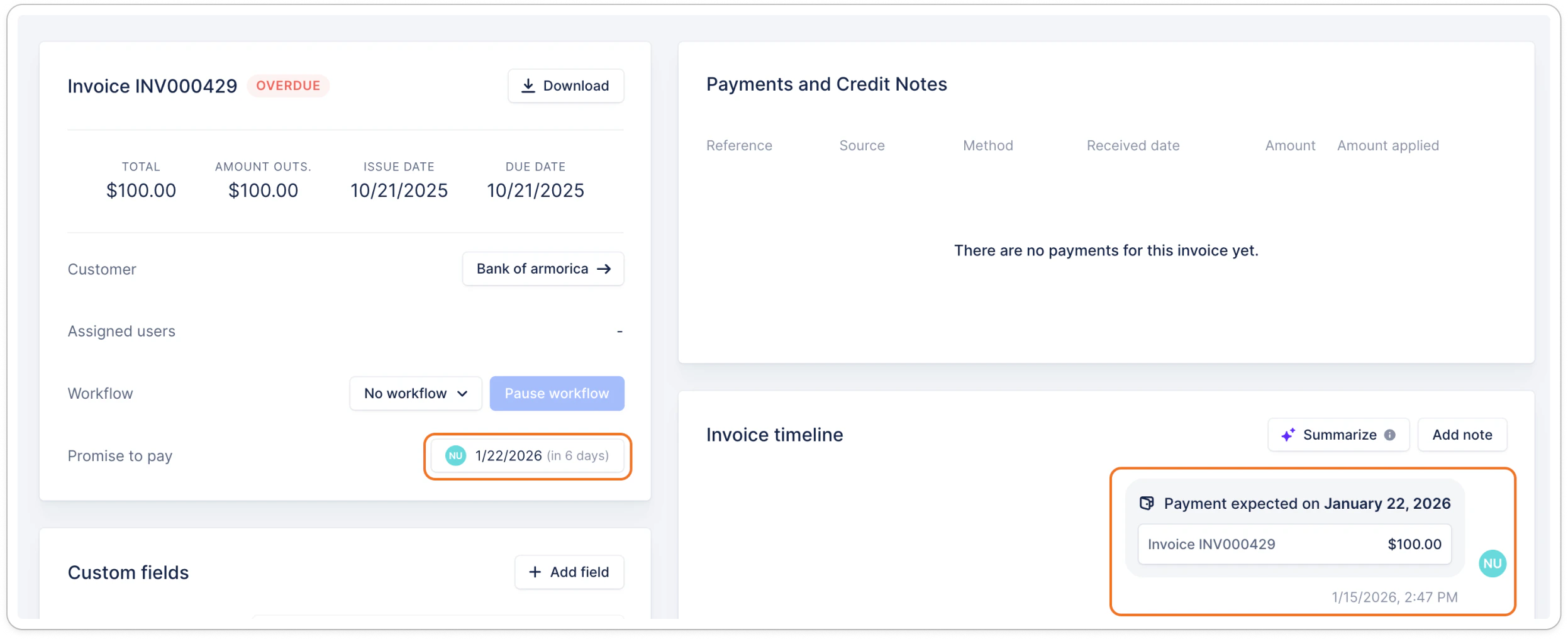
you can identify if the promise to pay was added by your team or the customer:- if the promise event at the left of the timeline, it was done by the customer. You can also see the name by hovering over the initials
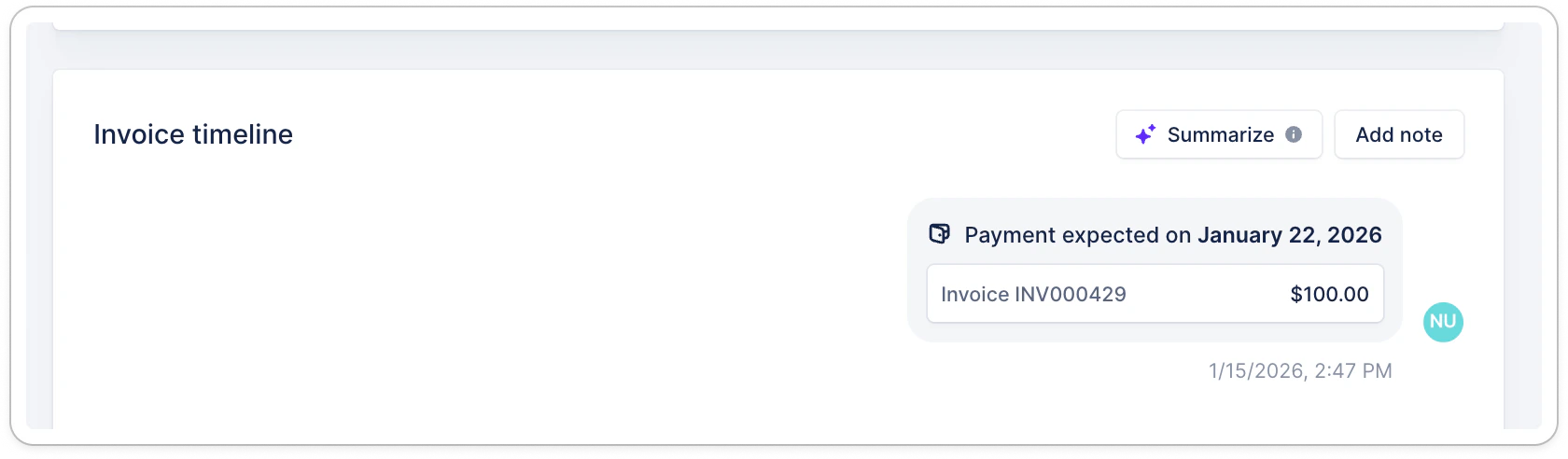
- if at the right of the timeline, it was added by your team. You can also see by whom from the initials
Promise to pay expiration
Promises to pay expire at the selected date’s end of the day, about 23:59:59 (based on your organization timezone). This means if a promise to pay is set for Friday May 1st, 2026, it will be considered expired starting at 23:59:59 that same day. You might however receive the expiration notification in the following hour.\Cancel a promise to pay
Promise created by your team
If your team added a promise to pay on an invoice (manually or via our AI suggestion - learn more), only your team can cancel them before the selected date. Access the invoice’s page, click the ongoing promise to pay:
Promise created by the customer
If you wish to cancel/delete a promise to pay created by your customer from their portal, you can proceed as above. Customers can also delete it from their Upflow portal.\Notifications
Promise created by a customer
When your customer sets the promise to pay, their owners and all finance users will receive a notification about it. You can then decide to pause or continue the collection for that customer.\Expired promises
When a promise to pay expires, the related customer’s owners + all finance users are notified to take further action.\Canceled promises
If your team cancels a promise to pay, no notification is triggered. If the customer deletes the promise they created, you’ll receive a notification “Customer name removed a promise to pay”. While if you delete the promise they created yourself, they won’t receive one. If the invoice is fully paid before the selected promise to pay date, then you’ll receive a notification mentioning the invoice is paid.\Useful to know
- Promises to pay at a later date do not postpone the Autopay payment collection schedule.