

- send the PDF in a multipart/form-data request (i.e. a regular “file upload” in HTML)
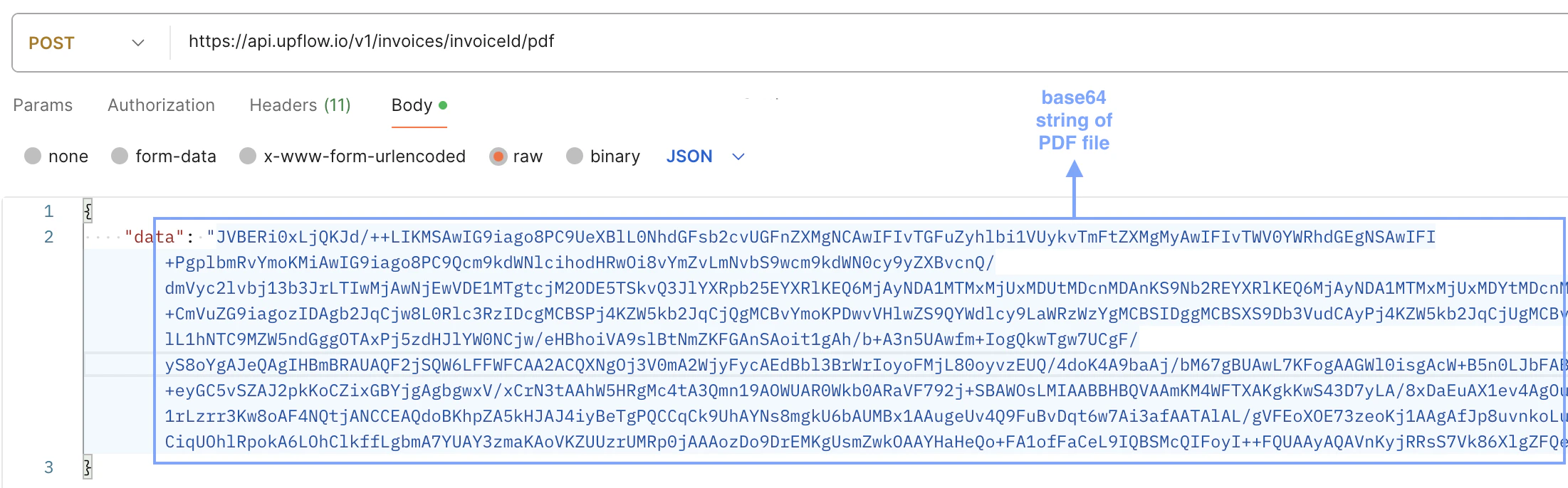
- send a JSON request with the file encoded in base64
https://api.upflow.io/v1/invoices/{invoiceId}/pdf
Note: If you’re referring to the invoice’s external id, ‘invoiceid’ in the Call URL above would be replaced by ‘external:XXXXX’ [https://api.upflow.io/v1/invoices/external:XXXXX/pdf]
HEADERS
X-API-KEY: YOUR_API_KEY
X-API-SECRET: YOUR_API_SECRET
CONTENT-TYPE: MULTIPART/FORM-DATA OR APPLICATION/JSON
ATTRIBUTES
data : string
base64 string for PDF file, mandatory when using the application/json content-type
‘JVBERi0xLjYNJeLjz9MNCjE5IDAgb2JqDTw8L0Zp…DSUlRU9GDQ==…’
file : string
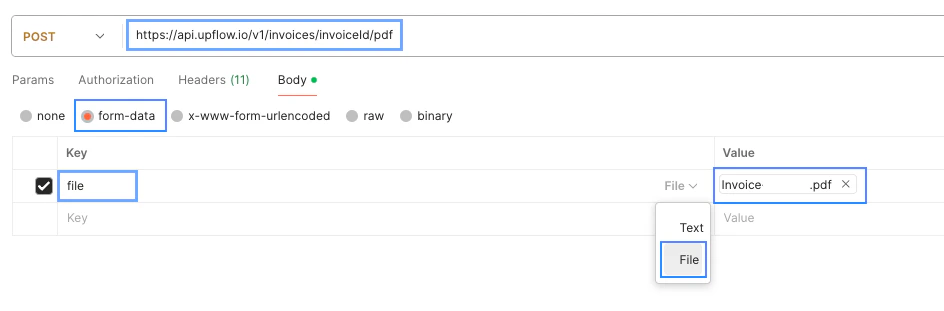
The file must be provided as the value of a form field named “file”, with any filename, when using the multipart/form-data content-type.
1. If you’re updating the invoice PDF via a form-data request , follow the format shown below where you select the PDF file as the value of the key named ‘file’:
- The response will yield a 204 Status indicating the server successfully processed the request, although no content will be returned.
- What happens to the PDFs extracted through our native integration once the invoice PDF is updated through the API? The PDF extracted from the integration is bypassed.