

Default dispute reasons
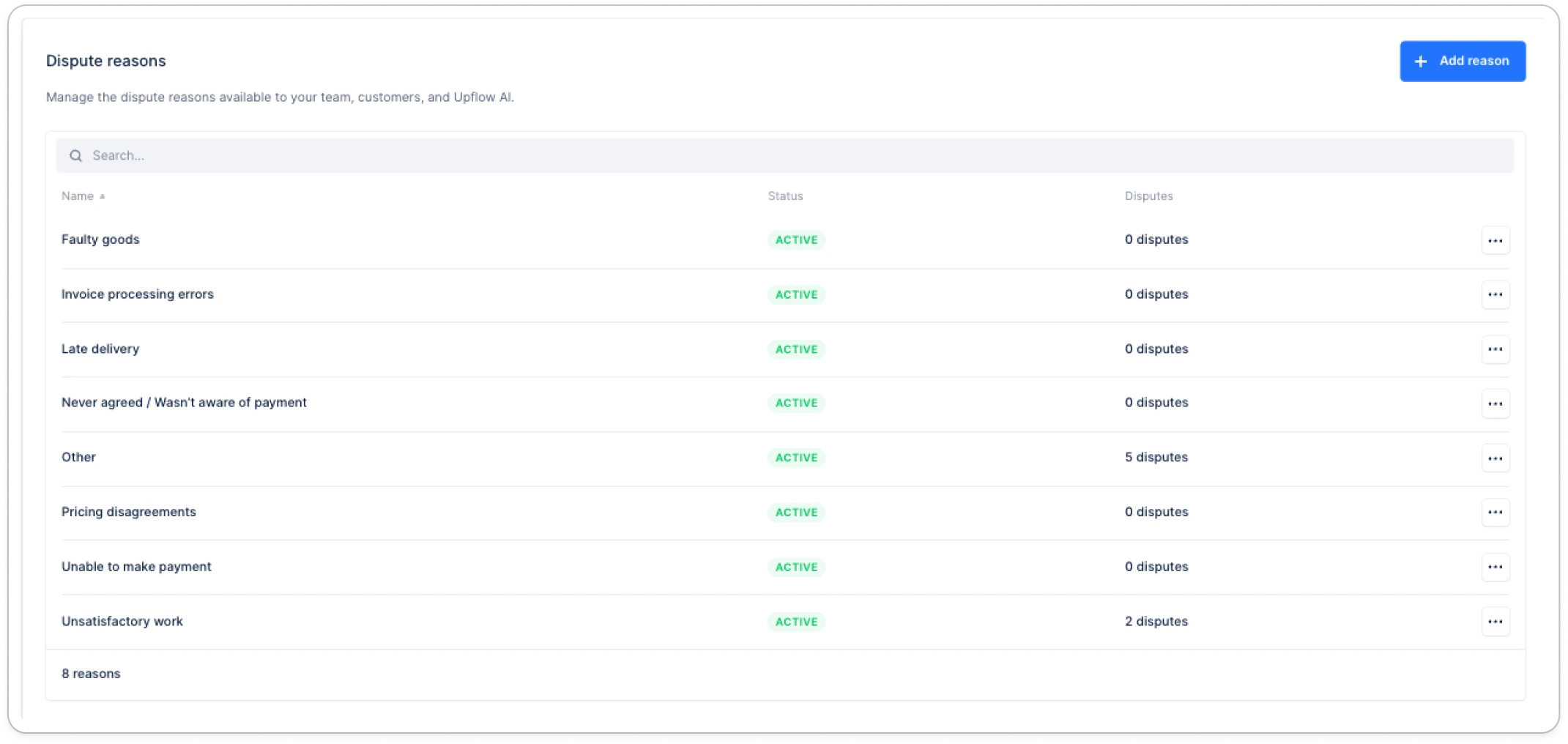
Upflow seeds your account with these standard dispute reasons:- Unsatisfactory work
- Faulty goods
- Late delivery
- Never agreed / Wasn’t aware of payment
- Unable to make payment
- Pricing disagreements
- Invoice processing errors
- Other
Why customize dispute reasons?
By default, Upflow provides standard dispute reasons like “Faulty goods,” “Late delivery,” and “Pricing disagreements.” However, every business is different. Customizing your dispute reasons allows you to:- Track disputes that matter to your business - Create reasons specific to your products, services, or common customer issues
- Streamline resolution - Help your team quickly understand and prioritize disputes based on relevant categories
Accessing dispute settings
- Navigate to Settings > Dispute reasons in Upflow
- Here you’ll see all your active and archived dispute reasons
Managing dispute reasons
Adding a new dispute reason
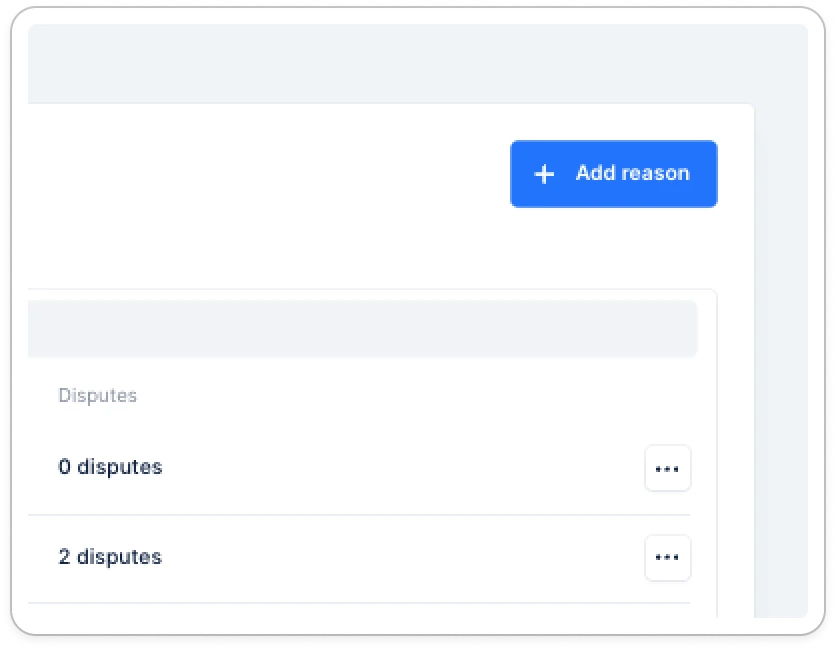
- In the Disputes settings, click Add reason
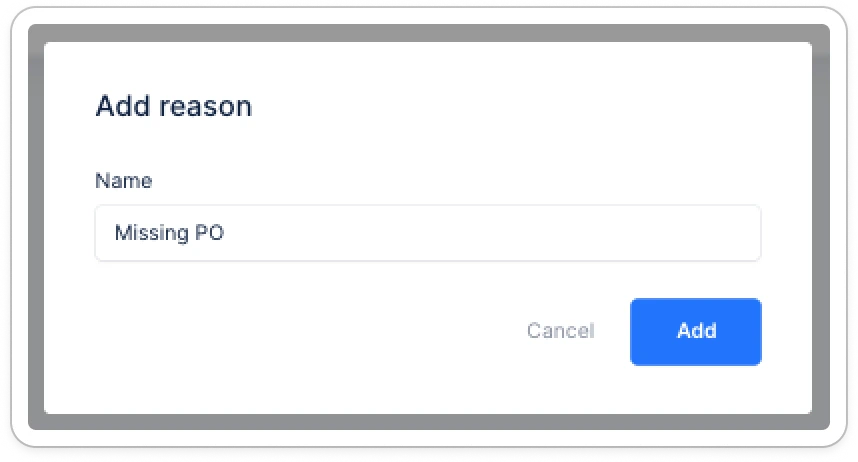
- Enter a unique label for your dispute reason
- Click Save
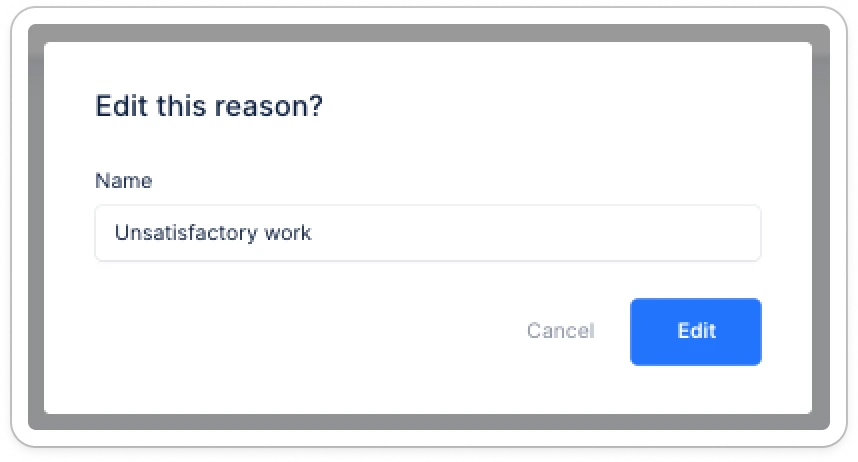
Editing a dispute reason
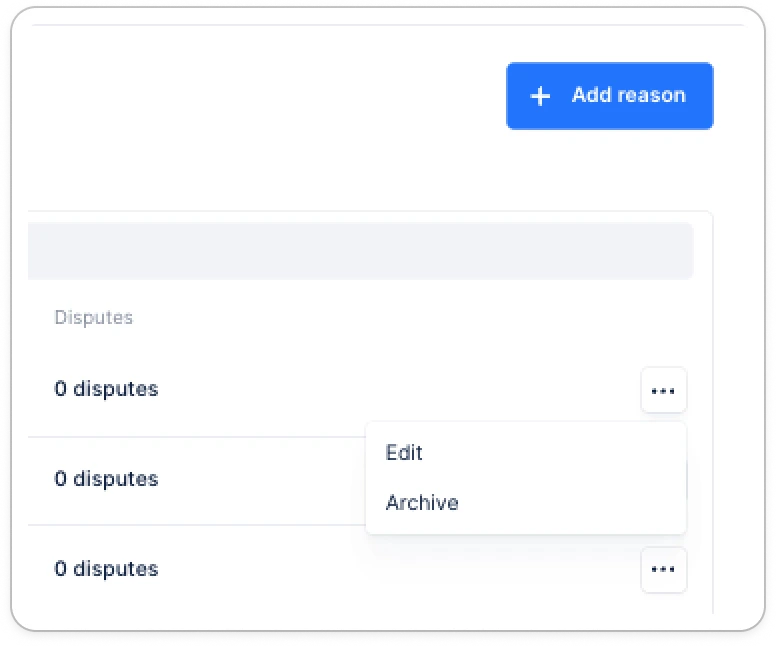
- Find the dispute reason you want to edit
- Click Edit
- Update the label
- Click Save
Archiving a dispute reason
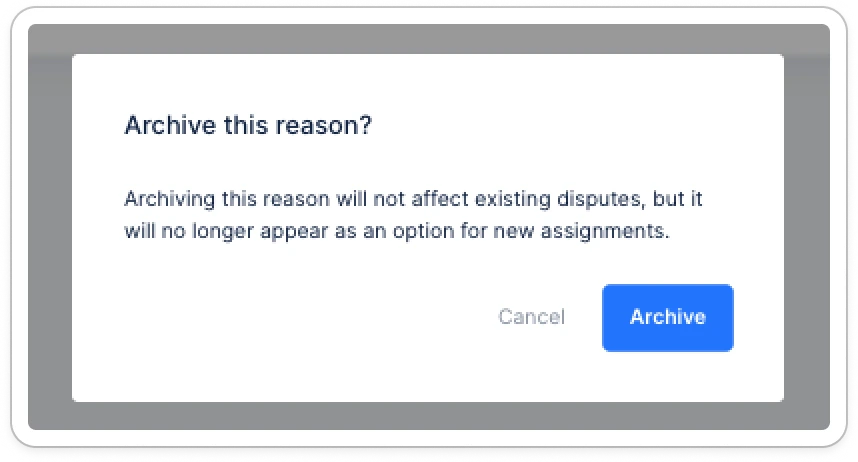
If you no longer want to use a specific dispute reason but need to preserve it for historical analysis:- Find the dispute reason you want to archive
- Click Archive
- Confirm the action
- It can no longer be selected for new disputes
- It remains visible in historical disputes and analytics
- It can be restored at any time
- Filter or navigate to archived reasons
- Find the reason you want to restore
- Click the restore icon
- The reason will be available again for new disputes