

- Use an email held in a custom field as the To, Cc, or Bcc of any email — in a workflow step, a template, a campaign, or a one-off email.
- Keep automated emails reaching the right person without copying the address in by hand
- Stay in sync with your source system — the field’s current value is resolved each time the email is sent
Before you start
The custom field must already exist and hold a valid email address. You can sync the value from your source system or enter it directly in Upflow. Custom-field recipients use your existing text custom fields — there’s no separate “email” field type to set up. See Import and create custom fields into Upflow for how to create a field or sync one from your ERP. The field can hold a single address, or several addresses separated by a comma (,) or a semicolon (;). See When the field holds several addresses below.
Use a custom field as a recipient
- Open the email you want to configure — a step in a workflow, a template, a campaign, or a one-off email.
- Click the To, Cc, or Bcc field to open the recipient picker.
- Your custom fields appear grouped in the list — invoice fields under Invoice fields, alongside your customer fields and team members. Each field shows its current value so you can confirm the address.
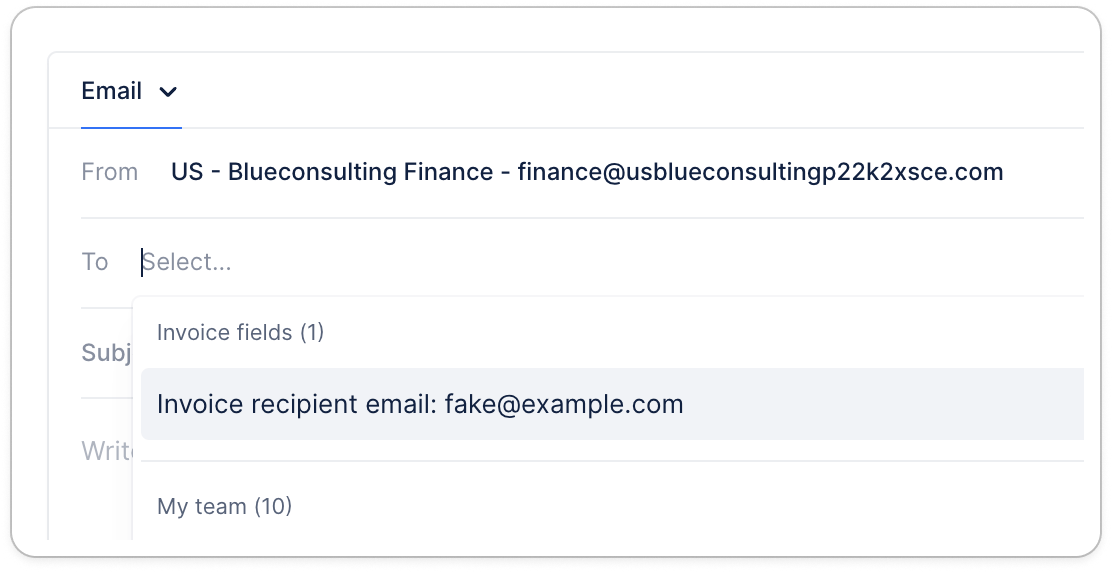
- Select the field. Upflow uses that field’s value as the recipient, resolving the current address on each invoice or customer every time the email is sent.
A custom-field recipient is treated like any other typed-in email address: no contact is created, and nothing is added to the customer’s contact list.
When a field is empty or invalid
Upflow normalizes and validates the field’s value at send time.- Automatic actions fall back to manual: if the field is empty or the address isn’t valid, the email isn’t sent automatically — it’s surfaced for someone to handle manually instead.
- Manual actions flag the problem on the recipient — for example, “Invoice recipient email” is missing or invalid. Update the field’s value to fix it.
When the field holds several addresses
A text custom field can list several email addresses in a single value. Upflow accepts both, and ; as separators, and tolerates spaces around them — for example alice@acme.com, bob@acme.com; carol@acme.com.
At send time, Upflow splits the value on those separators and treats each piece as a separate recipient in the same position (To, Cc, or Bcc):
- Each valid address is added individually — the field does not send one email to a joined string.
- Empty pieces and pieces that aren’t valid email addresses are dropped silently.
- Duplicates in the same list are removed (case-insensitive), so the same address isn’t emailed twice.
- If nothing valid remains after filtering, the field is treated as missing: automatic actions fall back to manual, and manual actions flag the recipient as missing or invalid, as described above.
Good to know
Both customer and invoice custom fields can be used as recipients:- Customer fields work everywhere — in both customer and invoice workflows.
- Invoice fields read the address from the invoice the email is about, so they’re available wherever an invoice is in context: invoice workflows, one-off invoice emails, and the billing step of a customer workflow.
On a customer level workflow step — which isn’t tied to a single invoice — use a customer field. If an invoice field is used in a template that runs there with no invoice in context, the email falls back to a manual action so you can choose the recipient.