

What the agent applies
The agent applies a transaction only when it can confidently link it to a single open invoice in your account. If there’s any doubt — multiple possible candidates, an amount that doesn’t line up, an unfamiliar payer — the transaction stays as a suggestion for you to review and apply manually.What the agent never applies
These transactions are never applied automatically by the agent:- Transactions explicitly excluded by you or by a smart rule
- Transactions older than 90 days at the time of import
- Transactions that were previously auto-applied and then Unapplied — they won’t be picked up again
- Transactions where the invoice is already marked as paid in your accounting system
The agent only runs on bank transactions as they are imported (or updated by a sync). Turning the setting on does not retroactively apply your existing backlog of unapplied transactions — those stay as suggestions until you act on them.
Enable the agent
The agent is controlled by a single admin setting at the organization level.- Go to Settings → Cash application.
- Toggle Enable the Cash App agent to ON, then click Save.

- The next time a bank transaction is imported, the agent will evaluate it.
This setting is admin-only and applies to the whole organization. Turning it off does not revert past auto-applications — only new incoming transactions stop being auto-applied.
Identify auto-applied transactions
Auto-applied transactions have a distinct Auto-applied status, separate from the regular Applied status used for transactions you’ve applied manually. On the Bank transactions page, you can filter the list to see only auto-applied transactions using the pre-built Auto-applied saved view in the views dropdown.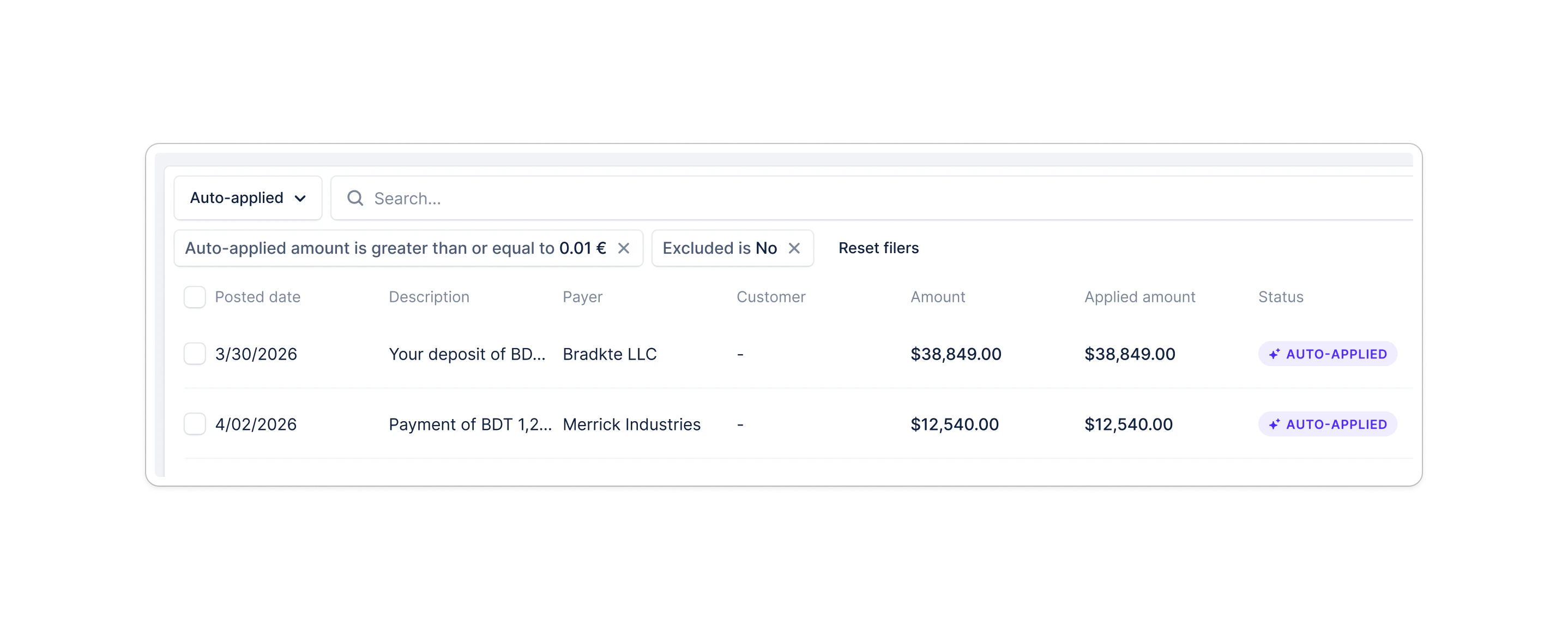
Sync to your accounting system
Auto-applied transactions sync to your accounting system the same way as manually applied ones. On NetSuite, the synced payment carries a memo: “Auto-applied by Upflow”, so your finance team can tell at a glance which payments were applied by the agent.Unapply an auto-applied transaction
If the agent applied a transaction incorrectly, you can revert it in one click — the flow is the same as for manually applied transactions.- From the Bank transactions page, click Edit on the auto-applied transaction.
- Uncheck the invoice in the matching panel.
- Click the red Unapply button in the footer, then confirm.