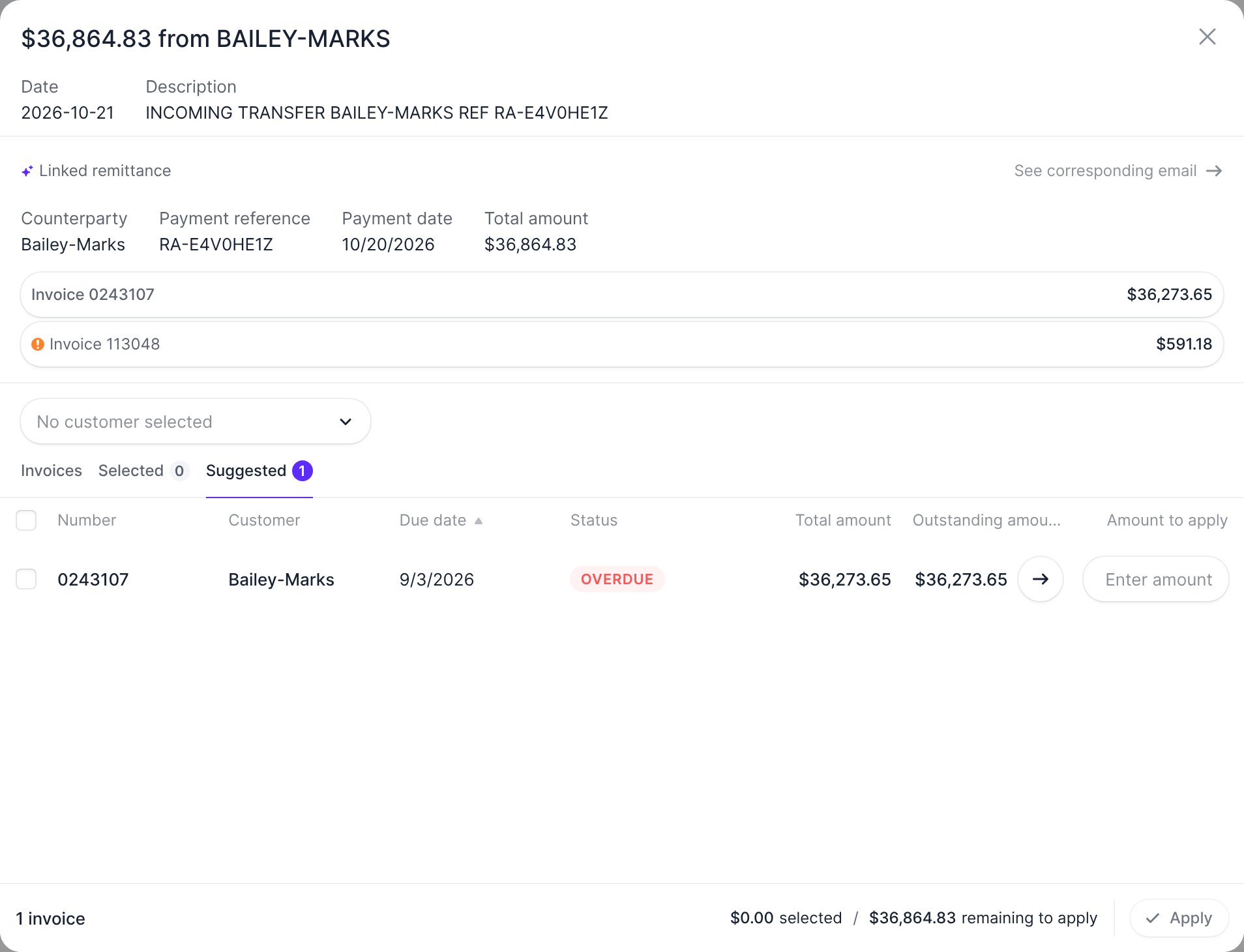
What Upflow extracts
Upflow reads the email body and its attachments (PDF, CSV, XLSX, and plain text). From each remittance advice, it extracts the counterparty, the payment reference, the payment date, the currency, the total amount, and each invoice number with the amount paid against it.An email that only announces a future payment, such as “we will pay invoice 1234 next week”, isn’t a remittance advice. The Promise to pay skill of your collection agent handles these.
Set up remittance capture
Remittance capture is a skill of your collection agents. It’s in Auto-mode by default. To turn it off for an agent:- Go to Settings → Collection agents and open the agent.
-
Under Agent skills, set Remittance capture to Off.
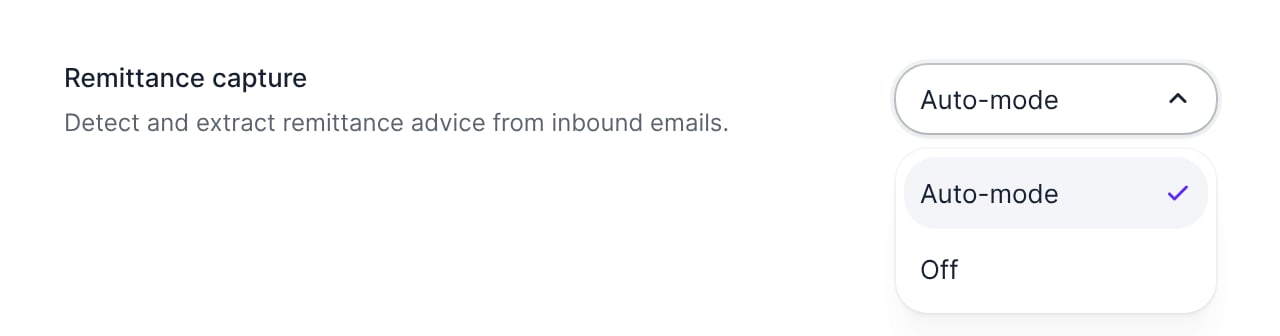
- Click Save.
Follow a remittance in the timeline
A captured remittance appears in the customer’s timeline, under the email it came from.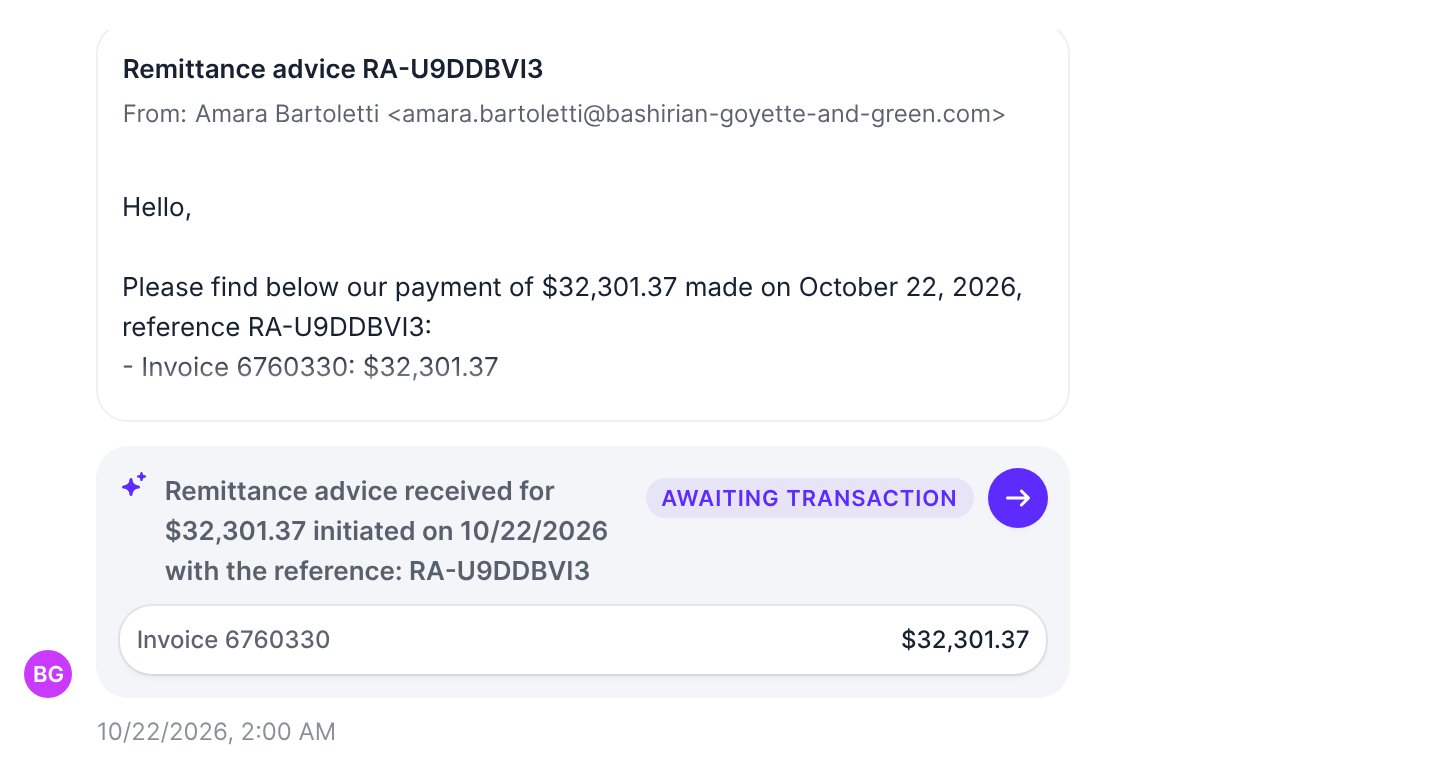
How remittances are applied
When a bank transaction is imported, Upflow checks it against captured remittances before running the usual matching logic. It works in either order: if the transaction arrives first, Upflow links it as soon as the remittance is captured. A transaction matches a remittance when its reference matches, or when its amount, currency, date, and payer line up. Upflow doesn’t change a transaction that’s already applied. The Cash App agent applies the transaction automatically when it’s enabled, the match is on the reference, and every invoice in the remittance was found and is paid in full. The usual auto-apply rules also apply. Otherwise, Upflow creates a match suggestion for you to review, for example for a partial payment or an invoice number it couldn’t find. In the matching interface, a Linked remittance section shows the remittance details and each invoice it covers. Click See corresponding email to open the original email in the customer’s timeline.