

Identify transactions with suggestions
In the Bank transactions list, the Suggestions column shows a badge with the number of suggested invoice matches for each transaction.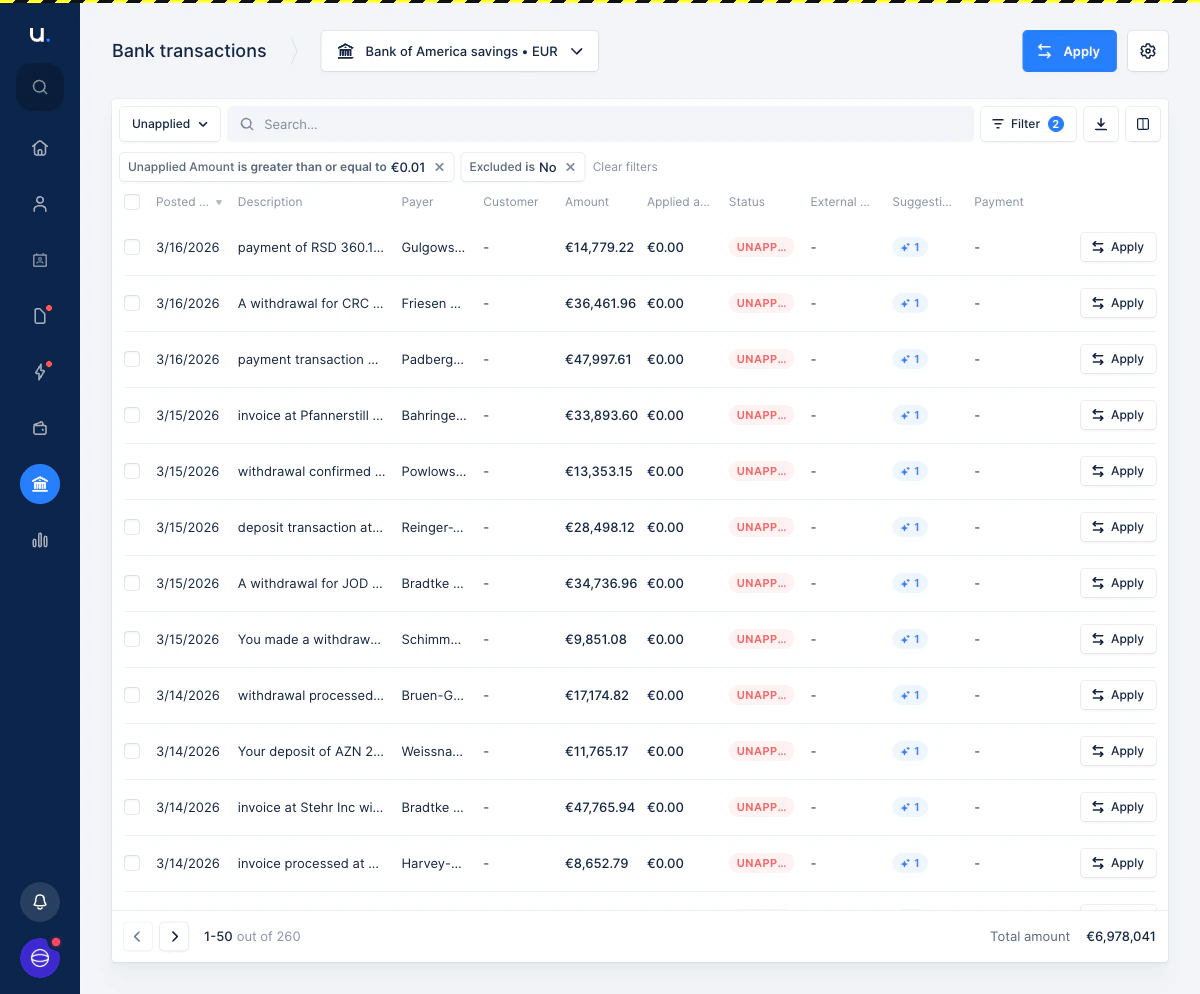
Review and approve a suggestion
-
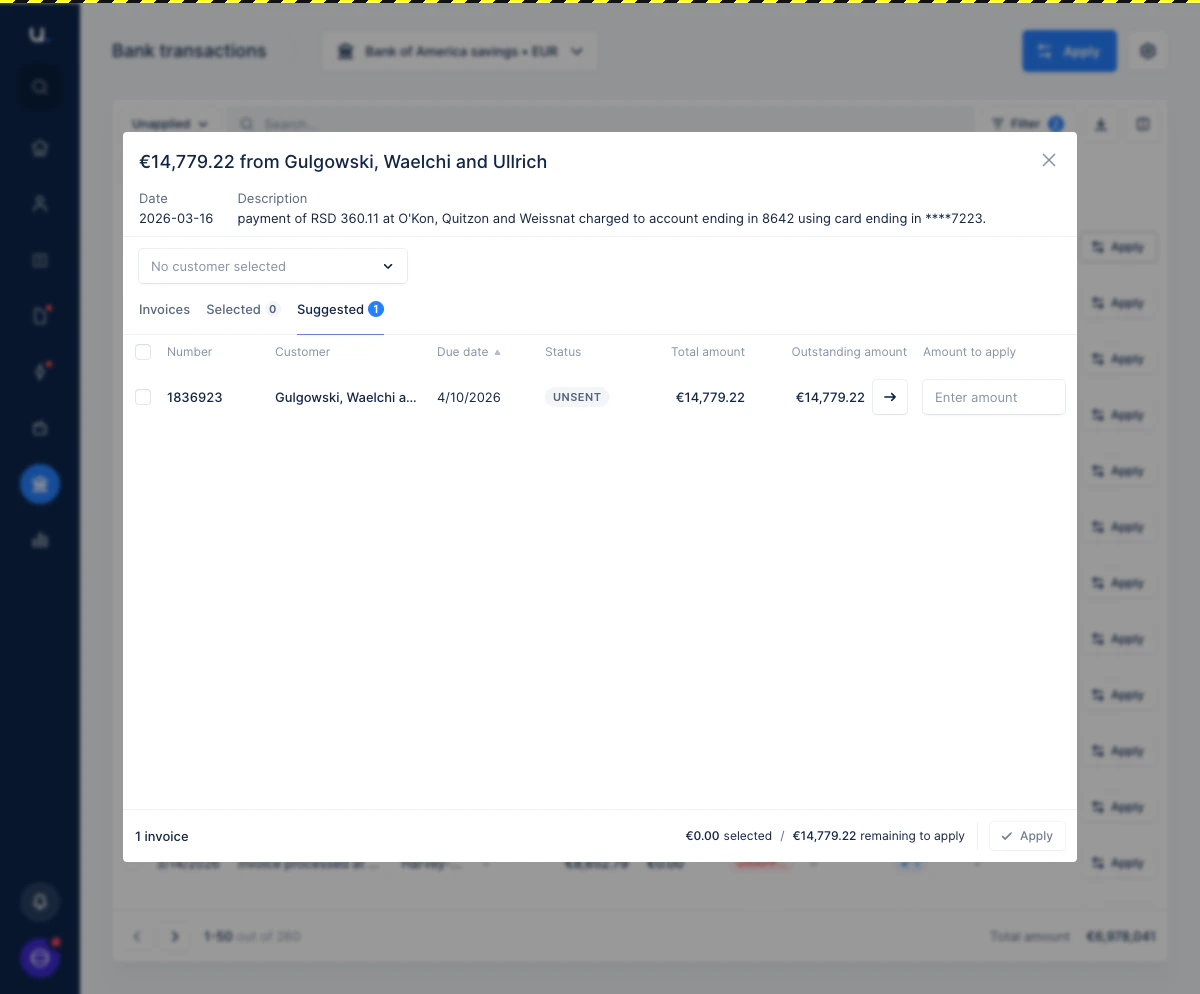
In the Bank transactions list, click the Apply button on a transaction that has a suggestion badge.
The matching interface opens with the Suggested tab active. The suggested invoice is listed, along with the matched customer and the invoice amount.
-
Click the → arrow button on the suggested invoice row to fill in the outstanding amount.
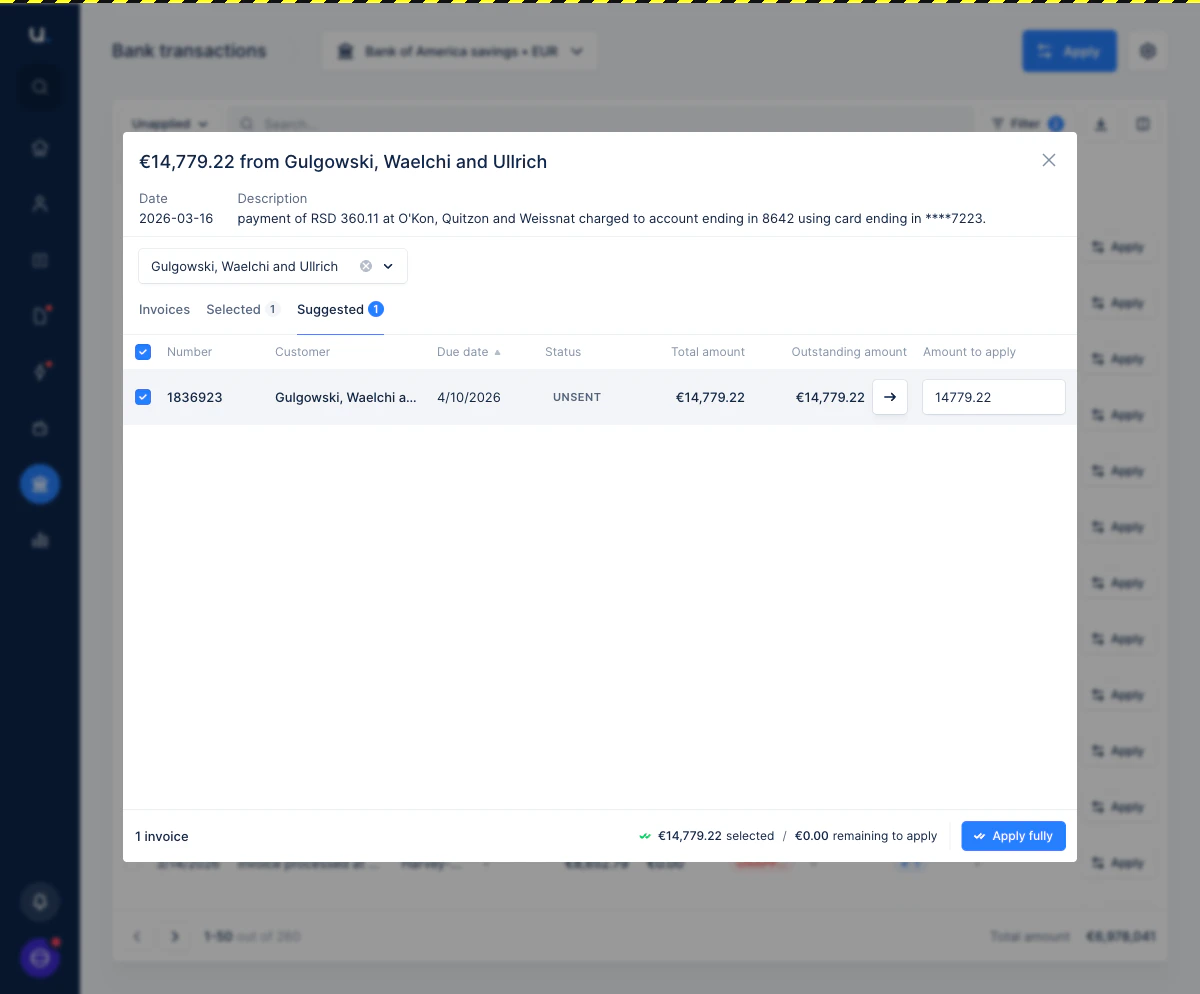
Upflow auto-fills the customer dropdown and the amount to apply, and moves the invoice to the Selected tab. The footer updates to show the total selected and remaining amount.
-
Click Apply fully to apply the transaction.
👉 If the suggested amount does not match the full transaction amount, the button will read Apply partially instead.
Override or ignore a suggestion
If the suggestion is incorrect, you can switch to the Invoices tab and select the right customer and invoices manually. The suggestion is not applied unless you click Apply. Switching tabs does not delete the suggestion — if you come back to the Suggested tab later, the original proposal is still there.How suggestions are generated
Upflow runs a matching algorithm each time a new bank transaction is imported. Suggestions are built using the following information:- The transaction memo and any invoice reference numbers it contains
- The payer name, matched against your customer names
- Your previous cash application history for the same payer
- The transaction amount, compared against outstanding invoice amounts