

Open the matching interface
From the Bank transactions page, click the blue Apply button in the top-right corner to open the matching interface for all Unapplied transactions in the selected bank account.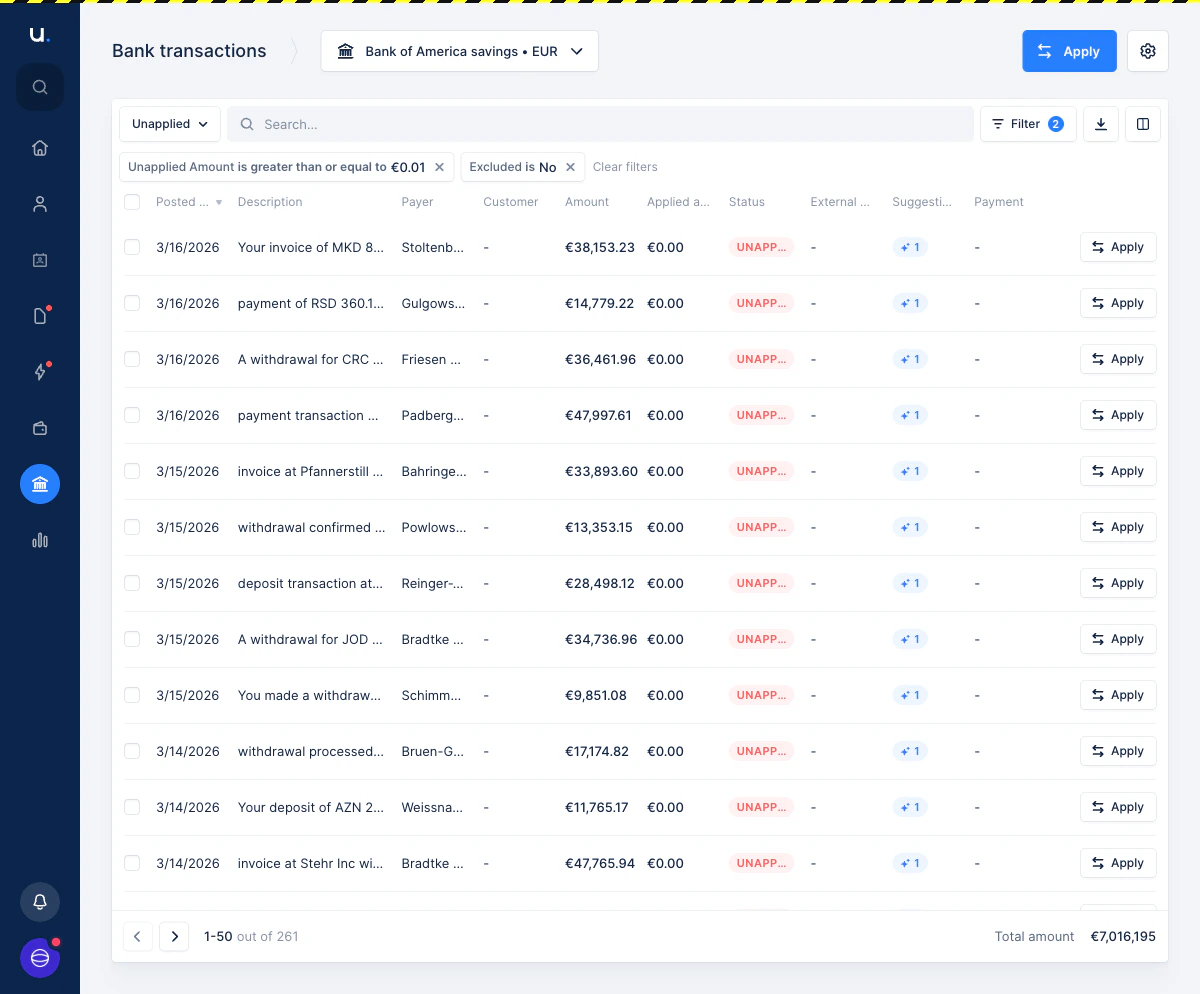
- Left panel — the list of all Unapplied transactions for this bank account, sorted by posted date (newest first). Use the search bar or the sort dropdown to navigate.
- Right panel — the matching workspace for the currently selected transaction.
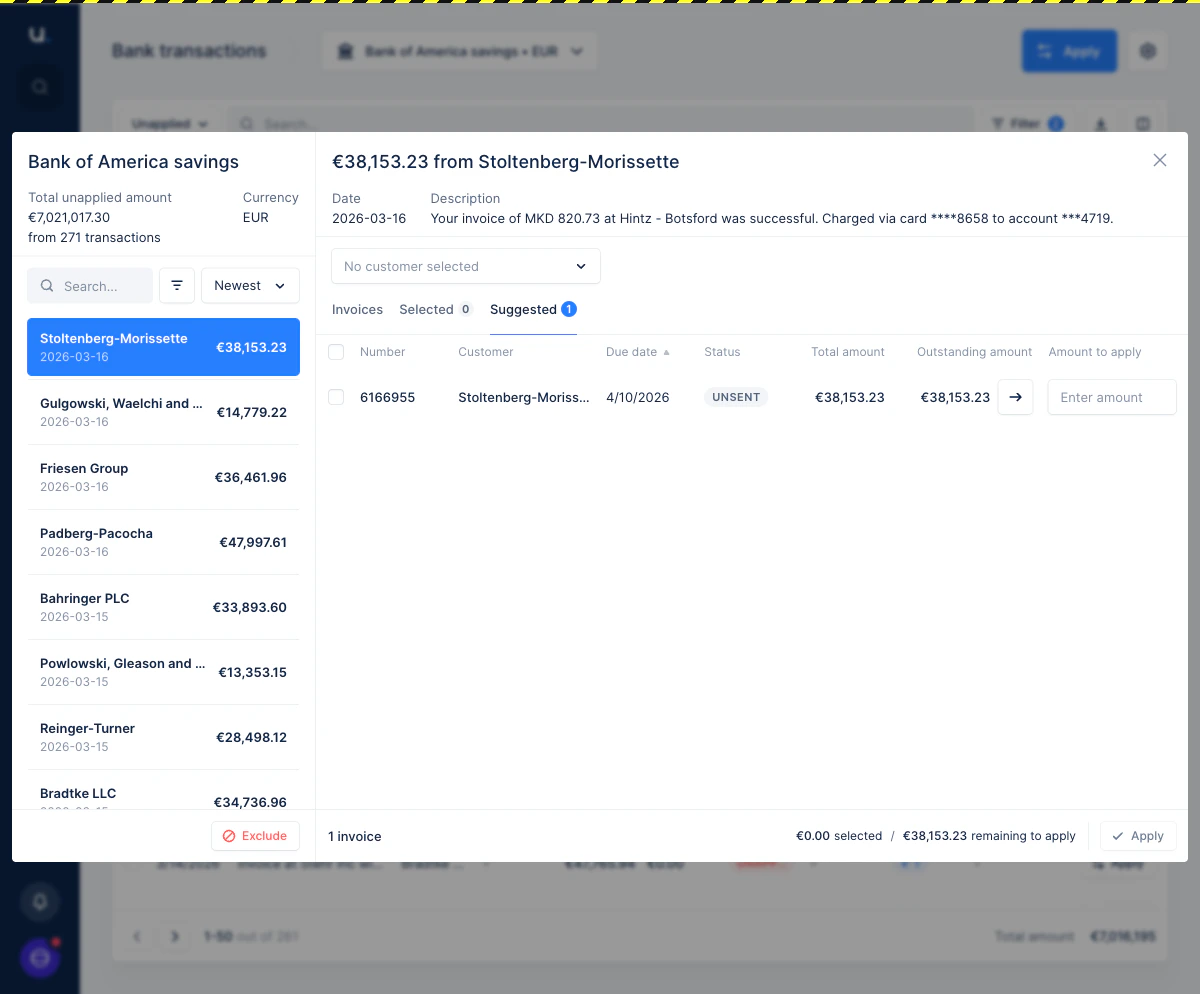
👉 You can also open the matching interface for a single transaction by clicking the small Apply button on that row in the list. This opens the same modal without the left-hand transaction list.
Match a transaction
Step 1 — Review the transaction details
At the top of the right panel, you can see the transaction’s date and description as provided by your bank feed. These are the clean, human-readable fields from your bank provider. The header also shows the transaction’s payment method and check number when they’re known. Both fields are also available as columns on the Bank transactions list; they aren’t shown by default, so add them from the column picker if you want them there.Step 2 — Select a customer
Use the customer dropdown to link the transaction to a customer. Start typing to search across all your customers.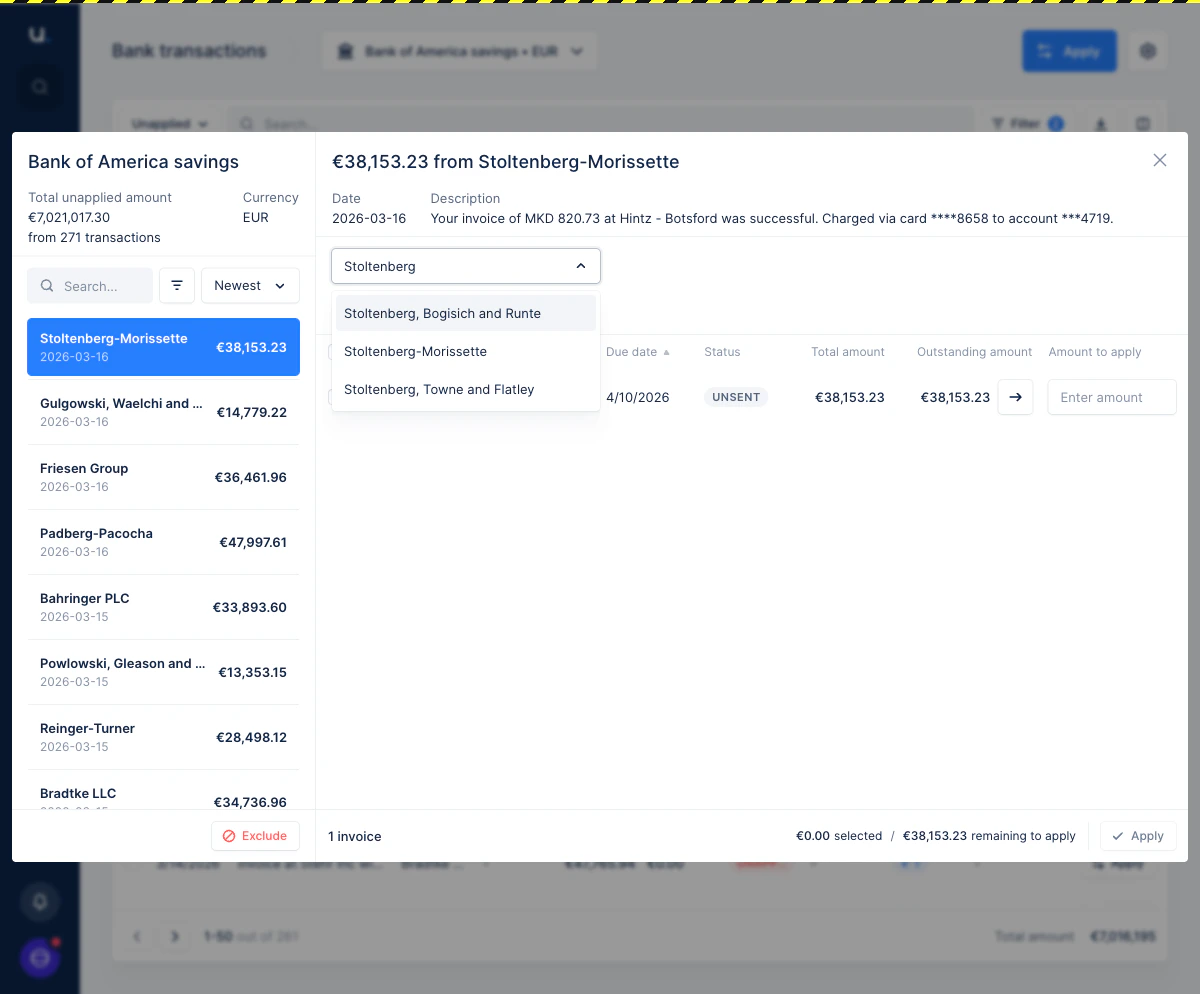
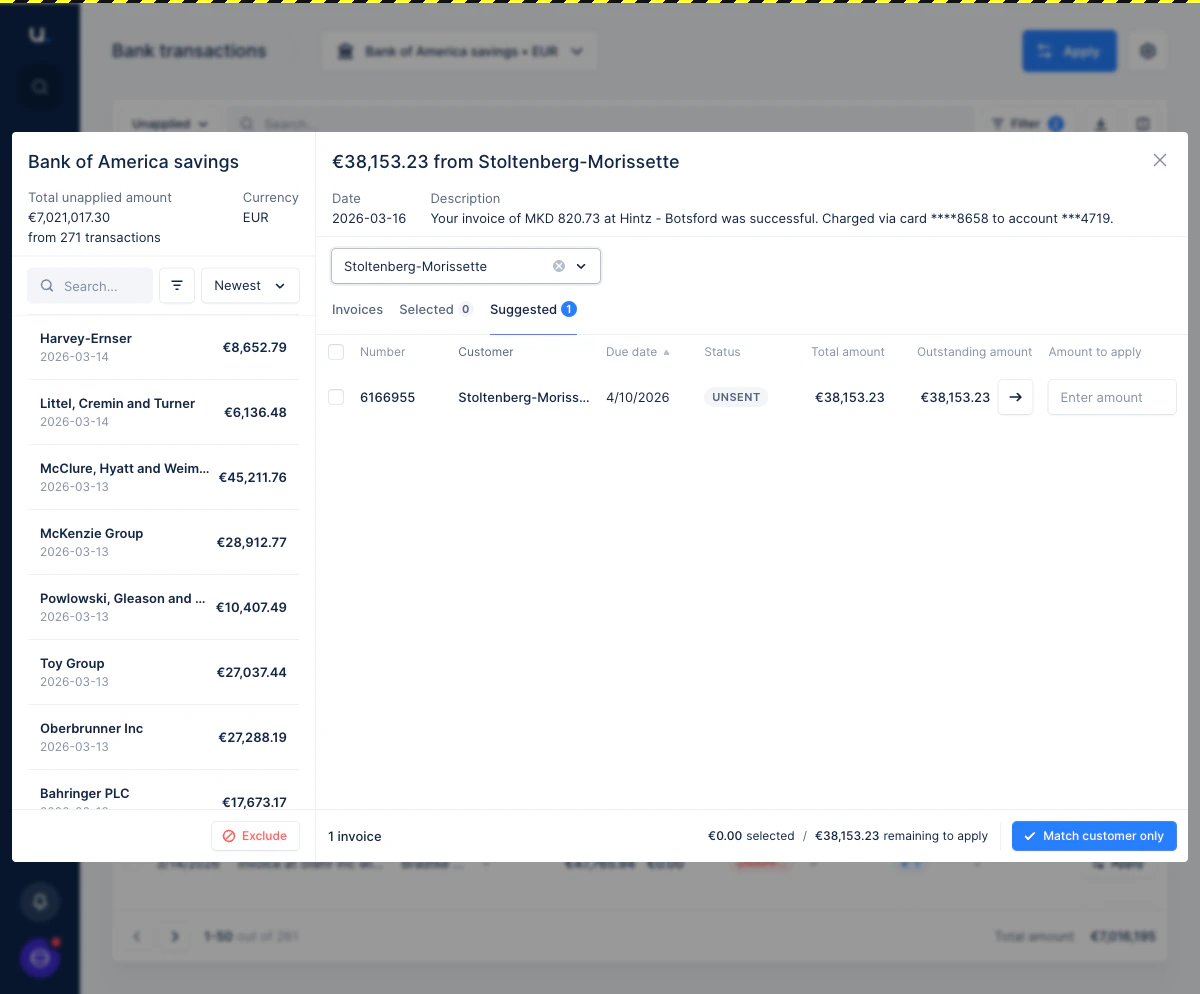
👉 If you want to link the transaction to a customer but not apply it to any invoice yet, click Match customer only at the bottom of the modal. The transaction will be synced to your accounting system as an Unapplied customer payment.
Step 3 — Select invoices
Switch between tabs to find the invoices you want to apply:- Invoices — all outstanding invoices for the selected customer, with search and filter options
- Selected — invoices you have already selected in this session
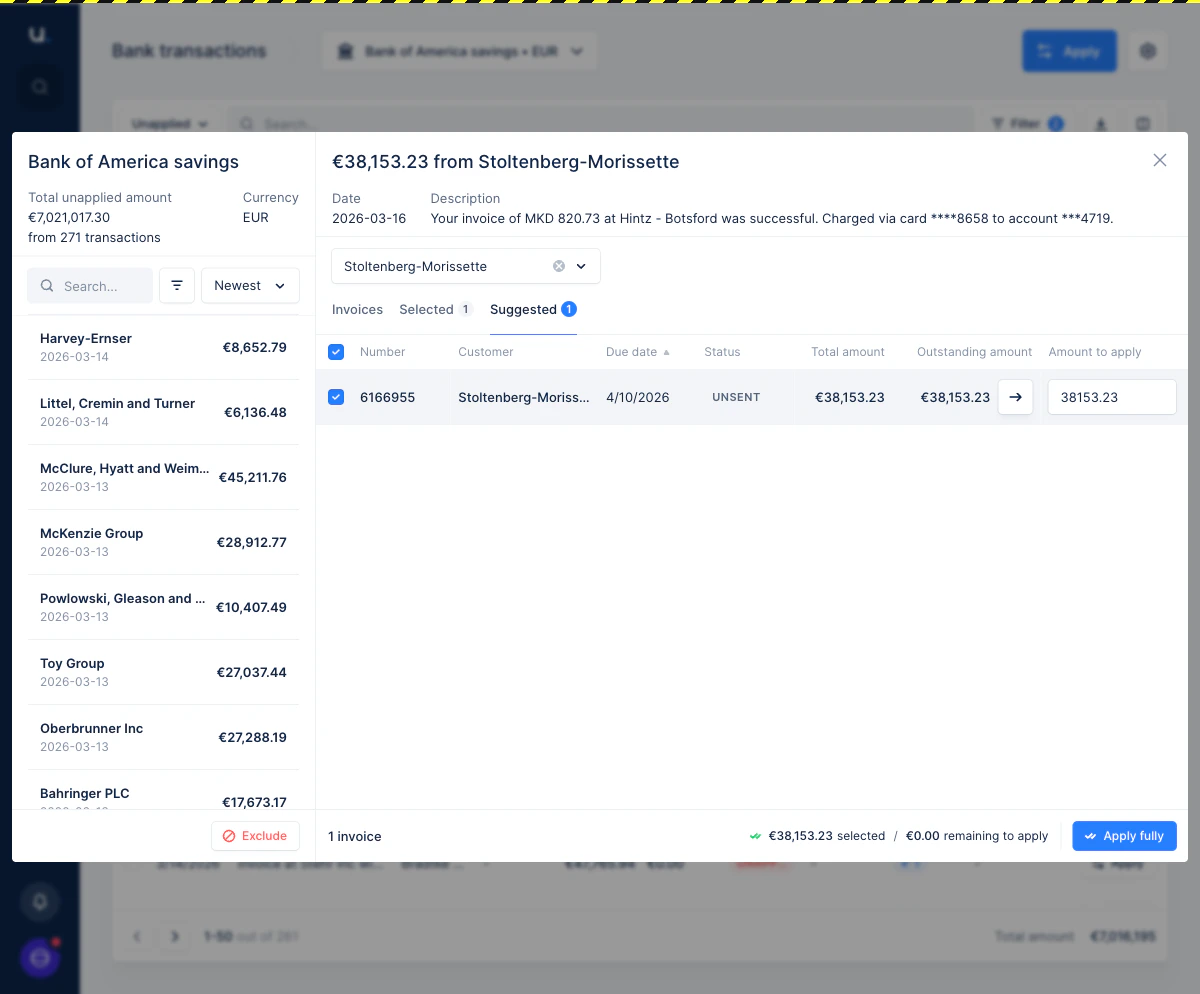
- Suggested — invoices automatically proposed by Upflow based on the transaction amount and customer
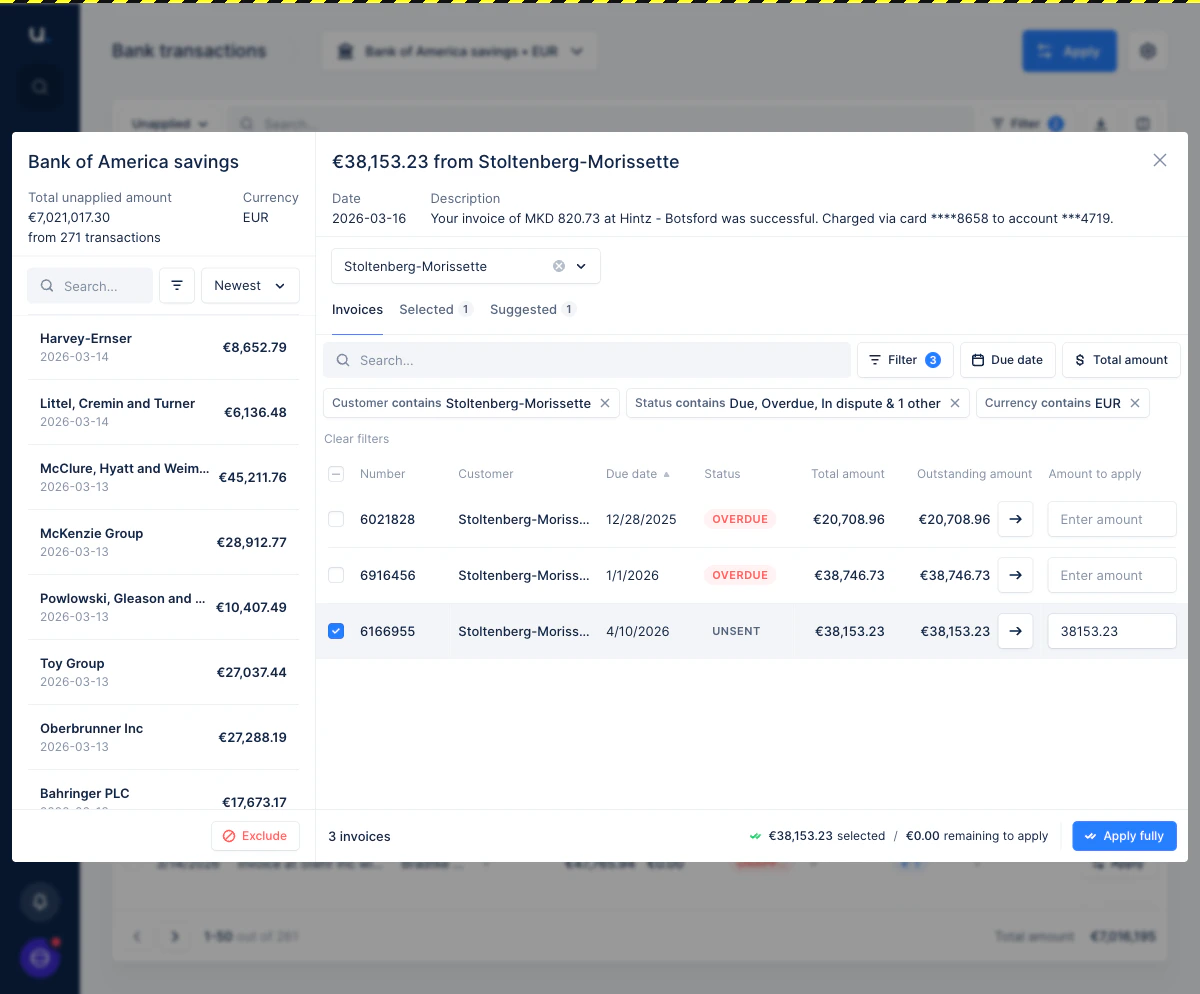
- Click the → arrow button on an invoice row to automatically fill in the outstanding amount.
- Or type a custom amount directly in the Amount to apply field.
Step 4 — Apply
Once you have selected your invoices and entered amounts, click the apply button in the footer:- Apply fully — when the selected amount equals the full transaction amount (€0.00 remaining)
- Apply partially — when the selected amount is less than the full transaction amount
- Match customer only — when no invoices are selected but a customer is linked
Exclude a transaction
If a transaction is not relevant to accounts Receivable (for example, a payroll transaction or an accounts Payable payment), click Exclude at the bottom of the left panel. Excluded transactions are hidden from the Unapplied list and will not be synced to your accounting system.Transaction statuses
A transaction must be linked to a customer before it can be synced to your accounting system as a customer payment. If no customer is linked, the transaction will not be synced.