

Import contacts from custom fields
To import the contacts from customer custom fields, add the corresponding fields in the Contact management section of your settings. Don’t forget to click Save at the bottom, so the synchronization of those contacts begins.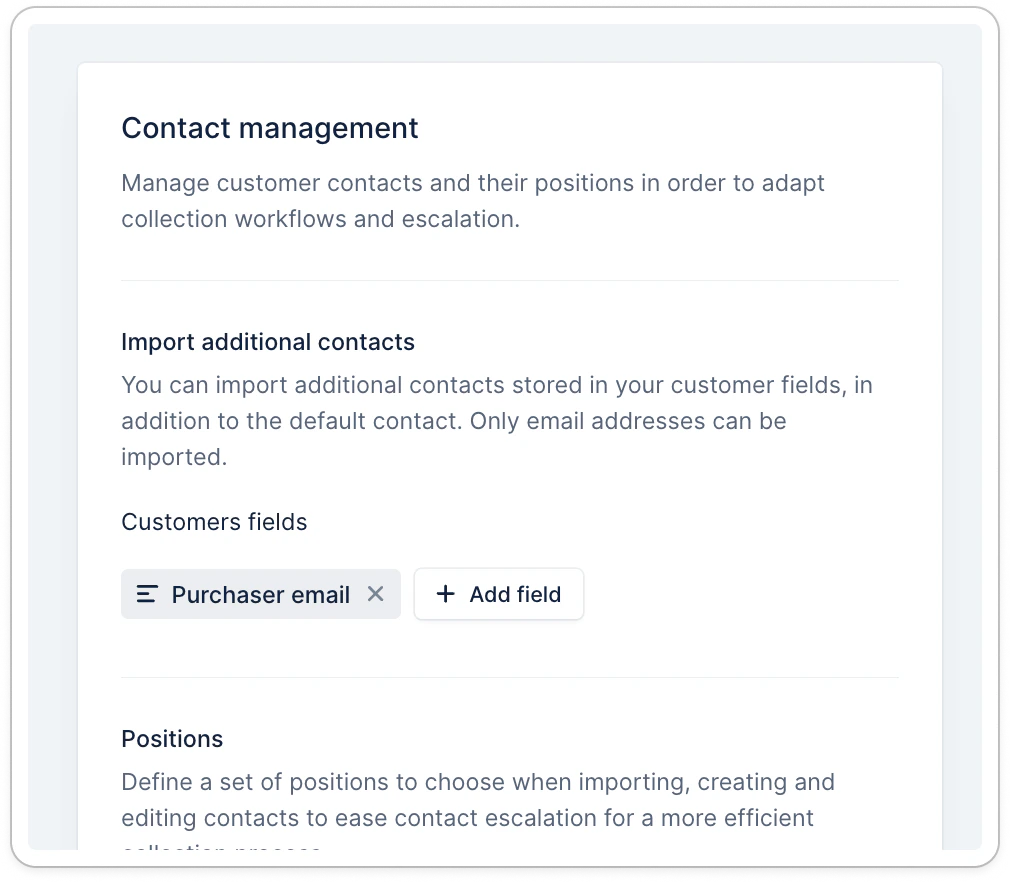
Import logic
Only fields of type TEXT are available for import.- If the value is not an email address, then it is ignored from the import.
- If there are multiple email addresses, separated by commas only , we import each contact separately.
- If several fields have the same email address, then multiple contacts are created.
- Those contacts will not have a first name, a last name, or a phone number, as we are unable to retrieve them from the custom fields. It’s not yet possible to add this information.
- When you remove the field from that list, or if the email is removed from the field value, then the corresponding contacts are deleted.
Identifying the contacts imported from a field
You can access the list of contacts imported from a field in your Contacts list view. In that view, you can see a column called Custom Field Origin. This field is populated when the contact is imported from a customer custom field. The value of the field is the name of the custom field used for the import.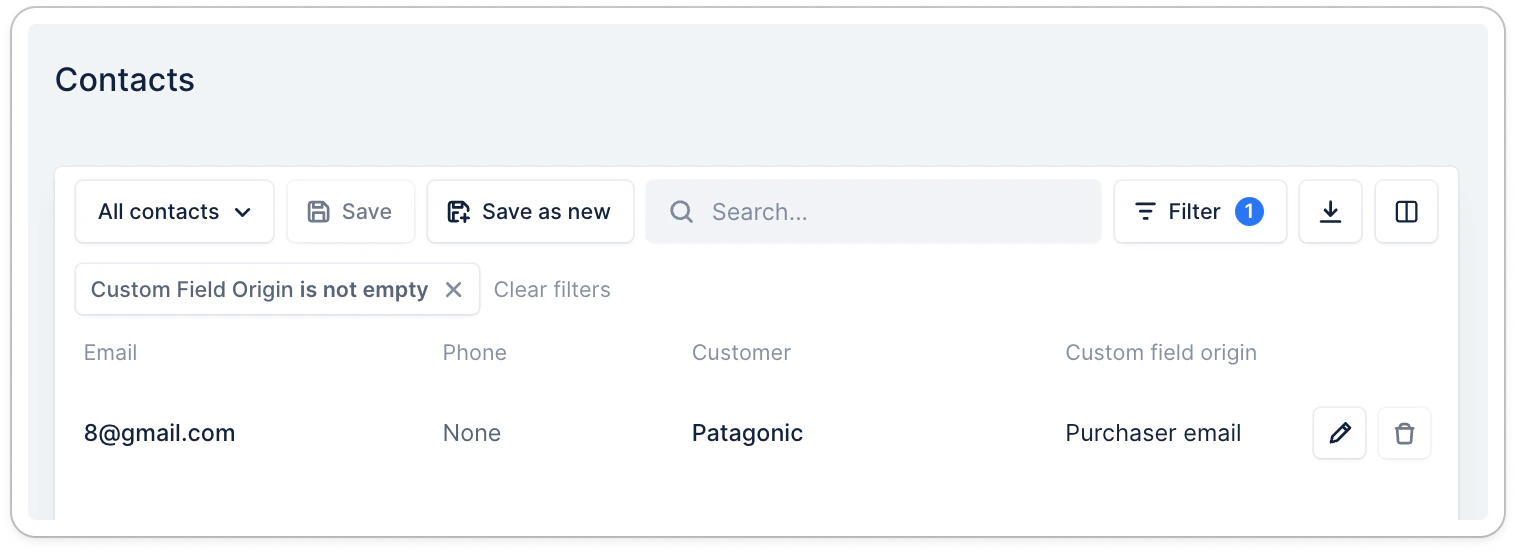
Using contacts from custom fields in collection
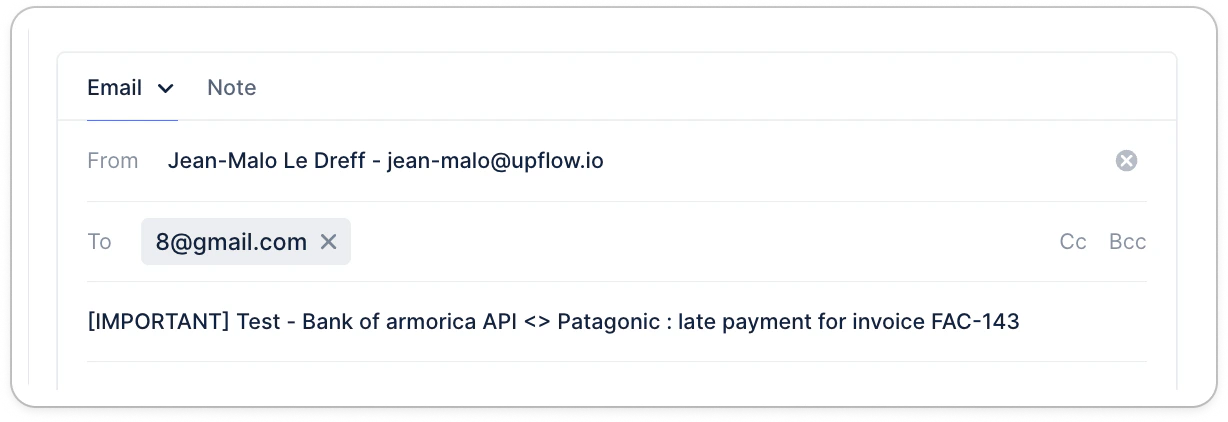
From the Recipients picker, you can then select the appropriate contacts that should receive the reminder. Those contacts can also be added to the CC and BCC fields of your reminders.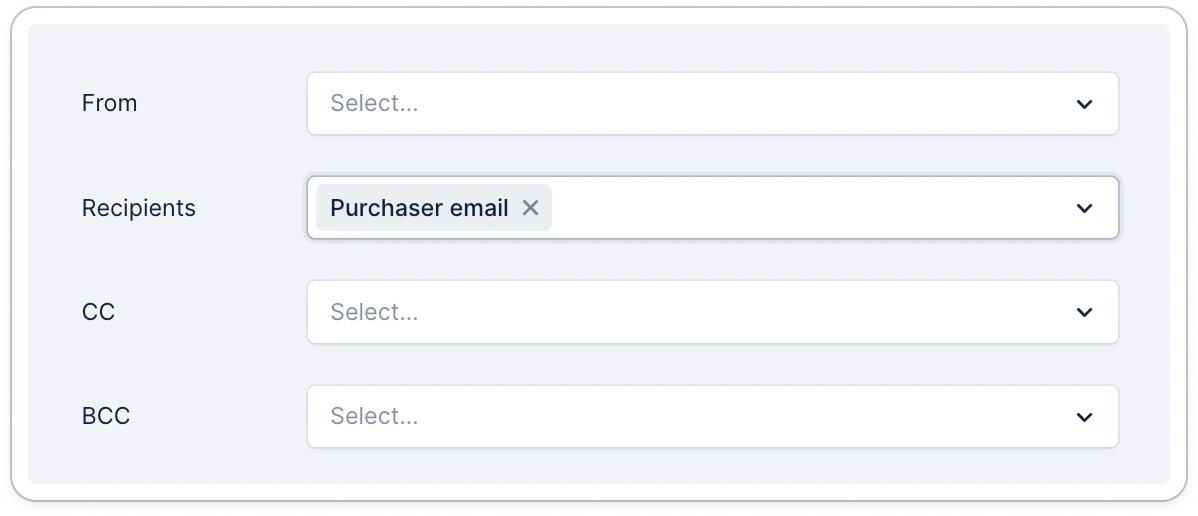
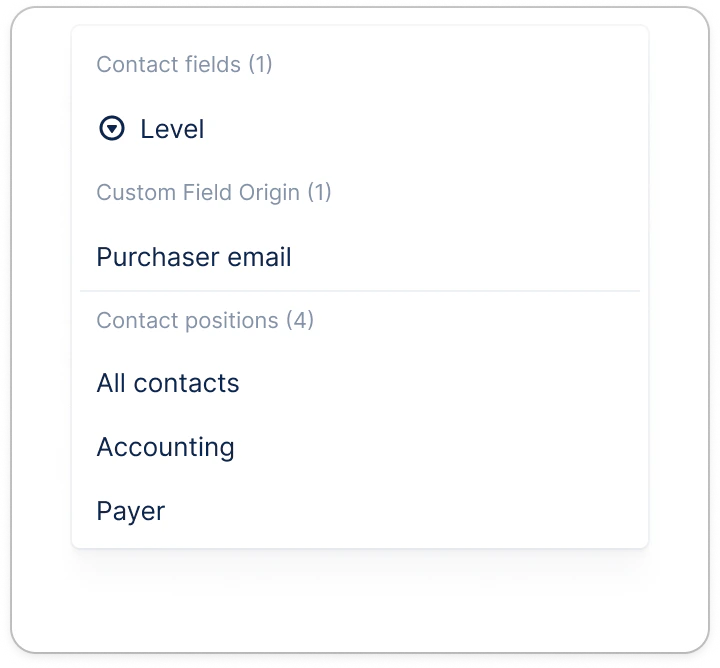
Using multiple contact sources simultaneously
You can combine contact sources to build a comprehensive contact list. For example, if you use Salesforce as your main contact source for CRM contacts, you can also import contacts from NetSuite customer custom fields at the same time. This is useful when:- Your CRM (Salesforce) contains your primary business contacts
- Your ERP (NetSuite) stores additional billing or AP contacts in customer custom fields
- You need both sets of contacts available for your collection workflows