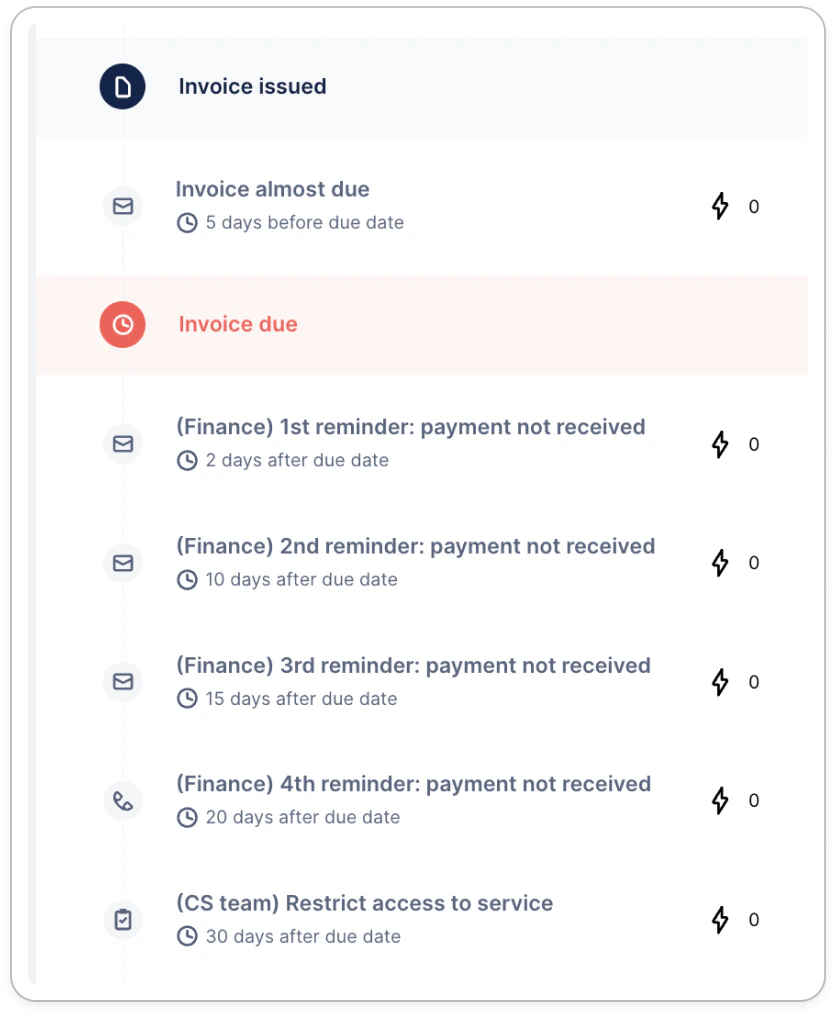
- The logic that carries the workflow
- When the first action should be triggered
- How often are its actions executed
Default workflow
When imported for the first time, your customers can be assigned to a workflow based on your configuration. 1 - If you set up a Default workflow, all new customers will be assigned to it when synced for the first time, unless they match a dedicated smart rule (2).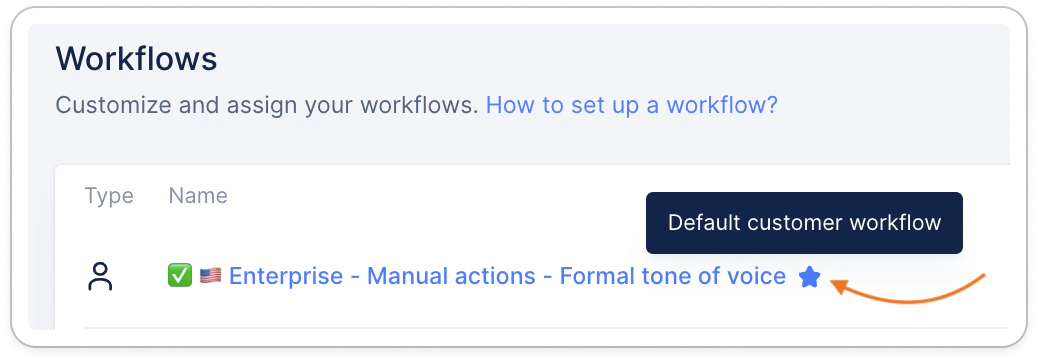
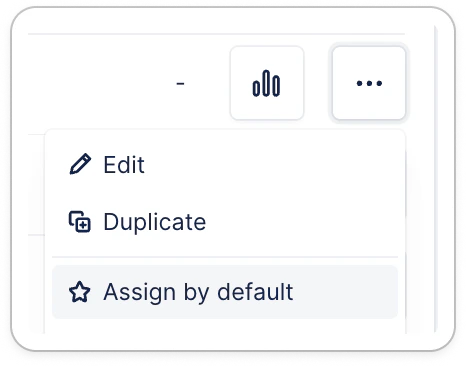
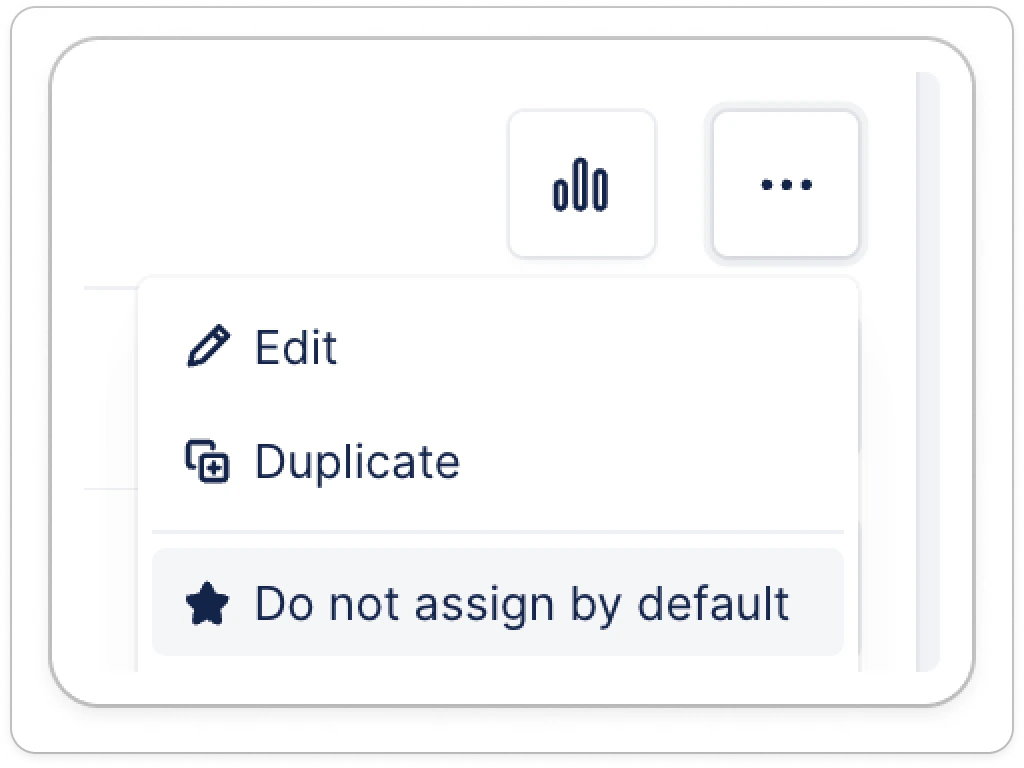
| You can change the default workflow at any time, to an empty workflow for example, by clicking the three dots of another and selecting it: | Or remove the default option. Then all new synced customers will be imported with “No workflow” in case you’d need a specific assignments and ensure the sent communication is correct: |
|---|---|
 |  |
The carrying invoice
You can assign one workflow per customer. As a result, if a customer has several invoices falling in your workflow’s criteria, they will all be addressed at once, depending on the tags used in your templates. See how to customize your action templates. The interval between its actions is based on the carrying invoice, which is the oldest unpaid invoice of your customer. If the customer has multiple invoices with the same due date, the carrying invoice will be the one with the highest total.Carrying invoice status transfer
- As soon as your carrying invoice is paid, if your customer has other outstanding invoices, the oldest one will inherit the status.
- If an older invoice is uploaded to Upflow after a workflow has started, it will also steal the spotlight and become the carrying invoice. Therefore, it’ll restart the workflow based on this invoice’s due date and the workflow logic.
Triggers
Your actions are triggered by a delay you define following the carrying invoice’s due date. This delay is calculated straightforwardly and can be overruled by settings or context. For example, if your customer enters the workflow for the first time, with a carrying invoice that is 17 days overdue. If we look at the following workflow…