

Triggers
Here are the triggers available for customer smart rules:Filters
You can then add the specific filters/conditions this rule should follow to be applied. You can add as many conditions as you want, and those conditions will be additive (Condition 1 AND Condition 2).- If you add multiple conditions, they will be additional:
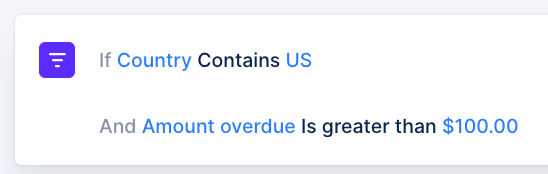
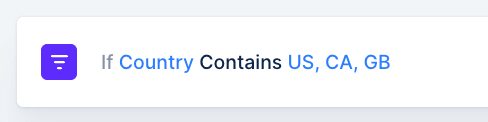
- If Country is US Or CA Or GB, then…
*Text type fields
For Text type fields, you will see the options “Contains” and “Does not contain”. The value you enter in this condition must have the exact same wording both in the rule and at the customer level. If in the rule you use “B2B” as value, the value in the customer custom field must be “B2B”. If it’s “b2b”, it will not apply. If your rule is set on “Contains = B2B, B2C”, it will not apply either, as the rule will look for customers with the exact value “B2B, B2C”. If you wish to use the same behavior for multiple values, please duplicate the rule. One rule per value.Actions
Finally, you can select which action this rule should perform. Each rule only supports one action:
When you are done, click the Save & Close button at the top right. Don’t forget to give your rule a name so you remember what’s in it. And activate it!
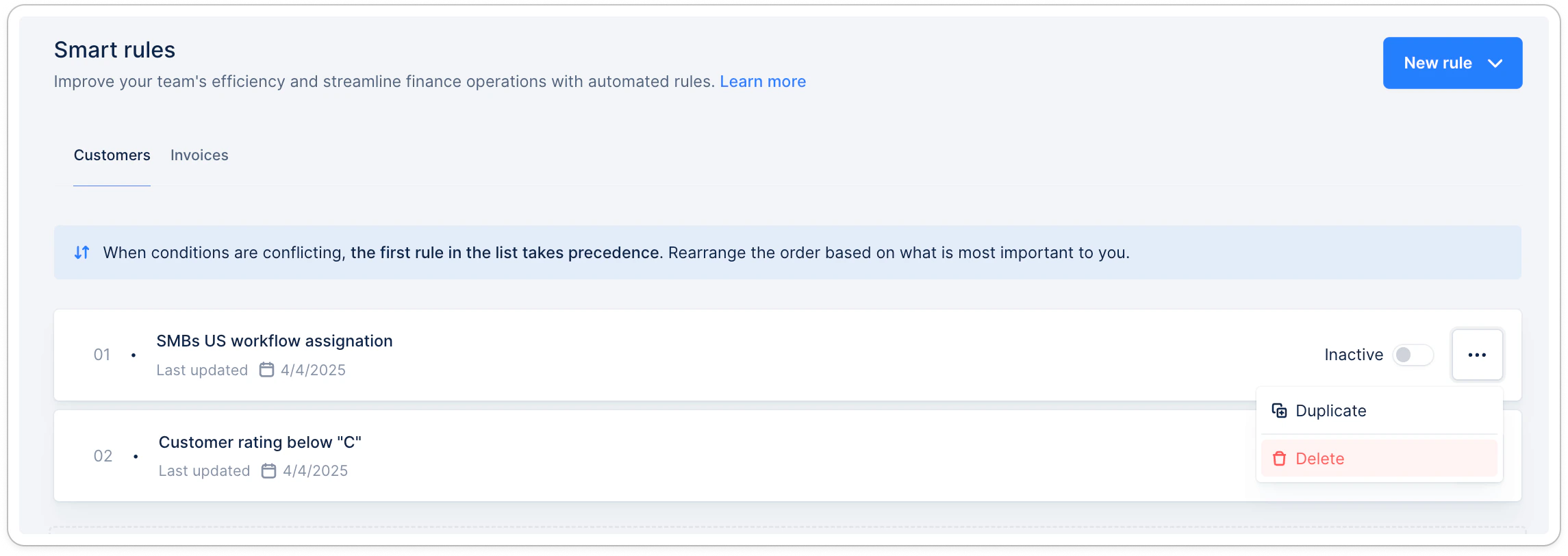
Delete or deactivate a rule
Apply the rule to existing customers
The rule you created will only apply to customers matching the rule’s trigger as detailed above. For existing customers, you must ensure to use the option “Apply to all existing objects matching the rule’s conditions” when activating or reactivating the rule. For more detailed examples, check Smart Rules - Assignment Best Practice.When the customer rating threshold…
The rule trigger “Customer rating threshold” is usually meant to receive internal notifications to take actions, based on your customers’ rating changes. Note that there’s no “equal to” condition today for this trigger. For the rule to apply, the rating has to actually exceed or fall below the selected rating in the rule. The rules’ creation will depend on the changes you want to be notified for. When a customer rating threshold…- Exceeds B, it will apply for any customers moving to rating A.
- Exceeds C, it will apply for any customers moving above C, so to A and B.
- Falls below A, it will apply for any customers moving from A to B/C/D
- Falls below C, it will apply to any customers rating A/B/C moving to D.
- Etc.