

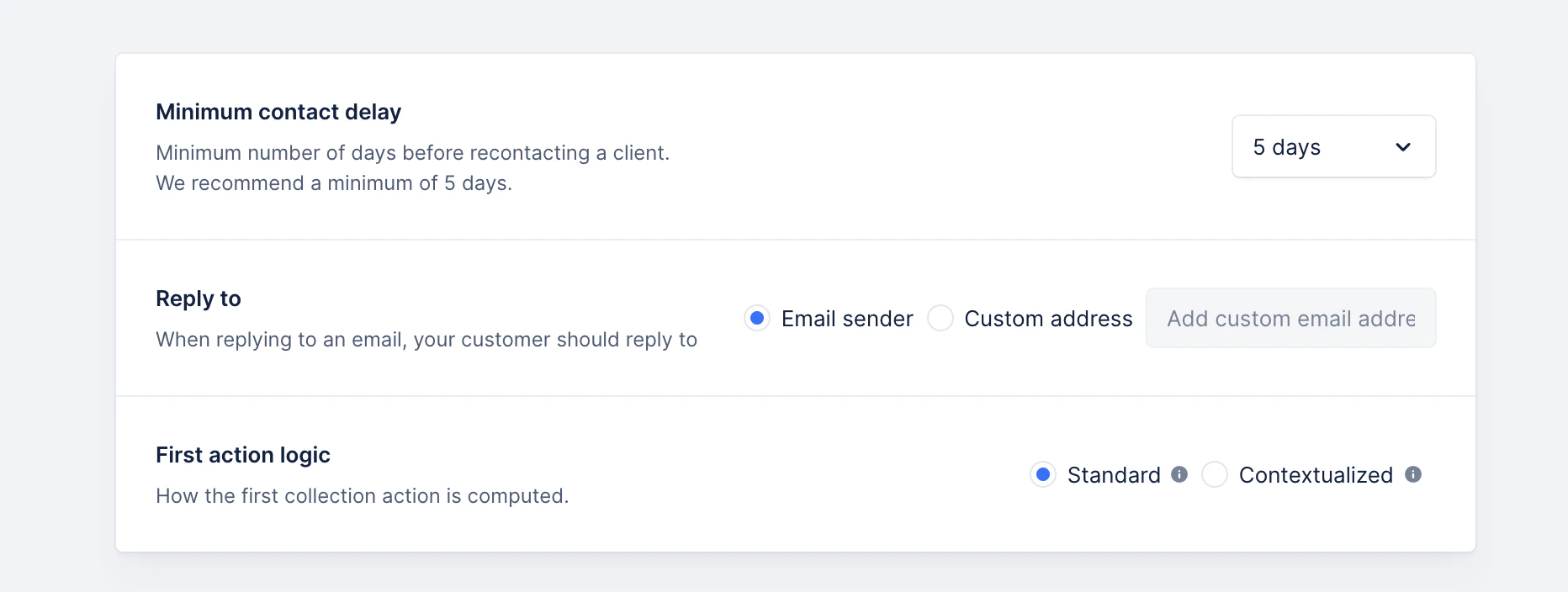
Standard logic
By choosing the standard logic, your customer will automatically enter at the first action of your workflow , regardless of the due date of their oldest invoice. Let’s take the following workflow as example: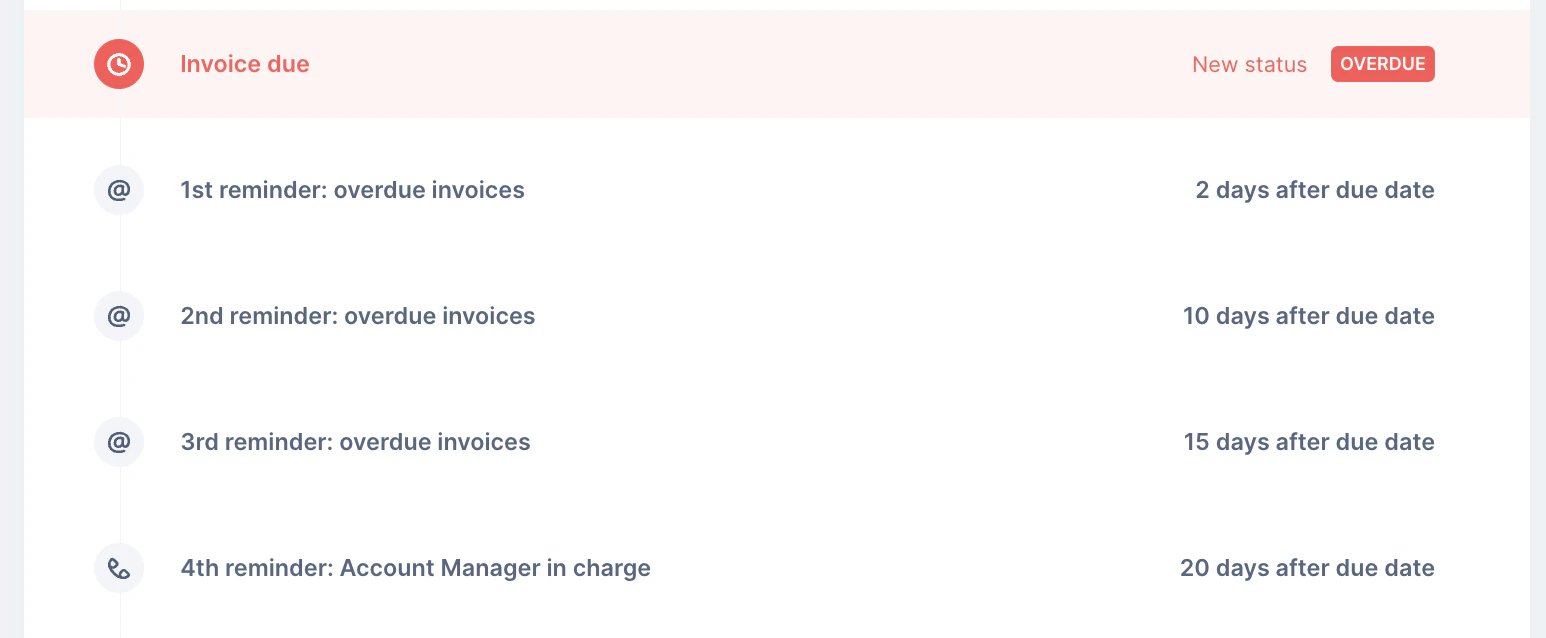
Here are two use cases for the Standard logic:
Your customer John Smith has 4 overdue invoices:
Invoice A - 2 months overdue Invoice B - 5 weeks overdue Invoice C - 3 weeks overdue Invoice D - 3 days overdue Mr Smith is at the 4th reminder of the workflow. He decides to pay Invoices B and C. The carrying invoice is still Invoice A, the workflow keeps going as planned, and will send the 5th reminder when it’s supposed to be triggered.Your customer John Smith has 4 overdue invoices:
Invoice A - 2 months overdue Invoice B - 5 weeks overdue Invoice C - 3 weeks overdue Invoice D - 3 days overdue Mr Smith is at the 4th reminder of the workflow. He decides to pay Invoice A which is the carrying invoice. Then invoice B becomes the new carrying invoice and the workflow will start over at the 1st reminder.Contextualized logic
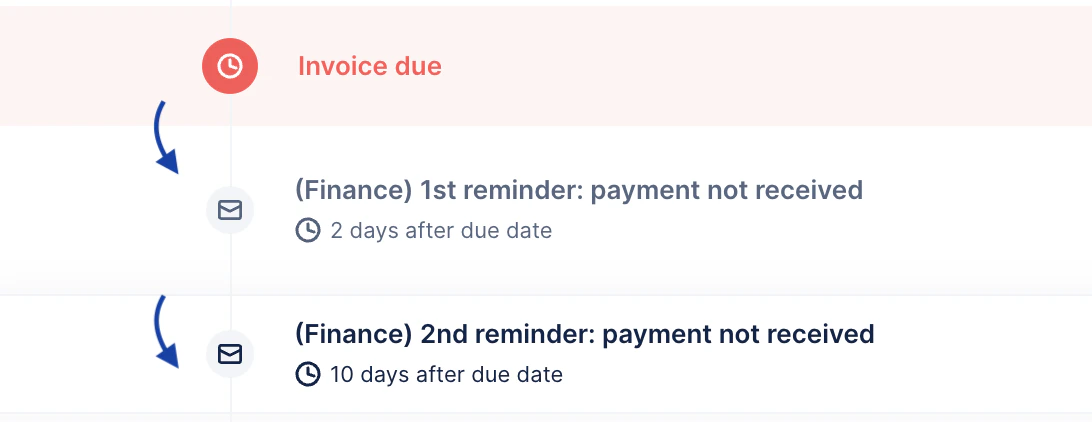
This logic takes into account the due date of your customer’s oldest invoice. Let’s take the following workflow structure as an example:Here are two use cases for the Contextual logic:
Your customer John Smith has 3 overdue invoices:
Invoice A - 24 days overdue → carrying invoice Invoice B - 17 days overdue Invoice C - 12 days overdue Mr Smith is at the 5th reminder of the workflow. He decides to pay Invoice B. The carrying invoice is still Invoice A, the workflow keeps going as planned and will send the 6th reminder when it’s supposed to be triggered.Your customer John Smith has 3 overdue invoices:
Invoice A - 24 days overdue → carrying invoice Invoice B - 17 days overdue Invoice C - 12 days overdue Mr Smith is at the 5th reminder of the workflow. He decides to pay Invoice A. The carrying invoice is now Invoice B, the next reminder will be the 3rd as it’s the closest to the invoice in the past.Changing the workflow logic
Note that changing the workflow logic will impact the customers at different levels. All customers that are already in a collection process will stay on the initial logic. Only customers that have not received a reminder yet will be moved to the new logic.Example 1
Your customer received two reminders for their carrying invoice A on the Standard logic. You change the logic to Contextual. This customer will stay on course, as if the logic hasn’t changed.Example 2
Your customer received reminders in the past, but has no outstanding invoices today, or a new one was issued, but has not received a reminder yet. The latter is waiting to be performed. You change the workflow’s logic. The new logic will then be applied.What happens if I forget to send or complete a manual action?
All actions planned before the due date expire when the invoice is due.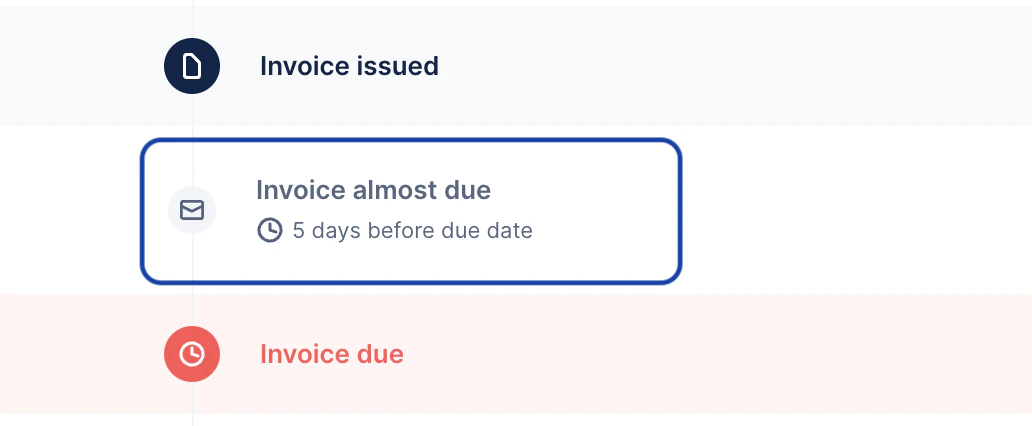
Restarting the workflow
Unexpected restart
When deleting templates in a used workflow can sometimes send customers back to the workflow first action, even if they were already in the middle of it. We recommend not deleting templates if this is the case, or check if any customer has this template as “last sent action”, or pending (to be manually performed). Then perform it or move them to the next action sooner than expected.Manually restart a customer’s workflow
Today, there’s no feature or button allowing to manually restart an ongoing workflow for a customer. The best route is to create a new workflow or duplicate an existing one. Rename it, edit your templates, and once ready, assign your customers to it. If you went with a duplicated version and do not need the initial workflow, we recommend to check if the latter:- isn’t used in smart rules - if it is, update the rule(s)
- isn’t assigned to customers anymore