

Before you start
- Make sure you have Admin access in Sage Intacct and Admin access in Upflow.
- If you use a dedicated Sage Intacct user for integrations, confirm you still have access to it.
Reconnect Sage to Upflow
You can click Reconnect directly from the red banner displayed in your Upflow organization, or head to your Upflow Settings > Integrations. There, click Connect at the top right: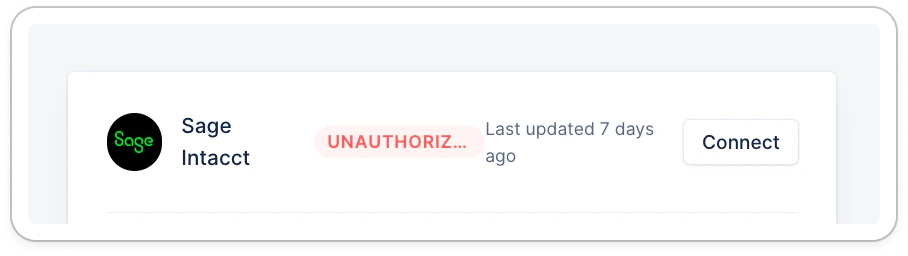
Reconnection failed
Verify Sage Intacct Web Services authorization (common root cause)
In Sage Intacct, confirm Web Services is enabled and that Upflow’s Sender ID is authorized:- Go to Company > Admin tab > Subscriptions.
- Enable Web Services (if not already enabled).
- Go to Company > Setup tab > Company and click Edit.
- In Security, find Web Services authorizations.
- Add (or re-add) Upflow’s Sender ID (example: UpflowMPP) and Save.