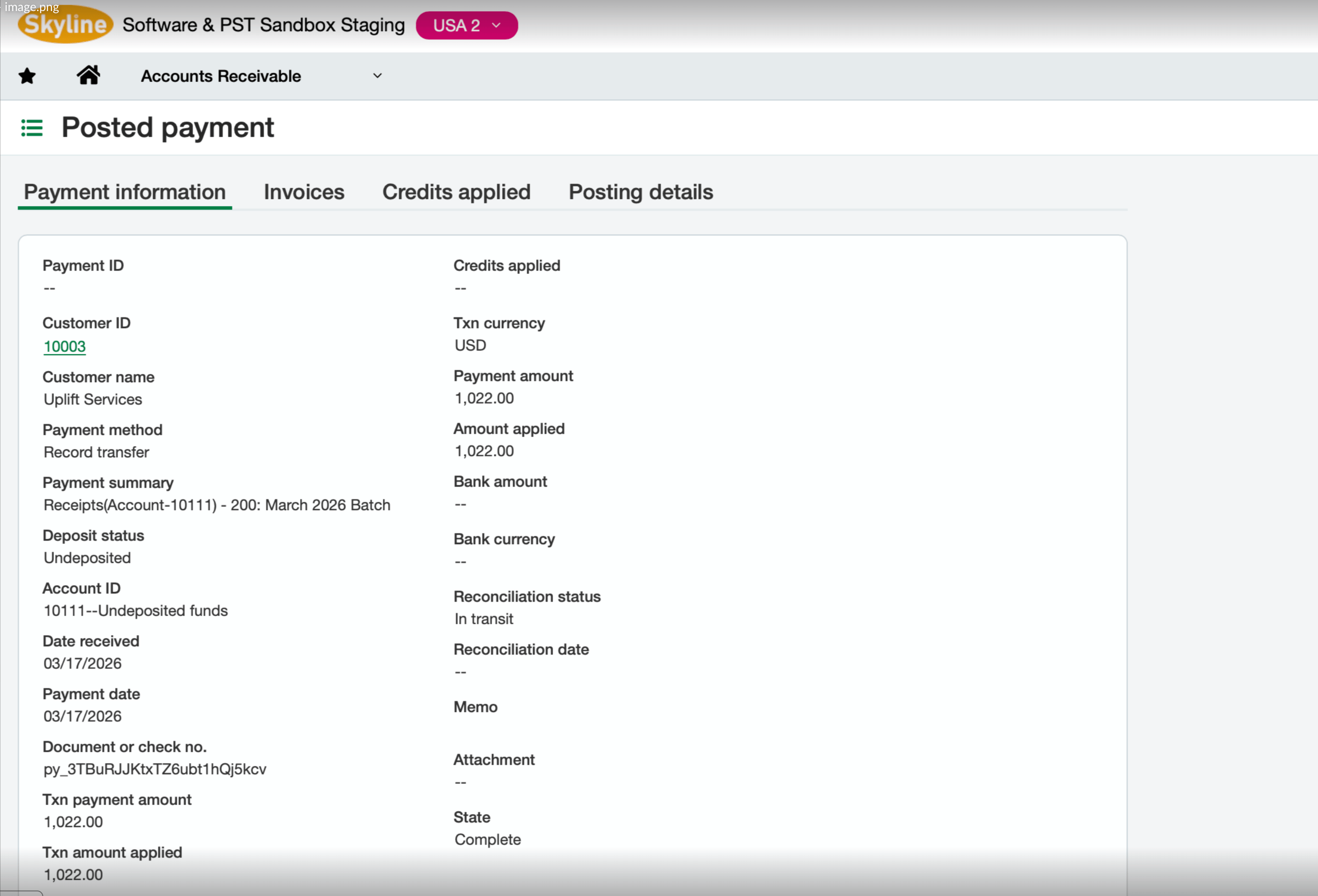
What is written back
In Sage Intacct, the resulting AR Payment posts with State
Complete. The Document or check no. field carries the Stripe payment ID, and the Account ID reflects the GL account configured in your settings (for example, an undeposited-funds account).
Payment settings
You can select the GL account to which payments are written back in Sage, from your Upflow Settings > Integrations: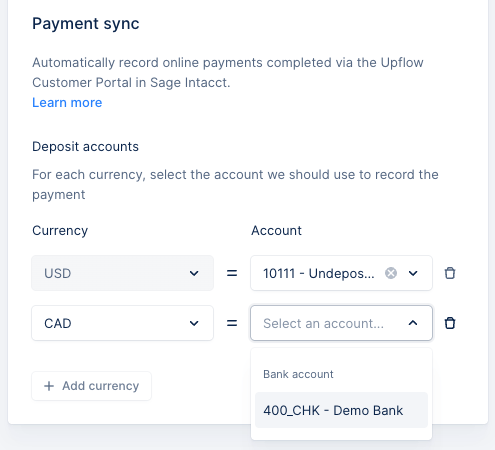
We recommend selecting an undeposited funds account. Payments stay there until the matching bank deposit is recorded, which makes reconciliation with your Stripe payouts much easier.
Map an account per currency
If you collect payments in multiple currencies, you have to map a different GL account to each currency. Note that Sage Intacct’s Undeposited Funds account only accepts payments in your base currency, so payments in any other currency need to use another type of account (typically a bank or clearing account that supports that currency). To configure it, in Settings > Integrations:- Under Payment settings, click Add currency.
- Select the currency, then select the GL account payments in that currency should be written back to.
- Repeat for each additional currency you collect in.
Tracking the payment status
A payment carries two distinct statuses:- Gateway status — the payment’s current status in Stripe.
- Sage Intacct status — the export status of the payment from Upflow to Sage Intacct.
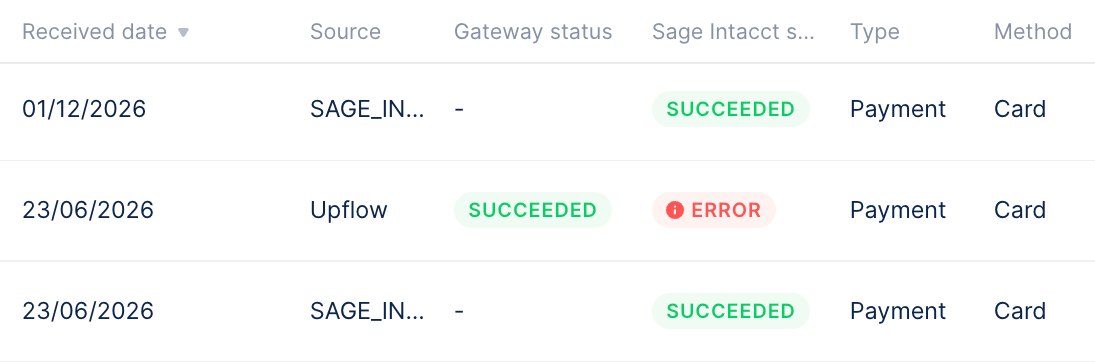
- your default payments view, ideally placing it next to the Sage Intacct status column, and saving the view — see here
- the customer details page → Payments tab (learn more)
Handling a failed write-back
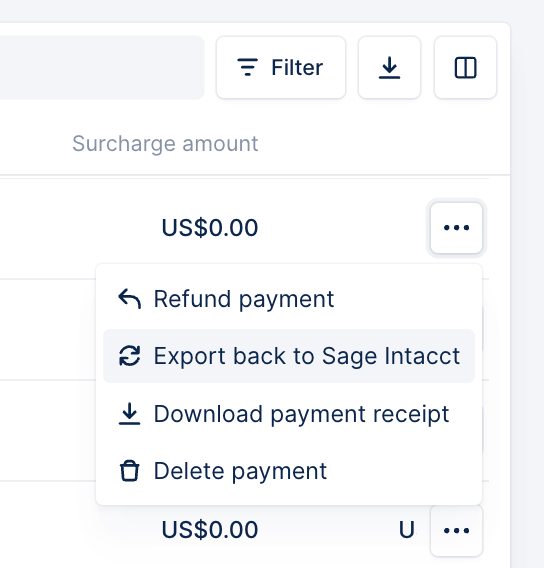
You can identify payments that failed to export to Sage Intacct from your Payments list view, filtered on Sage status contains Error. Hover over the Error status, and/or add the Sage status column to the list (see here), to learn more about the failure reason. Once you’ve updated the required or missing settings, you can retry the export from the payment’s three-dot menu on the Upflow list, by clicking Export back to Sage Intacct.