

Overview
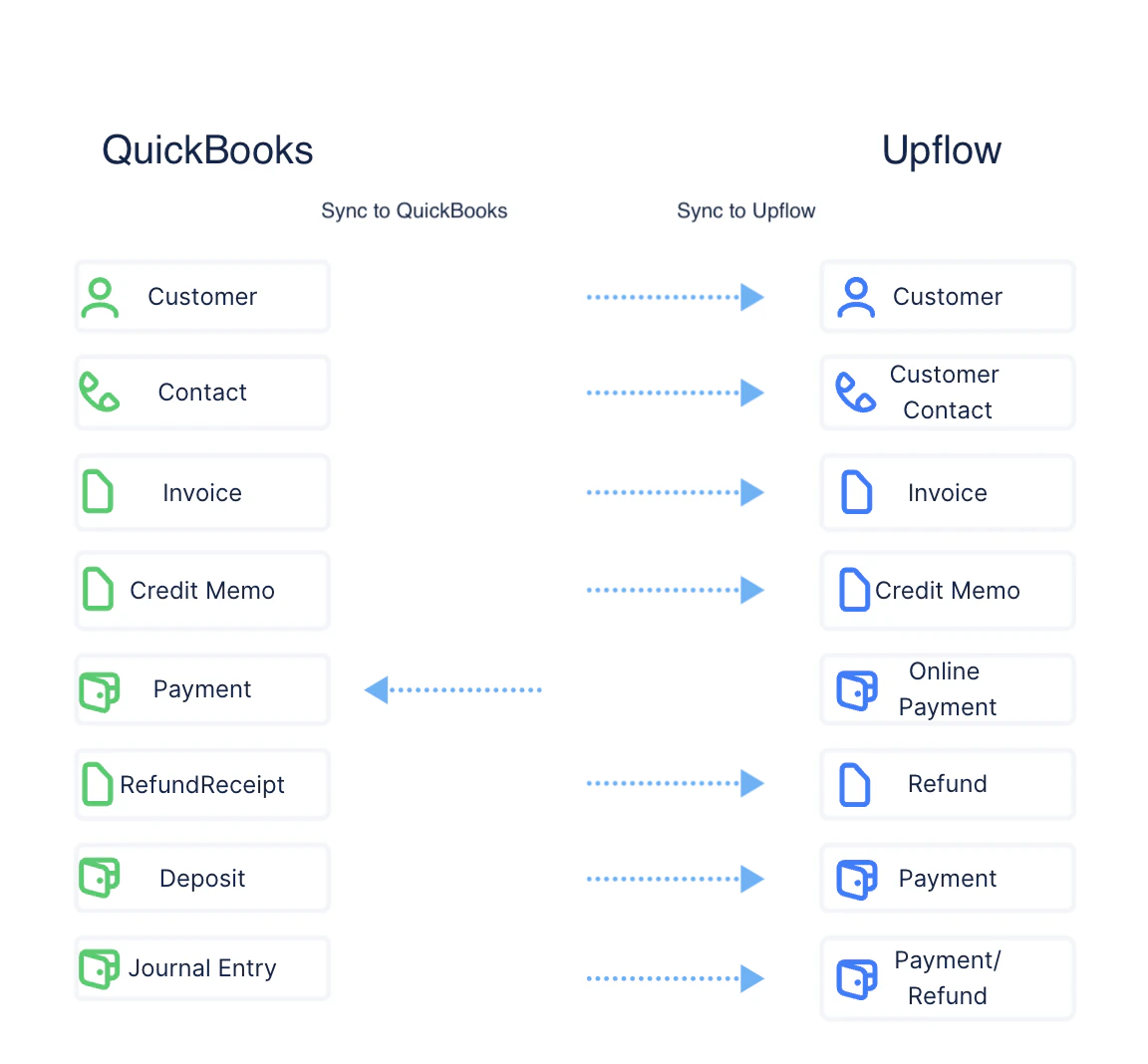
The QuickBooks Online integration ships with the following capabilities:- 1-way synchronization with QuickBooks Online with the exception of payment write-back
- New data from QuickBooks Online is synced once every 5 mins
- Supports merchant self-onboarding
Entity Mapping
Setup
Requirements
Admin access: You should have admin rights in QuickBooks Online to set up the integration with Upflow.Connect QuickBooks Online to Upflow
Upflow relies on OAuth allowing you to seamlessly connect with your QuickBooks Online account. Refer to this guide for a step-by-step guide on how to connect your QuickBooks Online instance to Upflow.Features
Contacts
QuickBooks Online doesn’t have a concept of contacts for customer objects. Though, QuickBooks Online supports adding multiple emails as comma-separated values in the “Email” field. These comma-separated emails will be imported as individual contacts in Upflow. If an update is made on the email field in QuickBooks, it’ll be reflected in Upflow within a few minutes. Main Contact: While importing emails as individual contacts, the first email in the list will be considered as the main contact. And the firstName and lastName will be borrowed from the customer’s details. Phone number: No specific formatting is applied in Upflow when importing phone numbers from QuickBooks. We apply what we receive from the API. If you wish to use our text messages or calls features in Upflow, you must ensure the phone format in QuickBooks is the following:| QuickBooks format | Upflow |
|---|---|
| (650) 555-3311 |  |
| +650 555 3311 |  |
Subsidiaries/Hierarchy
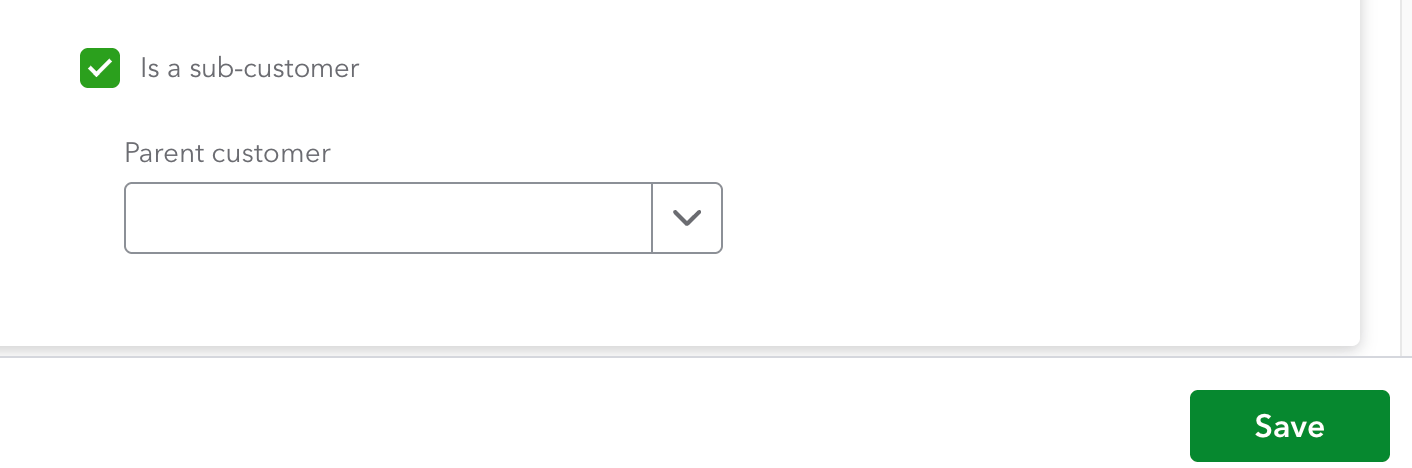
If you use a customer hierarchy in QuickBooks, it’ll be reflected in Upflow as well. In Upflow, parent-child relationships exist at the customer level, and any grandchild is directly linked to the main parent. If you wish to benefit from a customer hierarchy in Upflow, but don’t have one configured in QuickBooks yet, you must set it up from QuickBooks, for it to be reflected in Upflow. To create a customer hierarchy in QuickBooks,- Access your Customers list.
- Click New Customer or select an existing customer to edit.
- When adding or editing, check the box labeled Is sub-customer.
- From the dropdown, select the parent customer under which this sub-customer should be grouped.
- Save your customer.
Mapping Customer fields
Upflow doesn’t support import of customer level custom fields from QuickBooks Online. A subset of QuickBooks Online’s native fields are imported into Upflow as custom fields. Actual customer custom fields are not yet supported in this integration. We do however support custom fields for invoices, but not native fields. Below are some of the examples of native fields and custom fields imported from QuickBooks Online into Upflow.
Most of the above fields, if updatable, will be found at the customer level in QuickBooks. Click Edit, and update what’s needed, for the values to be reflected in Upflow.
In QuickBooks Online, those three fields are different “names” for different purposes:
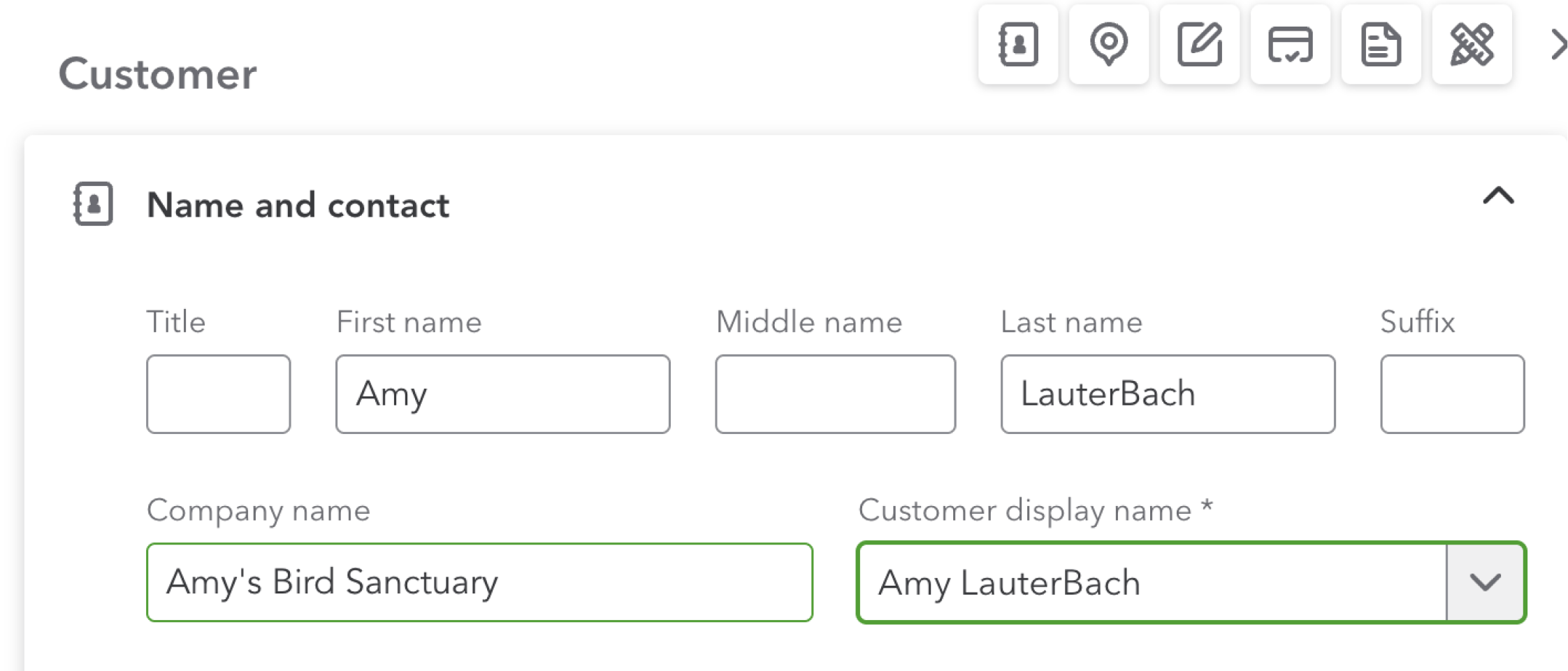
The CustomerId reflects the customer QuickBooks IDs, and can’t be personalized/repurposed.
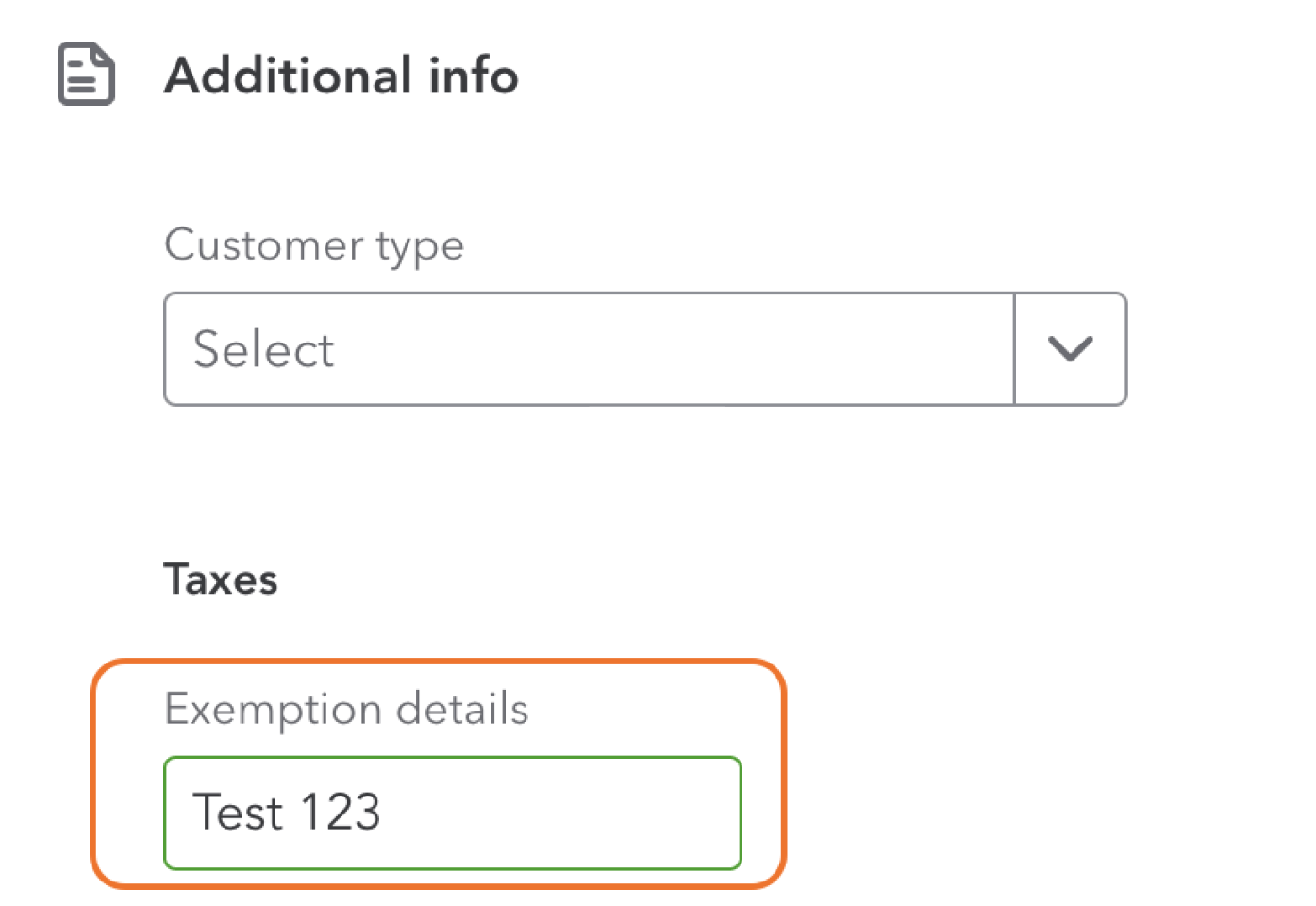
Resale number is under Additional info, and the field "Exemption details"
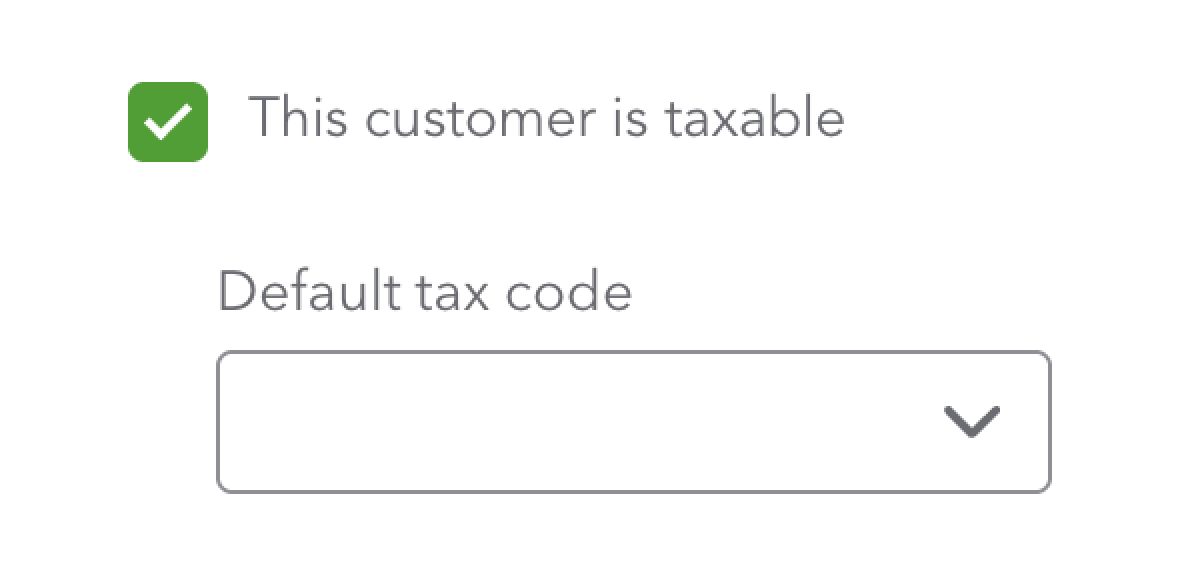
Default tax code, is also under Additional info, and require for the This customer is taxableoption to be ticked (matching the Taxable field)
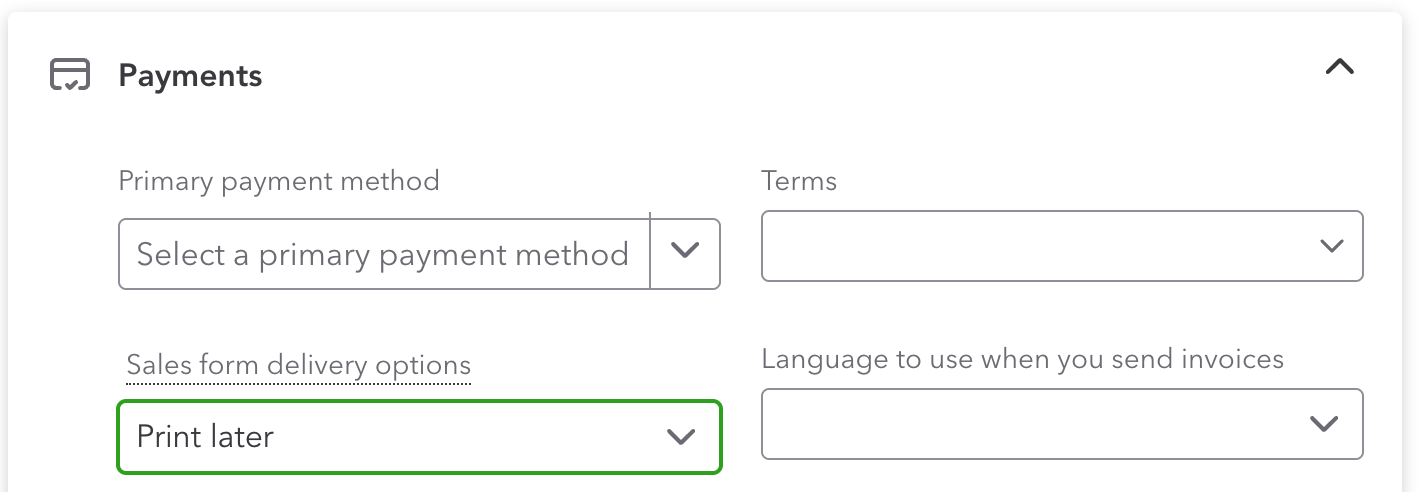
The Preferred delivery method, check "Sales form delivery options" under Payments, while the Sales term is the below "Terms" field.
Mapping Invoices custom fields
Upflow can sync invoice custom fields from QuickBooks Online so you can use them for segmentation and reporting in Upflow. Important limitation: QuickBooks only makes up to 3 invoice custom fields available to third‑party apps via its API, and they must be text (string) fields. Because of this, Upflow can only import those available fields, and doesn’t support other field types, such as: Dates, dropdown/list, etc.How to make sure the right custom fields show up in Upflow
In QuickBooks Online:- Make the custom fields you want to sync text fields (not date, number, or list types).
- Move the 3 custom fields you need the most to the top of your custom field list (QuickBooks only exposes the first ones).
- Ensure inactive custom fields aren’t taking priority in that top list (QuickBooks may still count them).
Journal Entry
In Upflow, we map journal entries in QuickBooks Online with different payments types- either as a debit or as a credit, i.e. they will be imported as payments or refunds depending on their QuickBooks Online type. Each Journal entry line item belongs to a specific customer.Deposits
Similar to Journal Entry, Upflow supports Deposits which can be applied across payments and customers.Payment write-back
All payments your customers make on Upflow are pushed back to QuickBooks Online as Receive Payments applied to the matching invoice(s). See Payment write-back for the full flow and how to recover from a failed export. Payments post to Undeposited Funds in QuickBooks. If you’re an Upflow Payments merchant, you reconcile the matching bank deposit manually using the Upflow payout export — see Payout reconciliation. If you collect through Upflow Payments Lite (your own Stripe account connected to Upflow), payouts are managed by Stripe directly and you reconcile them with Stripe’s own reports.Merge Attachments
Upflow allows multiple attachments (pdfs, excel) to be imported from QuickBooks Online either. They can either be imported as a merged pdf attachment or as a zip file. The merged attachments can be sent in collections emails and also hosted on customer portals. For PDFs only, you can select the first option below. If you need to attach any other file types, you must select the second option in your Upflow Integrations settings: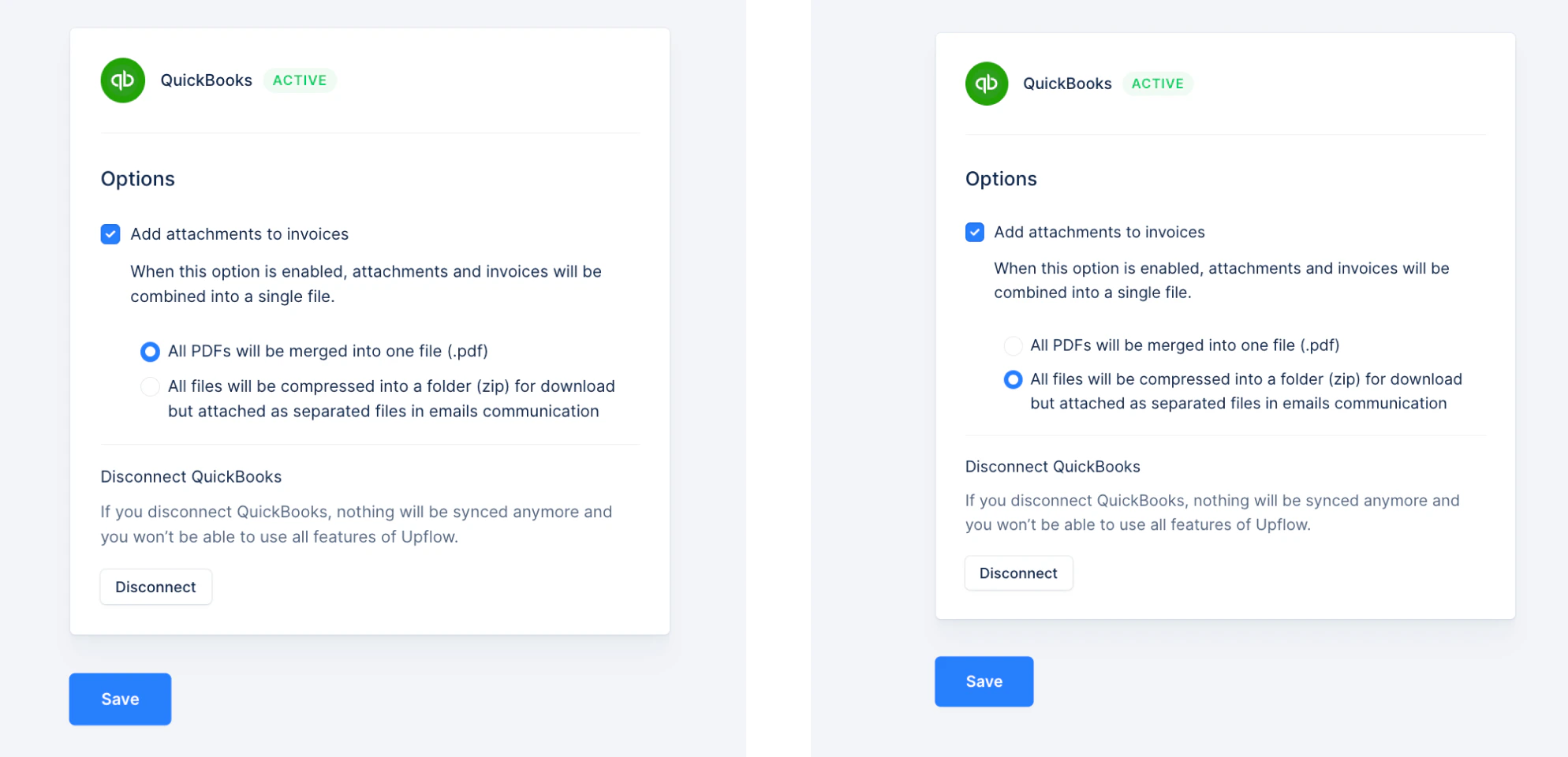
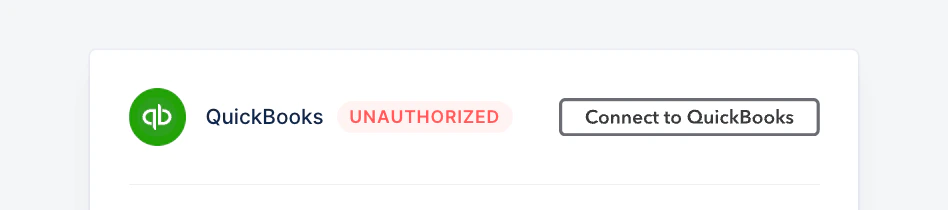
QuickBooks and Upflow are disconnected
If your QuickBooks account was disconnected from Upflow, intentionally or not, you’ll notice a red banner at the top of your Upflow account:
FAQ
- I’ve created an entity in QuickBooks, will this reflect in Upflow? Yes, we’ll automatically create a parent associated with its entities. You’ll be able to set up collection workflows at the parent and/or entity level.
- What are the synchronization issues that may arise? If you’re seeing this indicator in your customer list, it means that the customer in question is off balance. If there is an issue un-flagged please refer to this article.

- How does the integration with Stripe payments work? Once you connect Upflow with your Stripe account, every time a payment is triggered from Upflow, we will have it pushed back to QuickBooks to pay the corresponding invoice (how to set up card payment within Upflow?).