

- Ensure your customers receive the invoice via email, letter or AP portals
- Customize the billing message content
- Have the full picture of billing and collection in Upflow
How to set it up?
Activate Send invoices from Upflow
To activate Send invoices from Upflow, you must head to your settings and switch the toggle on.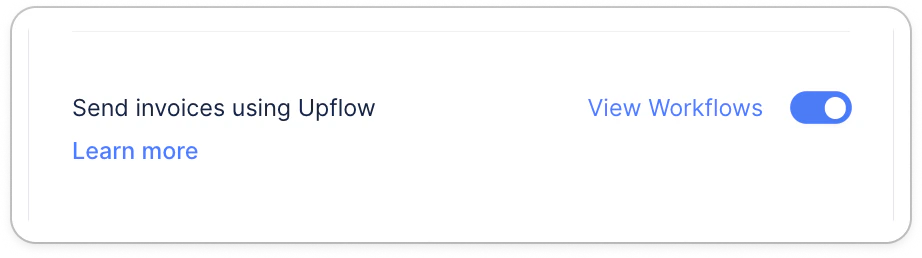
Choose how Upflow sends each customer’s invoices
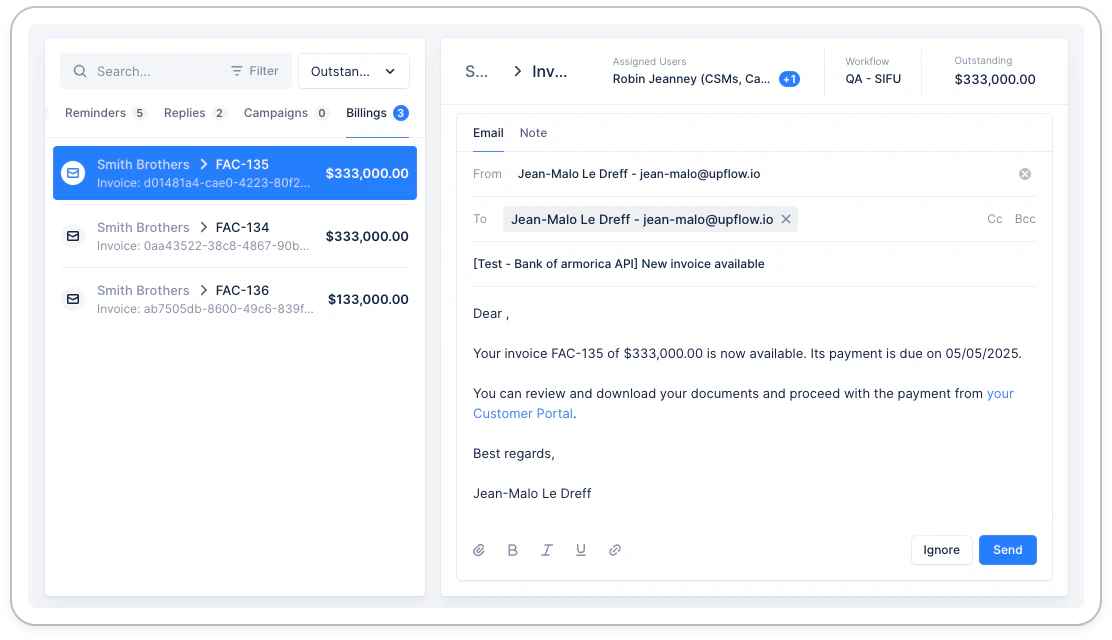
Choose how each customer receives their invoices. Use it when your customers need different delivery routes, or when some of their invoices still go out outside Upflow. The channels available depend on your organization’s configuration:- Email — Upflow sends the invoice as a billing email, using the billing template of the customer’s assigned workflow.
- AP portal — Upflow submits the invoice to the customer’s AP portal (for example, Coupa). This option is only available for portals enabled on your organization.
- Do not send — Upflow won’t send invoices to this customer. Unsent invoices are marked as sent automatically, so you handle delivery yourself.
From a customer page
Open the customer page and set Invoice delivery in the main information block. Switching a customer to Do not send asks for confirmation, since it stops future billing emails for that customer. Invoices already waiting to be sent move on to their due date, and collection carries on as usual.For many customers at once
From the customer list, filter or select the customers to update, then click Actions > Change invoice delivery. Pick the channel, confirm, and Upflow queues a bulk update. You are notified once the operation completes. Invoices already sent are not affected. Only invoices still waiting to be sent move to the new channel (or are released to their due date, when you switch to Do not send).Automatically, with a smart rule
Use the Set invoice delivery action in a customer smart rule to keep the channel in sync with a customer property (segment, country, custom field, and so on). The rule sets the channel every time its trigger fires, so new customers land on the right channel from the start.Configure the billing templates
To configure the billing templates, head over to your workflows to specify the content of the billing actions. Only customer workflows handle the billing templates; all the corresponding invoices will use the same template. If you intend to rely on invoice collection, create an empty customer workflow to manage the billing templates only.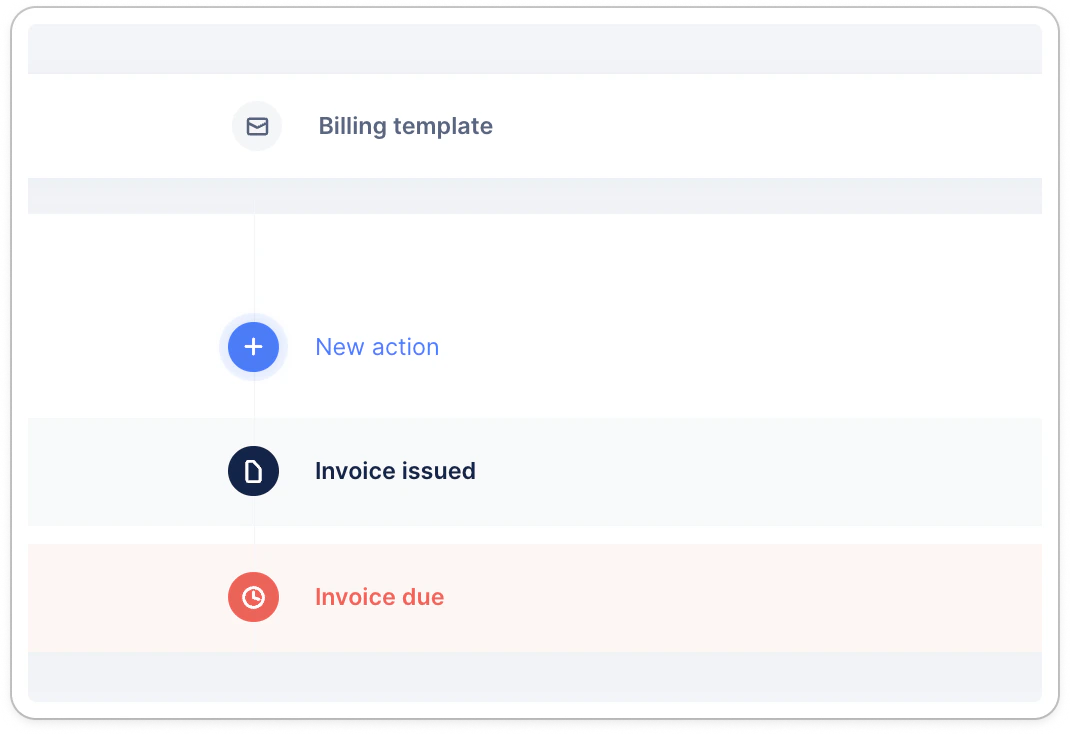
Billing template for customer hierarchy
If you have a parent and child customers, we will use the one who owns the invoice in your accounting system to determine the billing template to use. Even if the children’s invoices are displayed at the parent level, the billing template used for a child’s invoice, will be from the child assigned workflow. If the child customer has no assigned workflow, no billing templates will be directly generated for their invoices. In this case, our system will fall back to the parent’s assigned workflow’s billing template. If the latter has no assigned workflow, you must assign a workflow to either the parent or the children, which can be empty, as the billing template will be included regardless as showed in the screenshot above.Customization options
The standard customization options apply. Learn more here. You must only focus on the carrying invoices tags , as mentioned in the first example above. If you insert tags such as [Customer outstanding amount], [Customer due amount], the related fields will not take the unsent invoice into account. Unsent invoices are included in the customer’s amounts, onlyafter it is sent, so after the related billing email is sent.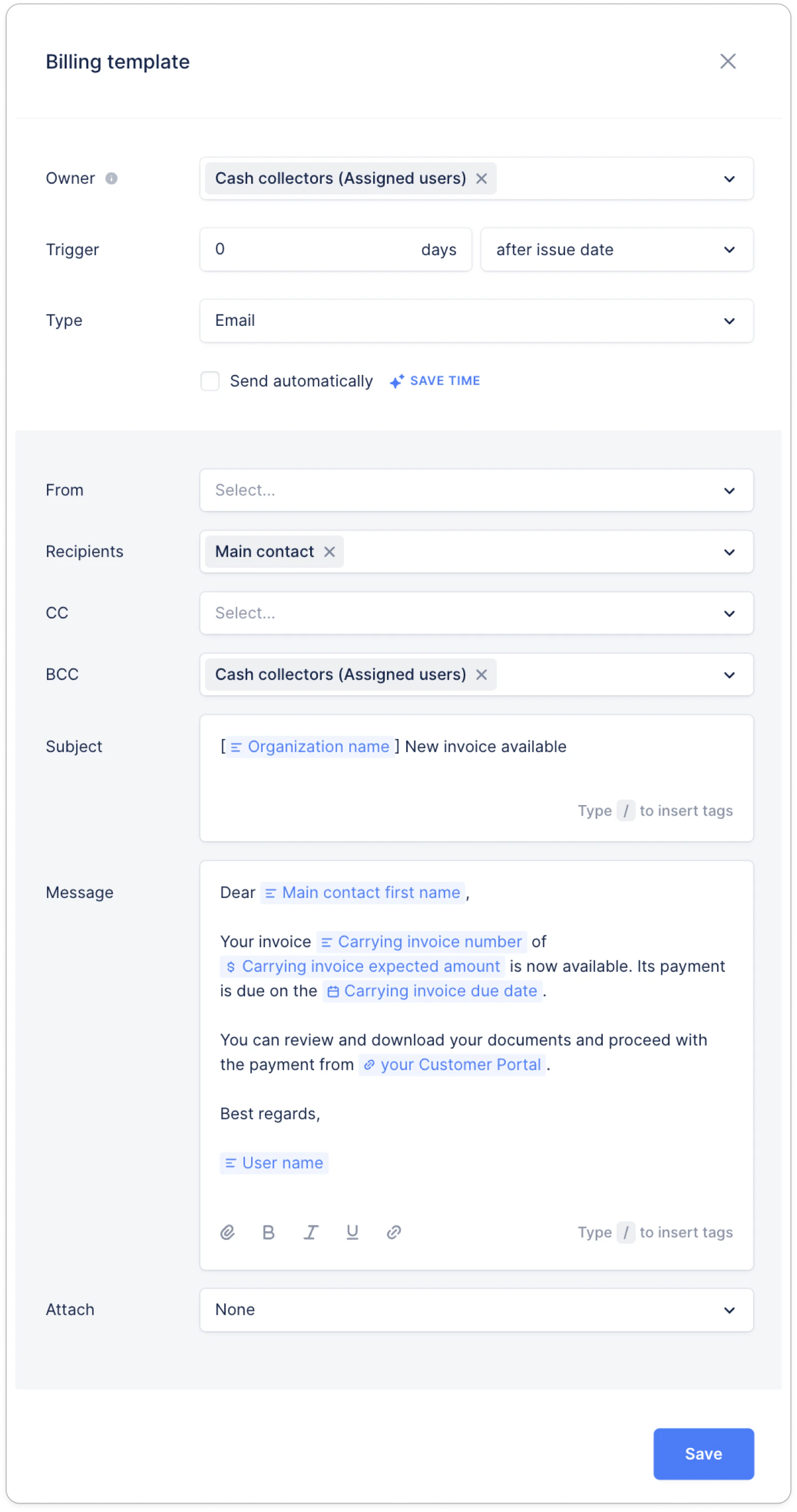
Send invoices with a delay
You can choose to send your invoices a certain delay before or after the invoice’s issue date, depending on your processes: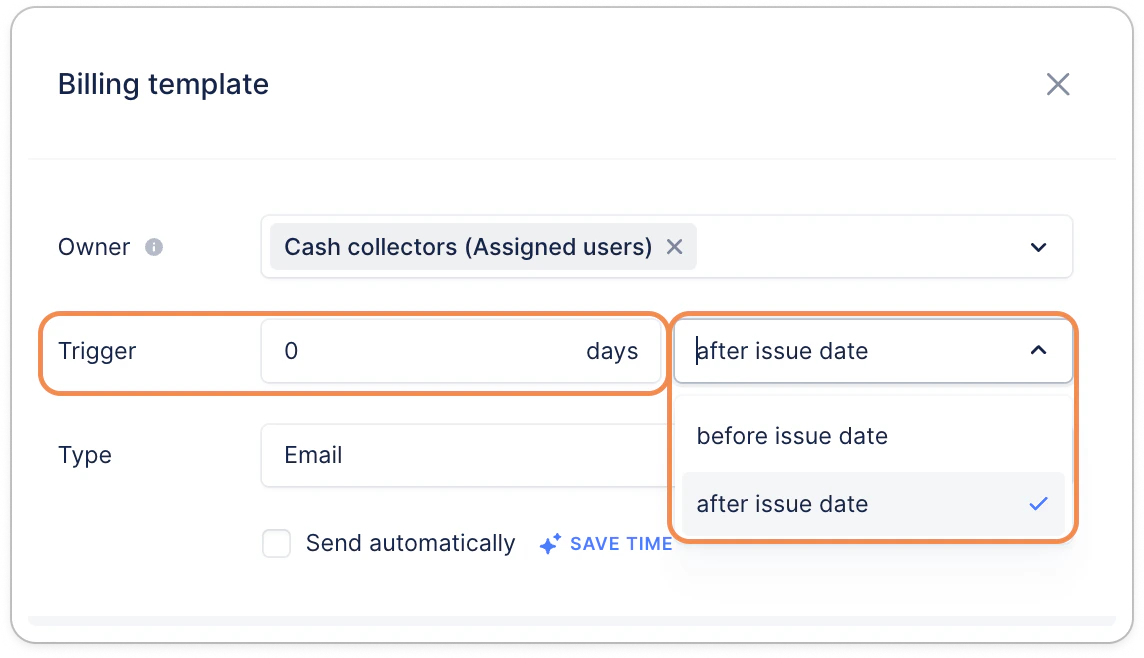
Sending invoices from Upflow
Automatic sending
Billing actions of type Email, Letter & SMS can be executed automatically. In that case, they are sent based on the delay’s value. If the Delay is at 0 days and the action is automatic, we will send the invoice as soon as we receive it or on the issue date (if imported early). If it’s over 1 day, we will send the invoice on the appropriate day, at your organization’s sending time. If we can’t send the invoice, e.g., there is no contact, this action will be turned manual and assigned to the assignee of the action.Manual sending
If you want to offer a personalized approach, you can send invoices manually. In that case, the assignees of each action will see it in their to-do list.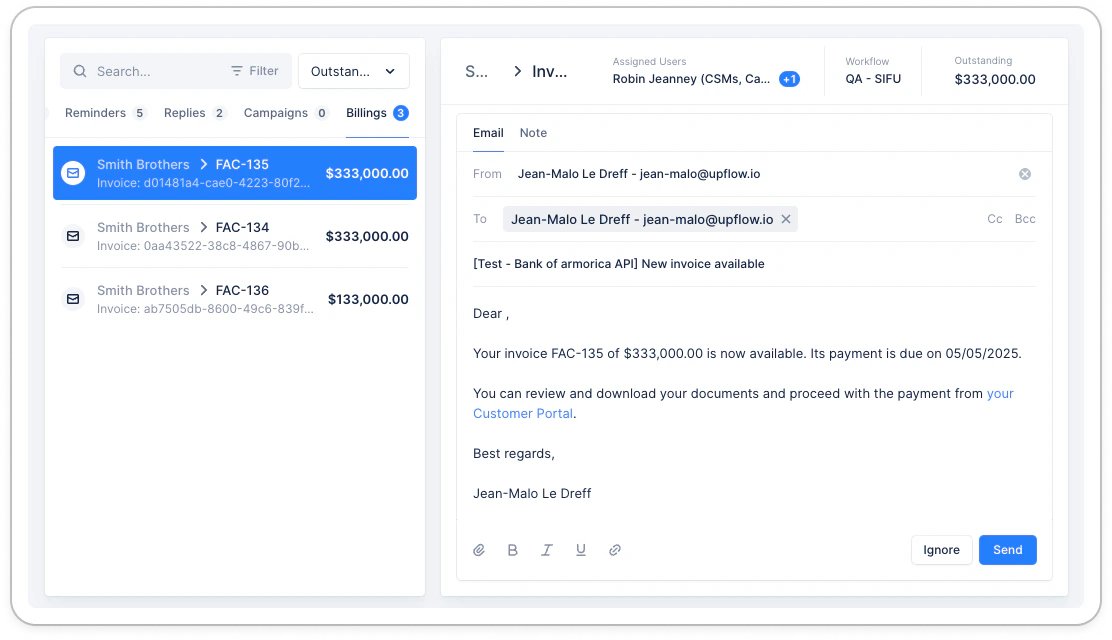
Manual bulk sending
From your Actions list view > All, you can filter billing actions to bulk send your invoices. Filter on “Action state contains To do” + “Source contains Billing. You can also add the “Due date” filter if you wish to identify specific invoices (via their billing actions). The due date will be based on the invoice’s issue date.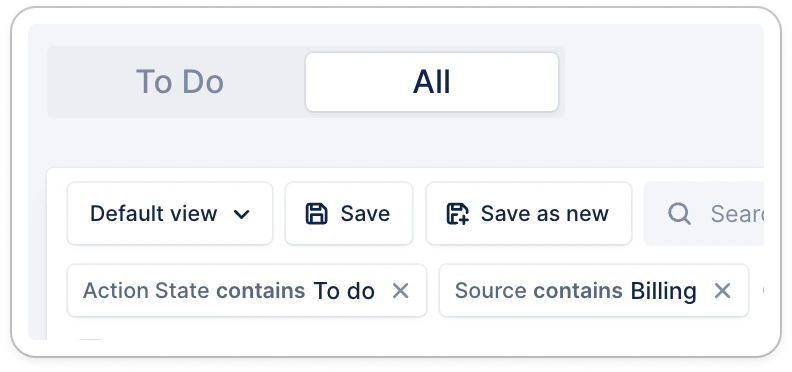
Mark invoices as Sent
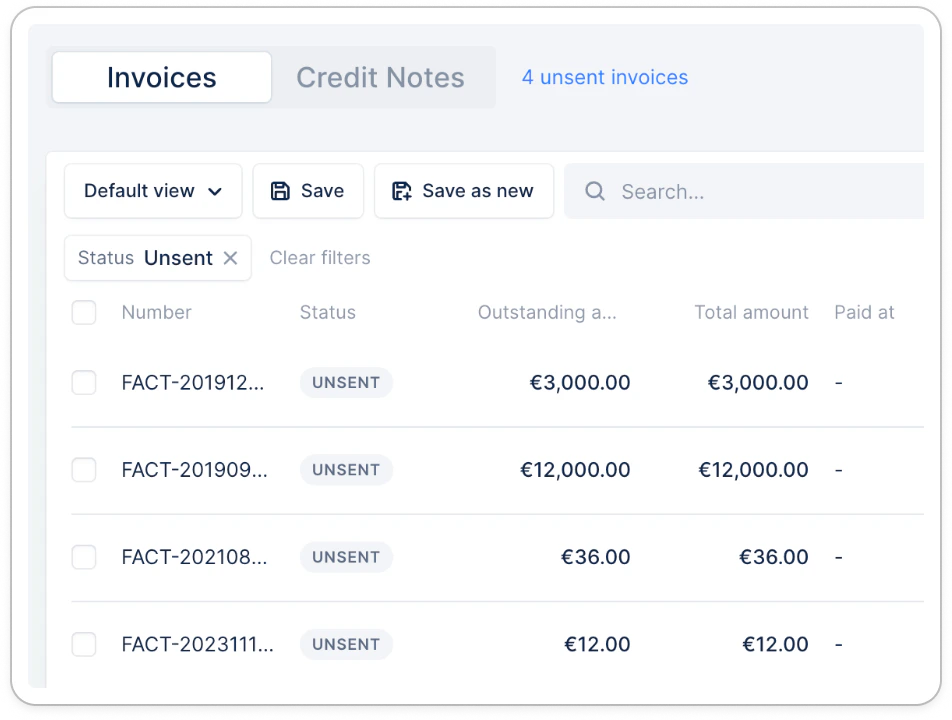
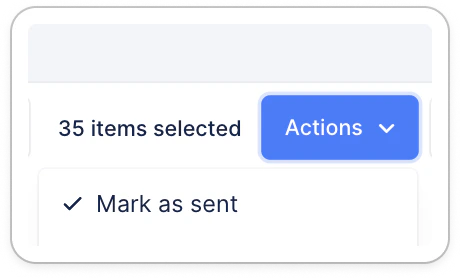
If you wish to update your invoices status, from “Unsent” to “Due”, “Overdue”, or “Paid”, without sending communication to your customer, head to:- the Invoices list view , filter unsent invoices, select the ones you wish to mark as sent. Click Actions > Mark as sent:
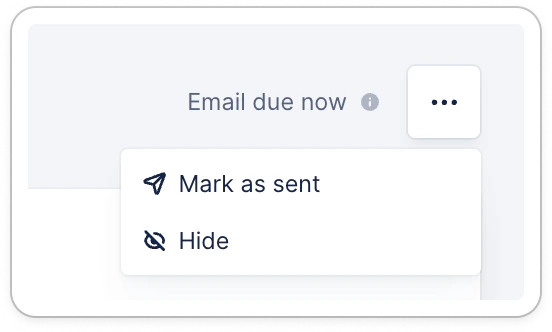
- the invoice detail page , click the three dots at the top right:
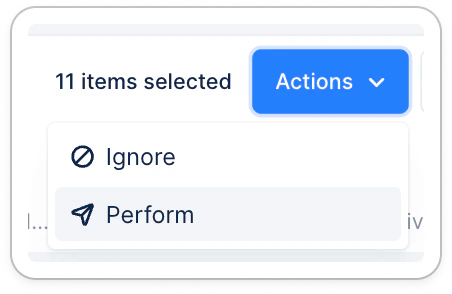
- the Actions tab > To do: click ignore on the billing action. This will update the invoice status.
- the Actions tab > All: select the invoice (and more if needed), then Actions > Ignore.
- you can identify them quickly with the filters “Source = Billing” + “Status = To do”. You can also add the “Due date” filter. The billing action due date will match the invoice’s issue date.
Exclude paid invoices from Collection
If invoices are synced with an outstanding amount at 0.00, you can prevent Upflow from sending them to your customers and stop them from triggering a billing action. To enable this, head to your Invoicing settings and turn on Don’t send paid invoices. This toggle is only available when Send invoices from Upflow is on. Once the toggle is on, any new invoices synced into Upflow with an outstanding balance of 0.00 will be imported as Paid directly, instead of Unsent, and won’t be sent to your customers.Notes
- An UNSENT invoice is not considered in your analytics, the collections reminders, or your customer portal. Only your team can see unsent invoices in Upflow, to manage them and collaborate on their timelines.
- ‼️ To manage your unsent invoices, either to send them or ignore the billing action, your customers must be assigned to an empty workflow at least to benefit from the billing template. If assigned to “No workflow”, no billing template will be available for their unsent invoices, meaning you will not be able to send them or ignore them.