

- Route the customers who require Coupa to it, one by one, in bulk or with a smart rule
- Get a draft in Coupa for each new invoice, with the buyer, PO, lines, tax and PDF already filled in
- Follow each Coupa invoice from Upflow, from draft to approval and payment
The Coupa agent is enabled on request. To get it set up, talk to your CSM or contact our Support team.
Before you start
Each invoice for your Coupa customers needs a PO number, synced from your accounting or billing system.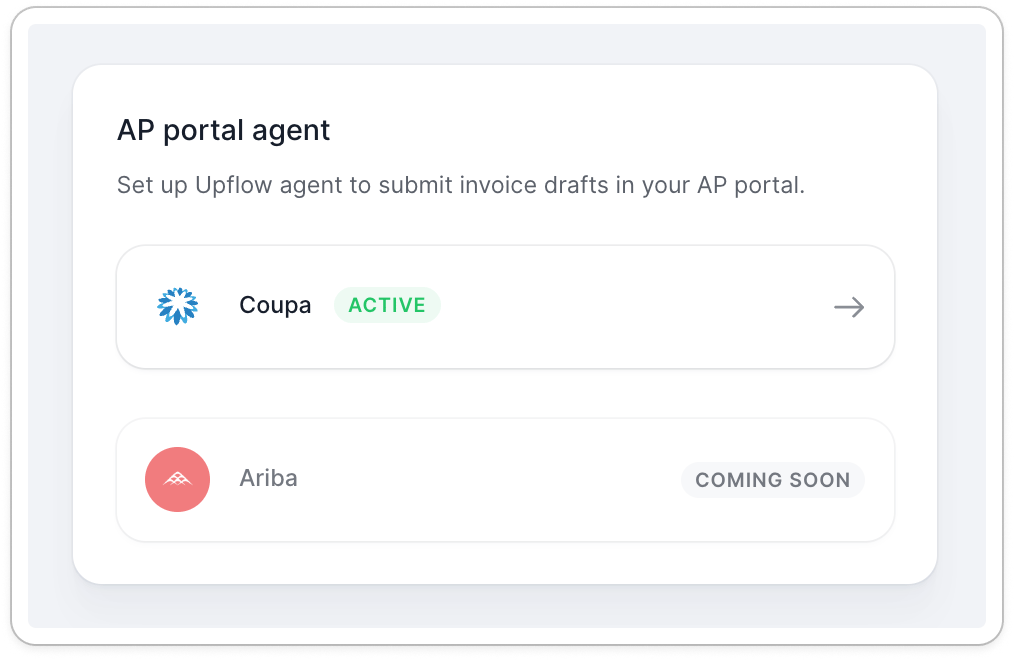
Connect Coupa
- Go to Settings → AP Portal and open Coupa.
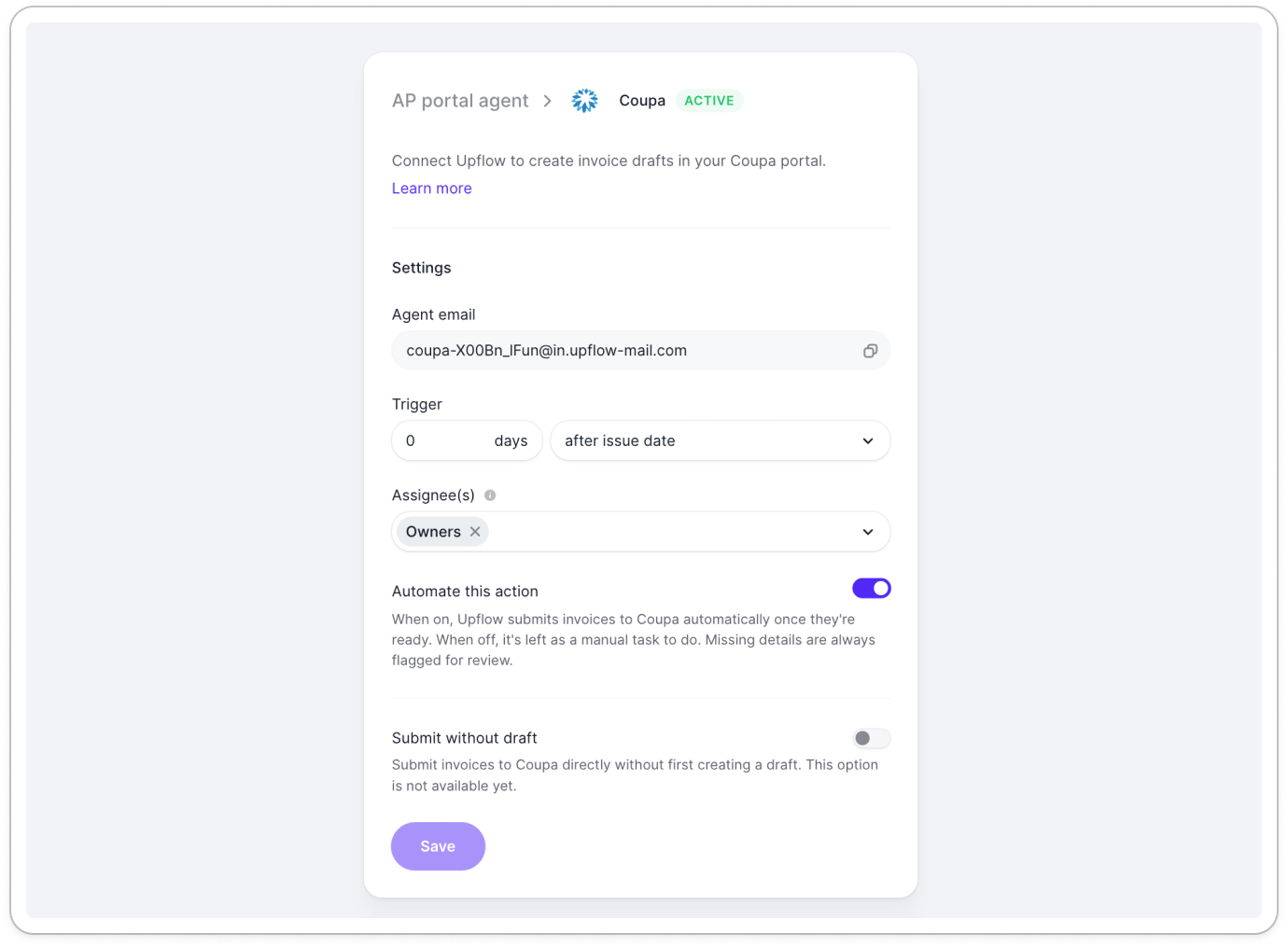
- Under Copy this email, copy the agent’s email address.
- Click Open Coupa and invite that email address as a user in your Coupa account.
- Back in Upflow, the card shows We are setting up your Coupa account. The agent accepts the invite and completes the sign-up on its own, which takes a few minutes. You don’t have anything else to do.
- Assignee(s): who works on the Coupa actions
- Trigger: when the action is due, in days after the invoice issue date
- Automate this action: when on, the agent creates each draft on its own. When off, the draft is a manual task to start yourself.
If you run several Upflow organizations on the same Coupa account, connect Coupa in each organization. Each one gets its own agent email, and you invite every one of them into the same Coupa account.
Choose which customers go through Coupa
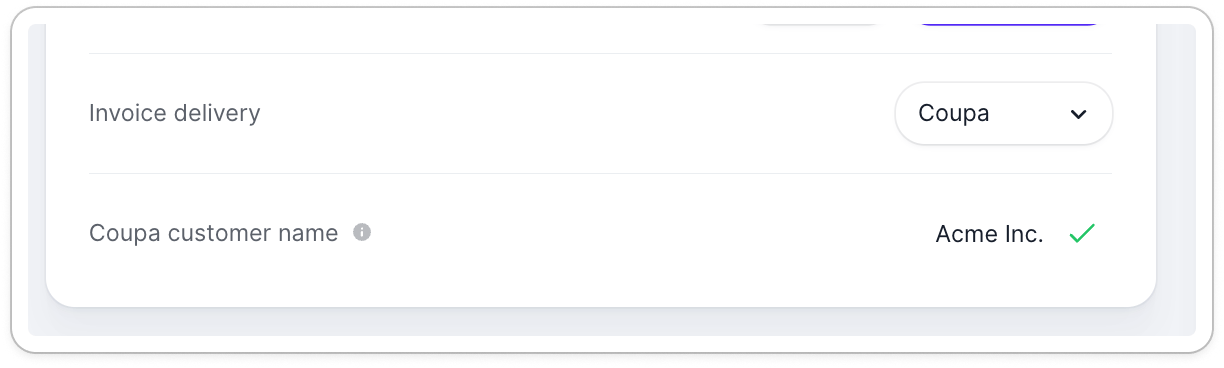
Set Invoice delivery to Coupa on each customer you invoice through Coupa:- One customer: open the customer page and set Invoice delivery in the main information block.
- Several customers: from the customer list, select them, then click Actions → Change invoice delivery.
- Automatically: use the Set invoice delivery action in a customer smart rule.
Review and submit each draft
Each new invoice for a Coupa customer gets two actions, one after the other.- AP Portal - Draft creation: the agent logs in to Coupa, finds the buyer and the PO, fills in the invoice lines and tax, and attaches the PDF. It checks that Coupa’s total matches your invoice total before saving the draft. If the action is manual, open it and click Create draft.
- AP Portal - Draft submission: click Open draft to review the draft in Coupa, submit it there, then click Mark as submitted in Upflow.
Follow each invoice in Coupa
Once an invoice is submitted, Upflow keeps its status up to date as your customer processes it in Coupa. You don’t need to log in to Coupa to check where an invoice stands. The AP portal status shows on the invoice page. You can also add it as a column to your invoice list, or filter on it:| Status | What it means |
|---|---|
| Pending submission | The draft hasn’t been submitted yet. |
| Submitted | The invoice is submitted and waiting for your customer’s approval. |
| Approved | Your customer approved the invoice for payment. |
| Disputed | Your customer disputed the invoice in Coupa. Once the dispute is resolved, it goes back to Submitted. |
| Abandoned | The invoice was abandoned in Coupa. |
| Paid | Your customer marked the invoice as paid in Coupa. |
Status updates rely on Coupa’s notifications in English, and on the invoice number in Coupa matching the one in Upflow.
When a draft can’t be created
If the agent can’t create a draft, the action shows why. Fix the cause, then retry.
For any other error, try again once. If it keeps failing, contact our Support team.