Understanding test mode
After your data synchronization is complete, your organization will enter Test Mode , which is indicated by a banner at the top of your screen:
-
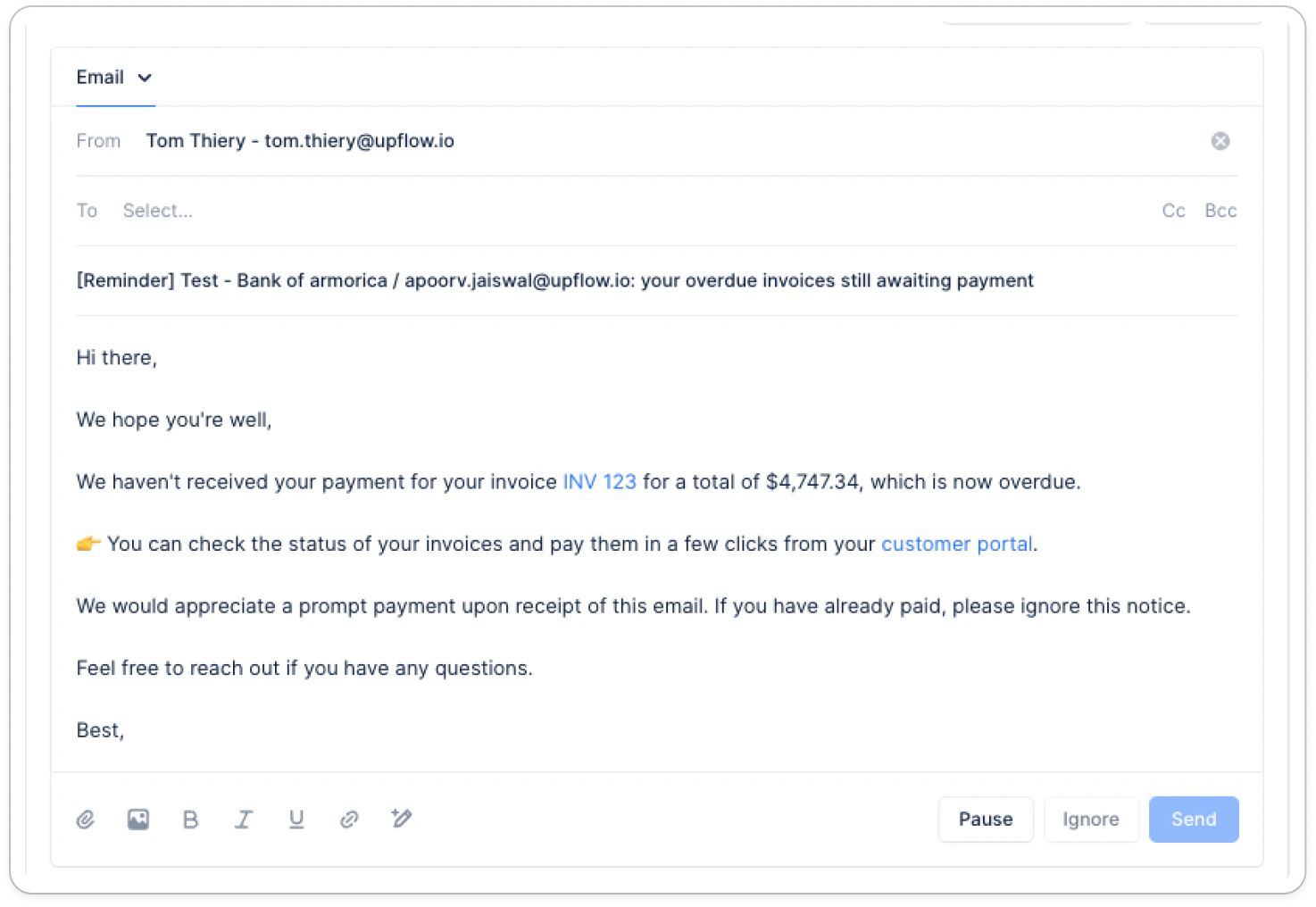
Manual actions — reminders, calls, letters, and all other actions on the Actions page cannot be performed.
-
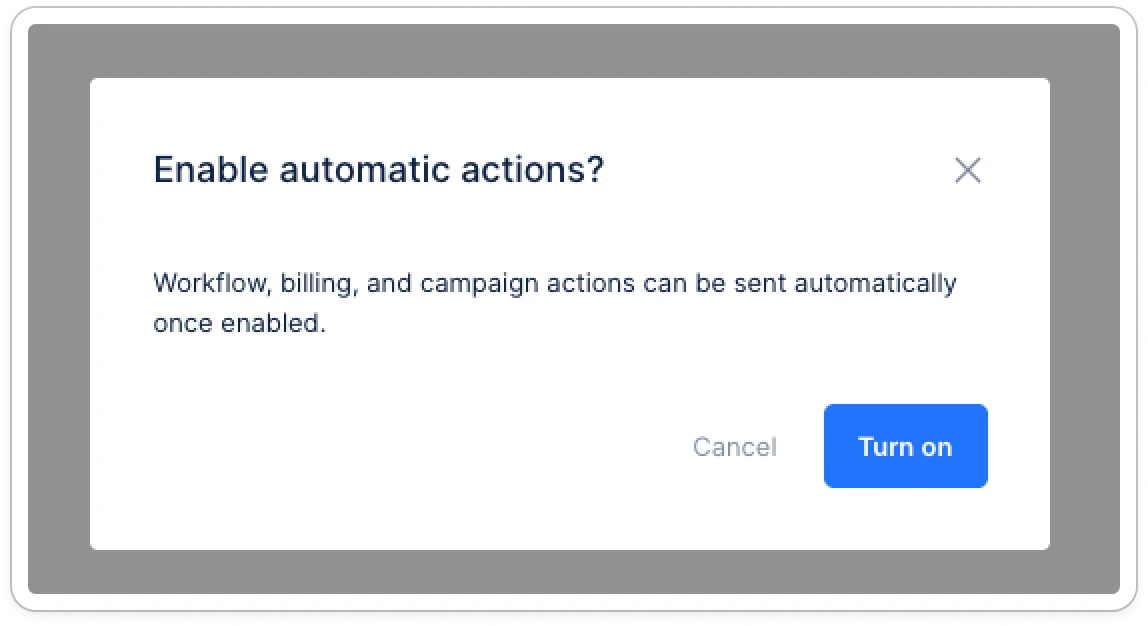
Automatic actions — workflow, billing, and campaign actions cannot be sent automatically, and cannot be enabled until you go live.

Testing emails in Test Mode
While in Test Mode, you can still send test emails using the Send me a test email button available in workflow steps, templates and campaigns. This lets you preview how your emails look before going live.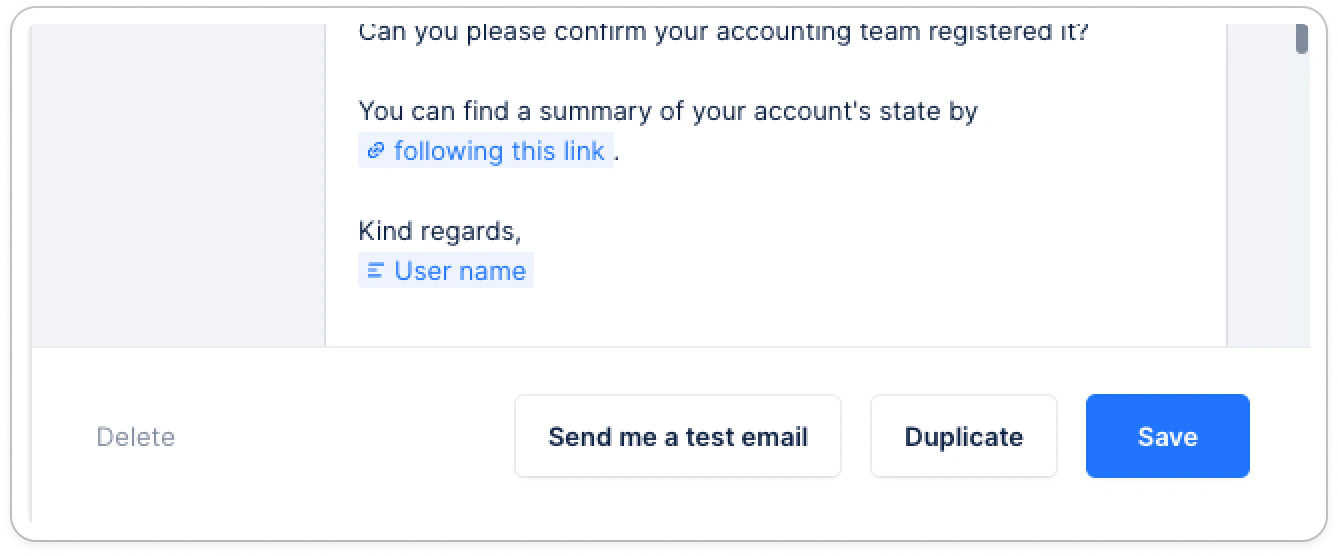
Go Live
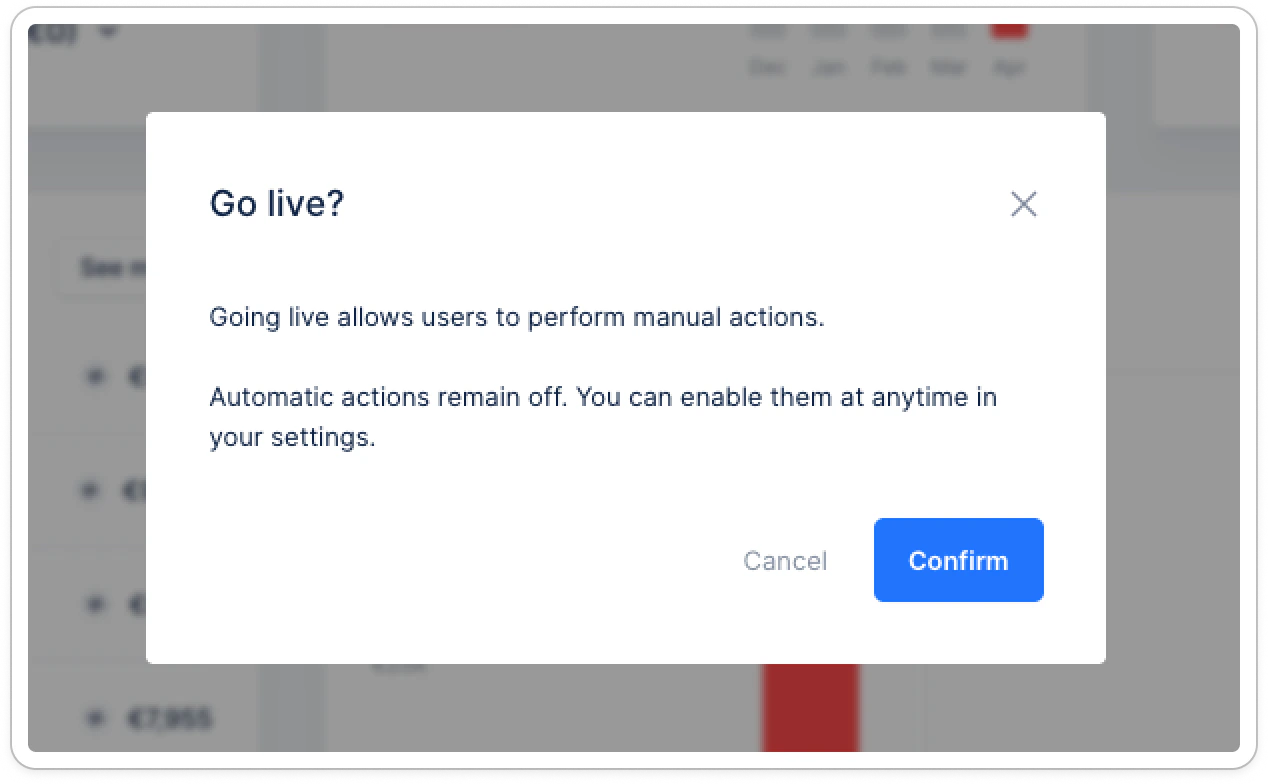
Once ready, you can leave Test Mode by clicking the Go live button in the banner.- Click Go live in the Test Mode banner.
- Review the confirmation and click Confirm.

Enable automatic actions after going live
After going live, automatic actions are disabled by default. To enable them:- Click Enable automatic actions in the banner, or go to Settings → Collection and toggle on Enable automatic actions.
- Click Enable to confirm.