

Set up cash application
From Settings > Cash Application, turn on Sync with your integration to write applied transactions back to Sage Intacct.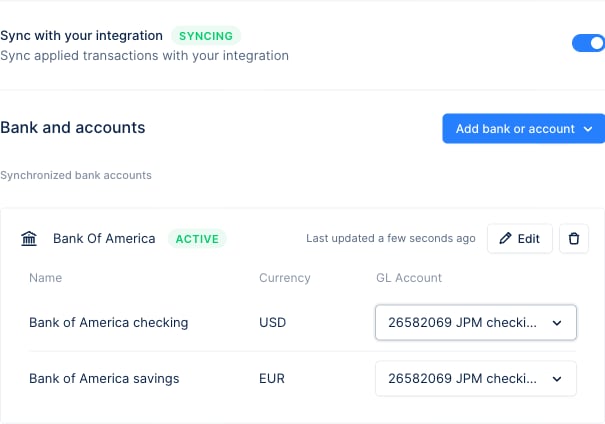
When Upflow fetches the list of bank accounts to map, it filters on the subsidiary connected to your organization and on the currency of the bank account.
What gets written back
When you apply a transaction, Upflow creates the AR Payment and posts it to Sage Intacct automatically. Because a posted payment cannot be voided, any later edit that removes or moves the payment is handled as a reversal (see How edits are handled).
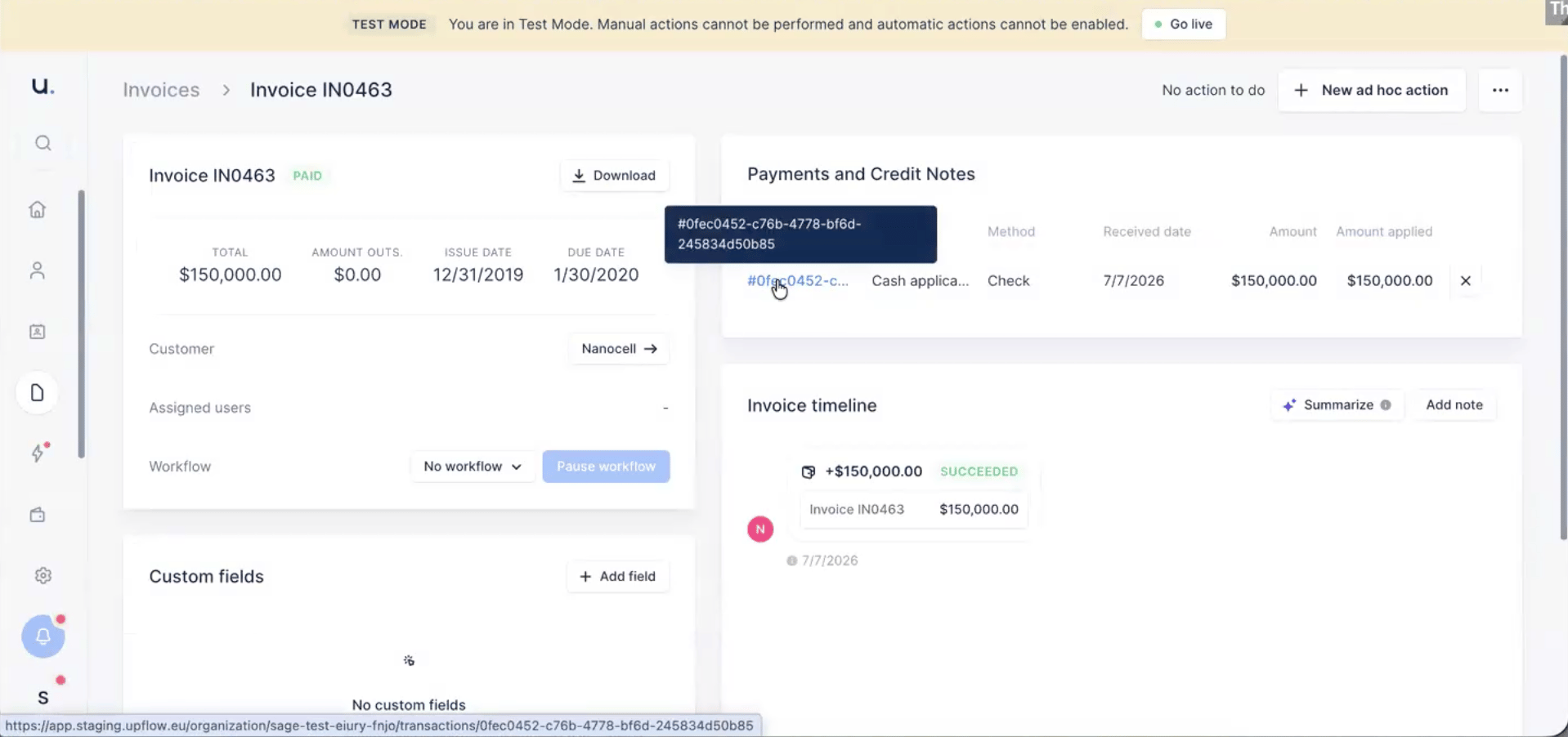
Once the write-back succeeds, the payment appears on the invoice in Upflow with Cash application as its origin:
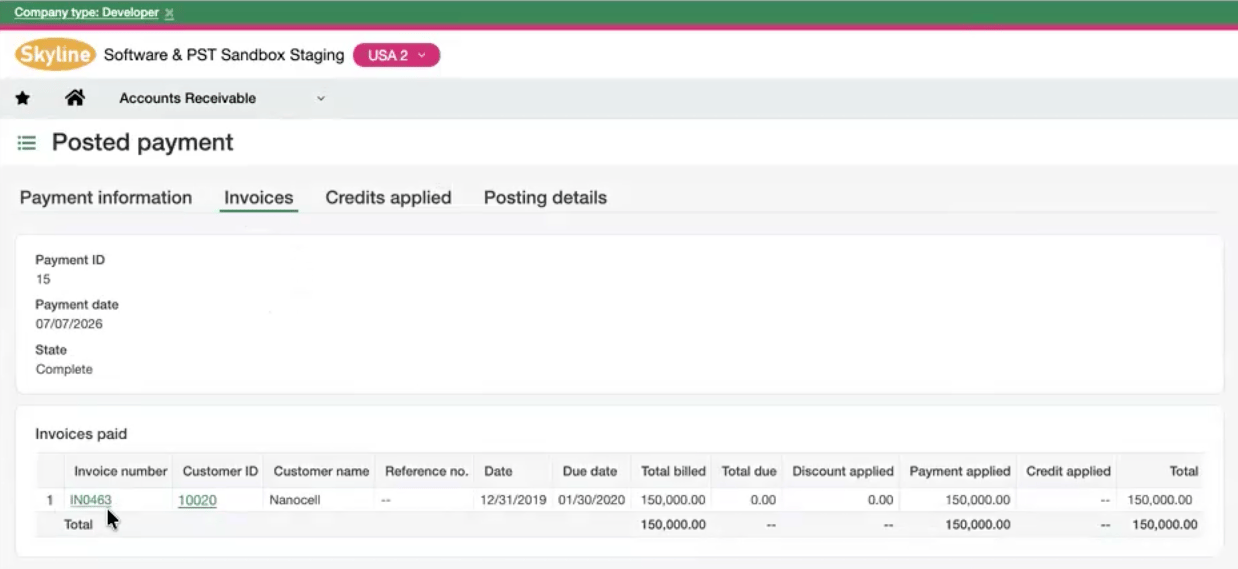
Complete, applied line-by-line to the matched invoices:
How edits are handled
You can edit an applied transaction from the bank transactions list. Because the original AR Payment is already posted and cannot be voided, every edit is handled by reversing it and, where applicable, creating a new AR Payment that reflects the change:
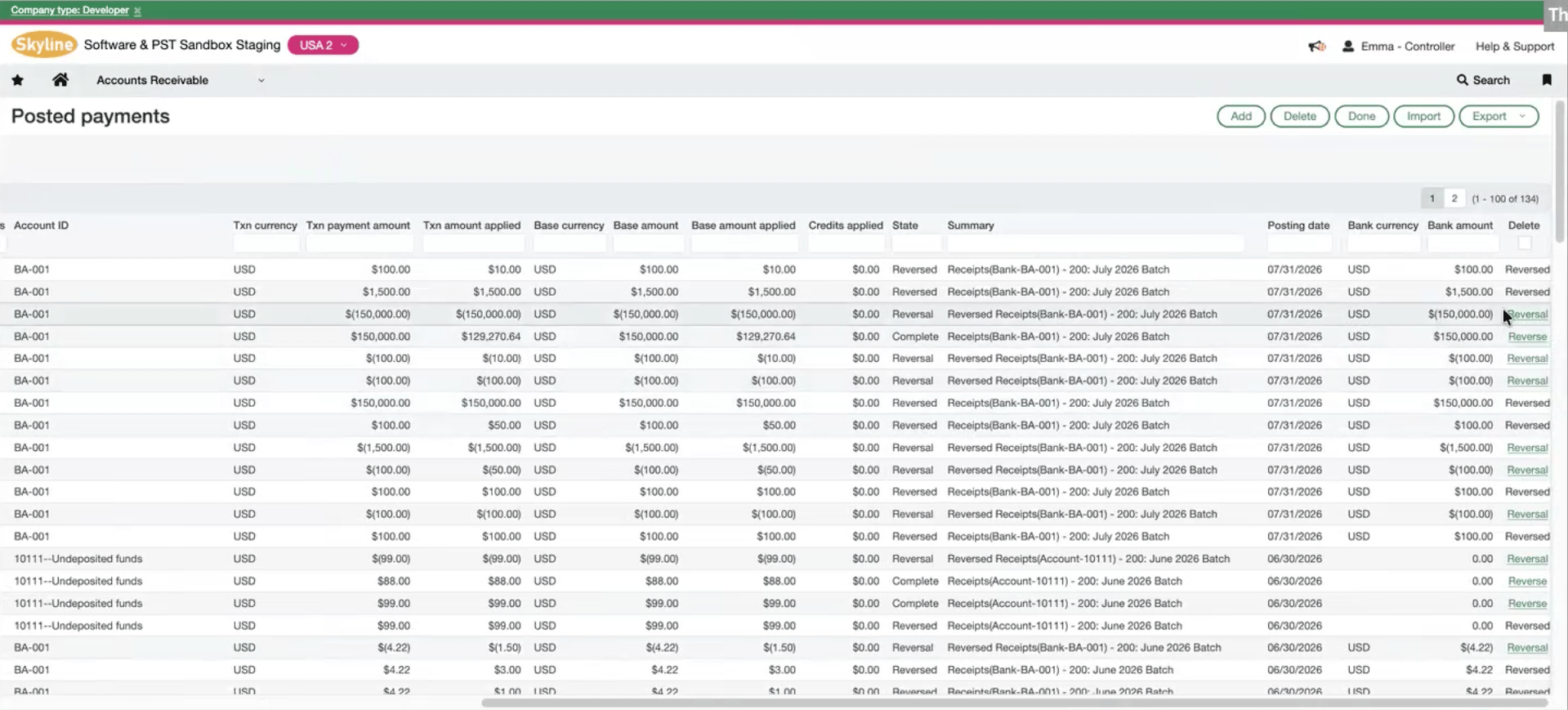
In Sage Intacct, a reversal appears as a payment with State
Reversal alongside the original Reversed payment, so the full history stays traceable:
Payment memo
Each AR Payment written back to Sage Intacct carries a memo listing the invoices it was applied to, so you can trace it back to Upflow:Track the sync status
Each bank transaction shows a Sync status in the bank transactions list, reflecting whether the write-back to Sage Intacct succeeded. When a write-back fails, the status shows Error — hover over it to read the failure reason returned by Sage Intacct. Once you’ve resolved the underlying issue, re-applying or editing the transaction re-triggers the write-back.Limitations
- Multi-subsidiary organizations are not supported. Cash application write-back requires a one-org-to-one-subsidiary setup; if several Sage Intacct subsidiaries are linked to your organization, cash application is disabled.