

Which path applies to you?
The ChatGPT setup depends on your ChatGPT plan:- ChatGPT Plus or Pro — you can enable Developer mode and create a custom app yourself. Follow Path A: Personal ChatGPT plan.
- ChatGPT Business, Enterprise, or Edu — your workspace admin must first allow members to create custom MCP connectors. Once they have, you can follow the same steps to create the Upflow app on your account. Follow Path B: Business, Enterprise, or Edu workspace.
ChatGPT Free does not support custom MCP connectors. You’ll need at least a Plus, Pro, Business, Enterprise, or Edu plan.
Path A: Personal ChatGPT plan
For ChatGPT Plus and Pro users.Step 1 - Enable Developer mode in ChatGPT
- In ChatGPT, go to Settings → Apps.
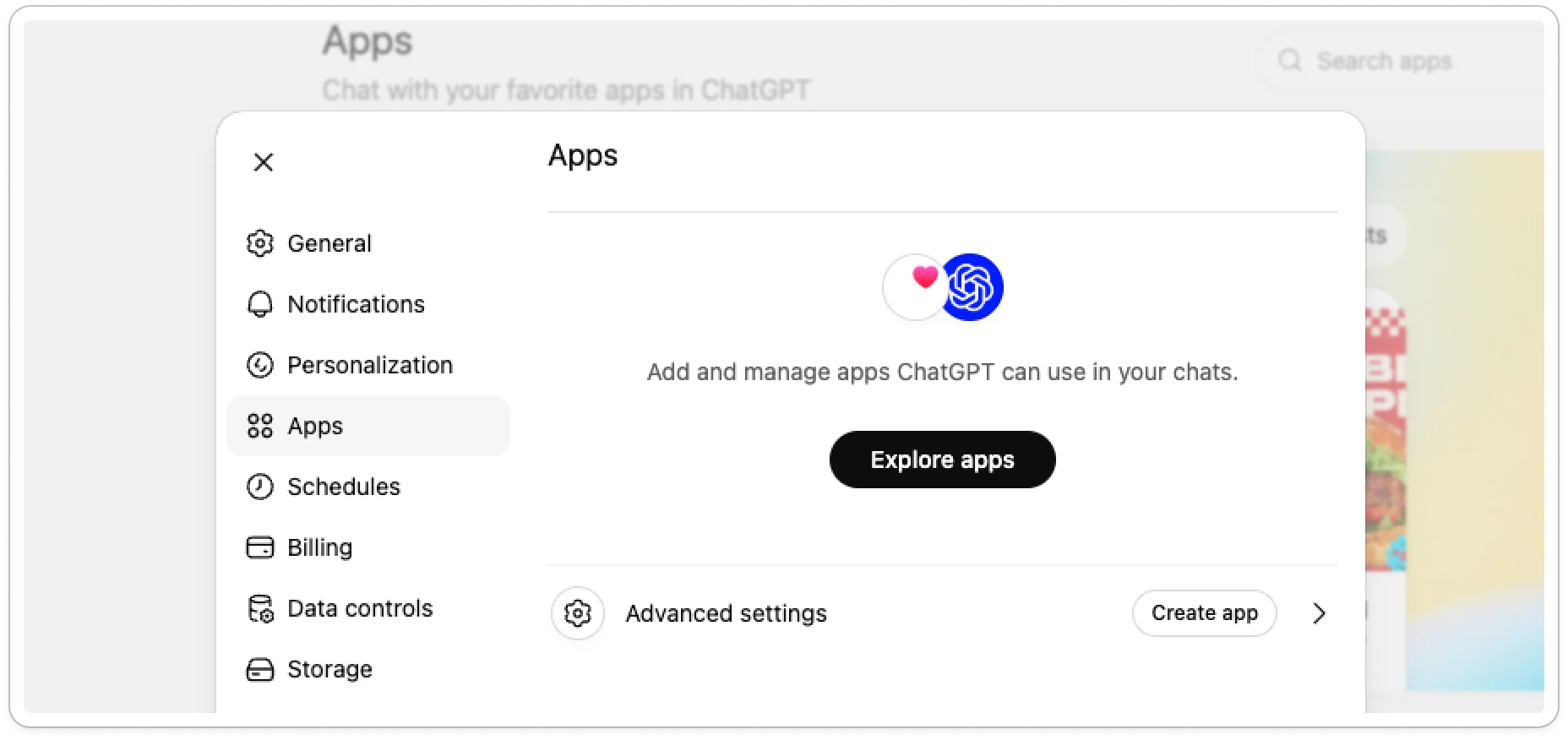
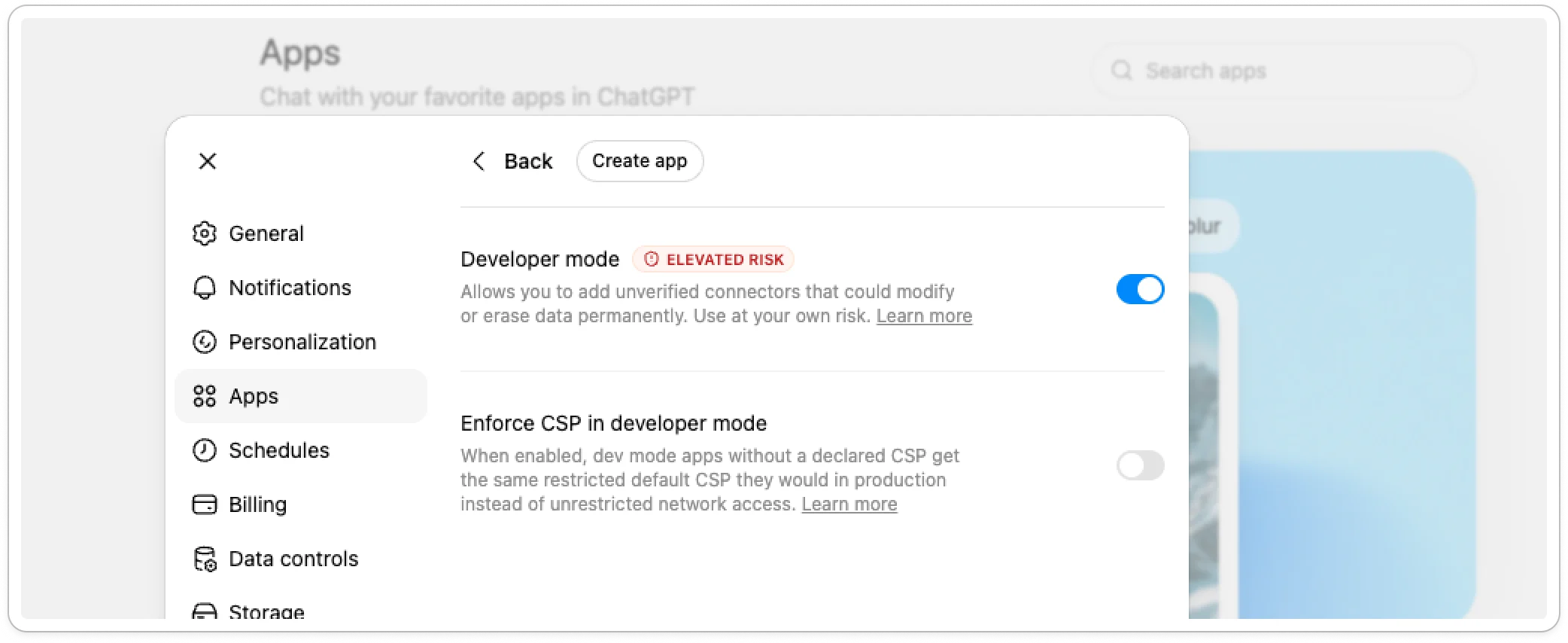
- Open Advanced settings and toggle Developer mode on.
- Click Create App.
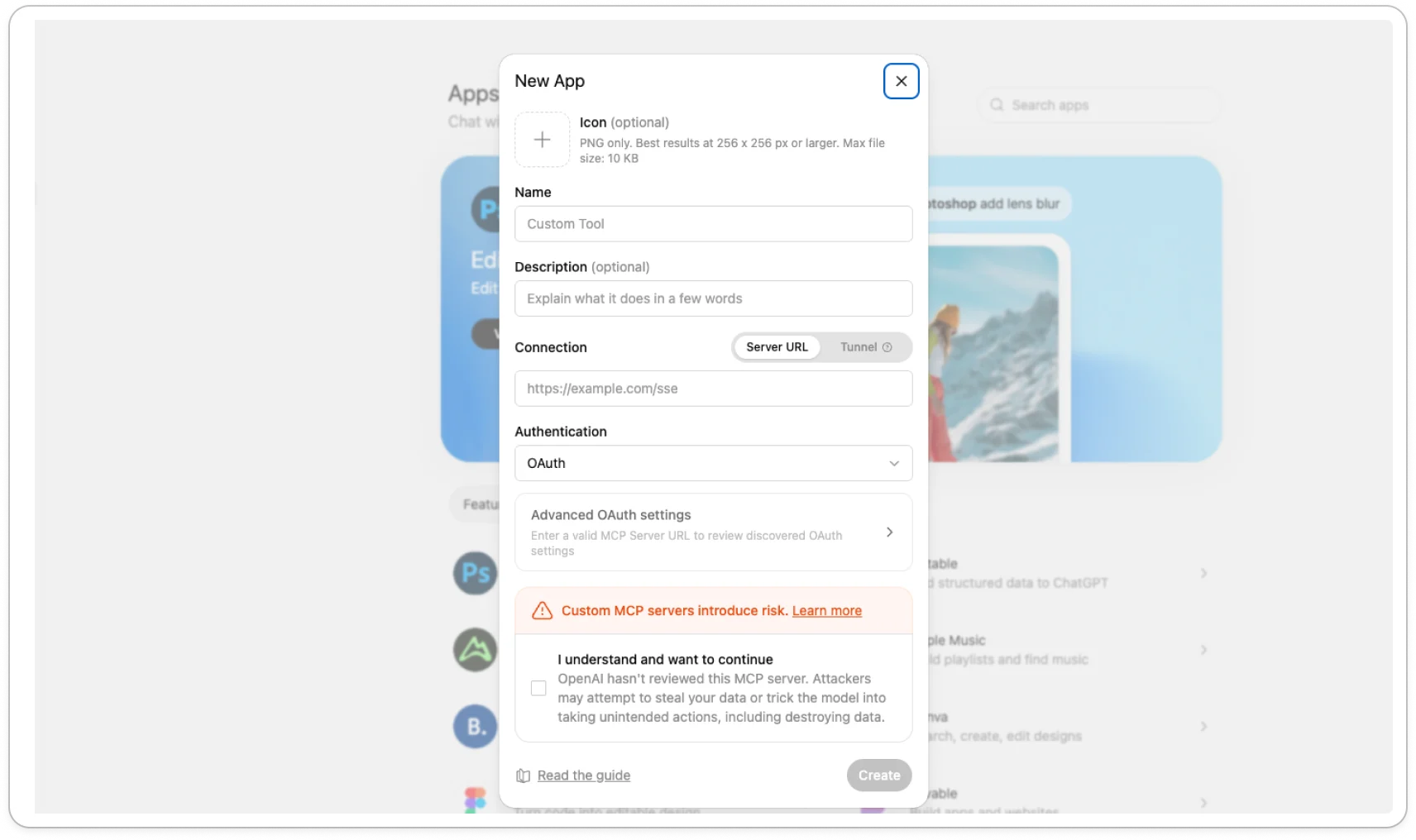
Step 2 - Add Upflow as a custom app
Fill in the form:- Name:
Upflow - URL:
https://api.upflow.io/mcp
Step 3 - Authorize Upflow
- If you’re not already signed in to Upflow, you’ll be prompted to log in.
- On the consent page, review the access Upflow is granting and click Authorize.
- You’ll be redirected back to ChatGPT with the connection confirmed.
Step 4 - Enable Upflow in your chats
In ChatGPT’s app settings for Upflow, toggle on Reference memories and chats so ChatGPT can use the connector during conversations.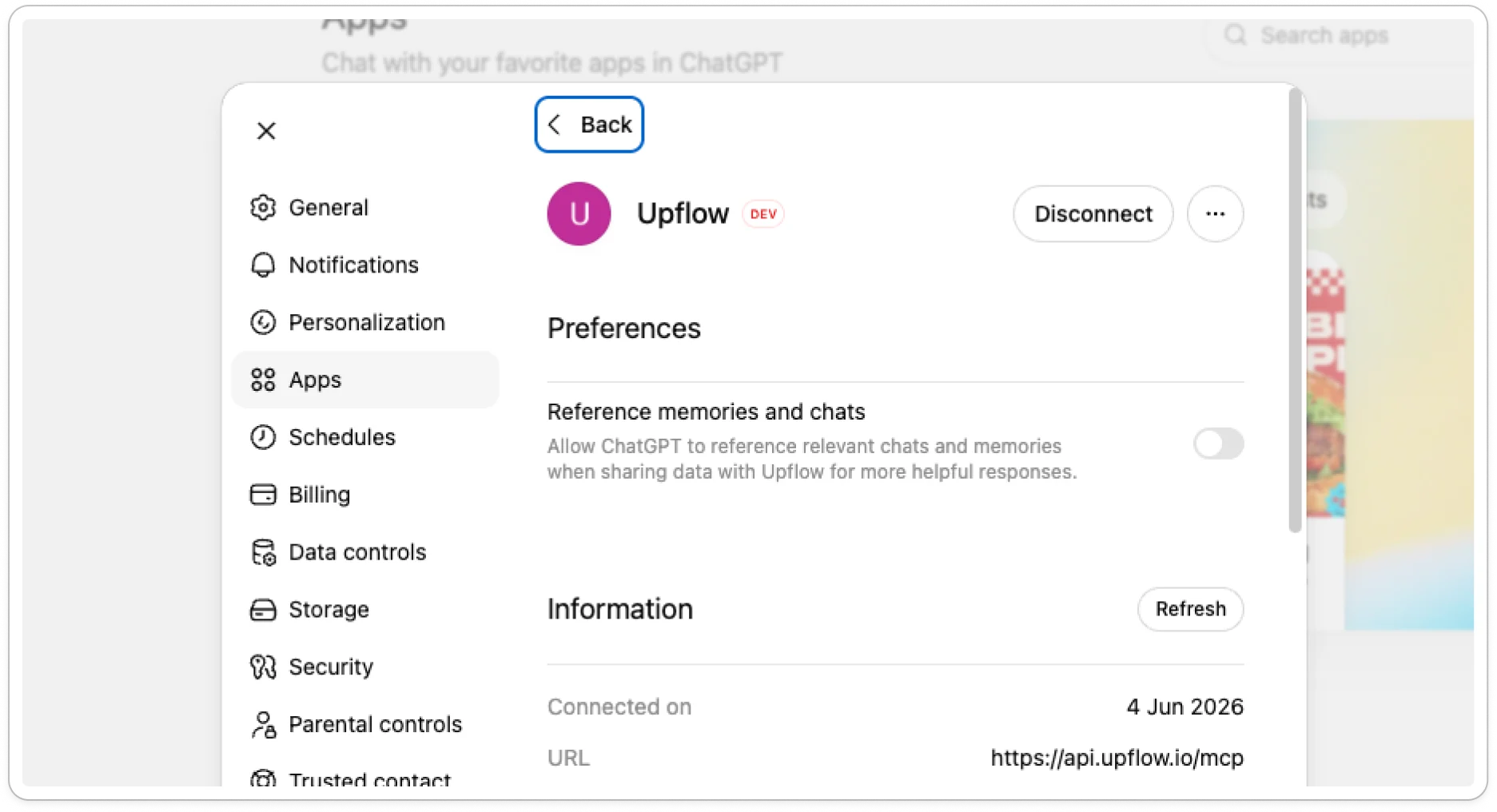
Path B: Business, Enterprise, or Edu workspace
On Business, Enterprise, and Edu workspaces, creating custom MCP connectors is gated by an admin permission. Once the admin enables it, each member follows the same steps as Path A on their own account.For the workspace admin
Step 1 - Allow members to create custom MCP connectors
- Go to Workspace Settings → Permissions & Roles.
- Find the Connected Data section and enable Developer mode / Create custom MCP connectors.
For each ChatGPT member
Once the admin permission is enabled, follow the same steps as Path A above:- Enable Developer mode in ChatGPT — Settings → Apps → Advanced settings → Developer mode → Create App.
- Add Upflow as a custom app — fill in Name and URL, tick the checkbox, click Sign up with Upflow.
- Authorize Upflow — log in if needed, click Authorize on the consent page.
- Enable Upflow in your chats — toggle on Reference memories and chats.
ChatGPT does not share a single workspace-level connector — every member creates their own Upflow app and authorizes their own OAuth grant.
Try it out
Ask ChatGPT anything about your Upflow data. A few prompts to get started:- Top debtors — Who are the top 5 debtors by outstanding balance?
- Recent collections — How much have we collected since the beginning of the month?
- Customer contact — Who is the main contact for [customer name]?