

Connect Stripe Billing with Upflow
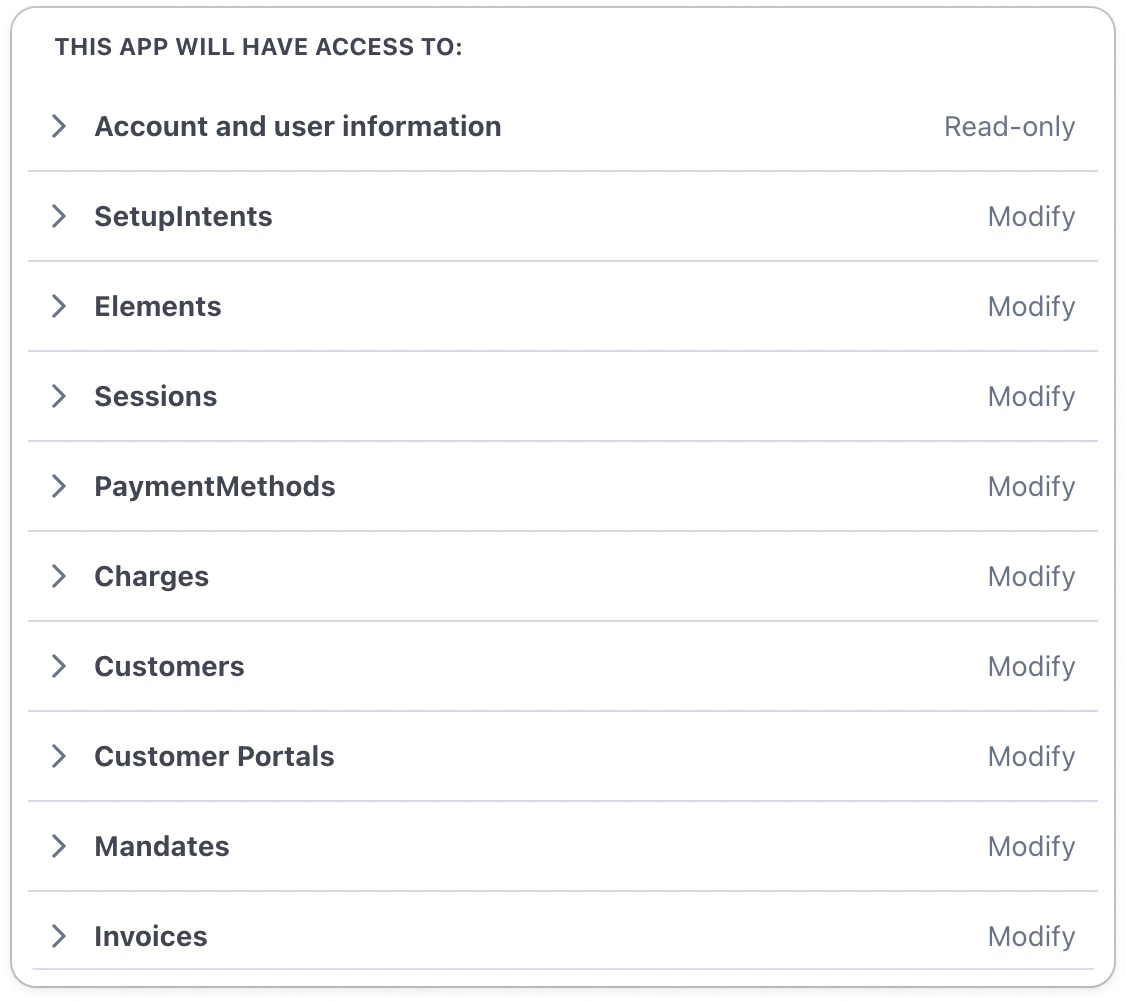
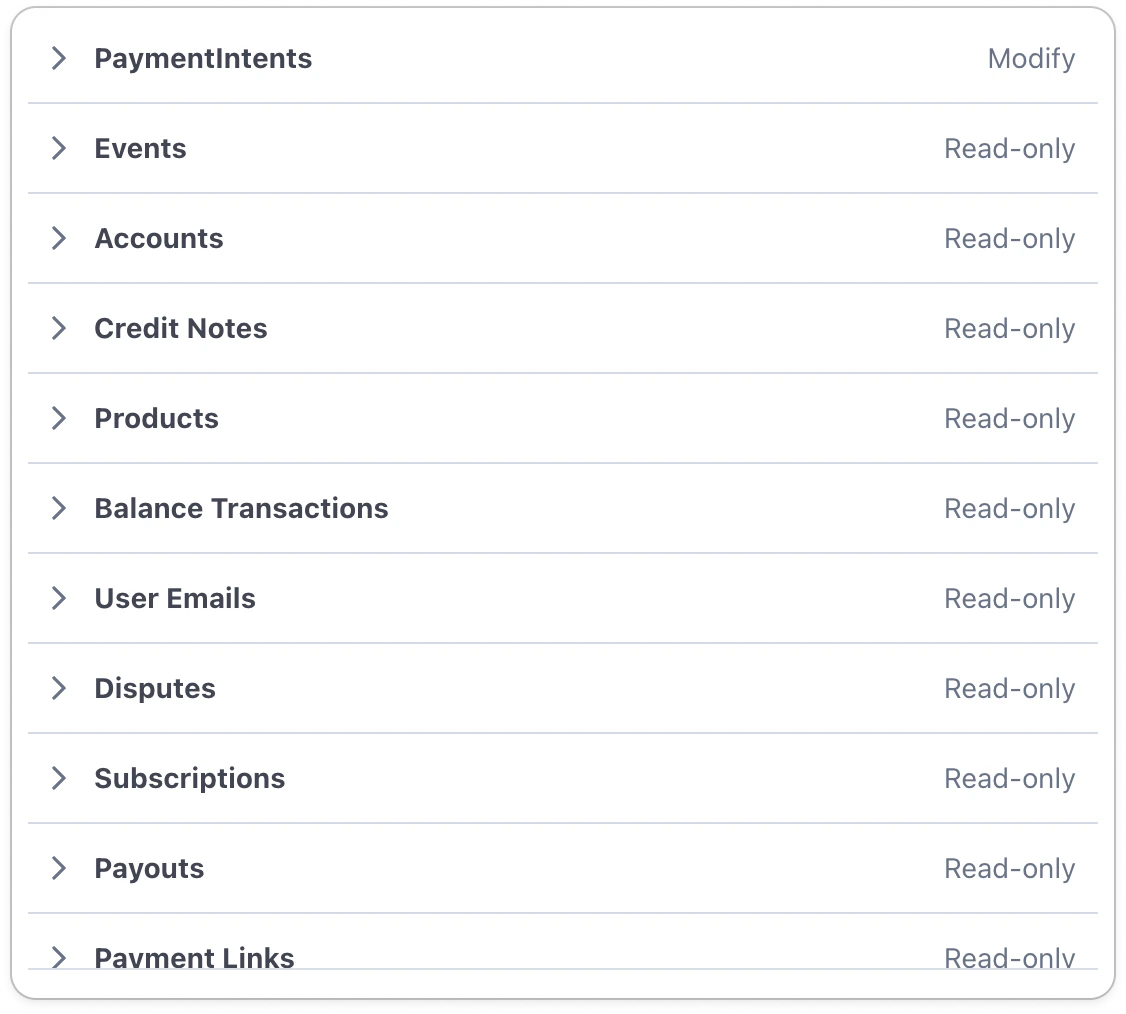
To connect Upflow with Stripe Billing, click on the Connect button after you have created a new organization.
How does the synchronization work?
Once you have given Upflow access to your Stripe data, we will run a full synchronization of it. This can take several hours, and then the data will be synced in real time.Contact sync
We import the customer’s email address as the customer’s main contact. For additional contacts, you can rely on CSV imports, API configurations, or our feature Send emails to a custom field address. Note the latter won’t create customer records, but will ensure the contacts contained in the custom fields are available to be picked in your collection process. From your Upflow Settings > Custom fields, click “Add field”: Add the required fields: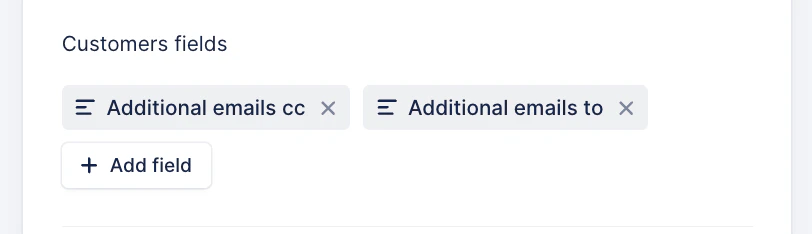
Invoice sync
Draft invoices are not imported into Upflow. Voided invoices are imported with the status VOIDED. Uncollectible invoices are imported and considered as PAID.Payment sync
Unapplied payments are not imported into Upflow as they don’t impact the Stripe credit balance. Payment methods are imported along with the payment. If invoices are paid via the Upflow portal, we will write back the payment to Stripe. As the Stripe Billing API doesn’t allow us to specify the payment invoice, we mark the invoice as paid out of band.Payment export error
If a payment made by your customer in their Upflow portal, shows a Stripe Billing error status, you can identify them through the dedicated filter: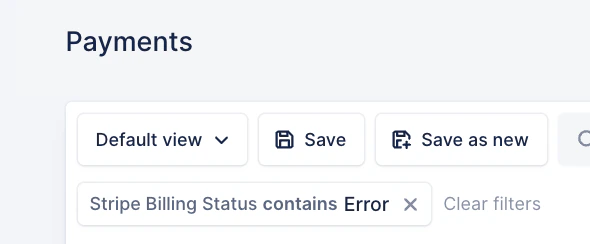
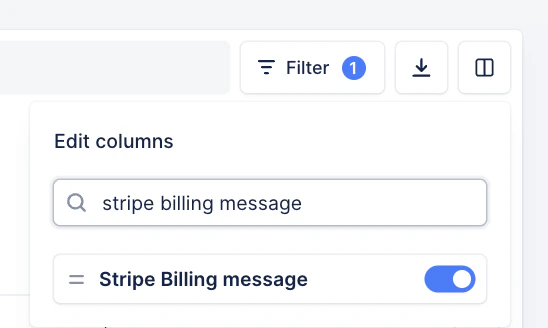
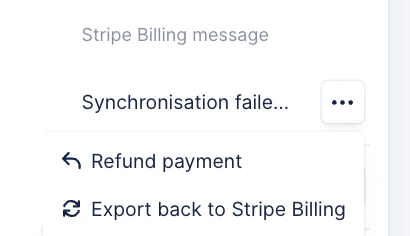
Custom field sync
You can import Stripe metadata as custom fields in Upflow. These fields are available for customers, invoices, and payments. Additionally, some native Stripe fields can be added from the Upflow custom field section. They are:- Account email
- Delinquent
- Description
- Discount
- Default payment method
- Sources
- Subscriptions
- Tax location country
- Tax exempt